> For the complete documentation index, see [llms.txt](https://docs.shortcutco.com/llms.txt). Markdown versions of documentation pages are available by appending `.md` to page URLs; this page is available as [Markdown](https://docs.shortcutco.com/readme/automations.md).

# Automations

Automations help you send the right follow-up at the right time without having to remember every message yourself.

Company admins use Automations to manage customer messaging for leads, proposals, scheduling, invoices, and failed payments. [Open Automations →](https://shortcutco.com/automations)

{% hint style="info" %}
Your plan includes the full automation library **and** the custom builder. (On some legacy plans, custom automations may be locked — see Plan & Billing.)
{% endhint %}

## What you can do here

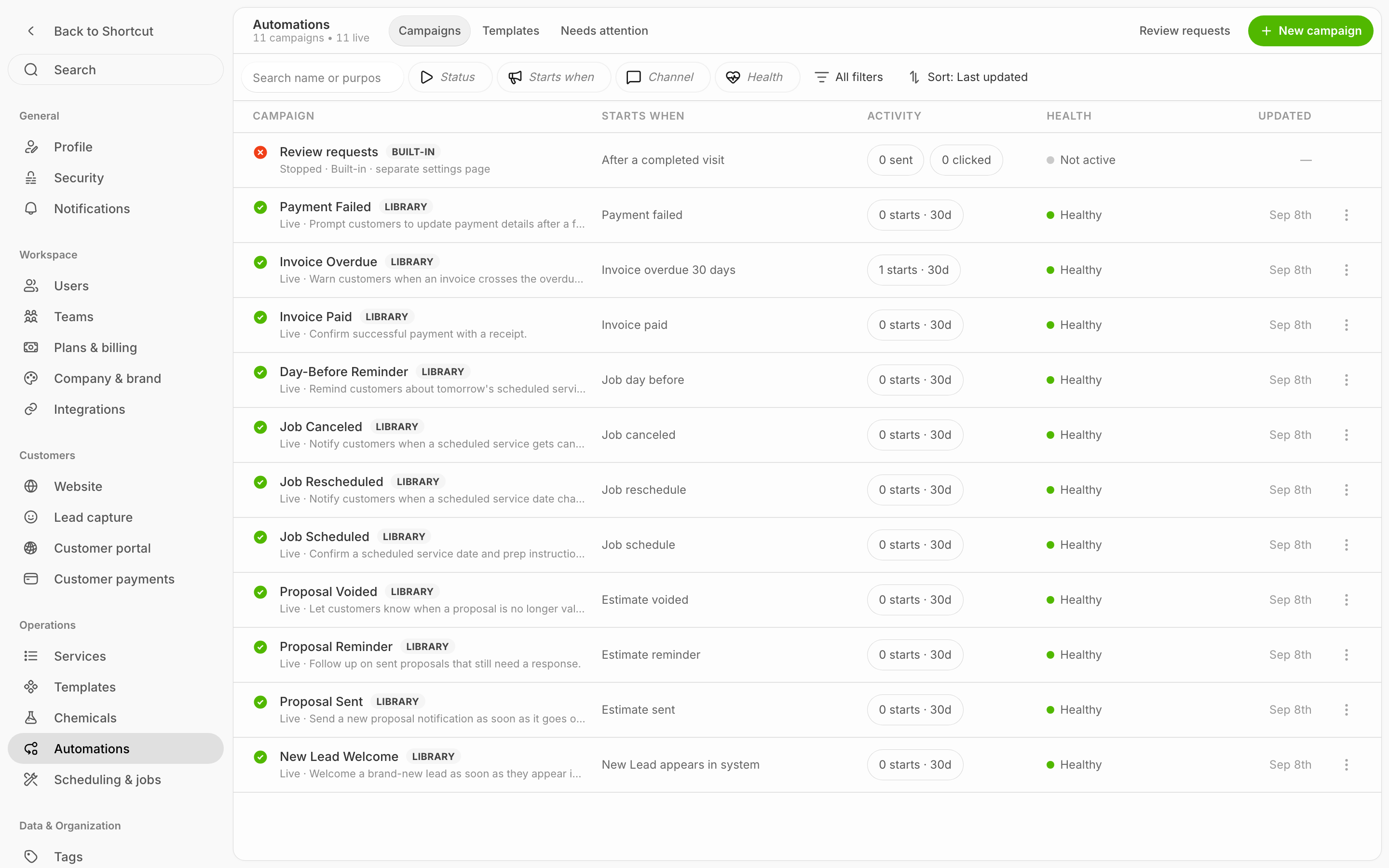
* See which automations are active and inactive
* Turn built-in automations on or off
* Edit message wording and merge tags
* Choose timing such as immediate send or a delay
* Duplicate a library automation or build your own custom journey
* Ask happy customers for Google reviews automatically — see [Review requests](/readme/automations/review-requests.md)

## Where to find it

Go to **Automations** in the left navigation. Only **company admins** can access this area. [Open Automations →](https://shortcutco.com/automations)

<figure><img src="/files/AC6DSUwbWpKlcbEiRGN0" alt="Automations page showing active and inactive customer messaging automations"><figcaption><p>The Automations workspace shows your available journeys, whether each one is active, and where to open or edit it.</p></figcaption></figure>

## A simple mental model

{% stepper %}
{% step %}

### Start with the built-in library

Shortcut includes ready-made automations for common customer moments like new leads, proposals, schedule changes, and overdue invoices.
{% endstep %}

{% step %}

### Turn on the journeys you want

You can activate only the messages that fit your business. Not every automation needs to be on.

<figure><img src="/files/uqrBFRHAmpUvhnSZui3t" alt="Automation detail page with active status"><figcaption><p>Open an automation to verify whether it is active.</p></figcaption></figure>
{% endstep %}

{% step %}

### Tune the message and timing

Where supported, you can adjust the wording, merge tags, and delay so the message feels like your brand.

<figure><img src="/files/9QO07EChH47p4Y4q8qyT" alt="Automation message editor with merge-tag content"><figcaption><p>Review message text and merge tags before activating automation.</p></figcaption></figure>
{% endstep %}

{% step %}

### Use custom automations if you need different logic

You can create a brand-new automation or duplicate a built-in one when you need a different trigger, filter, or step sequence.
{% endstep %}
{% endstepper %}

## Library vs custom

The **built-in library** gives you ready-made journeys you can switch on, reword, and re-time. Library automations stay owned by Shortcut — to change one's structure, **duplicate it** into your own custom version.

The **custom builder** lets you start from scratch: pick a trigger, add filters, set timing, and choose actions (email, SMS, or task). See [Automations library + trigger guide](/readme/automations/automations-list-+-triggers-exact.md).

## What you'll see in the workspace

The main Automations page is organized into three tabs:

* **Overview**
* **Active**
* **Inactive**

From there you can:

* open an automation
* activate or deactivate it
* review usage at a glance
* duplicate it if your plan allows custom automations

## Common automation categories

Shortcut's built-in library covers the most common customer journeys:

* **Leads**: welcome and follow-up after a new inquiry
* **Proposals**: sent, reminder, and voided flows
* **Jobs**: scheduled, rescheduled, canceled, and day-before reminders
* **Payments**: paid, overdue, and failed payment follow-up

For the exact current library and trigger list, see [Automations library + trigger guide](/readme/automations/automations-list-+-triggers-exact.md).

{% hint style="info" %}

### Merge tags

Automations support merge tags so messages feel personal instead of generic. Common examples include:

* `{{COMPANYNAME}}`
* `{{FIRSTNAME}}`
* `{{SCHEDULEDDATE}}`
* `{{TOTALAMOUNT}}`
* `{{ESTIMATELINK}}`
  {% endhint %}

## Good to know

{% hint style="warning" %}

* If an automation has a delay, it will not send instantly.
* If you accept **manual payments** like cash or check, make sure you mark the invoice as paid in [Finances](https://shortcutco.com/invoices) so payment reminders stop.
* Scheduled sends and wait windows use your company timezone.
* A customer who has replied **STOP** to a text won't receive automated SMS from any automation, including the day-before job reminder and [review requests](/readme/automations/review-requests.md). Those sends are recorded as **skipped**. Email still goes out.
  {% endhint %}

## Related pages

* [Automations library + trigger guide](/readme/automations/automations-list-+-triggers-exact.md)
* [Troubleshooting: an automation didn't fire](/readme/automations/troubleshooting-an-automation-didnt-fire.md)
* [Mark an invoice as paid (manual)](/readme/finances-invoices-and-payments/mark-an-invoice-as-paid-manual.md)

{% hint style="info" %}
Still stuck? Email **<hello@shortcutco.com>** with the automation name, the customer name, and a screenshot of the automation settings.
{% endhint %}
