> For the complete documentation index, see [llms.txt](https://docs.shortcutco.com/llms.txt). Markdown versions of documentation pages are available by appending `.md` to page URLs; this page is available as [Markdown](https://docs.shortcutco.com/readme/automations/build-and-publish-a-campaign.md).

# Build and publish a campaign

Create a campaign from a template or from scratch, choose how it starts, add steps, test it, and publish it.

A campaign starts as a draft. You review it and publish it to make it live, then publish again whenever you change it. Nothing you do while building sends anything to a customer. Customers only hear from a campaign after you publish it.

## Start a new campaign

There are three ways to begin, all from [Automations](https://shortcutco.com/settings/automations):

* **From a template.** Open the **Templates** tab and click **Use template** on a card. See [Templates, starts, and steps](/readme/automations/automations-list-+-triggers-exact.md#templates).
* **From scratch.** Click **New campaign**. You get a simple starting flow (**Customer created** → an email → a 1-day delay) to edit.
* **From an existing campaign.** Click **⋮ → Duplicate** on its row.

A new campaign opens on the builder. Give it an **Automation name** and, optionally, a **Description**. **Start from a recipe** lets you swap in any template while the campaign is still unsaved. Choosing one replaces the flow below it.

Click **Save draft** to save. **Cancel** takes you back to the list without saving.

## Choose how it starts

The **Starts when** card at the top of the flow holds your starts. Click **Add another way to start** and pick one of three cards:

| Card                               | Example                                                                              |
| ---------------------------------- | ------------------------------------------------------------------------------------ |
| **When something happens**         | e.g. an invoice becomes overdue, an estimate is sent, a visit is rescheduled.        |
| **When customers meet conditions** | e.g. had a visit last season and nothing scheduled this year. Checked on a schedule. |
| **On a date or schedule**          | e.g. every Monday 9:00 AM, 3 days before a visit, on a specific date.                |

<figure><img src="https://2299783971-files.gitbook.io/~/files/v0/b/gitbook-x-prod.appspot.com/o/spaces%2FOhi7KtJ4vY1pDKwWu5SV%2Fuploads%2Fgit-blob-fc0751eda511318fecbef086e3631220e8e62720%2Fautomation-start-mode-chooser.png?alt=media" alt="A new campaign in the builder, with the Starts when card showing the three ways to start: When something happens, When customers meet conditions, and On a date or schedule"><figcaption><p>Click Add another way to start to choose how a campaign begins.</p></figcaption></figure>

Click a start to open its settings. Use **Start type** to switch between **Event**, **Audience**, **Date**, and **Schedule**. Click **Done** to keep your changes or **Cancel** to throw them away. A campaign with more than one start has **Remove start** on each.

### When something happens

Pick an **Event**. The list is grouped by business area: Visits, Customers, Invoices & payments, Estimates, Services & visits, Tags & fields, Staff work, and Messages. The full list is on [Templates, starts, and steps](/readme/automations/automations-list-+-triggers-exact.md#events-you-can-start-from).

Some events come with preset conditions. For example, **Invoice paid** checks that the invoice's status is now paid. Choosing an event replaces any conditions with its preset. You can then narrow them with **Event conditions**, or add some with **Add conditions**.

Only events that happen **after the campaign goes live** count. Publishing doesn't reach back in time.

### When customers meet conditions

Pick a **Starting record**: **Customer**, **Property**, **Estimate**, **Invoice**, **Job**, **Visit**, or **Task**. Then describe who qualifies under **Audience conditions**.

Shortcut keeps checking these rules. When a customer or record **newly matches**, it starts a run. Anyone who already matches when you publish is left out unless you choose to include them in the review step. See [Include existing matches](#include-existing-matches).

### On a date or schedule

**A date relative to a record.** Choose **Date anchor → A date relative to a record**, then set:

* the **Record** and its **Date field**, such as a visit's date or an invoice's due date
* **Before the field date** or **After the field date**
* how far, with **Amount** and **Unit**

Tick **Repeat every year (anniversary)** for yearly dates like "customer since".

**A specific date.** Choose **Date anchor → A specific date** and set the **Date and time**.

**A repeating schedule.** Change **Start type** to **Schedule**, then set:

* **Repeats**: **Daily**, **Weekly** (pick the **Days**), **Monthly** (pick the **Day of month**), or **Yearly** (pick the **Month** and **Day of month**)
* **At**: the time of day
* optionally **Starts on** and **Ends on**

Each time the schedule comes around, every record that meets the conditions starts a run, subject to your repeat rules. Records created after that day's scheduled time wait for the next one.

Date and schedule starts also have a **Starting record**, the same choice as for audience starts, and can have conditions (**Add conditions**).

{% hint style="info" %}
**The start decides which email opt-out applies.** Customers can turn off billing, service, or marketing emails separately. A run that starts from an invoice or payment sends billing emails. One that starts from a visit, service, estimate, task, or an incoming text sends service emails. Other starts, such as a customer, lead, tag, or property start, send marketing emails. For audience, date, and schedule starts, the **Starting record** decides. See [Which kind a campaign email is](/readme/finances-invoices-and-payments/customer-email-preferences.md#which-kind-a-campaign-email-is).
{% endhint %}

{% hint style="info" %}
**Dates count from the start of the day.** "1 day before the visit" means midnight at the start of the day before. Texts to customers wait until 8:00 AM on their own, but emails don't, so if the next step is an email, add a **Sending window** step after the date. For a reminder **before** a visit or due date, tick every day in the window's **Days**: a reminder still waiting when that date arrives is dropped, so a Monday–Friday window would skip Sunday and Monday visits.
{% endhint %}

## Build rules

Conditions, audiences, exits, and **Only run when** all use the same rule builder:

* Each group is **All of these**, **Any of these**, or **None of these**.
* **Add rule** adds a line. **Add group** nests another group inside.
* **Rule type** can be:
  * **Field value**, e.g. *This invoice's balance due* **is at least** 100
  * **Field presence**, e.g. a field **is set** or **is missing**
  * **Related records**, e.g. any, all, or none of a customer's related records
  * **History**, e.g. *no* completed visit **within** 90 days
  * **Seasonal window**, e.g. **From (MM-DD)** 09-01 **Through (MM-DD)** 11-30
* On event starts, **Fact timing** chooses between **Current state** and **At the start event** (the value at the moment the event happened).

If Shortcut doesn't have the information a rule needs, that customer or record doesn't count as a match. These show up on the campaign's **Overview** under **Start checks**.

## Add steps

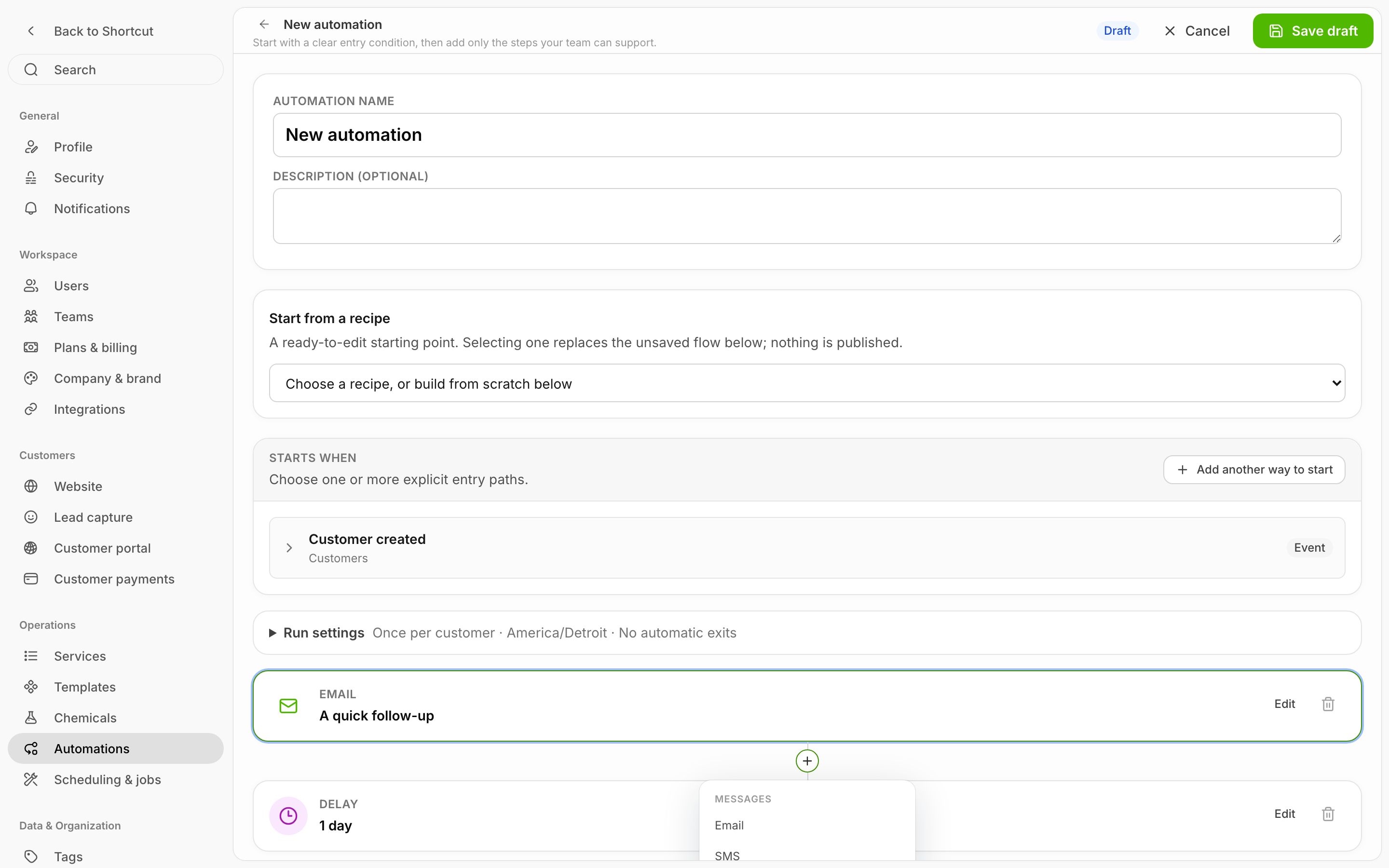
Every connector between steps has a small **+**. Click it to open **Add a step**:

| Group          | Steps                                                                 |
| -------------- | --------------------------------------------------------------------- |
| **Messages**   | **Email**, **SMS**                                                    |
| **Timing**     | **Delay**, **Sending window**, **Date wait**                          |
| **Operations** | **Task**, **Internal notification**, **Tag update**, **Field update** |
| **Paths**      | **Branch**, **Wait for event**                                        |

The new step is inserted at that exact spot and opens for editing. **Tag update** only appears if your company has [tags](/readme/leads-prospects-customers/customer-tags.md). **Field update** only appears if you have [custom fields](/readme/configuration/custom-fields.md).

<figure><img src="https://2299783971-files.gitbook.io/~/files/v0/b/gitbook-x-prod.appspot.com/o/spaces%2FOhi7KtJ4vY1pDKwWu5SV%2Fuploads%2Fgit-blob-4004ac8416688cf50c0f9d59216c879b37179ef6%2Fautomation-step-insert-menu.png?alt=media" alt="The + between an Email step and a Delay step clicked, with the Add a step menu open on its Messages group"><figcaption><p>Click the + between two steps to insert a new one at that spot.</p></figcaption></figure>

### Editing a step

Click **Edit** on a step card. The settings open beside the flow on a wide screen, or under the card on a narrower one. Click **Done** to keep changes or **Cancel** to discard them. The **trash** icon removes the step, and the flow reconnects around it.

<figure><img src="https://2299783971-files.gitbook.io/~/files/v0/b/gitbook-x-prod.appspot.com/o/spaces%2FOhi7KtJ4vY1pDKwWu5SV%2Fuploads%2Fgit-blob-b291d32a37ddd73bbb4869f0d51c8e52fe1b922d%2Fautomation-workflow-inspector.png?alt=media" alt="An Email step open for editing, with its Recipient, Use starter wording, and Subject settings in a panel to the right of the flow"><figcaption><p>On a wide screen, a step's settings open beside the flow.</p></figcaption></figure>

| Step                      | What you set                                                                                                                                                                                                                                                           |
| ------------------------- | ---------------------------------------------------------------------------------------------------------------------------------------------------------------------------------------------------------------------------------------------------------------------- |
| **Email** / **SMS**       | **Recipient**: **Customer**, **Specific staff member**, and, when the campaign involves a task, service, or visit, **Assigned staff** or **Assigned team**. Also **Use starter wording (optional)**, **Subject** (email only), and **Message** / **Text message**.     |
| **Delay**                 | **Amount** and **Unit** (minutes, hours, days, weeks, months)                                                                                                                                                                                                          |
| **Sending window**        | **Start time**, **End time**, and the **Days** it may send (Mon–Fri 9:00–17:00 to start). The run waits here until the window is open. Texts to customers still never go out before 8:00 AM or after 8:00 PM, whatever the window allows.                              |
| **Date wait**             | A **Date field** on the customer, visit, invoice, or other record. **Wait**: **Before date** or **After date**, by **Amount** and **Unit**. If the date moves before the message sends, the wait moves with it. See below for what happens when a run reaches it late. |
| **Task**                  | **Task title**, and when it's due (**Amount** / **Unit** from when the step runs). The task is added to the customer's **Tasks**, unassigned.                                                                                                                          |
| **Internal notification** | **Notify**: **Company admins**, **Specific staff member**, or **Assigned staff** / **Assigned team** when available. Plus a **Title** and **Message (optional)**. It arrives as a push and email under each person's **Automation updates** notification setting.      |
| **Tag update**            | **Add tag** or **Remove tag**, and which **Tag**                                                                                                                                                                                                                       |
| **Field update**          | One of your customer **custom fields**: **Set value** or **Clear value**                                                                                                                                                                                               |
| **Branch**                | A condition, then where the **True path** and **False path** go                                                                                                                                                                                                        |
| **Wait for event**        | A condition to wait for, how long to wait, and where **When matched** and **On timeout** go                                                                                                                                                                            |

**When a run reaches a Date wait late**, for example because a visit was booked the day before:

* With **Before date**, the run carries on at once as long as the date itself hasn't arrived, so that visit still gets its reminder. Once the date arrives, the run ends instead of sending something stale.
* With **After date**, the message has to go on the day it's due. If the run gets there after the due time, the run ends.

Any message or operation step can also have **Add run condition** (**Only run when** …). If the condition isn't true when the run reaches the step, the step is skipped and the run moves on. The card shows **Run when:** so you can see it at a glance.

**Branch** and **Wait for event** cards split into two paths, **True path** / **False path** or **When matched** / **On timeout**, each with its own **+**. A step that nothing leads to is marked **Unreachable from the entry step.**

### Personalize messages

Under the message box, **Insert:** shows the details you can drop in. You'll only see the ones that make sense for the campaign's start:

* Customer first name, Customer last name, Company name
* Invoice total, Invoice due date, Invoice link
* Estimate link
* Visit date
* Grouped reminder visit date, services, and addresses (day-before campaigns only)

They appear in the message as `{{customer.firstName}}`, `{{invoice.link}}`, and so on. Dates and amounts are written out for the customer: a visit date reads *Monday, October 5*, an invoice due date *October 5, 2026*, and an invoice total *$1,250.00*.

**Use starter wording (optional)** fills the message from one of the templates.

## Run settings

Click **Run settings** under the starts. The summary line reads something like *Once per customer · America/Denver · No automatic exits*.

* **Run**: **Once**, or **Every time** a match happens.
* **Per**: **Customer**, **Related object** (the invoice, visit, or estimate), **Event**, or **Automation**.
  * "Once per Related object" means once per invoice, for example.
  * With **Every time**, you can add a cooldown (**Amount** / **Unit**) so the same customer or record can't start again too soon.
* **Company timezone**: the timezone this campaign uses for dates, schedules, and sending windows, including daylight-saving changes.
* **Campaign exits**: click **Add exit condition** to end runs early when something becomes true, like "the invoice is paid". An exit is checked before every step, and a customer who already meets an exit doesn't start. Give it a **Reason (optional)** so it's easy to read later.

Two more rules apply to every campaign:

* If a run is already in progress for the same customer and record, a new start doesn't begin a second one.
* A campaign's own messages can't start that same campaign again.

## Save and test

Click **Save draft**. After saving, the Workflow tab shows **Send an internal test message**:

1. Pick the **Message** step and an **Internal recipient** (an active staff member).
2. Click **Send labeled test**.

Only that person receives it, filled with clearly labeled sample customer data. Tests don't start the campaign and don't count in its results. You'll see **Test queued**, then **Test accepted by the provider** (check their inbox or phone). If you send several in a row, you'll be asked to wait a minute before sending more.

## Review and publish

Click **Review & publish**. Save any changes first; the button is greyed out until you do. A review window opens, titled **Review before starting** for a campaign that has never run, or **Review before publishing v4** (whichever version is next) for a live one.

<figure><img src="https://2299783971-files.gitbook.io/~/files/v0/b/gitbook-x-prod.appspot.com/o/spaces%2FOhi7KtJ4vY1pDKwWu5SV%2Fuploads%2Fgit-blob-fb333b12fa24c9f00cb733556d140fc94421ec2d%2Fautomation-review-modal.png?alt=media" alt="The Review before starting window for a new campaign, with the Ready to publish badge, the Starts, Repeat, Timing, and Running version boxes, a review warning, and the Start campaign button"><figcaption><p>Review before starting: nothing sends when you publish. New starts use this version from now on.</p></figcaption></figure>

What's in the window:

* **A status badge**: **Ready to publish**, **N blocking issues**, or **Confirmation required**.
* **A summary**: **Starts**, **Repeat**, **Timing**, and **Running version** (which version runs already in progress keep, and which one new starts use).
* **Resolve before publishing**: problems that stop you publishing, such as a missing field, a staff member who has left, or an inserted detail (like `{{invoice.link}}`) that doesn't fit the start. Each one tied to a step has **Go to step**, which closes the window and takes you straight to that card.
* **Review warnings**: things to know that don't block you. There's always one about Stop. Others appear for day-before campaigns and for stopped campaigns (publishing doesn't restart a stopped campaign).

Then click **Start campaign** on a first publish, or **Publish v4** (or whichever version is next) on a live one. **Not now** closes the window and leaves your saved draft as it is.

Publishing doesn't send anything right away. It makes this the version that new runs use.

### Include existing matches

This option only appears the **first** time you start a campaign with a **When customers meet conditions** start. Shortcut counts who already qualifies, a batch at a time (for example, *12 candidates checked · 3 matches so far*). Click **Count remaining matches** to finish the count, or **Cancel count** to stop it. **Why some candidates are excluded** explains anyone left out.

Once the count is complete, tick **Include existing matches from audience starts** to enroll everyone who qualifies today. Leave it unticked to catch only people who start qualifying from now on. You can't tick it if any candidate is missing information Shortcut needs.

### Replacing the day-before reminder

If the campaign starts on **Day before service (grouped per customer)**, you must tick **Replace the old grouped day-before reminder with this automation** before you can publish. This is permanent. The old reminder stays off even if you stop or archive this campaign. See [The day-before reminder is the one exception](/readme/automations.md#the-day-before-reminder-is-the-one-exception).

## Change a live campaign

Click **Edit** on a live campaign, make your changes, and **Save draft**. Customers still get the published version, and the list shows a **Draft changes** badge.

When you're ready, click **Review & publish** → **Publish v4**. Anyone already partway through keeps going on version 3. New starts use version 4.

## On a phone

You can't review or publish from a phone; **Review & publish** only appears on a wider screen. Building is done on the web. The Shortcut mobile app is for watching campaigns and stopping them: see [On your phone](/readme/automations/campaign-activity-and-receipts.md#on-your-phone).

## Related pages

* [Templates, starts, and steps](/readme/automations/automations-list-+-triggers-exact.md)
* [Campaign results, activity, and receipts](/readme/automations/campaign-activity-and-receipts.md)
* [Troubleshooting: an automation didn't fire](/readme/automations/troubleshooting-an-automation-didnt-fire.md)