> For the complete documentation index, see [llms.txt](https://docs.shortcutco.com/llms.txt). Markdown versions of documentation pages are available by appending `.md` to page URLs; this page is available as [Markdown](https://docs.shortcutco.com/readme/chemical-tracking.md).

# Chemicals

Chemicals gives lawn care and pest control teams one place to manage chemical programs, track what was actually applied in the field, and keep compliance history organized.

{% hint style="info" %}
Chemicals is included in your plan.

* Live field use requires the module to be turned on and setup marked complete.
* On some legacy plans the workspace shows a locked preview — see Plan & Billing.
  {% endhint %}

## Who this is for

* **Company admins** use Chemicals to set up the module, manage products and programs, review application records, and export compliance history.
* **Employees** do not use the full Chemicals workspace. They record applications from their assigned chemical jobs.

## A helpful mental model

Think of Chemicals as three connected parts:

1. **Settings**: turn the module on, choose compliance defaults, and finish setup
2. **Programs and products**: define what you sell and what gets applied
3. **Application records**: track what happened in the field and export it later

## Before you start

If you are setting up Chemicals for the first time, this is the easiest order to follow:

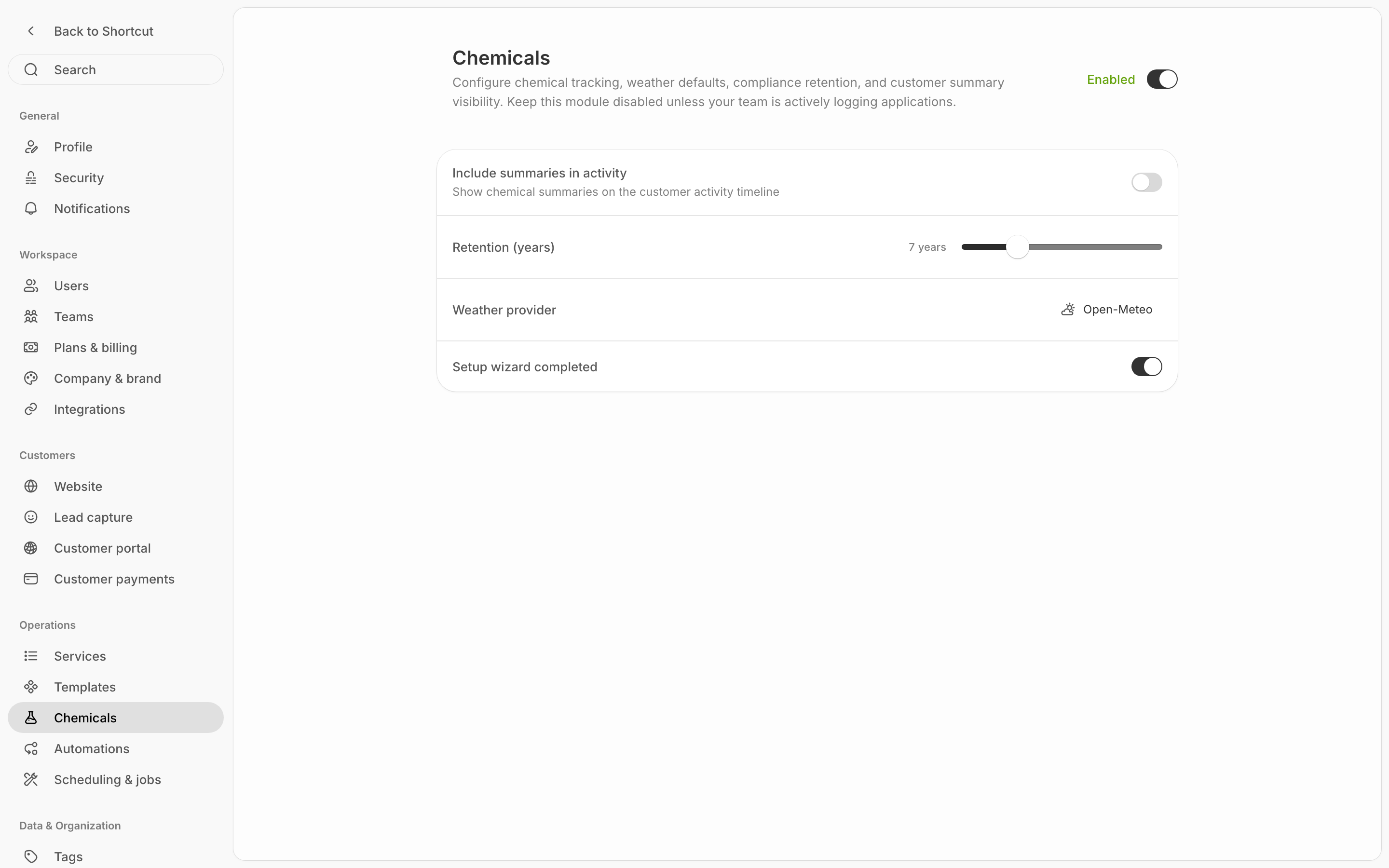
1. Open the **settings cog → Operations & Compliance → Chemicals**
2. Turn on the chemical tracking module
3. Choose your retention, weather, and customer-summary settings
4. Add applicator license numbers for team members in [Workforce](/readme/configuration/workforce-users-+-roles-+-teams.md)
5. Build your product catalog and programs
6. Mark setup complete when you are ready for live field use

{% hint style="warning" %}
Employees cannot complete chemical records until setup is complete.
{% endhint %}

<figure><img src="/files/q09haPgtFaKR9ncRoF99" alt="Chemicals settings page"><figcaption><p>Finish Chemicals setup before employees record field applications.</p></figcaption></figure>

## What you manage in Chemicals settings

In **Chemicals settings** (settings cog → Operations & Compliance → Chemicals), company admins can control:

* whether chemical tracking is enabled
* how long compliance history is retained
* which weather provider is used for records
* whether chemical summaries appear on the customer activity timeline
* whether setup is marked complete

One important detail: technician license numbers are managed in **Workforce**, not inside Chemicals settings.

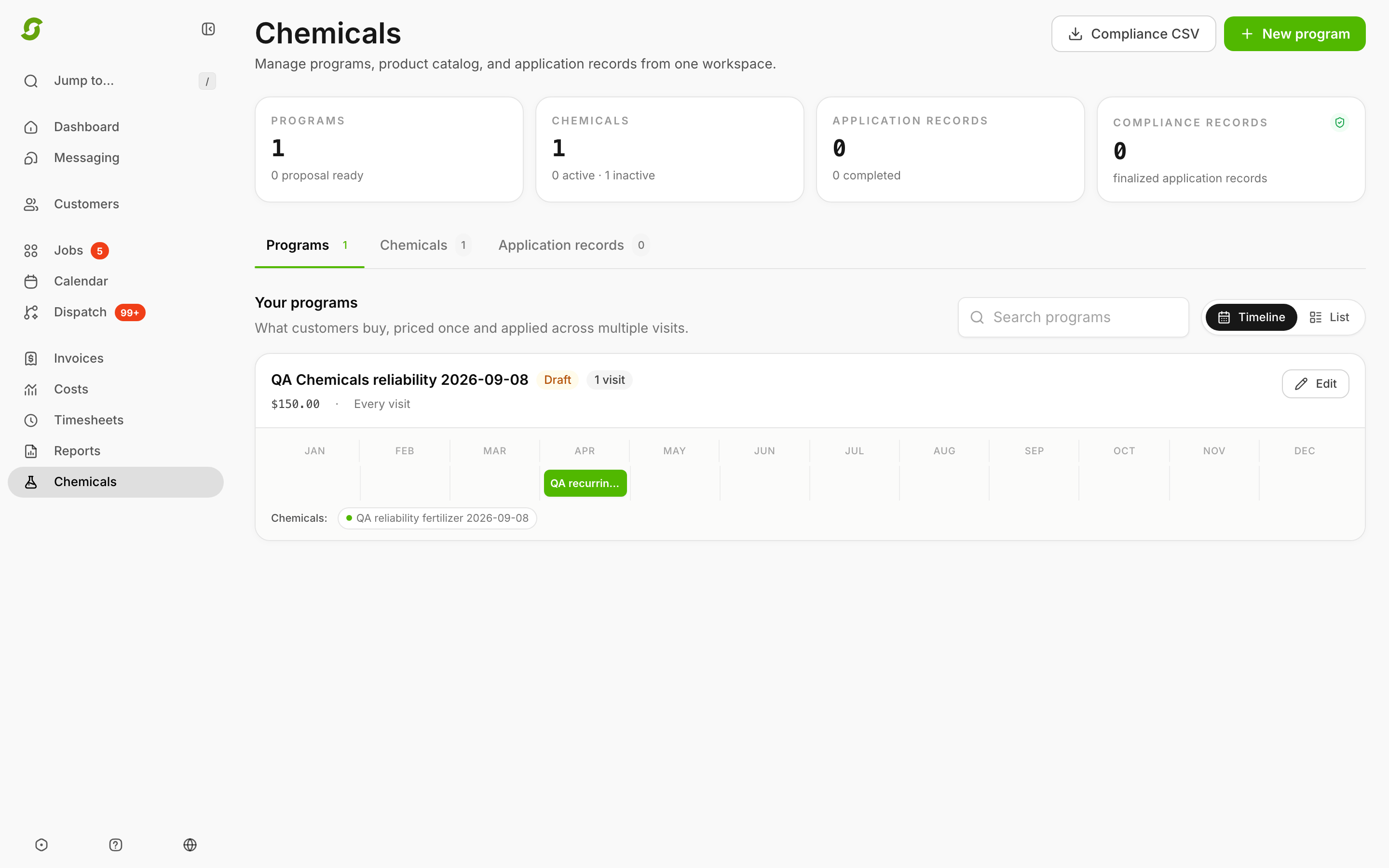
## Programs

Programs are the chemical services you sell and perform.

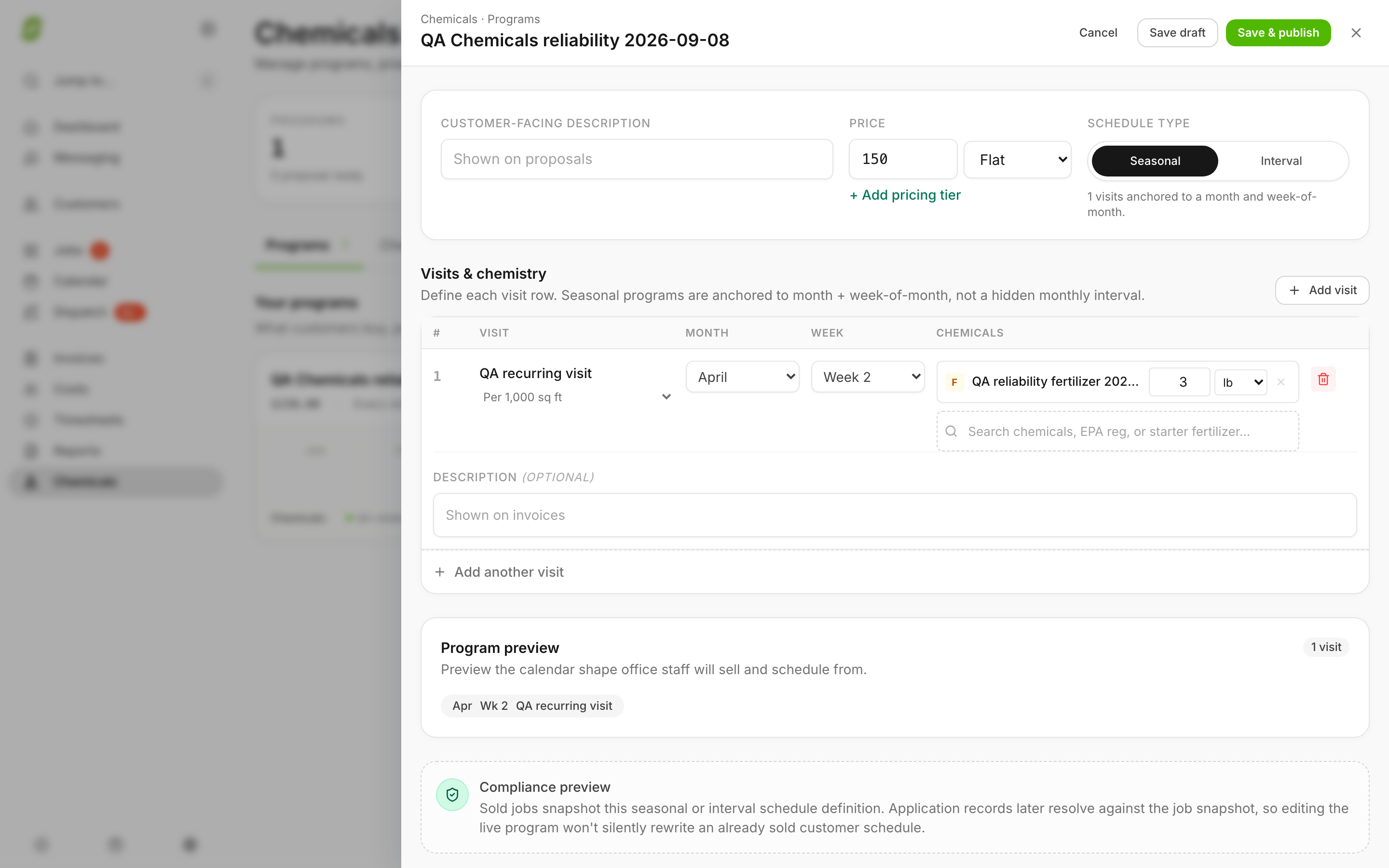
Each program can include:

* a name and optional customer-facing description
* pricing information
* one or more planned visits
* the products and recipe lines for each visit
* an active or inactive status

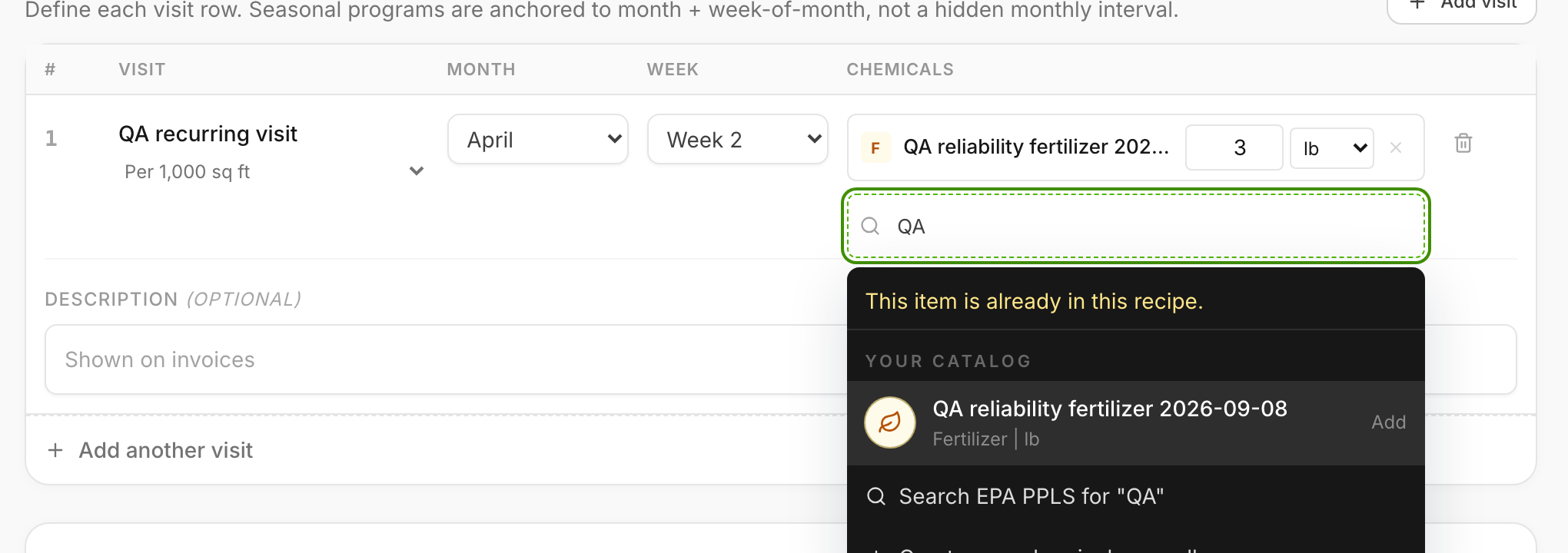
Shortcut supports two main schedule styles:

| Schedule style | Best for                                                 | How it works                                                       |
| -------------- | -------------------------------------------------------- | ------------------------------------------------------------------ |
| **Seasonal**   | Lawn treatment programs with known seasonal rounds       | Each visit is tied to a planned month and week of month            |
| **Interval**   | Repeating services like mosquito or perimeter treatments | One shared recipe repeats every set number of days within a season |

Shortcut also includes templates to help you get started faster.

<figure><img src="/files/a7BCRL1moffJ4fla21WY" alt="Chemicals workspace with programs tab"><figcaption><p>Programs define planned visits and recipes for chemical services.</p></figcaption></figure>

{% hint style="info" %}
When you sell or schedule a job from a chemical program, Shortcut keeps the version that was sold with that job. Later edits to the live program do not rewrite past work automatically.
{% endhint %}

## One-off chemical applications

Programs are for a series of visits. If you just want to do a **single treatment** — one visit, one application — create it as a **chemical service** in your catalog instead:

1. Open the **settings cog (bottom left) → More → Catalog → Services**.
2. Click **Create service**.
3. At the top of the window, switch the service type from **Standard service** to **Chemical service** ("One-time treatment").
4. Fill in the usual details (name, description, rate, price structure), then build the **Chemical recipe**: choose a recipe basis (**Per 1,000 sq ft**, **Fixed amount**, or **Spot treatment**), add the products and amounts, and optionally note target pests and technician notes.
5. Save.

<figure><img src="/files/yy0cgLHUU9d4q4yHVJMr" alt="Create service window with Chemical service selected and the Chemical recipe section"><figcaption><p>Pick Chemical service and the recipe section appears.</p></figcaption></figure>

The service now behaves like any other service — quote it on a proposal, add it to a job, or add it to a single visit — and when the visit is completed, the technician records the application like any chemical job, so your compliance history stays complete.

{% hint style="info" %}
The **Chemical service** option is available once chemical setup is complete. A service's type can't be changed after it's created — to convert a standard service, create a new chemical service and deactivate the old one.
{% endhint %}

## Selling and scheduling a program

* **Quote it:** chemical programs can be added to a proposal (estimate) like services — the customer sees the program and pricing.
* **Create it directly:** from a customer's profile, open the **Jobs** tab and click **Create job** — programs appear alongside services and templates.
* **Pick the starting round:** when you schedule a seasonal program, Shortcut suggests the right **starting round** for the time of year (you can override it). Later rounds follow the program's planned months or intervals, and you can bulk-adjust rounds from the Jobs page. See [Scheduling chemical programs (starting rounds & linked programs)](/readme/jobs-and-scheduling/scheduling-chemical-programs.md) for the full walkthrough — suggested rounds, manual catch-up, and how multiple programs share one start date.

## Chemicals catalog

The **Chemicals** tab is your company catalog of products.

You can add products in three ways:

* import a pesticide from EPA search
* add a starter fertilizer from the built-in catalog
* create a product manually

Products can store details such as:

* product name
* type: **Pesticide**, **Fertilizer**, or **Other**
* default unit
* active or inactive status
* EPA registration number for pesticides
* NPK and default application-rate details for fertilizers
* optional post-care instructions

You can also search, filter by type, and see where products are already used in programs.

<figure><img src="/files/BUoulf7etNY4kDQ4WEjG" alt="Chemicals product catalog"><figcaption><p>Use the catalog to manage products used in programs and records.</p></figcaption></figure>

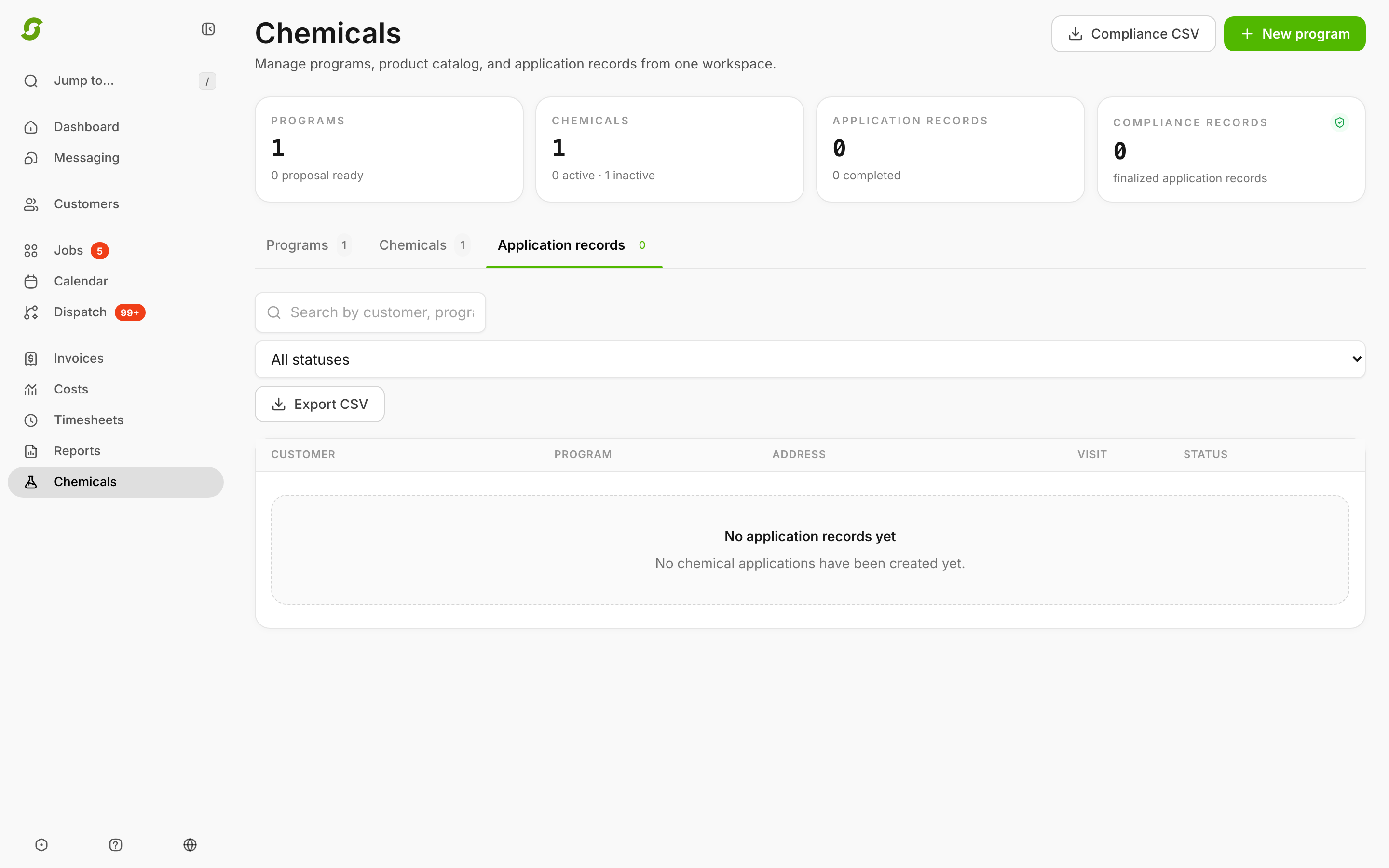
## Application records

Application records are where actual field work gets documented.

Company admins can review records from the **Application records** tab in Chemicals. Employees usually enter records from an assigned visit in **Today**.

The typical field workflow looks like this:

1. Open the chemical visit from **Today**
2. Start or continue the application record
3. Review the planned products that were pulled in from the program
4. Save changes as needed while the work is in progress
5. Complete the record when the application is finished

Completed records can include operational details such as:

* technician name and license number
* customer and property
* products applied
* planned and actual quantities
* treated square footage
* weather values and weather source
* notes and completion timestamps

<figure><img src="/files/tV3DQWDcCD9QrITJj4w0" alt="Mobile Chemicals application records view"><figcaption><p>Application records preserve what was applied in the field.</p></figcaption></figure>

## Who can do what

| Capability                         | Company admin | Employee                        |
| ---------------------------------- | ------------- | ------------------------------- |
| Open the Chemicals workspace       | Yes           | No                              |
| Manage products and programs       | Yes           | No                              |
| Open a chemical occurrence record  | Yes           | Yes, for eligible assigned work |
| Create or save a draft application | Yes           | Yes                             |
| Complete an application record     | Yes           | Yes                             |
| Amend a completed record           | Yes           | No                              |
| Export compliance CSV history      | Yes           | No                              |

Employees are intentionally limited. They can only work on chemical records when the job is eligible for them, including team access and current-day scheduling rules.

## Compliance export

Company admins can export compliance-ready CSV history from Chemicals.

The export is built from completed application records and can include fields like:

* technician name and license number
* customer and property details
* product name and EPA registration number
* planned and actual quantities
* treated square footage
* weather values and weather source
* notes and completion timestamps

This is the best place to start when you need a historical record of what was applied and when.

<figure><img src="/files/MA2Qdog1hDvDhwgjhMsH" alt="Chemicals compliance export area"><figcaption><p>Export compliance history when you need a record of applications.</p></figcaption></figure>

## Related pages

* [Scheduling chemical programs (starting rounds & linked programs)](/readme/jobs-and-scheduling/scheduling-chemical-programs.md)
* [Workforce (users + roles + teams)](/readme/configuration/workforce-users-+-roles-+-teams.md)
* [Worker app overview](/readme/worker-app/worker-app-overview.md)
* [Customer portal](/readme/customer-portal.md)

{% hint style="info" %}
Still stuck? Email **<hello@shortcutco.com>** with the customer name, the visit date, and a screenshot of the record or settings you are working with.
{% endhint %}