> For the complete documentation index, see [llms.txt](https://docs.shortcutco.com/llms.txt). Markdown versions of documentation pages are available by appending `.md` to page URLs; this page is available as [Markdown](https://docs.shortcutco.com/readme/chemical-tracking.md).

# Chemicals

Set up chemical tracking, manage programs and products, record field applications, and export compliance history in Shortcut.

Chemicals gives lawn care and pest control teams one place to manage chemical programs, track what was actually applied in the field, and keep compliance history organized.

{% hint style="info" %}
Chemicals is included in your plan.

* Crews can record applications only after the module is turned on and setup is marked complete.
* On some legacy plans the workspace shows a locked preview — see [Plans & billing](/readme/configuration/billing-subscription.md).
  {% endhint %}

## Who this is for

* **Company admins** use Chemicals to set up the module, manage products and programs, review application records, and export compliance history.
* **Employees** do not use the full Chemicals workspace. They record applications from their assigned chemical jobs.

## How Chemicals is organized

Think of Chemicals as three connected parts:

1. **Settings**: turn the module on, choose compliance defaults, and finish setup
2. **Programs and products**: define what you sell and what gets applied
3. **Application records**: track what happened in the field and export it later

## Before you start

If you are setting up Chemicals for the first time, this is the easiest order to follow:

1. Open **Settings → Operations → Chemicals**. [Open Chemicals settings →](https://shortcutco.com/settings/chemicals)
2. Switch on the toggle beside the **Chemicals** title so it reads **Enabled**. The other settings stay greyed out until you do.
3. Choose whether customers see what was applied, whether gaps block the filing export, and how long to keep records ([explained below](#what-you-manage-in-chemicals-settings)). Each change saves as soon as you make it.
4. Add applicator license numbers for team members: **Settings → Workspace → Users**, open a person's **⋯** menu, choose **Edit**, and fill in **Applicator license number (optional)**. See [Users and Teams](/readme/configuration/workforce-users-+-roles-+-teams.md).
5. Build your [product catalog](#chemicals-catalog) and [programs](#programs).
6. Switch on **Setup wizard completed** when you are ready for live field use. Creating a program switches it on for you, as long as your catalog has at least one active chemical.

{% hint style="warning" %}
Crews don't see chemical records on their visits in **Today** until tracking is on and setup is complete.
{% endhint %}

<figure><img src="https://2299783971-files.gitbook.io/~/files/v0/b/gitbook-x-prod.appspot.com/o/spaces%2FOhi7KtJ4vY1pDKwWu5SV%2Fuploads%2Fgit-blob-b8bab3901cbb64a58295e808b39266fe5ceb46a3%2Fchemicals-settings.png?alt=media" alt="Chemicals settings with the module Enabled, Share application records with customers switched off, Monitored devices and Require a scan to record a reading switched on, Block filing exports with missing fields switched off, Retention at 7 years, and Setup wizard completed switched on"><figcaption><p>Finish Chemicals setup before employees record field applications.</p></figcaption></figure>

## What you manage in Chemicals settings

In [Chemicals settings](https://shortcutco.com/settings/chemicals) (**Settings → Operations → Chemicals**), company admins can control:

* **The module switch** beside the **Chemicals** title (it reads **Enabled** or **Disabled**) turns application logging on. While it's off you can still build products and programs (the Chemicals page shows **Application logging is off**), but crews can't record applications, the compliance export won't download, and the Chemical Applications document in Reports won't open. The settings below are greyed out while it's off.
* **Share application records with customers** lets customers see what was applied: the products, EPA numbers, amounts, date, and the applicator's name and license. They see it on portal service reports and in texts that list the products applied (see [Sharing records with customers](#sharing-records-with-customers)). Notes, costs, and weather stay internal. It's off until you switch it on.
* **Block filing exports with missing fields** is off by default. While it's off, the [Chemical Applications](/readme/reports.md#chemical-applications) filing in Reports still exports when a row is missing a required detail: the gaps are listed in a **Missing fields** column, with a warning at the top. Switch it on and the filing, its CSV and PDF, and its scheduled deliveries are refused until every row is complete.
* **Retention (years)** sets your retention period for compliance history, from 1 to 25 years. The default is 7.
* **Setup wizard completed** tells Shortcut you're ready for crews to record applications.
* **Monitored devices** turns on bait station and trap checks for pest control work, and **Require a scan to record a reading** sets whether crews must scan each one. Monitored devices is off until you switch it on. See [Bait stations and traps](/readme/chemical-tracking/pest-control-devices.md).

Completed records always show on the customer's profile. There's no setting for that.

There's no Save button: changes save as you make them. If one can't be saved, you'll see **Could not save** and the setting goes back to what it was.

Applicator license numbers aren't set here. Add them to each person in **Settings → Workspace → Users** (**⋯** → **Edit** → **Applicator license number (optional)**).

## Programs

Programs are the chemical services you sell and perform — a six-round lawn program, say, or a mosquito barrier every 21 days.

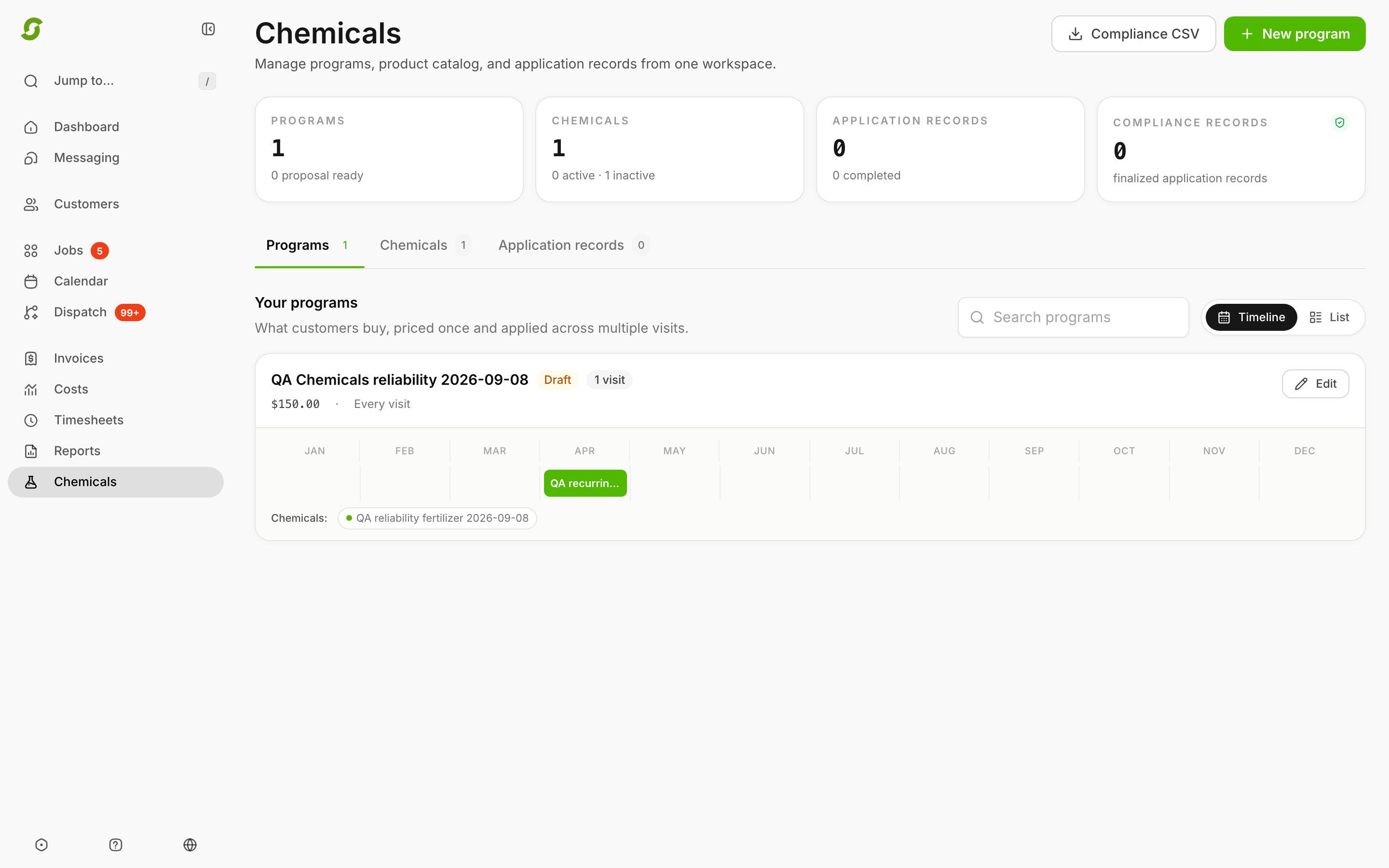
Open **Chemicals** in the left menu. The **Programs** tab lists every program you've built, in one of two views:

* **Timeline** — each program laid out across the twelve months, with its visits as pins and its chemicals listed underneath.
* **List** — price, schedule, the first products applied, and every visit as a chip.

Use **Search programs** to find one by name, month, visit label, or product.

### Program status

Every program shows a status chip next to its name, in both views.

| Status                     | What it means                                                                                                               | Offered on estimates and new jobs? |
| -------------------------- | --------------------------------------------------------------------------------------------------------------------------- | ---------------------------------- |
| **Draft** (amber)          | You saved it with **Save draft**. The program is kept but switched off.                                                     | No                                 |
| **Needs review** (amber)   | Switched on, but not yet confirmed complete — usually a program brought in when your data was imported from another system. | No                                 |
| **Proposal ready** (green) | Switched on and complete.                                                                                                   | Yes                                |

The **Programs** card at the top of the page shows how many programs you have and, underneath, how many are **proposal ready**. Drafts and programs that need review aren't counted there.

* **To clear Needs review:** click **Edit**, make sure every visit has a month, a week, and at least one chemical with an amount, then click **Save & publish**.
* **To stop selling a program:** click **Edit**, then **Save draft**. Programs can't be deleted — a draft is how you retire one. Jobs you've already sold from it carry on (see [What your edits change on jobs you've already sold](#what-your-edits-change-on-jobs-youve-already-sold)).
* **To sell it again:** click **Edit**, then **Save & publish**.

<figure><img src="https://2299783971-files.gitbook.io/~/files/v0/b/gitbook-x-prod.appspot.com/o/spaces%2FOhi7KtJ4vY1pDKwWu5SV%2Fuploads%2Fgit-blob-70fb941d2d83e9e258bdf53bf949a0368a4573a3%2Fchemical-program-builder.png?alt=media" alt="Chemicals Programs tab in Timeline view. The Programs card reads 1 with 0 proposal ready underneath, and the one program shows an amber Draft chip next to its name."><figcaption><p>The chip tells you whether a program can be sold. Only Proposal ready programs count in the header.</p></figcaption></figure>

### Build a program

1. Click **New program** (top right).
2. Type a name at the top — for example *7-Step Lawn Care*.
3. Optional: under **Or start from a template**, pick a built-in program — **6-Round Northern Turf**, **7-Round Premium**, **4-Round Value**, **8-Round Southern Turf**, **Mosquito Control**, or **Perimeter Pest**. It fills in the name, description, visits, and timing; you add the chemicals. **Clear template** undoes it.
4. Add a **Customer-facing description** (shown on estimates) and a **Price** with its structure: **Flat**, **Per sq ft**, **Per hour**, or **Man Hour**. To charge by property size, click **+ Add pricing tier**.
5. Pick a **Schedule type** — **Seasonal** or **Interval** — and fill in **Visits & chemistry** (see below).
6. Check **Program preview**. It shows the calendar shape you'll sell and schedule from.
7. Click **Create program**.

A new program is switched on straight away and shows as **Proposal ready**.

### Seasonal and interval programs

| Schedule style | Best for                                                 | How it works                                                       |
| -------------- | -------------------------------------------------------- | ------------------------------------------------------------------ |
| **Seasonal**   | Lawn treatment programs with known seasonal rounds       | Each visit is tied to a planned month and week of month            |
| **Interval**   | Repeating services like mosquito or perimeter treatments | One shared recipe repeats every set number of days within a season |

**Seasonal** programs have a row per visit under **Visits & chemistry**: a visit label, an application basis (**Per 1,000 sq ft**, **Fixed amount**, or **Spot treatment**), a **Month**, a **Week** (**Week 1** to **Week 4**), the chemicals, and an optional **Description** that's shown on invoices. **Add visit** adds the next round — labeled *Round 2*, *Round 3*, and so on — a month after the last one.

**Interval** programs have one **Shared recipe** instead of visit rows. Set **Interval days**, **Season start**, and **Season end**, then the **Visit label**, an optional **Description**, the **Application basis**, **Target pests**, and **Visit notes**. Every visit Shortcut generates uses the shared recipe.

<details>

<summary>Switching an existing program between Seasonal and Interval</summary>

Switching the schedule type keeps your chemistry.

* **Interval to Seasonal:** if the program has no seasonal visits yet, the shared recipe becomes **Visit 1**, in your season-start month, week 2.
* **Seasonal to Interval:** if the shared recipe is empty, it's filled from Visit 1, and the season runs from your first visit's month to your last. An interval program keeps only the shared recipe, so the other visits are dropped when you save.

</details>

### Adding chemicals to a visit

Click the search box under a visit (or under **Shared recipe**) — *Search chemicals, EPA reg, or starter fertilizer...* Results come in groups:

* **Your catalog** — chemicals you've already added
* **Suggestions** — common pesticides
* **Fertilizers** — built-in starter fertilizers
* **EPA results** — after you choose **Search EPA PPLS for "…"** (the EPA's pesticide label database)

Pick a suggestion, fertilizer, or EPA result and Shortcut adds it to your catalog and the visit in one go. For anything else, choose **Create new chemical manually**. When you save the new chemical it drops into the line you started, and everything else you'd typed in the program is still there.

Then enter the planned amount and unit on each line. Click **✕** to remove one.

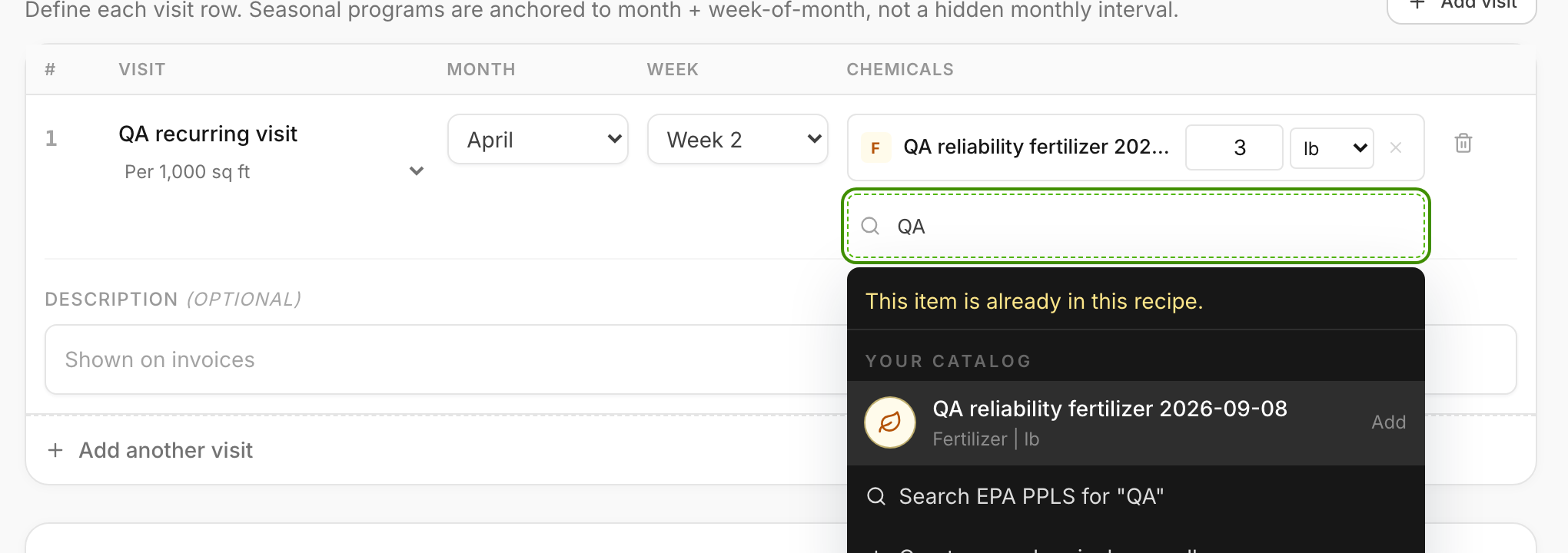
A chemical can only be in a visit once. If you pick one that's already there, the menu says **This item is already in this recipe.**

<figure><img src="https://2299783971-files.gitbook.io/~/files/v0/b/gitbook-x-prod.appspot.com/o/spaces%2FOhi7KtJ4vY1pDKwWu5SV%2Fuploads%2Fgit-blob-56d523f74c9cd063babbdb197a5eb35f879f1fa6%2Fchemical-recipe-duplicate.png?alt=media" alt="A visit&#x27;s chemical search open in the program editor. The fertilizer is already a line on the visit, and the amber line at the top of the menu reads This item is already in this recipe."><figcaption><p>Shortcut won't add the same chemical to a visit twice.</p></figcaption></figure>

### Save draft or Save & publish

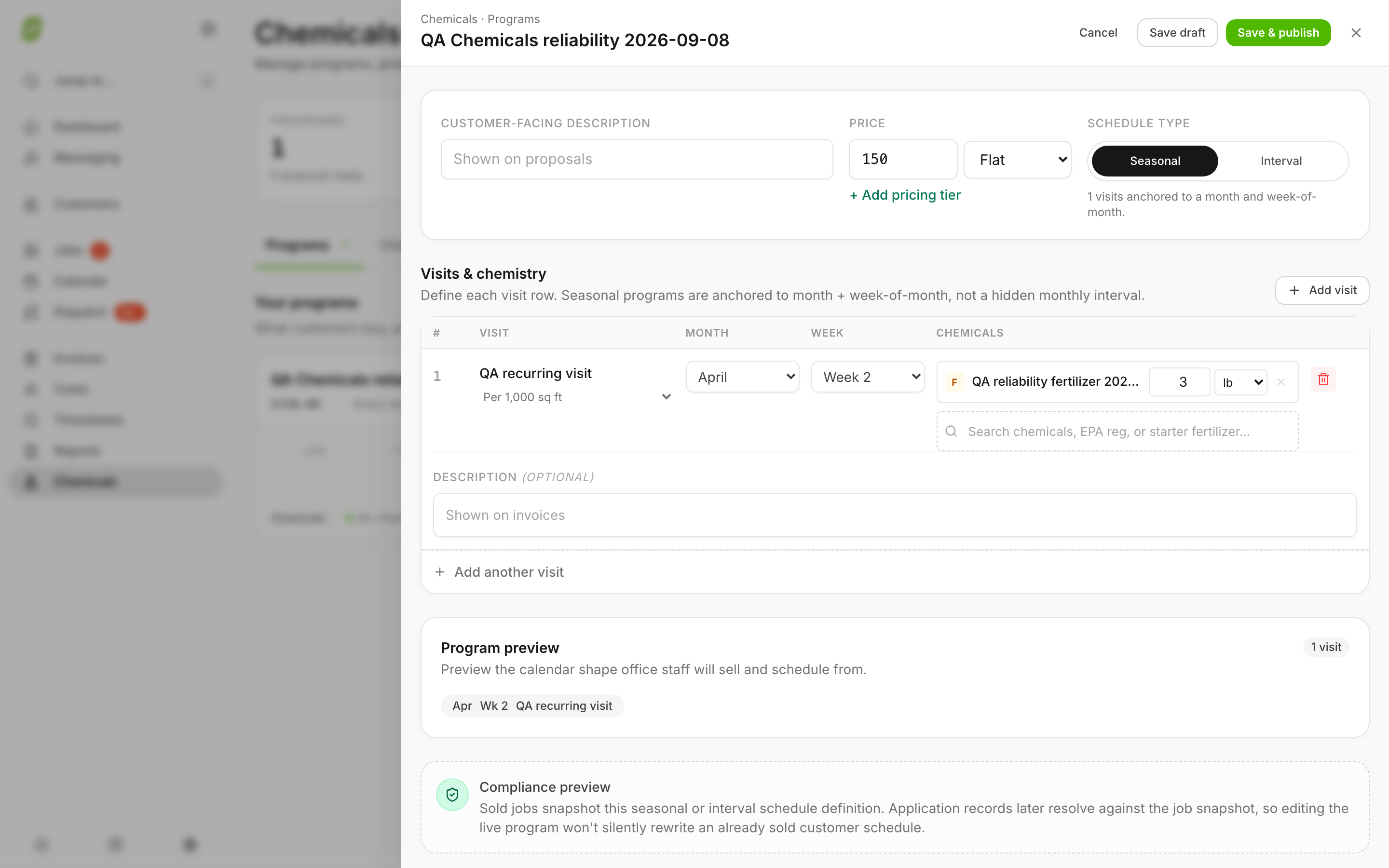
When you open an existing program, the top bar has **Cancel**, **Save draft**, and **Save & publish**.

| Button             | What happens                                                                                                                    |
| ------------------ | ------------------------------------------------------------------------------------------------------------------------------- |
| **Save & publish** | Saves your changes and switches the program on. It shows as **Proposal ready** and appears on estimates and in **Create jobs**. |
| **Save draft**     | Saves your changes and switches the program off. It shows as **Draft** and stops appearing on estimates and in **Create jobs**. |

Both buttons check the program first. Each seasonal visit needs a month and a week, an interval program needs its days and season, and every visit (or the shared recipe) needs at least one chemical with an amount. If something's missing, a **Program needs attention** box names it — for example *"Visit 3 needs a target month."* or *"Visit 2 contains the same item more than once."* A draft is for pausing a finished program, not for parking a half-built one.

If a save fails, your changes are still there so you can try again.

<figure><img src="https://2299783971-files.gitbook.io/~/files/v0/b/gitbook-x-prod.appspot.com/o/spaces%2FOhi7KtJ4vY1pDKwWu5SV%2Fuploads%2Fgit-blob-a3417a2aa65d2c3d927e8de711359d0d085a8d86%2Fchemical-program-editor.png?alt=media" alt="An existing seasonal program open in the editor. The top bar has Cancel, Save draft, and Save &#x26; publish; Visits &#x26; chemistry shows one visit in April, Week 2, with a fertilizer line and its amount."><figcaption><p>Save draft switches a program off. Save &#x26; publish switches it back on.</p></figcaption></figure>

### What your edits change on jobs you've already sold

A sold job keeps what the customer bought: its rounds, their dates, the price, and which areas of the property each product treats.

The mix itself follows the program. When you change a visit's products, rates, units, application basis, target pests, or visit notes, every sold job picks up the change on its rounds that haven't been recorded yet. A product you add treats the same areas as the rest of that round.

* In a seasonal program, a sold round follows the visit planned for the same month and week. If you move a visit to another month or week, remove it, or leave it with no chemicals, sold jobs keep the round they were sold with. In an interval program, every round follows the **Shared recipe**.
* If you switch a program between **Seasonal** and **Interval**, sold jobs keep the rounds they were sold with.
* Saving a program as a draft stops new sales. Sold jobs keep following its recipe.
* A record the crew already started keeps working after your edit, and completed records never change.
* One-off chemical services keep the recipe they were sold with.

## One-off chemical applications

Programs are for a series of visits. If you just want to do a **single treatment** — one visit, one application — create it as a **chemical service** in your catalog instead:

1. Open **Settings → Operations → Services**.
2. Click **Create service**.
3. At the top of the window, switch the service type from **Standard service** to **Chemical service** ("One-time treatment").
4. Fill in the usual details (name, description, rate, price structure), then build the **Chemical recipe**: choose a recipe basis (**Per 1,000 sq ft**, **Fixed amount**, or **Spot treatment**), add the products and amounts, and optionally note target pests and technician notes.
5. Save.

<figure><img src="https://2299783971-files.gitbook.io/~/files/v0/b/gitbook-x-prod.appspot.com/o/spaces%2FOhi7KtJ4vY1pDKwWu5SV%2Fuploads%2Fgit-blob-7ad964bf5c58b04cfd044aba4e07fea2ed676d86%2Fchemical-service-recipe.png?alt=media" alt="Create service window with Chemical service selected and the Chemical recipe section"><figcaption><p>Pick Chemical service and the recipe section appears.</p></figcaption></figure>

The service then works like any other: quote it on an estimate, add it to a job, or add it to a single visit. The technician records the application like any chemical job, so your compliance history stays complete.

If you add a chemical service to a single visit, the crew sees it on that visit with its own chemical record, and they can't finish the visit until that record is completed.

For pest control, an existing chemical service can also check bait stations and traps: edit it and switch on **Checks monitored devices**. See [Bait stations and traps](/readme/chemical-tracking/pest-control-devices.md).

{% hint style="info" %}
The **Chemical service** option is available once chemical setup is complete. A service's type can't be changed after it's created — to convert a standard service, create a new chemical service and deactivate the old one.
{% endhint %}

## Selling and scheduling a program

* **Quote it:** programs marked **Proposal ready** can be added to an estimate like services — the customer sees the program and pricing. Drafts and programs that need review aren't listed.
* **Create it directly:** on a customer's profile, open the **⋯** menu and choose **New job**. Proposal-ready programs appear in **Create jobs** alongside services and templates.
* **Pick the starting round:** when you schedule a seasonal program — for example from the customer's **Jobs** tab, using the job's **⋯** menu → **Schedule…** — Shortcut suggests the right **starting round** for the time of year (you can override it). Later rounds follow the program's planned months or intervals, and you can bulk-adjust rounds from the Jobs page. See [Scheduling chemical programs](/readme/jobs-and-scheduling/scheduling-chemical-programs.md) for suggested rounds, manual catch-up, and how several programs share one start date.

## Chemicals catalog

The **Chemicals** tab is your company's product catalog. Each row shows the product name, type, EPA registration number (or NPK for fertilizers), and which programs use it (**Used in**).

Add products from the search box at the top — *Search chemicals, starter fertilizers, or common pesticides*:

* **Common pesticide suggestions** and **Starter fertilizers** are built into Shortcut. Pick one and it opens as a row to check. Click **Done** to add it, or **Dismiss**.
* **EPA results** — type at least two characters, choose **Search EPA PPLS for "…"**, then **Import pesticide**. The EPA's database is slow, so give it about 20 seconds.
* **Create new chemical manually** (in the search menu) or the **Add chemical** button opens **Manually enter your chemical**.

Products can store:

* **Name**
* **Type**: **Pesticide**, **Fertilizer**, or **Other**
* **Default unit**
* **Status**: **Active** or **Inactive**
* **EPA registration number** (pesticides)
* **Nitrogen (N)**, **Phosphorus (P)**, **Potassium (K)**, **Default application rate**, and **Rate basis** (fertilizers)
* **Re-entry**: when people and pets can go back on the treated area, copied from the product label. Choose **Not set**, **None**, **Until sprays dry**, or **Hours** (then enter **Re-entry hours**, from 1 to 720). A product left on **Not set** never reads as safe. Customers see a re-entry line, such as *Keep people and pets off until sprays have dried*, only when every product on the record has a rule. With **Hours**, the line names the time the restriction ends, and the longest rule wins.
* **Post-care instructions** (optional aftercare or watering notes)

Filter the list with **All**, **Pesticides**, **Fertilizers**, or **Other**, and click the pencil on a row to edit it.

**Good to know**

* Products can't be deleted. Set one to **Inactive** when you stop using it.
* Two pesticides can't share an EPA registration number. If you try, Shortcut says **A product with that EPA registration number already exists.**
* Only pesticides carry an EPA registration number, so changing a product's **Type** from **Pesticide** to **Fertilizer** or **Other** removes it. Records you've already completed keep the details they were completed with.
* Importing a pesticide you already have from EPA search refreshes its name and EPA number. Your unit, status, and post-care instructions stay as you set them.

<figure><img src="https://2299783971-files.gitbook.io/~/files/v0/b/gitbook-x-prod.appspot.com/o/spaces%2FOhi7KtJ4vY1pDKwWu5SV%2Fuploads%2Fgit-blob-7b175e78f9d006f4549f43d439f54cddb97f0706%2Fchemicals-product-catalog.png?alt=media" alt="Chemicals tab with the product search, the All, Pesticides, Fertilizers, and Other filters, the Add chemical button, and a fertilizer row showing its type, NPK, and the program it&#x27;s used in"><figcaption><p>Use the catalog to manage products used in programs and records.</p></figcaption></figure>

## Application records

Application records are where the actual field work gets documented. Employees fill them in from their visits in **Today**. Company admins review them from the **Application records** tab in Chemicals.

### Recording an application in the field

1. Open the visit in **Today**. Chemical visits have a **Chemicals** section showing the **Record status** — **Not started**, **Draft in progress**, or **Completed**.
2. Tap **Start chemical record**. It reads **Continue chemical record** once a draft exists.
3. Under **Products applied**, each product from the program shows its planned amount (worked out from the property's current size — see [Planned amounts use the property's current size](#planned-amounts-use-the-propertys-current-size)). Enter the **Actual amount** for every line, or tap **Apply planned amounts** to fill them in. Zero is fine; negative amounts aren't.
4. Add **Target pests**. If a line didn't go to plan, pick a **Variance reason** (**Weather**, **Customer request**, **Product substitution**, **Skipped**, **Ran out**, or **Other**) and add a **Variance note**.
5. Fill in **Treated square footage**. If the visit includes a pesticide, answer **Posting sign placed?** with **Yes** or **No**. It's optional. Then add any **Notes**.
6. Check **Weather**. Shortcut fetches the conditions for the visit automatically. Change any value to record what you actually saw, or tap **Reset to fetched weather** to go back. If nothing could be fetched, enter the conditions yourself.
7. Tap **Save draft** to come back later, or **Complete record** (**Complete** on a phone) when you're done.

{% hint style="warning" %}
**A chemical visit can't be finished until its record is completed.** Tapping **Finish** before then says *"Record what you applied before you finish."* and scrolls to the record. A chemical service added to the visit has its own record, and that one must be completed too. Completing from Dispatch is the exception: the visit completes, and Shortcut completes the record with the planned amounts applied (see [When a visit won't complete](#when-a-visit-wont-complete)).
{% endhint %}

<figure><img src="https://2299783971-files.gitbook.io/~/files/v0/b/gitbook-x-prod.appspot.com/o/spaces%2FOhi7KtJ4vY1pDKwWu5SV%2Fuploads%2Fgit-blob-c4866d17a7257bc28c83c46fe03acd470fda7fde%2Ftoday-chemical-record.png?alt=media" alt="A chemical visit open in Today on a phone: the Chemicals section with Record status Not started and the Start chemical record button, and above Start and Finish the amber line Record what you applied before you finish."><figcaption><p>Finish waits until the chemical record is completed.</p></figcaption></figure>

**The crew's mix for the day.** On a day with chemical stops, the top of each crew's **Today** shows what the truck is applying: the mix and its rates, each product's planned total for the day, and the stops that differ (another mix, a chemical add-on, or no measured area). The totals come from the same planned amounts as the records. See [Today's mix](/readme/worker-app/worker-app-overview.md#todays-mix-the-day-brief).

**Pest control devices.** If you check bait stations and traps, see [Bait stations and traps](/readme/chemical-tracking/pest-control-devices.md). On those visits the record sits under **Products applied**, after the devices.

Employees can only open records for visits assigned to their team, and can only change them on the day the visit is scheduled.

**No signal?** In the Shortcut phone app, a crew can fill in and complete the chemical record for a visit today or tomorrow offline (records for chemical treatments added on-site still need signal). The record is saved on the phone and sent when it reconnects. If the office has changed the visit in the meantime (moved it, say, or changed its products), the record waits under **Needs attention** in Today, and the visit can't be finished until it's sorted out.

### Planned amounts use the property's current size

For a **Per 1,000 sq ft** visit, each product's planned amount depends on the area being treated. Shortcut works that area out from the property as it is now, not as it was when the estimate was sold. So if you re-measure a lawn after the sale, the next chemical record plans from the new size.

Which area it uses depends on what the program was priced on in the estimate:

| Priced on                                        | Area used for planned amounts                                                                                                                         |
| ------------------------------------------------ | ----------------------------------------------------------------------------------------------------------------------------------------------------- |
| **Primary lawn size**                            | The property's current lawn size. **Treated square footage** starts with the same number.                                                             |
| A named measured area (for example *Front lawn*) | That area's current size. If the area has been deleted or replaced (for example by running **Auto-measure** again), the size it had when it was sold. |
| **Custom treatment area**                        | The size you typed. It doesn't change.                                                                                                                |

Good to know:

* The customer's price doesn't change. It stays at what they were sold.
* A new lawn size counts once someone accepts it. After **Auto-measure**, nothing changes until someone clicks **Use this measurement** (or you edit the property's size by hand).
* A draft record started before the re-measure keeps its old planned amounts until someone saves or completes it.
* A re-measure never changes a completed record. Even an amendment keeps the area and planned amounts the record was completed with.

### What a completed record keeps

* technician name and license number
* customer and property
* the visit date (if the visit was moved before the record was completed, the new date)
* each product applied, with its name, EPA registration number, and re-entry rule
* planned and actual amounts, target pests, and any variance reason and note
* treated square footage
* whether a posting sign was placed, if the crew answered
* weather values and where they came from
* notes and completion time

**Product details are locked in when the record is completed.** If you later rename a product, correct its EPA number, or change its type or re-entry rule in the catalog, completed records still show what was actually applied, and so do the customer's profile, the compliance CSV, and the Chemical Applications document in Reports. Records completed before September 16, 2026 don't have this saved copy, so they show the product's current catalog details.

<figure><img src="https://2299783971-files.gitbook.io/~/files/v0/b/gitbook-x-prod.appspot.com/o/spaces%2FOhi7KtJ4vY1pDKwWu5SV%2Fuploads%2Fgit-blob-f560570991d142e9078a26da7f1222260894295b%2Fchemical-application-record-mobile.png?alt=media" alt="A chemical record on a phone: Products applied with the product name, planned amount, Actual amount, and Variance reason"><figcaption><p>Application records preserve what was applied in the field.</p></figcaption></figure>

### Reviewing and correcting records

The **Application records** tab lists your 50 most recently updated records with the customer, program, address, visit date, and status (**Draft** or **Completed**). Search by customer, program, address, or visit date (*Oct 15* and *2026-10-15* both work), or filter with **All statuses**, **Draft**, or **Completed**. Click **Open** to see the full record. Records for a chemical service added to a single visit don't appear on this tab or in its counts, but they are in the export. For your full history, use **Export CSV**.

Completed records also show on the customer's profile, on the **Activity** tab (the **Chemicals** filter shows only those). Each one opens to the products, EPA numbers, amounts, re-entry, posting sign, conditions, and who applied it, with **Copy summary**, **Download PDF**, and **Open record**. See [Customers](/readme/leads-prospects-customers/customers-overview-+-importing.md).

A completed record is locked. A company admin can correct it: open the record, go to **Amend completed record**, enter an **Amendment reason**, and click **Save amendment**. Every version stays in **Revision history**, and an amendment keeps the product details saved at completion.

### When a record won't save

| Message                                                                | What to do                                                                    |
| ---------------------------------------------------------------------- | ----------------------------------------------------------------------------- |
| *Enter actual product amounts for every line before completion.*       | Fill in every **Actual amount**, or tap **Apply planned amounts**.            |
| *Actual amounts must be finite and nonnegative.*                       | An amount is negative or isn't a number. Fix it and try again.                |
| *You can only access chemical records for jobs assigned to your team.* | The visit belongs to another crew.                                            |
| *Employees can only modify chemical records for jobs scheduled today.* | Crews can only change a record on the visit's day. Ask an admin to finish it. |
| *Add an amendment reason before saving changes.*                       | Admins: say what changed before saving an amendment.                          |

### When a visit won't complete

While chemical tracking is on, a crew can't finish a chemical visit in Today until its chemical record, and the record for any chemical service added to it, is completed.

| Message                                                                                       | Where you see it               | What to do                                                                                     |
| --------------------------------------------------------------------------------------------- | ------------------------------ | ---------------------------------------------------------------------------------------------- |
| *Record what you applied before you finish.*                                                  | Today                          | Complete the record, then tap **Finish**.                                                      |
| *Before you finish: check 7 devices and record what you applied.*                             | Today, on a pest control visit | Check the devices that are left, complete the record, then tap **Finish**.                     |
| *Complete the chemical application record for "\[service name]" before finishing this visit.* | Today                          | The chemical service added to this visit has its own record. Complete it, then tap **Finish**. |

**Completing from Dispatch is different.** Dispatch doesn't wait for the crew's record. Click **Complete** on a row or on the toolbar and the visit completes straight away. If its chemical record hasn't been completed yet — or the crew never started one — Shortcut creates and completes it for you with the planned amounts applied, and the same goes for the record of any chemical service added to that visit. The record is filed under the crew's applicator (the first crew member with a license number on file), not under the admin who clicked. Dispatch confirms it: *2 chemical records completed with planned amounts; amend if actuals differed.*

That keeps the compliance record whole, but it records what was planned, not what the crew actually put down. If they used more or less, open the record from **Application records** and add an amendment with the actual amounts and a reason.

Dispatch can't fill in a record when there's nothing to take the amounts from — for example a chemical visit with no program, or a **Per 1,000 sq ft** plan on a property with no treated area. That visit stays open, and the other visits you selected still complete.

| Message                                                                                | Where you see it | What to do                                                                                     |
| -------------------------------------------------------------------------------------- | ---------------- | ---------------------------------------------------------------------------------------------- |
| *1 visit could not default the chemical record: open the record and complete it first* | Dispatch         | Open the visit's chemical record, enter the amounts, and complete it. Then complete the visit. |

## Sharing records with customers

Customers see nothing from a chemical record until you switch on **Share application records with customers** in [Chemicals settings](#what-you-manage-in-chemicals-settings). Then you can share it two ways.

**On a portal service report.** When you publish a service report for a visit that has a completed chemical record (customer profile → globe → **Portal settings**), the form has a **Treatment record** section. Switch on **Include what was applied**, and the customer's report shows **What we applied**: the products, EPA numbers, amounts, the applicator and license, re-entry, and aftercare. Notes, weather, and costs stay internal.

* If the record is still a draft, the form says *Finish the chemical record before sharing it.* You can still publish the report without it.
* If a record changes after you share it, the form says so. Publish a correction to share the updated record.

See [Publish a service report](/readme/customer-portal/customer-portal-set-up-invite-and-publish.md#publish-a-service-report) for the rest of the form.

**By text.** The **Treatment complete** automation template texts the customer the products applied when a treatment visit is completed. Texts go out between 9:00 am and 6:00 pm, so a visit completed in the evening gets its text the next morning. It sends only for a visit with a completed record. Start a new automation from a template in **Settings → Operations → Automations** to use it, and see [Automations](/readme/automations.md) for the rest.

<figure><img src="https://2299783971-files.gitbook.io/~/files/v0/b/gitbook-x-prod.appspot.com/o/spaces%2FOhi7KtJ4vY1pDKwWu5SV%2Fuploads%2Fgit-blob-ec55a68adf3da6cc42c2d6b0e2a5a88329839100%2Fchemicals-portal-treatment-record.png?alt=media" alt="Publishing a portal service report. The Treatment record section lists the products applied, with Include what was applied switched on."><figcaption><p>Switch on Include what was applied to add What we applied to the customer's report.</p></figcaption></figure>

## Who can do what

| Capability                                            | Company admin | Employee                     |
| ----------------------------------------------------- | ------------- | ---------------------------- |
| Open the Chemicals workspace                          | Yes           | No                           |
| Manage products and programs                          | Yes           | No                           |
| Open a visit's chemical record                        | Yes           | Yes, for their team's visits |
| Create or save a draft application                    | Yes           | Yes                          |
| Complete an application record                        | Yes           | Yes                          |
| Change a record on a visit that isn't scheduled today | Yes           | No                           |
| Amend a completed record                              | Yes           | No                           |
| Export compliance CSV history                         | Yes           | No                           |

## Compliance export

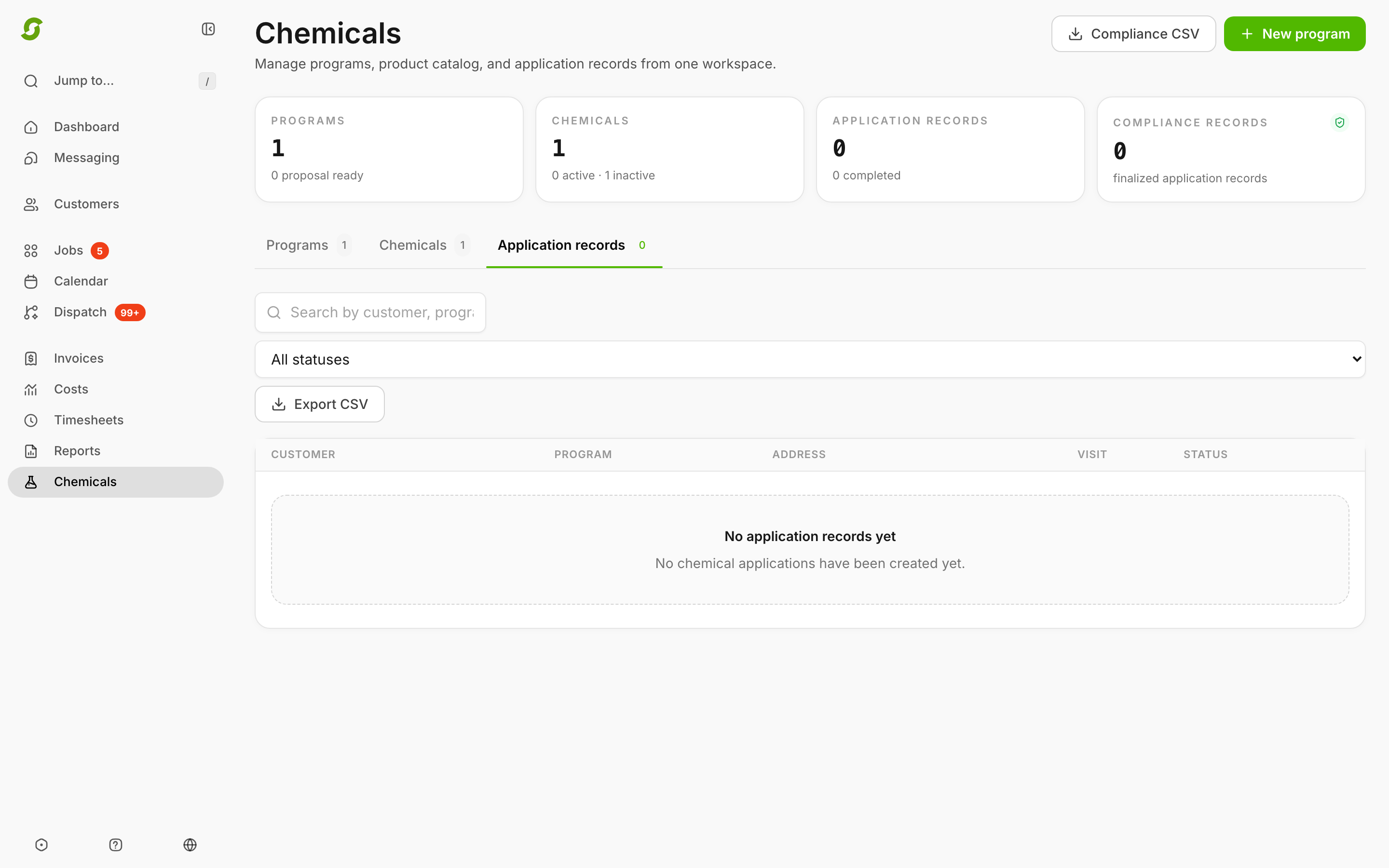
Company admins can download every completed application as a CSV. Click **Compliance CSV** at the top of Chemicals, or **Export CSV** on the **Application records** tab. Both download the same file, named like `chemical-compliance-export-2026-09-24.csv`.

For a filing that covers a date range and flags missing details before you print, use the **Chemical Applications** document in [Reports](/readme/reports.md#chemical-applications) instead.

The file has one row per product applied, across all your completed records (drafts are left out), with:

* application ID and revision number
* scheduled date and completion time
* technician name and license number
* customer name and property address
* service (program) name
* product name and EPA registration number
* planned and actual amounts and units
* variance reason and note, and target pests
* treated square footage
* weather source, temperature, wind speed and direction, humidity, and precipitation
* notes

The product name, EPA number, and license number are the ones saved when each record was completed. Older records without a saved license use the technician's current number. Text that starts with `=`, `+`, `-`, or `@` (a note that begins with a dash, say) gets a leading apostrophe so your spreadsheet treats it as text, not a formula.

The export only works while chemical tracking is on. With it off, **Compliance CSV** and **Export CSV** show an error saying chemical tracking is turned off, instead of downloading a file. Your records aren't deleted: turn tracking back on in Chemicals settings to export them.

<figure><img src="https://2299783971-files.gitbook.io/~/files/v0/b/gitbook-x-prod.appspot.com/o/spaces%2FOhi7KtJ4vY1pDKwWu5SV%2Fuploads%2Fgit-blob-82b69875bcb5b859bcd5cd7a65fd9c0bbf2e1440%2Fchemical-compliance-export.png?alt=media" alt="Chemicals Application records tab with the search box, the All statuses filter, and the Export CSV button, and Compliance CSV at the top of the page. No records have been completed yet, so the list is empty."><figcaption><p>Compliance CSV and Export CSV download the same file.</p></figcaption></figure>

## Related pages

* [Scheduling chemical programs (starting rounds & linked programs)](/readme/jobs-and-scheduling/scheduling-chemical-programs.md)
* [Reports (Chemical Applications document)](/readme/reports.md)
* [Users and Teams](/readme/configuration/workforce-users-+-roles-+-teams.md)
* [Worker app overview](/readme/worker-app/worker-app-overview.md)
* [Customer portal](/readme/customer-portal.md)

{% hint style="info" %}
Still stuck? Email **<hello@shortcutco.com>** with the customer name, the visit date, and a screenshot of the record or settings you are working with.
{% endhint %}