> For the complete documentation index, see [llms.txt](https://docs.shortcutco.com/llms.txt). Markdown versions of documentation pages are available by appending `.md` to page URLs; this page is available as [Markdown](https://docs.shortcutco.com/readme/configuration/custom-fields.md).

# Custom Fields

Every lawn care business tracks something the next one doesn't. Gate codes. Dogs. Which zone the irrigation controller is in. Whether they leave the check under the mat.

Custom fields let you add those to every customer record, so the answer is always in the same place instead of buried in somebody's notes.

## Where they show up

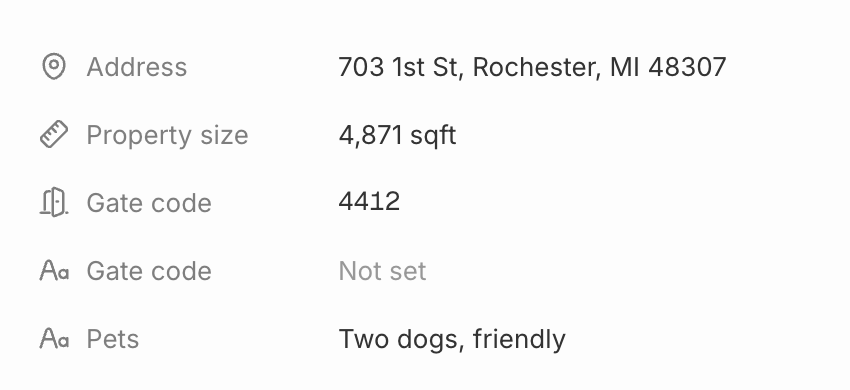
On the customer profile, under square footage and hours. Click the value to fill it in or change it — no modal, no save button, it just saves.

## Set them up

{% stepper %}
{% step %}

### Open Settings → Custom Fields

Click the **settings cog → Company Setup → Custom Fields**.

You'll start with two: **Gate code** and **Pets**. They're marked with a **Default** pill, but they're yours — rename them, reorder them, or delete them. Once you've changed one, Shortcut won't put it back.
{% endstep %}

{% step %}

### Add a field

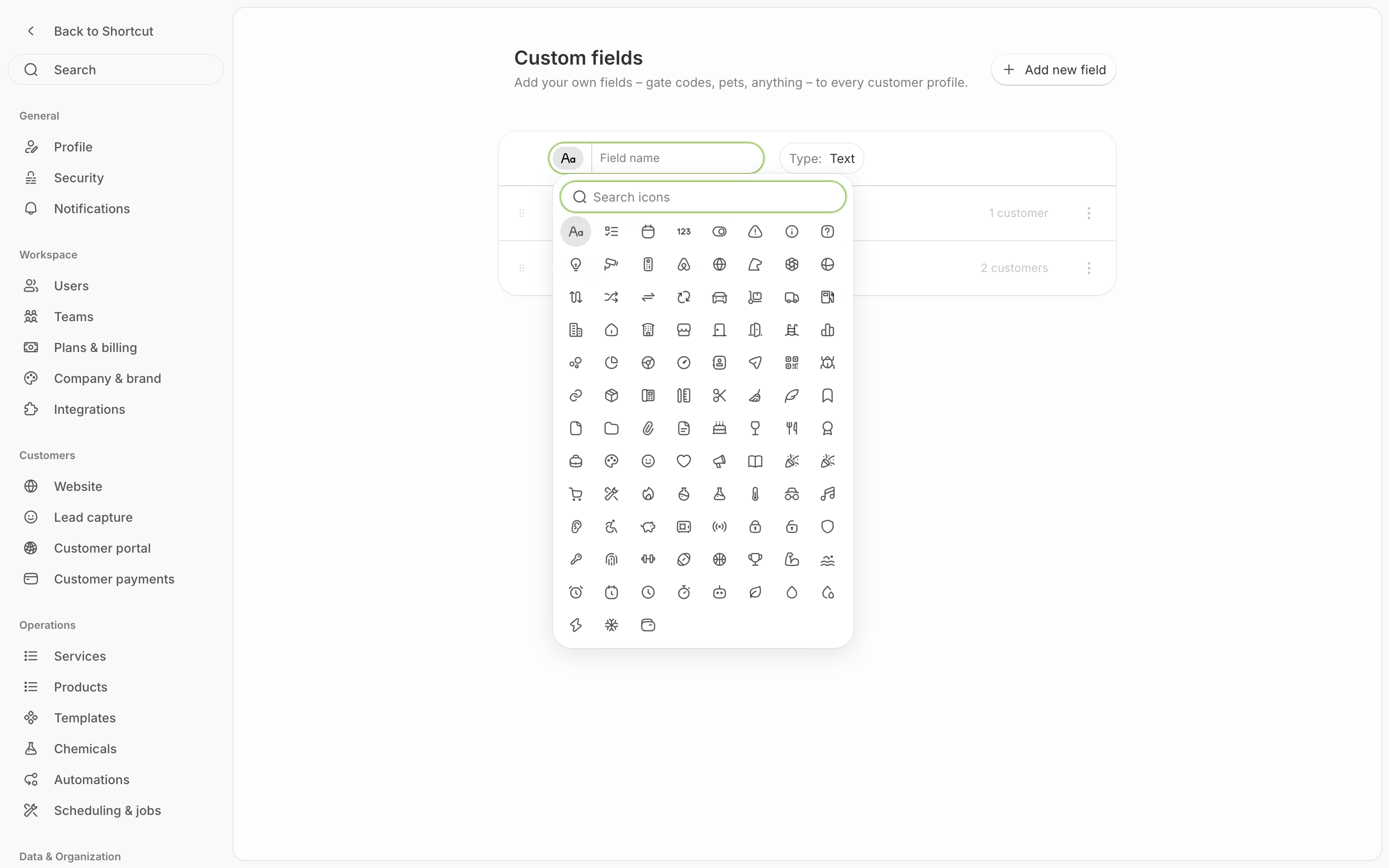
Click **New field**, give it a name, and pick a type:

* **Text** — anything typed. Gate codes, controller locations, a name.
* **Dropdown** — a fixed list you choose from. Good when you want the same words every time: *Front / Back / Both*, or *Small / Medium / Large*.

For a dropdown, add each option with **Add option**.
{% endstep %}

{% step %}

### Put them in order

Drag fields into the order you want them read on the customer profile. Put the one your crews need most at the top.
{% endstep %}
{% endstepper %}

## Things worth knowing

* **The type can't change after you create a field.** A text field stays a text field. If you need it to become a dropdown, make a new one — that way nobody loses what's already filled in.
* **Deleting a field deletes the answers.** Shortcut warns you if any customer has a value in it, and won't let that be undone. If nobody's filled it in, it just goes.
* **Empty is fine.** A field with no value shows a dash. Nothing nags you to fill it in.

## Related pages

* [Customers overview](/readme/leads-prospects-customers/customers-overview-+-importing.md)
* [Customer tags](/readme/leads-prospects-customers/customer-tags.md) — for labels you filter by, rather than values you record

<details>

<summary>Not sure whether you want a tag or a custom field?</summary>

**Tags** are for grouping — VIP, Commercial, Snow list. You filter and act on them in bulk.

**Custom fields** are for facts about one customer — a gate code isn't something you'd filter by, it's something a crew needs to read.

If you find yourself wanting a list of everyone with a certain value, that's a tag. If you just need the answer on the page, that's a custom field.

</details>