> For the complete documentation index, see [llms.txt](https://docs.shortcutco.com/llms.txt). Markdown versions of documentation pages are available by appending `.md` to page URLs; this page is available as [Markdown](https://docs.shortcutco.com/readme/configuration/quickbooks-integration.md).
# QuickBooks integration
Connect QuickBooks Online and keep your books in sync automatically.
Shortcut syncs with **QuickBooks Online** so your books match your operations without double entry. Open **Settings → Workspace → Integrations**, then click **QuickBooks**. [Open Integrations →](https://shortcutco.com/settings/integrations)
## What syncs
Customers, services, invoices, payments, refunds, and credits.
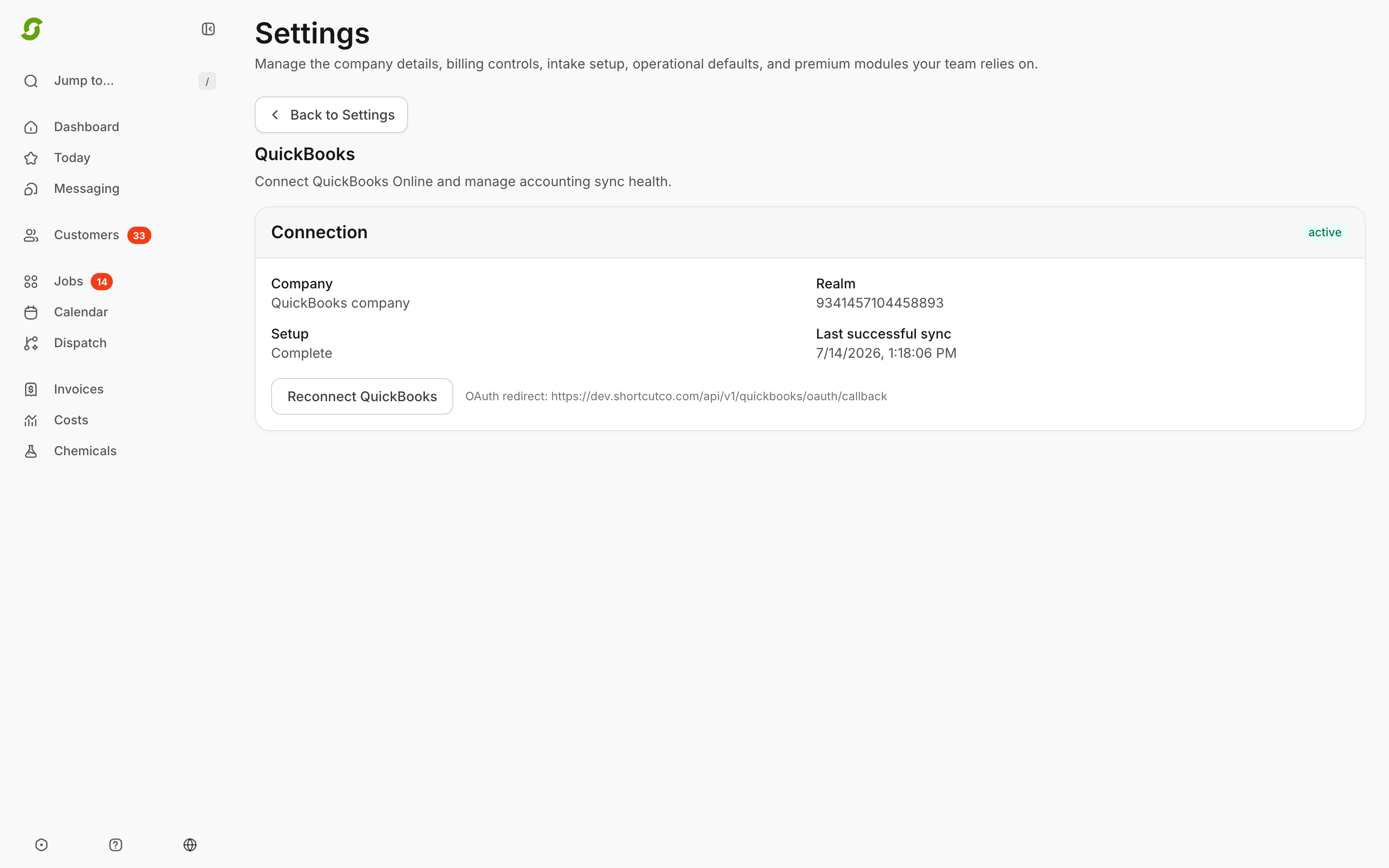
The QuickBooks page shows your connection and when it last synced.
## Connect
1. Open the QuickBooks integration page.
2. Click connect and sign in to QuickBooks Online.
3. Choose your **sync start date** — Shortcut syncs activity from that date forward.
4. Finish setup. The page shows your connection status, which QuickBooks company you're connected to, and whether setup is complete.
## Is it syncing?
Come back to the same page any time to see the **last successful sync** and connection status. If something looks stale, disconnect and reconnect, or contact support.
## Correcting an invoice that's in QuickBooks
Once Shortcut has copied an invoice to QuickBooks, the **⋯** menu on its row in Invoices offers two extra actions that keep both sets of books matching:
* **Void and reissue…** — for an invoice with no payments. Shortcut voids it in Shortcut and QuickBooks, copies its customer, line items, tax, discounts, and memo into a new unsent draft, and keeps the two cross-linked. You fix the draft, then send it.
* **Issue credit memo…** — for a paid invoice. Records credit the customer is owed and copies it to QuickBooks. No money moves.
**Refund…** works the same with or without QuickBooks; when the invoice is linked, Shortcut also records the refund in QuickBooks. **Undo payment** (for a payment you recorded by hand) doesn't change QuickBooks — if the payment is already there, it shows under **Needs attention** on this page so you can remove it.
See [Refunds & credit memos](/readme/finances-invoices-and-payments/refunds-and-credit-memos.md) for when each action appears and what it does.
Still stuck?
Email with a screenshot of the QuickBooks integration page.