> For the complete documentation index, see [llms.txt](https://docs.shortcutco.com/llms.txt). Markdown versions of documentation pages are available by appending `.md` to page URLs; this page is available as [Markdown](https://docs.shortcutco.com/readme/configuration/quickbooks-integration.md).
# QuickBooks integration
Connect QuickBooks Online and keep your books in sync automatically.
Shortcut syncs with **QuickBooks Online** so your books match your operations without double entry. Open **Settings → Workspace → API & integrations**, then click **QuickBooks Online** in the **Integrations** section. [Open QuickBooks →](https://shortcutco.com/settings/integrations/quickbooks)
Only company admins can connect QuickBooks, and only on the web. QuickBooks is included in the current Shortcut plan. On an older plan without it, the page shows **QuickBooks sync comes with Growth** and an **Upgrade to Growth** button.
## What syncs
Customers, services, invoices, payments, refunds, and credits.
* New customers and services show up in QuickBooks.
* Invoices are copied the moment they're sent.
* Payments, refunds and credits are matched to their invoice.
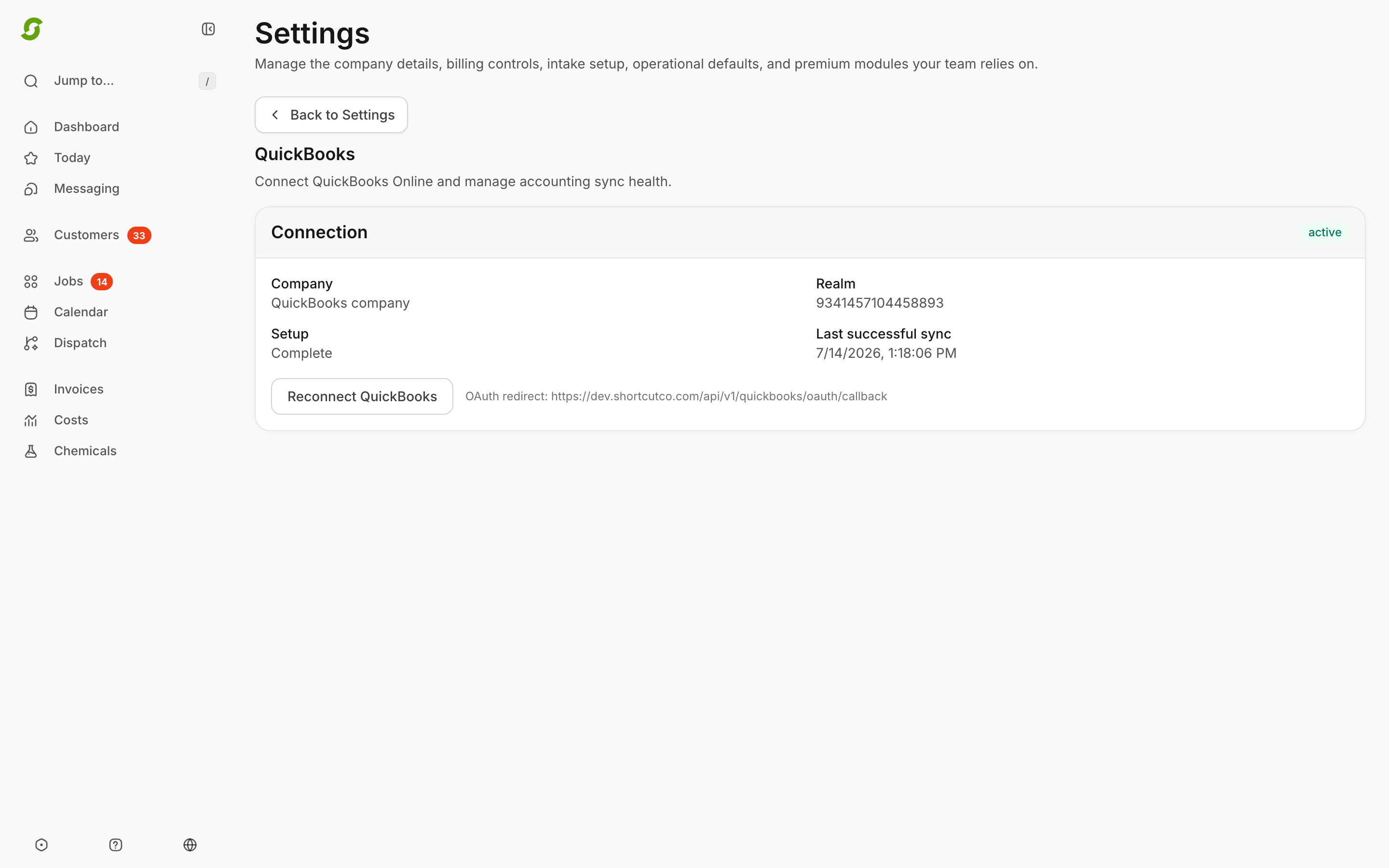
The QuickBooks page shows your connection, when it last synced, and what has copied.
## Connect
1. Open **Settings → Workspace → API & integrations** and click **QuickBooks Online**.
2. Click **Connect QuickBooks**. You sign in to Intuit and pick the QuickBooks company to connect.
3. Back in Shortcut, the page says you're connected to your company and asks where syncing starts. Pick a date in **Start syncing from**. Invoices and payments dated on or after that day are copied. Customers and services copy in full. To bring in this year's history, pick January 1.
4. Click **Start syncing**. Shortcut picks your default income and deposit accounts, and your first records show up in QuickBooks shortly. It also suggests an income account for Standard, Chemical and Snow work from the accounts you already have. Check them under [Income accounts](#income-accounts-where-your-services-post).
If you leave before step 4, the QuickBooks row on API & integrations shows **Finish setup**. Open it to pick the date and start syncing.
{% hint style="info" %}
**Started from a sample week?** QuickBooks won't connect while sample data is in your account, because it would copy the sample customers, invoices and payments into your books. Click **Remove sample data** in the green band first. See [Started with a sample week?](https://docs.shortcutco.com/readme/start-here-get-set-up-send-a-proposal-and-get-paid/1-set-up-shortcut-for-your-business.md#started-with-a-sample-week)
{% endhint %}
## Is it syncing?
Come back to the same page any time. The summary card shows:
* your QuickBooks company, with a **Syncing** or **Paused** badge;
* when it last synced, and who connected it and when;
* how many **Customers**, **Invoices** and **Payments** have copied, and how many are **Waiting to sync**. When some records need you, that last count becomes **Needs attention**.
Shortcut syncs on its own. To push changes across right now, click **Sync now**. Changes show up in QuickBooks in a minute or two.
The **What posts where** section underneath lists every account Shortcut writes to: the day **Syncing invoices and payments from** starts, **Services** (by the income accounts below), **Projects** (with Projects on), the item **Products, late fees and other lines** post to, the **Sales tax** item, where **Payments deposit to**, **Card processing fees**, and **Card payouts**. Reconnecting keeps them.
### Paused
If QuickBooks signs Shortcut out (for example, its access expired or someone removed it in QuickBooks), the badge turns to **Paused** and the page says when QuickBooks signed Shortcut out and that nothing has synced since. Click **Reconnect** and sign in to Intuit again. Shortcut catches up on everything that waited. Until you do, the QuickBooks row on API & integrations shows **Needs reconnect**.
Sometimes QuickBooks asks Shortcut to pause for a while. The page says so, and syncing picks up again on its own.
## Income accounts (where your services post)
In QuickBooks, each product or service carries its own income account. Most landscapers keep a handful, one per line of work: lawn care, fertilization, snow, installs. Shortcut keeps your services posting to the right ones.
### Pick an account for each kind of work
Under **Income accounts** on the QuickBooks page there's a picker for each kind of service:
* **Standard**: mowing, cleanups and everything else.
* **Chemical**: fertilizer, weed control and other applications.
* **Snow**: plowing, shoveling and salting.
Each picker lists your QuickBooks income accounts. **Default (…)** sends that kind of work to your default income account. To add an account, pick **Create new account…**, type a name and click **Create**. Shortcut creates it in QuickBooks as an Income account. If an account by that name already exists, Shortcut uses it.
When you connect, Shortcut fills these in for you: an account with "Snow" in its name for **Snow**, one starting "Fert" or "Chem" for **Chemical**, and for **Standard** the account most of your existing QuickBooks products and services already use. These show **Suggested** until you choose one yourself, and the card asks you to check them.
### Pick an account for one service
A single service can post somewhere else. Open it in **Settings → Operations → Services**, click **Edit**, and pick its **Income account** (under **Sales tax category**). The field shows only while QuickBooks is connected.
* **Default (…)** follows the account for its kind of work. The name in brackets is where it posts today.
* **From QuickBooks** next to an account means the service linked to a product or service already in QuickBooks, and Shortcut kept the account it had there.
Each service in the list shows **Posts to …**, so you can see where everything lands at a glance. A service that would post to **Uncategorized Income** shows a warning; pick an account for it, or for its kind of work.
### Projects: income, labor and materials
Project invoices aren't tied to a service, so they have their own accounts. With [Projects](https://docs.shortcutco.com/readme/projects.md) on, the Income accounts card has a second part:
* **Project income**: milestone payments, change orders and credits on projects.
* **Project labor**: crew time billed on a project. Optional.
* **Project materials**: materials billed on a project. Optional.
Pick one account for **Project income** if you keep install revenue in one place. If you split labor and materials in your books, pick those too. Left on **Same as Project income (…)**, labor and materials post with Project income.
Shortcut posts project lines through products of its own in QuickBooks: **Shortcut Project Income**, and **Shortcut Project Labor** and **Shortcut Project Materials** when you set those. It creates each one the first time a project invoice needs it, pointing at the account you picked. A credit on a project invoice comes off **Project income**.
Until you pick a **Project income** account, project lines post to the **Shortcut services** item, the same place as products and other lines without a service.
### What changes in QuickBooks, and when
* **New services** are created in QuickBooks with the account Shortcut picks: the service's own, else the one for its kind of work, else your default.
* **Services linked to something already in QuickBooks** keep the income account they have there. Editing the service in Shortcut (its name, description or price) never moves it.
* **When you change an account in Shortcut** (on a service, or for a kind of work), the matching QuickBooks products and services move to it on the next sync. Only that change goes across. If a bookkeeper later moves one in QuickBooks, Shortcut leaves it there.
* Changing the account for a kind of work moves only the services that follow it. Services with their own account, including ones kept **From QuickBooks**, stay where they are.
* **When you change a project account**, its **Shortcut Project** item moves to the new account the next time a project invoice syncs.
* Invoices already in QuickBooks keep the accounts they posted to. The new account applies to invoices from then on.
* Products sold on visits, one-off invoice lines and late fees post to the **Shortcut services** item, whose account you can change in QuickBooks.
## Needs attention
When QuickBooks rejects a record, it shows in the **Needs attention** list on this page with a short reason in plain words, for example a duplicate name or a missing field. Fix the problem in Shortcut, then click **Retry** on that row.
* A payment, refund or credit memo whose invoice didn't copy waits for that invoice. Its row says to retry the invoice first. Retrying the invoice also sends the records that were waiting on it.
* If Shortcut itself hit a problem copying a record, the row says so. Click **Retry**, and contact support if it happens again.
* When you **Undo payment** on a payment you recorded by hand and it already reached QuickBooks (or might have), a row asks you to delete or void that payment in QuickBooks. Do that, then click **Mark done**.
When there are a lot of rows, the list shows the most recent ones and how many there are in all.
## What Shortcut creates in QuickBooks
So your books stay correct, Shortcut finds these in your QuickBooks company, or creates them the first time it needs them:
* **Stripe Clearing**, which holds payments collected through Stripe until Stripe pays them out to your bank;
* **Stripe Processing Fees**, an expense account for Stripe's fees;
* a bank account for Stripe payouts: your first checking account, or if there isn't one, a new **Stripe Payouts** account;
* **Shortcut Sales Tax Payable**, a liability account, with a **Shortcut Sales Tax** item;
* **Shortcut Project Income** (and **Shortcut Project Labor** and **Shortcut Project Materials**, if you set them), once you pick project accounts and a project invoice syncs.
What that means in your books:
* Sales tax from Shortcut invoices posts to **Shortcut Sales Tax**, so it's booked as tax you owe, not as income. QuickBooks doesn't add tax of its own on top. If you [calculate tax by property address](https://docs.shortcutco.com/readme/finances-invoices-and-payments/sales-tax.md#calculate-by-property-address), each invoice's tax posts as one amount. The **Sales Tax Liability** report in Reports splits it by jurisdiction.
* Visit discounts and prepay discounts appear on the QuickBooks invoice as discounts, not as sales.
* Stripe processing fees for card and bank payments post as expenses.
* Late fees appear on the QuickBooks invoice as a **Late fee** line, so the totals match.
* Dates follow your company's local day.
## How Shortcut matches your existing QuickBooks records
If your QuickBooks company already has customers and services, Shortcut links to them instead of making duplicates:
* **By name.** A Shortcut customer or service links to the QuickBooks customer or service with exactly the same name, when exactly one active one has it. Shortcut leaves the QuickBooks record as it is. A linked service keeps the income account it already posts to in QuickBooks; see [Income accounts](#income-accounts-where-your-services-post).
* **Customers by email.** If no QuickBooks customer has the same name, Shortcut links to the QuickBooks customer with the same email address, when exactly one active QuickBooks customer has it and no other Shortcut customer shares that email. A shared inbox, like an HOA's or a property manager's, never links this way.
* If a name is already taken by something Shortcut can't link to, the new QuickBooks record gets a short code after the name so the two stay apart.
Names are tidied for QuickBooks: a **:** in a customer or service name becomes **-**, and tabs and line breaks become spaces.
When you rename a customer in Shortcut, QuickBooks' **Name to print on checks** follows, so new QuickBooks invoices and refund receipts use the new name. If a bookkeeper set that print name by hand in QuickBooks, the next Shortcut edit of that customer overwrites it.
## Disconnect
Open the **⋯** menu at the top of the page and click **Disconnect**, then confirm. New invoices and payments stop syncing. Everything already in QuickBooks stays there. If you connect the same QuickBooks company again later, Shortcut remembers your setup and picks up where it left off.
## Correcting an invoice that's in QuickBooks
Once Shortcut has copied an invoice to QuickBooks, the **⋯** menu on its row in Invoices offers two extra actions that keep both sets of books matching:
* **Void and reissue…** — for an invoice with no payments. Shortcut voids it in Shortcut and QuickBooks, copies its customer, line items, tax, discounts, and memo into a new unsent draft, and keeps the two cross-linked. You fix the draft, then send it.
* **Issue credit memo…** — for a paid invoice. Records credit the customer is owed and copies it to QuickBooks. No money moves.
**Refund…** works the same with or without QuickBooks; when the invoice is linked, Shortcut also records the refund in QuickBooks. A refund of a cash or check payment posts in QuickBooks from **Undeposited Funds**. **Undo payment** (for a payment you recorded by hand) doesn't change QuickBooks: if the payment is already there, it shows under [Needs attention](#needs-attention) so you can remove it in QuickBooks, then click **Mark done**.
Voiding an invoice that never reached QuickBooks (for example, one dated before your **Start syncing from** date) needs nothing in QuickBooks.
See [Refunds & credit memos](https://docs.shortcutco.com/readme/finances-invoices-and-payments/refunds-and-credit-memos.md) for when each action appears and what it does.
Still stuck?
Email with a screenshot of the QuickBooks integration page.