> For the complete documentation index, see [llms.txt](https://docs.shortcutco.com/llms.txt). Markdown versions of documentation pages are available by appending `.md` to page URLs; this page is available as [Markdown](https://docs.shortcutco.com/readme/configuration/workforce-users-+-roles-+-teams.md).

# Workforce (users + teams + pay)

Workforce is where you invite users and manage teams (crews). [Open Workforce →](https://shortcutco.com/workforce)

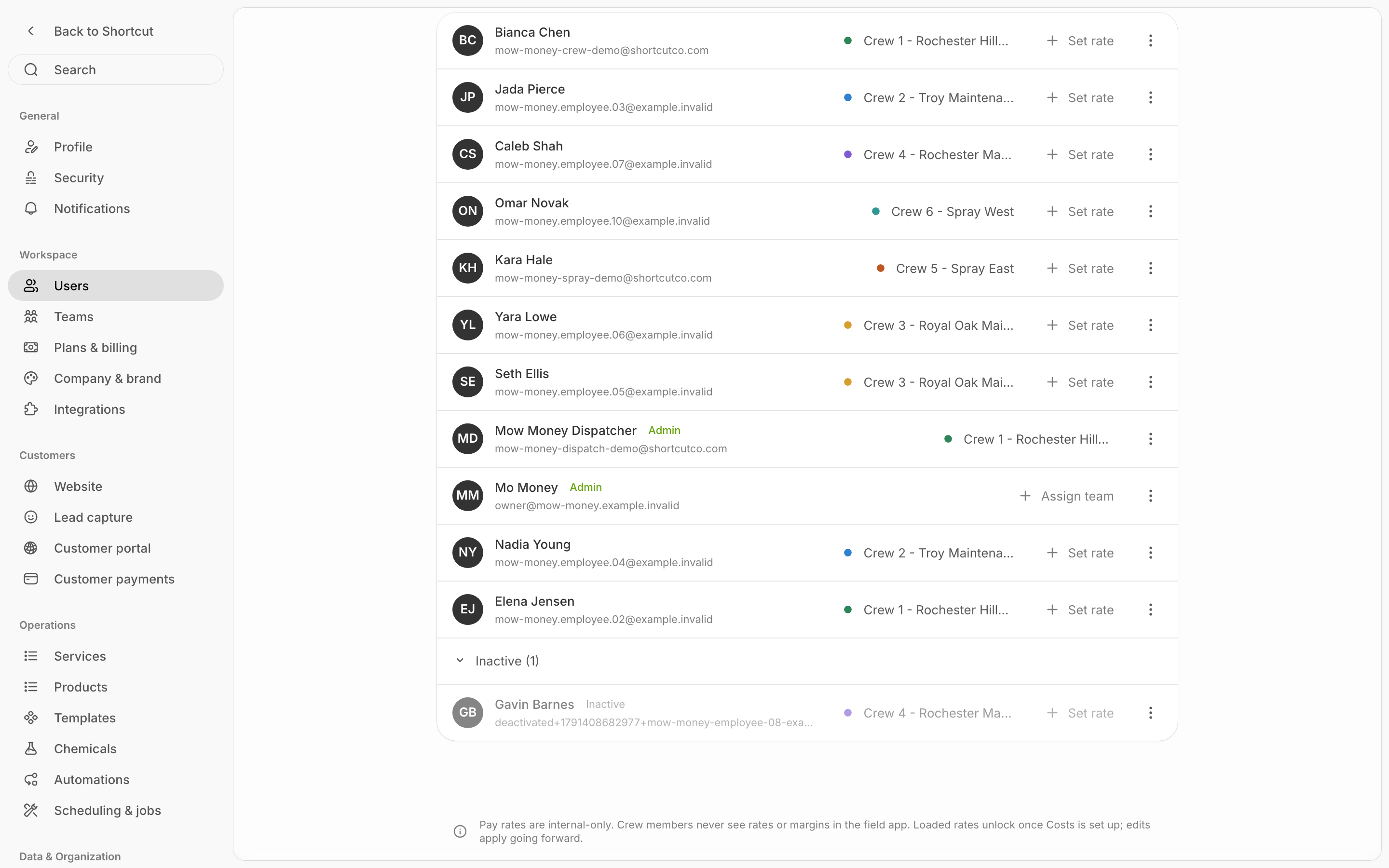
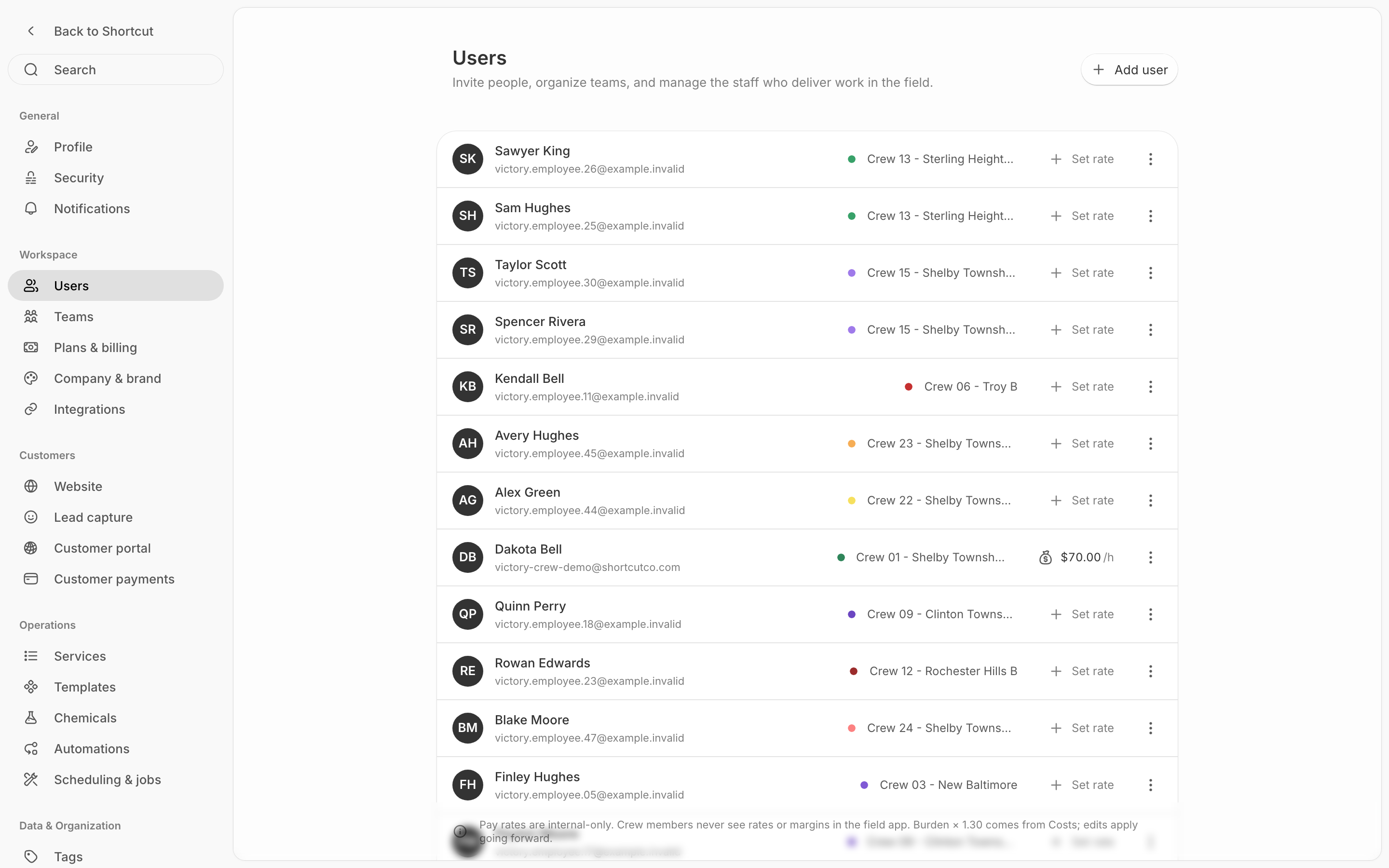
<figure><img src="/files/NOStNFnNDhDuqU0nVY60" alt="Workforce page showing crew members with their team assignments, and a Teams section listing all crews"><figcaption><p>Workforce — manage crew members at the top and teams at the bottom. Each member is assigned to a team. Additional crews adjust your subscription — see Plan &#x26; Billing.</p></figcaption></figure>

## Roles

* **Admin:** full access (settings, proposals, payments, billing, automations, etc.)
* **Employee:** can see assigned jobs at [/today](https://shortcutco.com/today), check in with GPS, add photos and notes, and complete jobs. If [Time Clock](/readme/configuration/time-clock-and-timesheets.md) is on, they also clock in and out and manage unpaid breaks from the same screen.
* **Client** (customer accounts): portal access — view invoices, make payments, manage autopay. Client accounts come from accepted proposals, not from Workforce.

## Invite a user

{% stepper %}
{% step %}
Open the **settings cog → More → Workforce**. [Open Workforce →](https://shortcutco.com/workforce)
{% endstep %}

{% step %}
Click **Invite user**.
{% endstep %}

{% step %}
Enter email and **phone number** (phone is used for SMS notifications).
{% endstep %}

{% step %}
Choose role.
{% endstep %}

{% step %}
Send invite.
{% endstep %}
{% endstepper %}

## Employee statuses

After inviting an employee, they'll move through these statuses:

* **Invited** — invite sent, waiting for them to accept
* **Active** — they've accepted and can use the app
* **Inactive** — deactivated (can be reactivated later)

## Teams

Employees must be on a team (crew). Jobs are assigned to crews in [Dispatch](https://shortcutco.com/dispatch).

{% stepper %}
{% step %}
Go to **Workforce → Teams**. [Open Workforce →](https://shortcutco.com/workforce)
{% endstep %}

{% step %}
Create a team.
{% endstep %}

{% step %}
Add members.
{% endstep %}

{% step %}
Save.
{% endstep %}
{% endstepper %}

## More than invites: what you manage per person

* **Applicator license number** — stored per user; it's stamped onto chemical application records for compliance. (Required before chemical field work.)
* **SMS notifications** — per-user toggle for text alerts.
* **Hourly wage** (optional, admin-only) — feeds your loaded labor rate in [Costs & Profitability](/readme/costs-and-profitability.md) so job margins are real. Wages are never shown to workers or customers.
* **Teams** — color, ordering, and membership; each crew is a lane in Dispatch and Calendar.
* **Timesheets** — the third tab on this page. Turn on [Time Clock](/readme/configuration/time-clock-and-timesheets.md) to let your crew punch in from their phones, then review and correct the hours here.

{% hint style="info" %}
Deleting a team that owns recurring jobs? Shortcut asks which crew takes over first, so nothing ends up unassigned — see [Crew ownership](/readme/dispatch/crew-ownership.md).
{% endhint %}

{% hint style="info" %}
Still stuck? Email **<hello@shortcutco.com>** with the user email + the team they should be on.
{% endhint %}