> For the complete documentation index, see [llms.txt](https://docs.shortcutco.com/llms.txt). Markdown versions of documentation pages are available by appending `.md` to page URLs; this page is available as [Markdown](https://docs.shortcutco.com/readme/customer-portal.md).

# Customer portal

A branded place for your customers to see published visits, service reports, invoices, and payments, and to request more work. Every customer still gets the invoice payment page, portal or not.

There are two different things a customer of yours might open, and it helps to keep them apart:

* **The invoice page.** Every customer gets this. When Shortcut sends an invoice, the email or text links to a page where they can see what they owe and pay it. No account, no sign-in.
* **The customer portal.** A signed-in space with your company's name and logo on it. Customers see the visits and service reports you've published, every invoice and payment, their autopay, and their email preferences. When you turn on service requests, they can also ask you for more work and approve your estimate there. Every company has one. A customer gets in once you invite them, or if they already used Shortcut's earlier customer area.

## When to use this

* A customer asks where to find past invoices or payments
* A customer wants to set up or change **autopay** themselves
* A customer wants to know when you're coming next, or what was done on the last visit
* A customer wants a cleanup, aeration, or other extra work (see [Requests](#requests))
* You want to know what a customer will see before you invite them

## The invoice page (every customer)

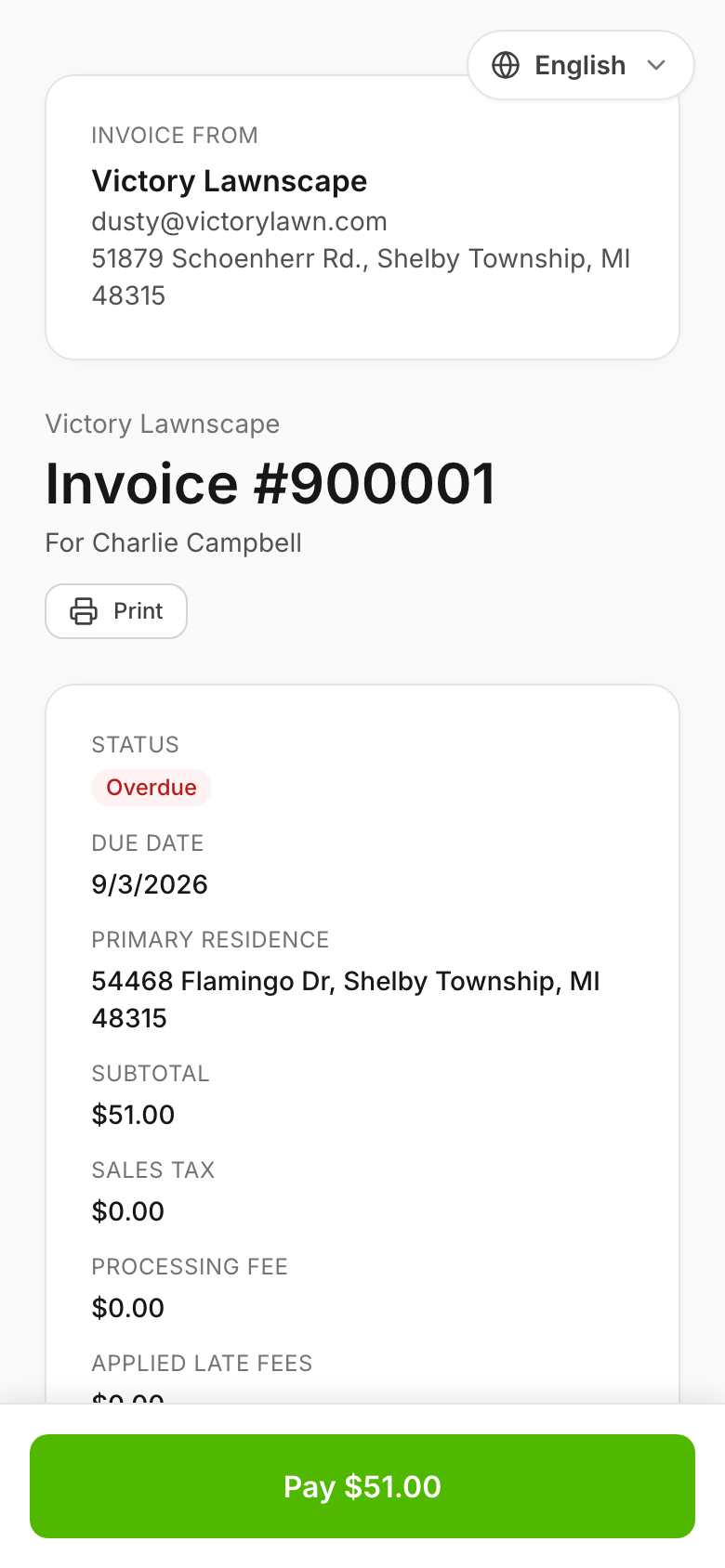
When a job is completed, Shortcut creates the invoice and sends it by email and/or text. Customers on scheduled or offline billing get theirs on their [billing mode](/readme/finances-invoices-and-payments/billing-modes.md)'s schedule instead. The link opens the invoice page: your company details, the totals and line items, and a way to pay online if you take card payments. They can pay with Apple Pay or Google Pay right on the invoice, or tap **Pay** to use a card or Link on Stripe's secure checkout page. If you charge a processing fee on card payments only, they type their card on the invoice page instead, or pay by bank with no fee. See [How customers pay an invoice](/readme/finances-invoices-and-payments/how-customers-pay-an-invoice.md).

If your crew shared photos, videos or notes from the visit, they show on the invoice too, so customers see the work and not just the charge.

If the customer has autopay on, their saved card is charged automatically. If autopay uses a bank account they saved when approving an estimate, the account is debited instead. A debit takes a few business days, and the invoice shows **Payment processing** until it clears.

Customers with portal access also see a **Your customer portal** box: *See your visits, invoices and payments in one place.* **Email me a sign-in link** sends a link to the email on their account, and it opens their portal's **Billing**. Customers you haven't invited, or whose access you've removed, don't see it.

<figure><img src="https://2299783971-files.gitbook.io/~/files/v0/b/gitbook-x-prod.appspot.com/o/spaces%2FOhi7KtJ4vY1pDKwWu5SV%2Fuploads%2Fgit-blob-9955c7b9eacde1dac153eb3b0a6e9bd002aee234%2Fcustomer-invoice-pay-page-mobile.png?alt=media" alt="Mobile invoice page showing the company, invoice number, status, due date, and totals"><figcaption><p>Every customer can view and pay an invoice from its link, with no account needed.</p></figcaption></figure>

<figure><img src="https://2299783971-files.gitbook.io/~/files/v0/b/gitbook-x-prod.appspot.com/o/spaces%2FOhi7KtJ4vY1pDKwWu5SV%2Fuploads%2Fgit-blob-7923fcc812284e7e766cfa962a4f86e585590a7a%2Fcustomer-invoice-sales-tax.png?alt=media" alt="Invoice totals showing subtotal, sales tax, processing fee, applied late fees, and total due"><figcaption><p>The invoice page shows the amount due before payment.</p></figcaption></figure>

<figure><img src="https://2299783971-files.gitbook.io/~/files/v0/b/gitbook-x-prod.appspot.com/o/spaces%2FOhi7KtJ4vY1pDKwWu5SV%2Fuploads%2Fgit-blob-95dcb3013cdced3a3ae5fa243be643c6fd3b8cd9%2Fcustomer-invoice-portal-banner.png?alt=media" alt="The Your customer portal card on a mobile invoice page, with its description and an Email me a sign-in link button"><figcaption><p>Customers with portal access see Your customer portal below the pay box.</p></figcaption></figure>

## Setting up the portal

Every company has a customer portal. There's nothing to switch on. Before you invite anyone, an admin should:

1. Open **Settings → Customers → Customer portal**. [Open Customer portal →](https://shortcutco.com/settings/customer-portal)
2. Add your **Office email** and **Contact hours**, and click **Update settings**.
3. Check your logo and company name in [Company & brand](/readme/configuration/company-profile.md). The portal shows those, never Shortcut's.
4. Optional: turn on **Service requests** and tick the services customers can ask for. See [Turn on service requests](/readme/customer-portal/customer-portal-set-up-invite-and-publish.md#turn-on-service-requests).

Then invite customers one at a time from their profile, and publish the visits and service reports you want them to see. The full walkthrough is in [Set up the portal, invite customers, and publish visits](/readme/customer-portal/customer-portal-set-up-invite-and-publish.md).

**Customers who used Shortcut's earlier customer area already have access**, so check before inviting them. See [Customers who already had access](/readme/customer-portal/customer-portal-set-up-invite-and-publish.md#customers-who-already-had-access).

## What's shared, and what isn't

**Shown automatically once a customer has access:** their services and how often they run, every invoice you've sent (never drafts), payments, refunds, credits, imported history, their balance, their autopay setting, and their contact details.

**Shown only when you publish it:** visit dates (up to two weeks ahead) and service reports (your title, instructions, summary, and the photos you approve), plus **What we applied** for a chemical treatment if you include it. A visit where your team checks monitored devices shares its report on its own once it's completed. See [Set up the portal, invite customers, and publish visits](/readme/customer-portal/customer-portal-set-up-invite-and-publish.md).

**Never shown:** internal notes, gate codes, tags, custom fields, team names, route order, costs, and arrival times. Two reports do name a person: a shared chemical record says who applied it, and a device report shows the technician's first name with their summary.

## What your customers see

### Signing in

Each company has its own sign-in page with its own logo and name, at an address like `shortcutco.com/portal/your-company`. Customers get there from your invitation email or from a service update email. You can open it yourself from **View Sign-in page** in **Settings → Customer portal**.

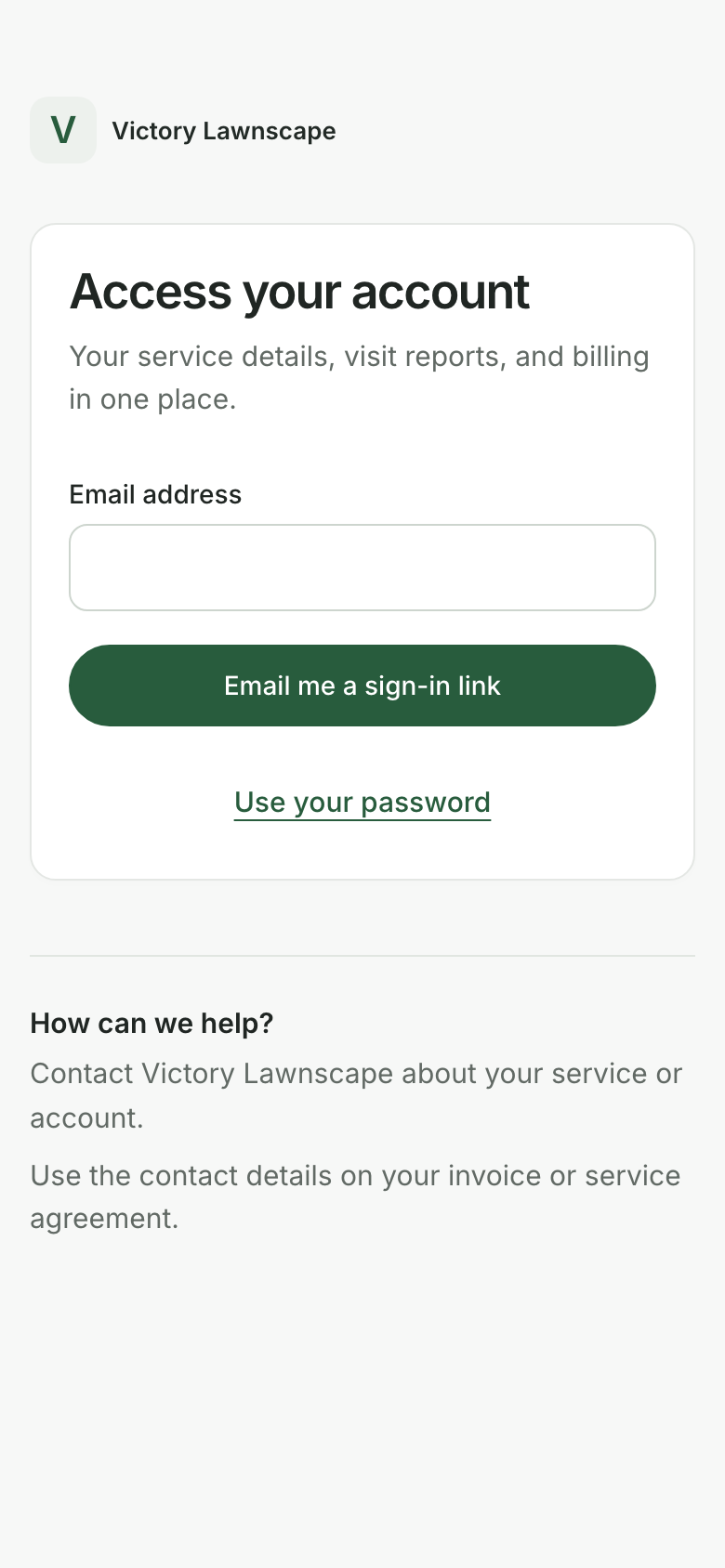
On **Access your account**, the customer types their email and clicks **Email me a sign-in link**. If that email has access, a link arrives shortly. It works once and expires after 15 minutes. The page gives the same answer either way, *"If your company has enabled access for this email, a sign-in link will arrive shortly,"* so it won't tell anyone whether an email has access. If no link arrives, see the [Troubleshooting hub](/readme/troubleshooting/troubleshooting-hub-top-issues.md).

Customers who set a password in Shortcut's earlier customer area can click **Use your password** instead. Passwords can't be created or reset, so everyone else uses email links.

Opening the link shows **Welcome back** (**Welcome** when it came from your invitation) and a **Continue to my account** button. After that they stay signed in for up to 30 days.

<figure><img src="https://2299783971-files.gitbook.io/~/files/v0/b/gitbook-x-prod.appspot.com/o/spaces%2FOhi7KtJ4vY1pDKwWu5SV%2Fuploads%2Fgit-blob-0fa3619da8aab070e6df4a6f873547d13b9f09ed%2Fportal-sign-in-mobile.png?alt=media" alt="Company sign-in page on a phone with the company logo and name, Access your account, an Email address field, Email me a sign-in link, and Use your password"><figcaption><p>Each company has its own sign-in page, branded with your name and logo.</p></figcaption></figure>

**Don't know your sign-in page?** Customers can open **Find your customer portal** from **Open your customer portal** on Shortcut's own sign-in page, or from any old customer-area link. They enter their email and click **Email me my portal link**. Shortcut emails a sign-in link for every company where that email has access, so a customer of two companies gets two emails.

<figure><img src="https://2299783971-files.gitbook.io/~/files/v0/b/gitbook-x-prod.appspot.com/o/spaces%2FOhi7KtJ4vY1pDKwWu5SV%2Fuploads%2Fgit-blob-2d8b614c13768b2be5a08bd289b9af46100d6486%2Fportal-find-your-portal-mobile.png?alt=media" alt="Find your customer portal page with an Email address field and an Email me my portal link button"><figcaption><p>Customers who don't know your sign-in page can ask for a link by email.</p></figcaption></figure>

### Everywhere in the portal

* **Your brand, not ours.** Your company name and logo sit at the top, with your phone number on larger screens. Update them in [Company & brand](/readme/configuration/company-profile.md).
* **Three sections, or four.** **Home**, **Service**, and **Billing**, plus **Requests** when you've turned on service requests. The customer's initials, top right, open **Account**. **Help** jumps to your contact details. On a phone, the sections move to a bar along the bottom of the screen.
* **Your contact details on every page.** A **How can we help?** section offers **Call** your company phone (from Company & brand), **Email the office** (the office email you set in **Settings → Customer portal**), and your contact hours.
* **One property or all.** A customer with more than one property can pick one at the top of Home, Service, and the Invoices tab. **All properties** shows everything.

### Home

A greeting (*Good morning, Alex*), then:

* **Next visit.** The next visit you've published: its date, the service, the property, its status, and any **Before your visit** instructions, with **View visit →**. With nothing published it says *No visit published yet*. If a recurring service has nothing on your schedule ahead, it says *Upcoming dates need confirmation*.
* **Account · all properties.** The balance (*$245.00 due* or *No outstanding invoices*), anything overdue, the top invoice due with its due date, and **Pay $245.00** when that invoice can be paid online. Otherwise the button says **View billing**. Below that: **Autopay on** or **Autopay off**, with **Set up autopay** or **Manage autopay**.
* **Latest service.** The most recent service report you've shared: date, service, the first lines of your summary, up to two photos, and **View service report →**. Until you've shared one it reads *Your service history starts here*.
* **Your plan.** Up to two of their services and how often they happen, such as *1 visit per week*, *One-time service* or *Paused*, with a link to the rest.
* **Need something else done?** With service requests on: *Ask for a cleanup, an add-on, or anything else, and get an estimate back here*, with a **Request service** button.
* **How can we help?**

<figure><img src="https://2299783971-files.gitbook.io/~/files/v0/b/gitbook-x-prod.appspot.com/o/spaces%2FOhi7KtJ4vY1pDKwWu5SV%2Fuploads%2Fgit-blob-4d1ff13a75326aae0f4859f6a28e355374a6e508%2Fportal-home-mobile.png?alt=media" alt="Portal Home on a phone: Good morning, Dana, the All properties picker, Next visit on Tue, November 24 marked Scheduled with View visit, the account card with $95.00 due, Invoice #4109 due Thu, November 26, View billing and Autopay off, Latest service on Tue, October 27 marked Completed with the summary and View service report, and the Home, Service and Billing bar at the bottom"><figcaption><p>Home: the next visit, the account, and the latest service.</p></figcaption></figure>

### Service

Two tabs: **Upcoming** and **History**. Customers can search by service name (**Find a service**), and on History they can pick a date range and click **Filter**.

Visits are grouped under month headings. Each row shows the date, the service, the property, and a status:

| Status                    | What it means                                                                                                                                                                     |
| ------------------------- | --------------------------------------------------------------------------------------------------------------------------------------------------------------------------------- |
| **Scheduled**             | A visit date you've published.                                                                                                                                                    |
| **Awaiting confirmation** | The date you published has moved, been cancelled, passed, or the visit is done but you haven't shared its report yet. The row says *Your company is reviewing this visit’s date.* |
| **Completed**             | A service report you've shared.                                                                                                                                                   |

To clear **Awaiting confirmation**, publish the visit's report, publish its new date, or withdraw it. See [Publish visits and service reports](/readme/customer-portal/customer-portal-set-up-invite-and-publish.md#publish-visits-and-service-reports).

Each row opens with **View visit** or **View report**. With service requests on, a **Request service** button sits at the top of Service.

The Upcoming tab also lists **Your services**: each active service and how often it runs. The list carries a note that *Service frequency is a plan, not a confirmed visit date.*

<figure><img src="https://2299783971-files.gitbook.io/~/files/v0/b/gitbook-x-prod.appspot.com/o/spaces%2FOhi7KtJ4vY1pDKwWu5SV%2Fuploads%2Fgit-blob-82ee4164ea3361aa71c7937208ddce429b464db8%2Fportal-service-list-mobile.png?alt=media" alt="The Service page on a phone with Upcoming selected: a November visit on Tue, November 24 marked Scheduled, and a visit under Date being confirmed marked Awaiting confirmation, each with View visit"><figcaption><p>Upcoming visits, grouped by month.</p></figcaption></figure>

### A service report

A shared report shows:

* **Work performed.** Your summary of the visit, with the date you shared it.
* **Care instructions.** Any aftercare you wrote.
* **Photos.** The photos and videos you approved, with a count like *3 shared with this report*. Before-and-after photos from your team's photo checklist carry their area name, such as *Front yard*, with each area's before and after side by side. Tapping one enlarges it, with **Previous photo**, **Next photo**, and **Open original photo** (**Open original video** for a video).
* **What we applied.** For a visit with a chemical application, when you've turned on **Share application records with customers** in **Settings → Operations → Chemicals** and included the record when you published the report: each product with its EPA registration number and amount, any re-entry and aftercare instructions, who applied it and their license, the treated area, whether a lawn sign was placed, and **Download the application record (PDF)**. See [Chemical tracking](/readme/chemical-tracking.md).
* **Devices checked.** For a visit where your team checks [monitored devices](/readme/chemical-tracking/pest-control-devices.md) such as bait stations and traps: how many were checked, skipped or missing, the technician's summary, each device's reading in plain words by area, the devices not checked and why, and **Download the device report (PDF)**.
* **Visit details.** Property, service date, and service.
* **Billing.** A **View invoice #1052** button for the invoice that covers the visit, plus a link to Billing.
* **Something not right?** *"Tell \[your company] and mention the Tue, September 23 visit,"* with your phone and office email.

An upcoming visit shows the date, any **Before your visit** instructions, and a reminder that *Arrival times are not available in the portal.*

<figure><img src="https://2299783971-files.gitbook.io/~/files/v0/b/gitbook-x-prod.appspot.com/o/spaces%2FOhi7KtJ4vY1pDKwWu5SV%2Fuploads%2Fgit-blob-69ee770c81d6899689f9ec1b82bd6f8a523d7ef1%2Fportal-visit-report-desktop.png?alt=media" alt="A service report on a computer: Completed service · Tue, October 27, Commercial Pest Control, Work performed with the summary and No photos were shared with this report, Devices checked below it, and on the right Visit details, Billing with View invoice #4109, and Something not right?"><figcaption><p>A service report, with visit details and billing on the right.</p></figcaption></figure>

### Requests

Only when you've turned on **Service requests** in **Settings → Customer portal**. The customer clicks **Request service** (on Requests, Home, or Service) and fills in a short form:

* **Property.** Picked for them if they have one. A customer with more than one chooses.
* **What do you need?** The services you've offered, each with its description, plus **Something else**. They can pick several.
* **When would you like it?** *As soon as possible*, *In the next two weeks*, *Sometime this season*, or *I'm flexible*.
* **Anything the crew should know?** A note in their own words. It's required when they pick **Something else**.

They click **Send request** and see **Request sent** with a summary. The form tells them *Your current service stays the same until the office replies.* Nothing is booked or charged until they approve your estimate.

<figure><img src="https://2299783971-files.gitbook.io/~/files/v0/b/gitbook-x-prod.appspot.com/o/spaces%2FOhi7KtJ4vY1pDKwWu5SV%2Fuploads%2Fgit-blob-626efd262513fbf33722b437daf6da87a358ae49%2Fportal-request-form-mobile.png?alt=media" alt="Request service form on a phone: Property, What do you need? with Core Aeration, Fall Leaf Cleanup ticked, Preventive Grub Control and Something else, When would you like it? with In the next two weeks chosen, a note for the crew, and Send request"><figcaption><p>Customers pick from the services you offer, choose a timing, and add a note.</p></figcaption></figure>

The **Requests** page lists each request with its services, property, the date it was sent, the timing they chose, their note, and where it stands:

| Status                              | What it means                                                                                         |
| ----------------------------------- | ----------------------------------------------------------------------------------------------------- |
| **Received**                        | Waiting on you. The row says *The office has your request and will reply with an estimate or a date.* |
| **Estimate ready**                  | You've sent an estimate. **Review estimate** opens it, and they approve it there.                     |
| **Approved**                        | They approved it. **View estimate** opens it again.                                                   |
| **Declined** / **Estimate expired** | They declined it, or it expired before they answered.                                                 |
| **Closed**                          | You dismissed the request without an estimate.                                                        |

Open requests sit under **Open**, finished ones under **Earlier**. How your office answers a request: [Answer a service request](/readme/customer-portal/customer-portal-set-up-invite-and-publish.md#answer-a-service-request).

<figure><img src="https://2299783971-files.gitbook.io/~/files/v0/b/gitbook-x-prod.appspot.com/o/spaces%2FOhi7KtJ4vY1pDKwWu5SV%2Fuploads%2Fgit-blob-9dfe9393ee11130f96f5af0a9873c53db212ba50%2Fportal-requests-mobile.png?alt=media" alt="Requests page on a phone with a Request service button and an open Fall Leaf Cleanup request marked Estimate ready, with a Review estimate button"><figcaption><p>Once you send the estimate, the request reads Estimate ready.</p></figcaption></figure>

### Billing

The top of Billing repeats the account card: balance, the top invoice due, and **Pay** or **View invoice**. There's also a **Payment methods & autopay** button.

**Invoices** and **Payments** are always there. **Refunds**, **Credits**, and **Imported history** only appear when the customer has any.

**Invoices.** Search by invoice number or address, or narrow the list to one property. Each invoice shows its number, its status (**Due**, **Paid** or **Voided**), the property, the due date, the total, and what's left to pay. The button reads **Pay $X** or **View invoice**. Both open the same invoice page every customer gets.

If you charge a processing fee on card payments only, an invoice with a **Pay** button also says *Credit card payments add a $3.00 processing fee. No fee for bank transfer, debit card, check or cash.*

**Pay** only appears when an invoice can be paid online right now. That means you take card payments, the invoice has been sent or is overdue, nothing has been paid on it yet, and no payment is already in progress. Otherwise the customer sees **View invoice**.

<details>

<summary>Other labels a customer might see on an invoice</summary>

* ***Payment processing***, ***Bank payment processing***, ***Payment confirmation pending*** — a payment is on its way. There's no Pay button. The account card says *"A payment is still processing. Do not pay it again while we await confirmation."*
* ***Payment failed***, ***Bank verification needed***, ***Payment needs review*** — the customer should contact you.
* **Partly paid** — *"Payments have been recorded. Contact the office about the remaining balance."* The portal doesn't take part-payments.
* **Paid more than the total** — *"Office review needed · $20.00 received above the invoice total."*

</details>

**Payments** lists money received: the amount, the date, *Online payment* or *Recorded by your service company*, and the invoice it paid. Payments that are still processing appear on their invoice until they clear.

**Refunds** are listed on their own and don't add to what the customer owes. **Credits** you've issued show separately, with a note to contact you about applying them to the balance. **Imported history** shows records from your previous billing system, labelled as history only. They never add charges.

<figure><img src="https://2299783971-files.gitbook.io/~/files/v0/b/gitbook-x-prod.appspot.com/o/spaces%2FOhi7KtJ4vY1pDKwWu5SV%2Fuploads%2Fgit-blob-a72ca0444d49a81c5812d9c07470babf3c3b786e%2Fportal-billing-mobile.png?alt=media" alt="Billing on a phone: Payment methods &#x26; autopay, the account card with $95.00 due and View invoice, the Invoices and Payments tabs, and two invoices, #4109 marked Due with $95.00 remaining and #4031 marked Paid"><figcaption><p>Billing: what is due, and every invoice and payment.</p></figcaption></figure>

### Payment methods & autopay

Here customers can **Add card**, choose which saved card or bank account autopay uses (**Use for auto-pay**), and switch autopay on or off with **Enable auto-pay** and **Disable auto-pay**. They can also remove a card or bank account. A card you added for them is labelled *Added by \[your company] on your behalf*. If the customer's invoices are set to manual, autopay isn't available.

A bank account shows as *Bank account ending 6789*, labelled *Saved bank account*, or *Used for auto-pay (debited from this bank account)* when autopay uses it. Customers can only save a bank account when they approve an estimate (see [Estimate approval](/readme/configuration/finances-settings-stripe-manual-payments-fees.md#estimate-approval)). **Add card** in the portal adds cards only.

If an autopay payment fails, a banner names the invoice and the reason and asks the customer to update the auto-pay payment method.

If they signed in more than 15 minutes ago, they see **Confirm it’s you** and click **Continue securely** to sign in again before changing anything.

### Account

The customer's name, email, and phone, which they can't edit (*"Contact the office to correct these details."*). Under **Contact details**, **Manage billing and marketing email preferences** opens [Email preferences](#email-preferences). **Access & security** shows when their sign-in expires and has a **Sign out** button.

<figure><img src="https://2299783971-files.gitbook.io/~/files/v0/b/gitbook-x-prod.appspot.com/o/spaces%2FOhi7KtJ4vY1pDKwWu5SV%2Fuploads%2Fgit-blob-be34448560ead0bedbbdd1991a19b8cbef66e3e7%2Fportal-account-mobile.png?alt=media" alt="Account on a phone: Contact details with the Manage billing and marketing email preferences link and the customer&#x27;s name, email and phone, then Access &#x26; security with when the sign-in expires and a Sign out button"><figcaption><p>Account: contact details and sign out.</p></figcaption></figure>

### Email preferences

Customers can turn three kinds of email from your company on or off:

* **Billing emails** — invoices, receipts, payment reminders, and price notices.
* **Marketing emails**
* **Service emails** — including the portal's service update emails.

Each one shows where it stands (*Permission confirmed*, *Turned off*, or *No explicit choice recorded*), with **Turn off** and **Turn on** buttons. Every change asks the customer to confirm with **Confirm and save**. Their choices apply to your company only.

* **Turning off billing emails** doesn't change what they owe or their autopay. They pick a **Preferred follow-up**: *Arrange with the company later*, *Paper copy*, *Phone call*, *Customer portal*, or *Text, only if already authorized*. Their email preferences page in Shortcut then shows **Company follow-up required**, so your office can arrange it.
* **Turning off service emails** stops service update emails. Anything you publish still shows in their portal.
* **Sign-in links and invitations always go out.** These choices don't affect them.
* **Changing a choice needs a recent sign-in.** If they signed in more than 15 minutes ago, the page says *"Please sign in again before changing billing details."* They sign out, sign back in, and try again.
* **Your contact details are at the bottom:** *Need another delivery method? Contact \[your company].* with your **Office email** (or, if you haven't set one, the email of the first admin on your Shortcut account) and your company phone.

You can see and record the same choices from the customer's profile: **⋯ → Email preferences**. See [Customer email preferences and invoice delivery](/readme/finances-invoices-and-payments/customer-email-preferences.md).

<figure><img src="https://2299783971-files.gitbook.io/~/files/v0/b/gitbook-x-prod.appspot.com/o/spaces%2FOhi7KtJ4vY1pDKwWu5SV%2Fuploads%2Fgit-blob-cc58ab732750214ad348bf1c93cfe74bc971bb03%2Fportal-email-preferences-mobile.png?alt=media" alt="Email preferences on a phone for one company: Billing emails, Marketing emails and Service emails, each with Turn off and Turn on"><figcaption><p>Customers choose which emails they get.</p></figcaption></figure>

## What the portal doesn't do

So nobody promises a customer something that isn't there:

* Only the customer themselves can sign in. There's no adding a spouse or property manager.
* Customers can't reschedule, pause, or message you from the portal. They get your phone number and office email. With service requests on, they can ask for more work.
* Estimates you send by link don't appear in the portal, except the estimate that answers a portal request.
* No downloading receipts. A service report's only downloads are the application record and device report PDFs.
* No paying part of an invoice, or several invoices at once.
* No arrival times or live tracking.
* Customers can't change their own contact details.
* The portal is in English only.

## Common questions

<details>

<summary>Can customers sign up on their own?</summary>

No. You invite each customer from their profile. Customers who used Shortcut's earlier customer area were carried over. Asking for a sign-in link only works for an email that already has access.

</details>

<details>

<summary>Can customers ask for more work in the portal?</summary>

Yes, once an admin turns on **Service requests** in **Settings → Customer portal** and ticks the services customers may ask for. Each request arrives in **Needs estimate**, on the dashboard, and on the customer's profile. You answer it with an estimate, and the customer approves it in the portal. See [Answer a service request](/readme/customer-portal/customer-portal-set-up-invite-and-publish.md#answer-a-service-request).

</details>

<details>

<summary>Where do customers turn on autopay?</summary>

In the portal: **Billing → Payment methods & autopay**. For a customer who isn't in the portal, set it up for them: open their profile, then **⋯ → Billing**, and use **Add card** and the **Auto-pay** switch. Customers can also save a card or bank account, and turn on autopay, when they approve an estimate online. See [Estimate approval](/readme/configuration/finances-settings-stripe-manual-payments-fees.md#estimate-approval).

</details>

<details>

<summary>Does finishing a job put anything in the portal?</summary>

The invoice appears under **Billing** once it's sent. The visit itself only appears when someone in your office publishes a service report. The one exception is a visit where your team checks monitored devices: once it's completed, its report with **Devices checked** is shared on its own, and a customer with portal access gets a service update email.

</details>

<details>

<summary>A customer says their old portal link stopped working.</summary>

Links to Shortcut's earlier customer area (addresses ending in `/client/autopay`, `/client/invoices` or `/client/payments`) open **Find your customer portal**. Ask them to enter their email and click **Email me my portal link**. After signing in they land on the matching page: **Payment methods & autopay**, **Invoices**, or **Payments**. If nothing arrives, they don't have access yet: invite them from their profile. Their invoice links keep working either way.

</details>

<details>

<summary>A customer wants fewer emails from us.</summary>

They can choose in the portal: **Account → Manage billing and marketing email preferences**. You can record a request for them from their profile: **⋯ → Email preferences**. Turning off billing emails doesn't cancel what they owe.

</details>

## Related pages

* [Set up the portal, invite customers, and publish visits](/readme/customer-portal/customer-portal-set-up-invite-and-publish.md)
* [Company & brand](/readme/configuration/company-profile.md)
* [How customers pay an invoice](/readme/finances-invoices-and-payments/how-customers-pay-an-invoice.md)
* [Customer email preferences and invoice delivery](/readme/finances-invoices-and-payments/customer-email-preferences.md)
* [Finances overview (invoice list + filters)](/readme/finances-invoices-and-payments/finances-overview-invoice-list-+-filters.md)
* [Mark an invoice as paid](/readme/finances-invoices-and-payments/mark-an-invoice-as-paid-manual.md)

## Still stuck?

Email **<hello@shortcutco.com>** with the customer name and what they're trying to do.