> For the complete documentation index, see [llms.txt](https://docs.shortcutco.com/llms.txt). Markdown versions of documentation pages are available by appending `.md` to page URLs; this page is available as [Markdown](https://docs.shortcutco.com/readme/customer-portal/customer-portal-set-up-invite-and-publish.md).

# Set up the portal, invite customers, and publish visits

Set your portal contact details, invite customers, and publish the visits and service reports you want them to see.

The customer portal shows each customer their own invoices and payments automatically. Visits are different. A visit date or a service report reaches the portal only when someone in your office publishes it, so nothing goes out that you haven't read.

This page covers the office side: your portal contact details, inviting customers, publishing, fixing mistakes, previewing, and checking the emails that went out. For what your customers see, see [Customer portal](/readme/customer-portal.md).

Only admins can do this, and it's meant for a web browser: in the mobile app, a customer's **Portal** window doesn't show **Invite to portal**.

## Set your portal details

Every company has a customer portal. There's no on/off switch. Customers get in only once you invite them, so set these up first.

{% stepper %}
{% step %}

### Check your name, logo, and phone

The portal uses your company name, logo, and phone number from **Company & brand**. It never shows Shortcut's. Get those right first. See [Company & brand](/readme/configuration/company-profile.md).
{% endstep %}

{% step %}

### Open Settings → Customer portal

Open **Settings → Customers → Customer portal**. [Open Customer portal →](https://shortcutco.com/settings/customer-portal)
{% endstep %}

{% step %}

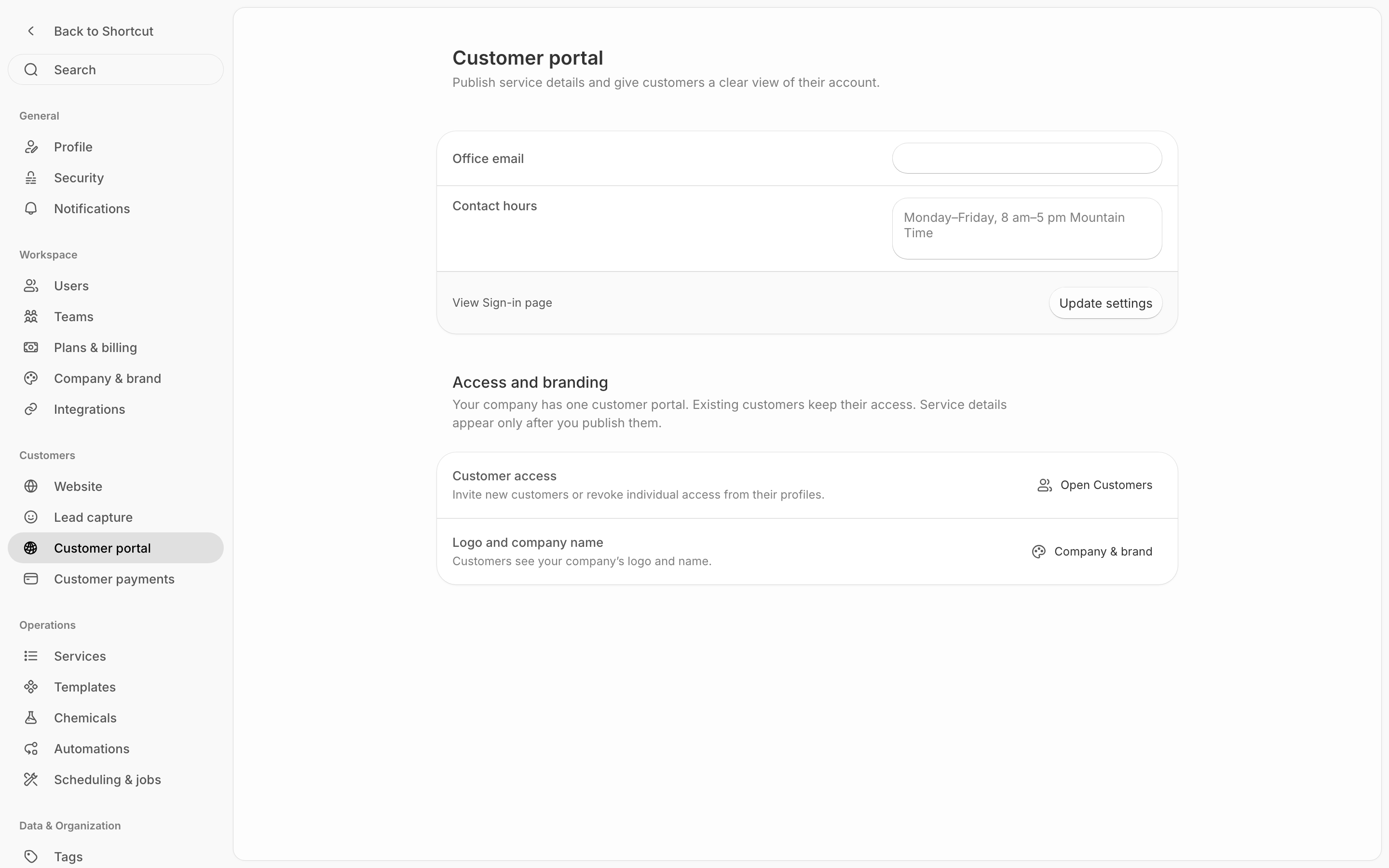
### Add your office email and contact hours

* **Office email** — where **Email the office** links go. It's also the contact address at the bottom of a customer's **Email preferences** page. Leave it blank and portal pages only show your phone number; the Email preferences page then shows the email of the first admin on your Shortcut account.
* **Contact hours** — shown under your contact details on every portal page, for example *Monday–Friday, 8 am–5 pm Mountain Time*.

Click **Update settings**. You'll see *Portal settings saved*.
{% endstep %}

{% step %}

### Look at your sign-in page

**View Sign-in page**, next to **Update settings**, opens the page your customers use. It's your company's own address, like `shortcutco.com/portal/your-company`. It's also the link to give a customer who can't find their invitation.
{% endstep %}
{% endstepper %}

<figure><img src="https://2299783971-files.gitbook.io/~/files/v0/b/gitbook-x-prod.appspot.com/o/spaces%2FOhi7KtJ4vY1pDKwWu5SV%2Fuploads%2Fgit-blob-47170f703a84d8182ee3ce9cd01b93187682f0c7%2Fsettings-customer-portal.png?alt=media" alt="Settings Customer portal page with the Office email and Contact hours fields, View Sign-in page, Update settings, and the Access and branding card with Open Customers and Company &#x26; brand"><figcaption><p>Tell customers how to reach you. Access is managed customer by customer.</p></figcaption></figure>

### Customers who already had access

Customers who used Shortcut's earlier customer area were moved over automatically, without any email going out. Their **Portal access** card (on their full portal page, below) shows where each one stands:

* **Set a password there?** It reads **Active — access to this customer’s own records**. They can sign in with **Use your password** or an email link.
* **Were invited there but never finished?** It reads **Invitation pending**. An old invitation link still works if it hasn't expired. Otherwise they ask for a link on your sign-in page, or you click **Send invitation**.
* **Never used it, or have a placeholder email?** They weren't moved over. It reads **Not invited**. Invite them.

## Invite a customer

Customers can't sign up on their own. Each one needs an invitation from you.

{% stepper %}
{% step %}

### Open their profile and click the globe

The globe button (hover it and it says **Customer portal**) is in the row of buttons at the top of the customer's profile. Click it and a small panel opens. **Access** shows where they stand: **Active**, **Invite sent**, or **Not invited**. The panel has **Invite to portal** (**Resend invite** when an invite is already out) and **Portal settings**, which opens the customer's full portal page. The full portal page is always up to date.

<figure><img src="https://2299783971-files.gitbook.io/~/files/v0/b/gitbook-x-prod.appspot.com/o/spaces%2FOhi7KtJ4vY1pDKwWu5SV%2Fuploads%2Fgit-blob-59f32e61e9f716eb75369fff7da3306bed8b1adf%2Fcustomer-profile-portal-modal.png?alt=media" alt="The Customer portal panel open under the globe button on a customer&#x27;s profile: Access with a Not invited badge, a line about what the portal lets them do, Portal settings, and Invite to portal"><figcaption><p>Invite a customer from the globe button on their profile.</p></figcaption></figure>

### Send the invitation

Click **Invite to portal**. On the full portal page you can instead click **Send invitation** under **Portal access**. Shortcut emails the customer from your company with the subject *Your \[company] customer portal*. The link in it works once and lasts 72 hours.
{% endstep %}

{% step %}

### Check it went

On the full portal page, **Portal access** reads **Invitation pending** until they use the link, then **Active — access to this customer’s own records**. The email itself is listed under **Portal attention & notification delivery**.
{% endstep %}
{% endstepper %}

<figure><img src="https://2299783971-files.gitbook.io/~/files/v0/b/gitbook-x-prod.appspot.com/o/spaces%2FOhi7KtJ4vY1pDKwWu5SV%2Fuploads%2Fgit-blob-59f32e61e9f716eb75369fff7da3306bed8b1adf%2Fcustomer-profile-portal-modal.png?alt=media" alt="Customer profile with the Portal button clicked and the Customer portal window showing Invite to portal and Open full portal settings (access, publications, deliveries)"><figcaption><p>Invite a customer from the Portal button on their profile.</p></figcaption></figure>

Good to know:

* **Invitations are email only.** They're never sent by text.
* **One customer at a time.** There's no bulk invite.
* **You can publish visits before they accept.** They see them once they sign in.
* **Customers from the earlier customer area may already have access.** Check their **Portal access** card before inviting. See [Customers who already had access](#customers-who-already-had-access).
* **If an invitation is already out and hasn't expired,** sending again won't send a second email. You'll see *An invitation is already available*. If the customer can't find it, send them to your sign-in page to click **Email me a sign-in link**. That works for invited customers too.
* *Add a deliverable customer email before inviting them to the portal.* means the customer has a placeholder email, usually from an import. Fix the email on their profile and invite again.

### Remove someone's access

On the full portal page, click **Revoke access**. They're signed out on their next click, and any link you've sent stops working. The status reads **Revoked**.

To let them back in, click **Restore access** (the status goes back to pending), then **Send invitation**. They need a fresh link.

<figure><img src="https://2299783971-files.gitbook.io/~/files/v0/b/gitbook-x-prod.appspot.com/o/spaces%2FOhi7KtJ4vY1pDKwWu5SV%2Fuploads%2Fgit-blob-eca7fd90ea1b7bf608a4425c290888aee56c50d3%2Fcustomer-portal-office-access.png?alt=media" alt="Customer portal page for one customer showing the Portal access card with Invitation pending, Send invitation and Revoke access, and the Publications list with Edit and Customer preview"><figcaption><p>Each customer's portal page: access, publications, and deliveries in one place.</p></figcaption></figure>

## Publish visits and service reports

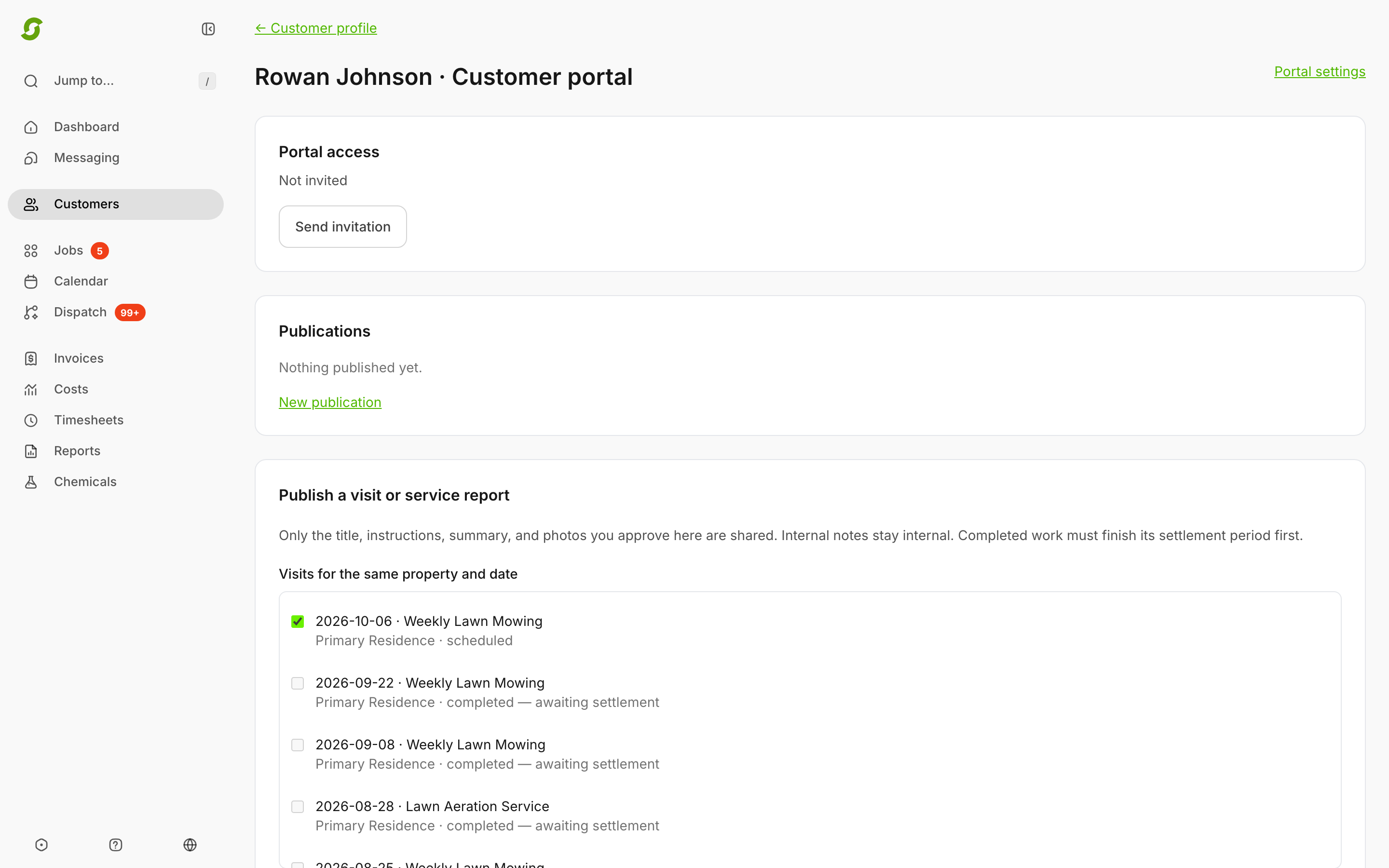
Open the customer's profile, click the globe (**Customer portal**), then **Portal settings**. The **Publish a visit or service report** form lists this customer's visits. Newest come first, starting two weeks ahead.

<figure><img src="https://2299783971-files.gitbook.io/~/files/v0/b/gitbook-x-prod.appspot.com/o/spaces%2FOhi7KtJ4vY1pDKwWu5SV%2Fuploads%2Fgit-blob-e6d8fa325586912ddf9ac6ea68a685630be9f289%2Fcustomer-portal-office-publish.png?alt=media" alt="Customer portal page with the Publish a visit or service report form, an upcoming visit ticked and earlier completed visits marked awaiting settlement"><figcaption><p>You decide exactly what the customer reads.</p></figcaption></figure>

### Publish an upcoming visit

1. Tick the visit. You can tick several on the same property and date, such as a mow and a fertilizer round on one stop. They publish as one.
2. **Customer-facing title** — what the customer reads, for example *Spring fertilizer and weed control*. Required.
3. **Preparation or care instructions** — optional. The customer sees it as **Before your visit**, for example *Please leave the side gate unlocked.*
4. Click **Publish to customer**.

You can publish dates from today up to 14 days ahead. The portal never shows arrival times.

### Publish a service report

When a visit is done, publish what you did.

1. Tick the completed visit. A visit finished in the last few minutes shows **— awaiting settlement** and can't be ticked yet, so reload in a few minutes. A split visit needs every crew finished, and a multi-day job needs every day finished.
2. **Customer-facing title**.
3. **Preparation or care instructions** — the customer sees this as **Care instructions**, for example *Water in within 48 hours.*
4. **Completed service summary** — required for a report. Write it for the customer. Nothing from your internal notes is copied in.
5. **Approve protected photos** — tick the photos to include. **Review photo** opens one full size. They appear in the report in the order they're listed.
6. Tick **Email a service update to this customer** if you want them told. They get an email from your company with the subject *A service update from \[company]*, asking them to sign in.
7. Click **Publish to customer**. You'll see *Published. Open the customer preview to review it.*

**Already published that visit's date?** Don't publish it again. Under **Publications**, click **Edit** on the upcoming visit, add the summary and photos, and click **Publish correction**. That turns the published visit into its report.

{% hint style="warning" %}
**Publish the report, or the customer sees "Awaiting confirmation".** Once a visit you published ahead of time is completed, or its date passes, the portal stops showing the date. The customer sees **Awaiting confirmation** until you publish the report or withdraw the visit. The same happens if a published visit is rescheduled or cancelled. To publish the new date, open it with **Edit** and click **Publish correction**.
{% endhint %}

About photos:

* **Approving a photo also shares it on the invoice.** A photo you approve for the portal is marked as shared with the customer, so it appears on that visit's invoice as well.
* **Up to 20 photos per report.**
* **Older photos may not be available.** If you see *Only photos in protected storage can be published. Historical public photos must complete migration first.* instead of a photo list, that visit's photos were saved under an older storage setup and can't go into a portal report.

<details>

<summary>If publishing fails</summary>

* *Choose visits for one property and service date.* — publish them separately.
* *Publish scheduled dates within the next 14 days.* — it's too far out, or already past.
* *Service is still awaiting completion settlement.* — wait a few minutes after completion and try again.
* *Every crew must finish this split visit before publishing.* / *The multi-day service has unfinished work.* — finish the other crews or days first.
* *Add a customer-facing service summary.* — completed work needs a summary.
* *This visit is already published. Open its publication to update it.* — use **Edit** on the existing one.
* *This visit changed. Reload before publishing.* — someone changed the visit while you were writing. Reload the page.

</details>

## Correct or withdraw

Everything you've published is listed under **Publications**, with its title, date, and version (**v1**, **v2**…).

**Correct it.** Click **Edit**, change the title, instructions, summary, or photos, and click **Publish correction**. The customer sees the new version straight away, and a corrected report is marked *Revision 2*, *Revision 3* and so on. A photo you remove disappears from the report, even for someone who saved the old link. You can't change which visits or property it covers, so publish different work separately. A correction only emails the customer if you tick **Email a service update to this customer** again.

**Withdraw it.** Click **Edit**, then **Withdraw publication**. It disappears from the portal immediately, photos included, and stays in your list marked **Withdrawn**. To put it back, open it and click **Publish correction**.

## Preview what the customer sees

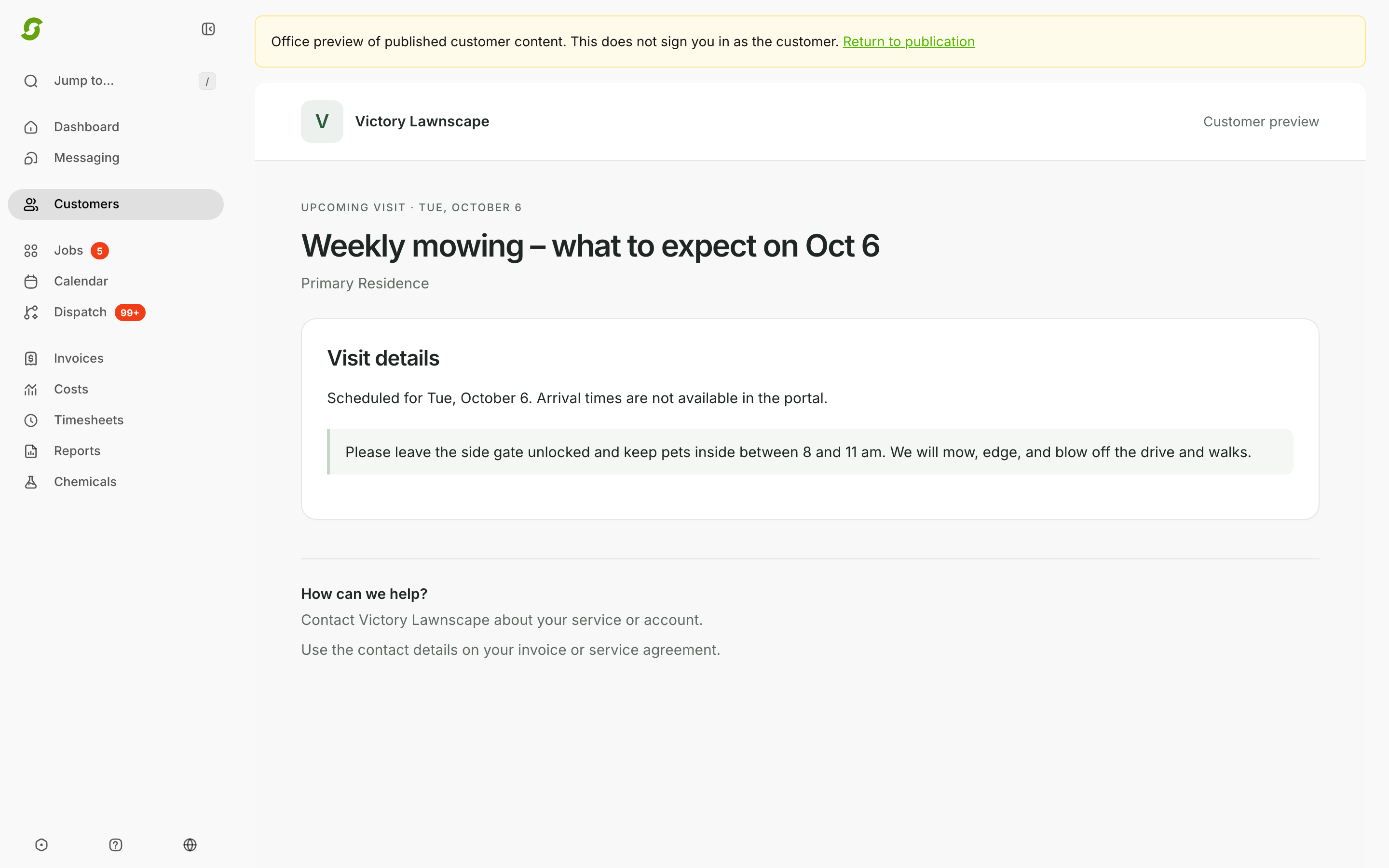
Under **Publications**, click **Customer preview**. It shows that visit or report with your logo, title, date, summary, instructions, and photos. A yellow note at the top says you aren't signed in as the customer, and **Return to publication** takes you back. A withdrawn one shows *Not visible to the customer*.

The preview shows your content only. On the customer's own page, the same report also has the visit details, the invoice link, and the **Something not right?** box.

<figure><img src="https://2299783971-files.gitbook.io/~/files/v0/b/gitbook-x-prod.appspot.com/o/spaces%2FOhi7KtJ4vY1pDKwWu5SV%2Fuploads%2Fgit-blob-b1fad17972231c6b1a8cd376a0722866d1b6392a%2Fcustomer-portal-office-preview.png?alt=media" alt="Yellow office preview note above a branded customer preview of an upcoming visit with its visit details and instructions"><figcaption><p>Check a publication before your customer does.</p></figcaption></figure>

## Check emails and retry

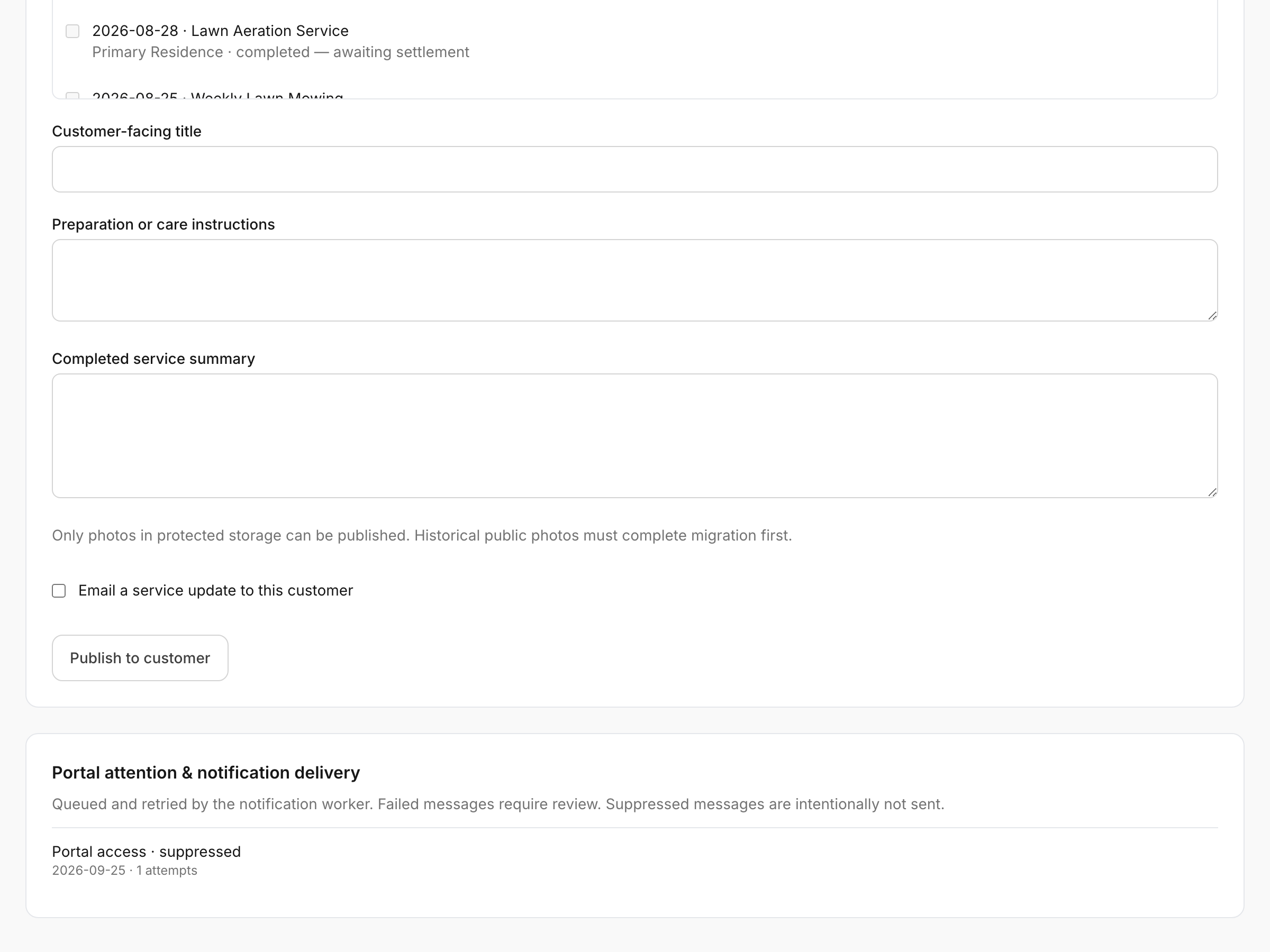
**Portal attention & notification delivery**, at the bottom of the customer's portal page, lists every portal email for them: invitations (**Portal access**) and **Service update** emails. Each shows its date, status, and number of attempts. Emails usually go out within a minute or two. If one can't be delivered, Shortcut tries again, up to five times, before marking it **failed**.

| Status                    | Meaning                                                                                                                                                                                                                      |
| ------------------------- | ---------------------------------------------------------------------------------------------------------------------------------------------------------------------------------------------------------------------------- |
| **sent**                  | Handed to the email service.                                                                                                                                                                                                 |
| **pending** / **sending** | On its way.                                                                                                                                                                                                                  |
| **failed**                | Every attempt failed. Click **Retry delivery**.                                                                                                                                                                              |
| **suppressed**            | Not sent, on purpose. Usually access was revoked, the email is a placeholder, it bounced or was marked as spam, the customer turned off **Service emails** (service updates only), or you changed the visit or report since. |
| **superseded**            | Replaced by a retry.                                                                                                                                                                                                         |

**Retry delivery** on an invitation sends a brand-new link. On a service update, it only works if you haven't changed or withdrawn that visit or report since. Otherwise you'll see *This publication changed or was withdrawn. Publish its current version instead.* If access was revoked, you'll see *Restore customer access before retrying.*

**Recurring schedule needs office confirmation** shows up when the customer has an active recurring service with nothing scheduled ahead. Their portal says *Upcoming dates need confirmation*. Put the next visits on the schedule. The note clears the next time the customer's portal loads with future visits in place.

<figure><img src="https://2299783971-files.gitbook.io/~/files/v0/b/gitbook-x-prod.appspot.com/o/spaces%2FOhi7KtJ4vY1pDKwWu5SV%2Fuploads%2Fgit-blob-e91c23c41328a994a860600a6bf3f674d66f36dc%2Fcustomer-portal-office-delivery.png?alt=media" alt="The Portal attention and notification delivery card at the bottom of a customer&#x27;s portal page, with one row reading Portal access · suppressed, 2026-09-25 · 1 attempt"><figcaption><p>Each portal email gets a row here with its state. This one was suppressed, so nothing went out.</p></figcaption></figure>

## Common questions

<details>

<summary>Will customers see our internal notes or gate codes?</summary>

No. They see only the title, instructions, summary, and photos you write or approve on the publish form, plus their own invoices and payments.

</details>

<details>

<summary>Is there a list of everything waiting to be published?</summary>

Not yet. You publish from each customer's portal page.

</details>

## Related pages

* [Customer portal (what your customers see)](/readme/customer-portal.md)
* [Company & brand](/readme/configuration/company-profile.md)
* [Customers overview](/readme/leads-prospects-customers/customers-overview-+-importing.md)
* [Troubleshooting hub](/readme/troubleshooting/troubleshooting-hub-top-issues.md)

## Still stuck?

Email **<hello@shortcutco.com>** with the customer name, what you were trying to publish or send, and a screenshot of their portal page.