> For the complete documentation index, see [llms.txt](https://docs.shortcutco.com/llms.txt). Markdown versions of documentation pages are available by appending `.md` to page URLs; this page is available as [Markdown](https://docs.shortcutco.com/readme/customer-portal/customer-portal-set-up-invite-and-publish.md).

# Set up the portal, invite customers, and publish visits

Set your portal contact details, invite customers, publish the visits and service reports you want them to see, and answer service requests.

The customer portal shows each customer their own invoices and payments automatically. Visits are different. A visit date or a service report reaches the portal only when someone in your office publishes it, so nothing goes out that you haven't read.

This page covers the office side: your portal contact details, service requests, inviting customers, publishing, fixing mistakes, previewing, and checking the emails that went out. For what your customers see, see [Customer portal](https://docs.shortcutco.com/readme/customer-portal.md).

Only admins can do this, and it's meant for a web browser: in the mobile app, the globe menu on a customer's profile has no **Invite to portal**.

## Set your portal details

Every company has a customer portal. There's no on/off switch. Customers get in only once you invite them, so set these up first.

{% stepper %}
{% step %}

### Check your name, logo, and phone

The portal uses your company name, logo, and phone number from **Company & brand**. It never shows Shortcut's. Get those right first. See [Company & brand](https://docs.shortcutco.com/readme/configuration/company-profile.md).
{% endstep %}

{% step %}

### Open Settings → Customer portal

Open **Settings → Customers → Customer portal**. [Open Customer portal →](https://shortcutco.com/settings/customer-portal)
{% endstep %}

{% step %}

### Add your office email and contact hours

* **Office email** — where **Email the office** links go. It's also the contact address at the bottom of a customer's **Email preferences** page. Leave it blank and portal pages only show your phone number; the Email preferences page then shows the email of the first admin on your Shortcut account.
* **Contact hours** — shown under your contact details on every portal page, for example *Monday–Friday, 8 am–5 pm Mountain Time*.

Click **Update settings**. You'll see *Portal settings saved*.
{% endstep %}

{% step %}

### Look at your sign-in page

**View Sign-in page**, next to **Update settings**, opens the page your customers use. It's your company's own address, like `shortcutco.com/portal/your-company`. It's also the link to give a customer who can't find their invitation.
{% endstep %}
{% endstepper %}

<figure><img src="https://2299783971-files.gitbook.io/~/files/v0/b/gitbook-x-prod.appspot.com/o/spaces%2FOhi7KtJ4vY1pDKwWu5SV%2Fuploads%2Fgit-blob-35e81aea17083f50e8b40adb474bcd33c03e5f31%2Fsettings-customer-portal.png?alt=media" alt="Settings Customer portal page with the Office email and Contact hours fields, View Sign-in page, and Update settings"><figcaption><p>Tell customers how to reach you. Access is managed customer by customer.</p></figcaption></figure>

## Turn on service requests

Service requests let customers ask you for more work from their portal: a fall cleanup, aeration, or anything else. They're off until an admin turns them on.

1. Open **Settings → Customers → Customer portal**.
2. Turn on **Service requests**. *Customers can ask for more work from the portal. Each request arrives as a lead in Needs estimate.*
3. Under **Services customers can request**, tick the services to offer. Customers see each one with its description from **Settings → Services**, so write those for a homeowner. Customers can always pick **Something else** and describe what they need.
4. Click **Update settings**.

Customers then get a **Requests** section in the portal and **Request service** buttons on Home and Service. Turn it off and those disappear; requests already sent stay with you.

<figure><img src="https://2299783971-files.gitbook.io/~/files/v0/b/gitbook-x-prod.appspot.com/o/spaces%2FOhi7KtJ4vY1pDKwWu5SV%2Fuploads%2Fgit-blob-e9946e22cf37897bf339458c74f9125f68b908d3%2Fsettings-customer-portal-requests.png?alt=media" alt="Settings Customer portal page with Office email, Contact hours, the Service requests switch turned on, and Services customers can request with Core Aeration, Fall Leaf Cleanup and Preventive Grub Control ticked"><figcaption><p>Turn on Service requests and choose the services customers can ask for.</p></figcaption></figure>

## Answer a service request

A request from the portal is a lead with the source **Customer portal**, linked to the customer and the property they picked. You answer it the way you answer any lead, with an estimate.

{% stepper %}
{% step %}

### See it come in

The request shows up in several places at once:

* **Dashboard → Needs you**: *\[Customer] is waiting for a reply*, marked *From the customer portal*.
* **Customers → Needs estimate** and **New**, even when the customer already has jobs with you.
* A push to staff who get new-lead notifications: *Service request: \[Customer]*.
* The customer's profile: a **Service request** card with the services they picked, their note, their preferred timing, the date and the property. The activity feed logs **Requested service · Customer portal**.
  {% endstep %}

{% step %}

### Create the estimate

On the **Service request** card, click **Create estimate**. The estimate opens with the request under **From the request**, so you can price what they asked for. Save it as a draft and the button reads **Open estimate**. The customer still sees **Received** until you send it.
{% endstep %}

{% step %}

### Send it

Send the estimate by email, text, or both, as usual. The customer's portal request changes to **Estimate ready** with **Review estimate**.
{% endstep %}

{% step %}

### The customer approves

They approve it from the portal or from the estimate link, and the request reads **Approved**. From there it's an approved estimate like any other. See [Prospect management (approve, remind, void)](https://docs.shortcutco.com/readme/leads-prospects-customers/prospect-management-approve-remind-void.md).
{% endstep %}
{% endstepper %}

**Not doing the work?** Click **Dismiss** on the card. The request leaves Needs estimate, and the customer sees it as **Closed** under **Earlier**. Call or email them to explain: the portal doesn't send a message.

<figure><img src="https://2299783971-files.gitbook.io/~/files/v0/b/gitbook-x-prod.appspot.com/o/spaces%2FOhi7KtJ4vY1pDKwWu5SV%2Fuploads%2Fgit-blob-8f276381bf5b74f2657028f8edf8811bc41279fa%2Fcustomer-profile-service-request.png?alt=media" alt="Service request card on a customer profile showing Fall Leaf Cleanup, the customer note, Preferred timing: In the next two weeks, Customer portal, the date, the property, Estimate sent, and an Open estimate button"><figcaption><p>The request on the customer profile, after the estimate went out.</p></figcaption></figure>

## The Customer portal panel

Everything about one customer's portal lives in a panel on their profile. Open the customer's profile, click the globe button in the header (hover it and it says **Customer portal**), and choose **Portal settings**. The **Customer portal** panel slides in on the right with three groups:

* **Access** — whether they can sign in, with buttons to invite them or take their access away.
* **Publications** — every visit and service report you've published for them, with **New publication** to publish another.
* **Notifications** — the portal emails sent to them, and whether each one arrived.

A note under **Access** links to **Portal settings**, the company-wide page above.

<figure><img src="https://2299783971-files.gitbook.io/~/files/v0/b/gitbook-x-prod.appspot.com/o/spaces%2FOhi7KtJ4vY1pDKwWu5SV%2Fuploads%2Fgit-blob-202b437eba073857d8fb9b3be0ae1c3b1a7ffb7d%2Fcustomer-portal-office-access.png?alt=media" alt="The Customer portal panel open on a customer&#x27;s profile: Access with an Invite sent badge and Resend invite and Revoke access buttons, Publications with one published visit and its Preview and Edit buttons and New publication, and Notifications with one portal access email marked Sent"><figcaption><p>Each customer's portal in one panel on their profile: access, publications, and notifications.</p></figcaption></figure>

### Customers who already had access

Customers who used Shortcut's earlier customer area were moved over automatically, without any email going out. **Portal access** in their **Access** group shows where each one stands:

* **Set a password there?** It reads **Active**. They can sign in with **Use your password** or an email link.
* **Were invited there but never finished?** It reads **Invite sent**. An old invitation link still works if it hasn't expired. Otherwise they ask for a link on your sign-in page, or you click **Resend invite**.
* **Never used it, or have a placeholder email?** They weren't moved over. It reads **Not invited**. Invite them.

## Invite a customer

Customers can't sign up on their own. Each one needs an invitation from you.

{% stepper %}
{% step %}

### Open their profile and click the globe

The globe button is in the row of buttons at the top of the customer's profile. Click it and a small menu opens. Its first line, **Customer portal**, has a badge showing where they stand: **Active**, **Invite sent**, or **Not invited**.

<figure><img src="https://2299783971-files.gitbook.io/~/files/v0/b/gitbook-x-prod.appspot.com/o/spaces%2FOhi7KtJ4vY1pDKwWu5SV%2Fuploads%2Fgit-blob-4677d5e46782bcc67a8b2241e9460ecc79738b0c%2Fcustomer-profile-portal-modal.png?alt=media" alt="The Customer portal menu open under the globe button on a customer&#x27;s profile: Customer portal with a Not invited badge, then Invite to portal and Portal settings"><figcaption><p>Invite a customer from the globe button on their profile.</p></figcaption></figure>
{% endstep %}

{% step %}

### Send the invitation

Click **Invite to portal** (**Resend invite** when one is already out). Or, in the **Customer portal** panel, click **Send invite** next to **Portal access**. You'll see *Portal invite sent.* Shortcut emails the customer from your company with the subject *Your \[company] customer portal*. The link in it works once and lasts 72 hours.
{% endstep %}

{% step %}

### Check it went

In the **Customer portal** panel, **Portal access** reads **Invite sent** until they use the link, then **Active**. The email itself is listed under **Notifications** as **Portal access email**.
{% endstep %}
{% endstepper %}

Good to know:

* **Invitations are email only.** They're never sent by text.
* **One customer at a time.** There's no bulk invite.
* **You can publish visits before they accept.** They see them once they sign in.
* **Customers from the earlier customer area may already have access.** Check **Portal access** before inviting. See [Customers who already had access](#customers-who-already-had-access).
* **If an invitation is already out and hasn't expired,** sending again won't send a second email. You'll see *An invite is already on its way*. If the customer can't find it, send them to your sign-in page to click **Email me a sign-in link**. That works for invited customers too.
* *Add a deliverable customer email before inviting them to the portal.* means the customer has a placeholder email, usually from an import. Fix the email on their profile and invite again.

### Remove someone's access

In the **Customer portal** panel, click **Revoke access** next to **Portal access**. They're signed out on their next click, and any link you've sent stops working. The badge reads **Revoked**.

To let them back in, click **Restore access**. The badge goes back to **Invite sent**, and Shortcut reminds you to *Send a fresh invite to activate it*: click **Resend invite**. They need a fresh link.

## Publish visits and service reports

{% hint style="info" %}
**Monitored device visits publish themselves.** If your team checks bait stations, traps or other monitored devices, a completed device-checking visit is shared on its own, with **Devices checked** and a PDF device report (see [Bait stations and traps](https://docs.shortcutco.com/readme/chemical-tracking/pest-control-devices.md)), and a customer with portal access gets a service update email. It shows under **Publications** like any other.
{% endhint %}

Open the customer's profile, click the globe, then **Portal settings**. In the **Customer portal** panel, click **New publication** under **Publications**. A second panel, **New publication**, opens in front of the first.

At the top, **Visits** lists this customer's scheduled and completed visits from two weeks ahead back, newest first. **Show earlier visits** loads more. You can only pick visits for one property and one date (**Same property and date**).

<figure><img src="https://2299783971-files.gitbook.io/~/files/v0/b/gitbook-x-prod.appspot.com/o/spaces%2FOhi7KtJ4vY1pDKwWu5SV%2Fuploads%2Fgit-blob-ef3c1f4e77d72f8fe0061d6b7c08b861c72dfa0f%2Fcustomer-portal-office-publish-visits-alt.png?alt=media" alt="The New publication panel scrolled to Visits, with Same property and date at the top right: the Oct 28 Lawn Mowing visit ticked and older completed visits greyed out with Awaiting settlement, then Cancel and Publish to customer"><figcaption><p>Tick the visit to publish. Visits that can't be ticked yet are greyed out.</p></figcaption></figure>

<figure><img src="https://2299783971-files.gitbook.io/~/files/v0/b/gitbook-x-prod.appspot.com/o/spaces%2FOhi7KtJ4vY1pDKwWu5SV%2Fuploads%2Fgit-blob-e42384a4057b397fab98d1b4178e39bda1a17a6f%2Fcustomer-portal-office-publish.png?alt=media" alt="The lower half of the New publication panel: the Title, Preparation or care instructions, and Service summary fields filled in, Photos with two photos ticked, the Email the customer a service update switch turned off, and Cancel and Publish to customer"><figcaption><p>You decide exactly what the customer reads.</p></figcaption></figure>

### Publish an upcoming visit

1. Tick the visit. You can tick several on the same property and date, such as a mow and a fertilizer round on one stop. They publish as one.
2. **Title** — what the customer reads, for example *Spring fertilizer and weed control*. Required.
3. **Preparation or care instructions** — optional. The customer sees it as **Before your visit**, for example *Please leave the side gate unlocked.*
4. Click **Publish to customer**. You'll see *Published to the customer*.

You can publish dates from today up to 14 days ahead. The portal never shows arrival times.

### Publish a service report

When a visit is done, publish what you did.

1. Tick the completed visit. A visit finished in the last few minutes shows **Awaiting settlement** and can't be ticked yet, so reload in a few minutes. A split visit needs every team finished, and a multi-day job needs every day finished.
2. **Title**.
3. **Preparation or care instructions** — the customer sees this as **Care instructions**, for example *Water in within 48 hours.*
4. **Service summary** — required for a report. Write it for the customer. Nothing from your internal notes is copied in.
5. **Photos** — tick the photos to include (*Only approved photos are shared*). **View** opens one full size. They appear in the report in the order they're listed.
6. **Treatment record** — on a visit with a finished chemical record, turn on **Include what was applied** to add the products, EPA numbers, amounts, the applicator and license, re-entry, and aftercare to the report. Notes, weather, and costs stay internal. This only shows when **Share application records with customers** is on in [Chemicals settings](https://docs.shortcutco.com/readme/chemical-tracking.md#what-you-manage-in-chemicals-settings) (**Settings → Operations → Chemicals**); otherwise the panel says where to turn it on. A record that isn't finished yet says *Finish the chemical record before sharing it. You can still publish this report without it.* If a record changes after you've shared it, the **Correct publication** panel says so: publish a correction to share the updated record. See [Sharing records with customers](https://docs.shortcutco.com/readme/chemical-tracking.md#sharing-records-with-customers).
7. Turn on **Email the customer a service update** if you want them told. They get a short email from your company with the subject *A service update from \[company]* and a link to the report.
8. Click **Publish to customer**. You'll see *Published to the customer*.

**Already published that visit's date?** Don't publish it again. Under **Publications**, click **Edit** on the upcoming visit, add the summary and photos, and click **Publish correction**. That turns the published visit into its report.

{% hint style="warning" %}
**Publish the report, or the customer sees "Awaiting confirmation".** Once a visit you published ahead of time is completed, or its date passes, the portal stops showing the date. The customer sees **Awaiting confirmation** until you publish the report or withdraw the visit. The same happens if a published visit is rescheduled or cancelled. To publish the new date, open it with **Edit** and click **Publish correction**.
{% endhint %}

About photos:

* **Approving a photo also shares it on the invoice.** A photo you approve for the portal is marked as shared with the customer, so it appears on that visit's invoice as well.
* **Up to 20 photos per report.**
* **Older photos may not be available.** If you see *No shareable photos on these visits. Only photos in protected storage can be published.*, that visit's photos were saved under an older storage setup and can't go into a portal report.

<details>

<summary>If publishing fails</summary>

* *Select at least one visit.* — tick a visit first.
* *Add a title the customer will see.* — the title is required.
* *Choose visits for one property and service date.* — publish them separately.
* *Publish scheduled dates within the next 14 days.* — it's too far out, or already past.
* *Service is still awaiting completion settlement.* — wait a few minutes after completion and try again.
* *Every team must finish this split visit before publishing.* / *The multi-day service has unfinished work.* — finish the other teams or days first.
* *Add a customer-facing service summary.* — completed work needs a summary.
* *This visit is already published. Open its publication to update it.* — use **Edit** on the existing one.
* *This visit changed. Reload before publishing.* — someone changed the visit while you were writing. Reload the page.

</details>

## Correct or withdraw

Everything you've published is listed under **Publications**, with its title, date, and version (**Version 1**, **Version 2**…).

**Correct it.** Click **Edit**. The **Correct publication** panel opens. Change the title, instructions, summary, or photos, and click **Publish correction**. The customer sees the new version straight away, and a corrected report is marked *Revision 2*, *Revision 3* and so on. A photo you remove disappears from the report, even for someone who saved the old link. You can't change which visits or property it covers, so publish different work separately. A correction only emails the customer if you turn on **Email the customer a service update** again.

**Withdraw it.** Click **Edit**, then **Withdraw publication**. It disappears from the portal immediately, photos included, and stays in your list marked **Withdrawn**. To put it back, open it and click **Publish correction**.

## Preview what the customer sees

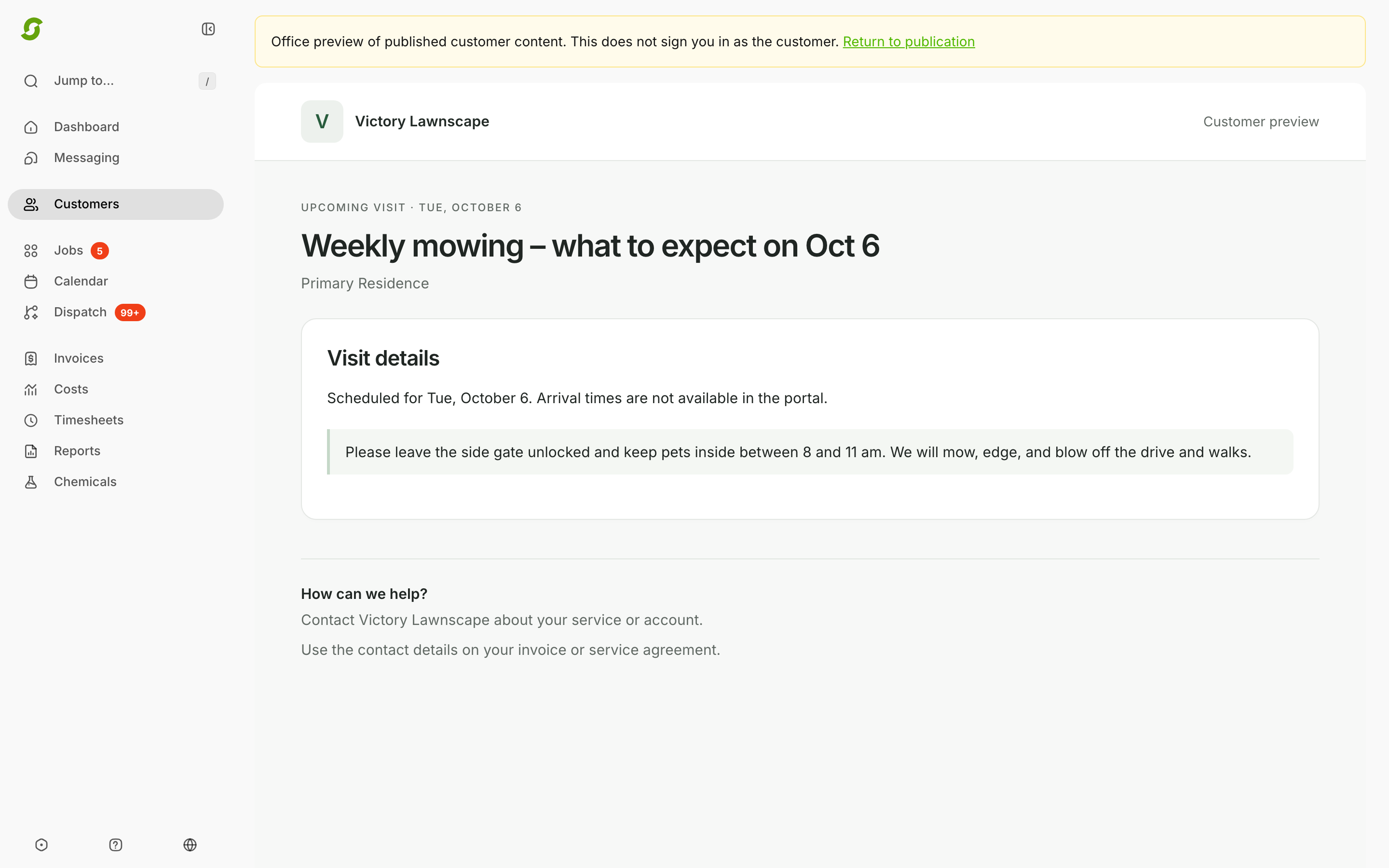
Under **Publications**, click **Preview**. It shows that visit or report with your logo, title, date, summary, instructions, and photos. A yellow note at the top says it's an office preview and doesn't sign you in as the customer, and **Return to publication** takes you back to the customer's profile with the publication open. A withdrawn one shows *Not visible to the customer*.

The preview shows your content only. On the customer's own page, the same report also has the visit details, the invoice link, and the **Something not right?** box.

<figure><img src="https://2299783971-files.gitbook.io/~/files/v0/b/gitbook-x-prod.appspot.com/o/spaces%2FOhi7KtJ4vY1pDKwWu5SV%2Fuploads%2Fgit-blob-b1fad17972231c6b1a8cd376a0722866d1b6392a%2Fcustomer-portal-office-preview.png?alt=media" alt="Yellow office preview note above a branded customer preview of an upcoming visit with its visit details and instructions"><figcaption><p>Check a publication before your customer does.</p></figcaption></figure>

## Check emails and retry

**Notifications**, at the bottom of the **Customer portal** panel, lists every portal email for this customer: invitations (**Portal access email**) and **Service update email**s. Each shows its date, the number of attempts, and a badge with its status. Emails usually go out within a minute or two. If one can't be delivered, Shortcut tries again automatically, up to five times, before marking it **Failed**.

| Badge                    | Meaning                                                                                                                                                                                                                    |
| ------------------------ | -------------------------------------------------------------------------------------------------------------------------------------------------------------------------------------------------------------------------- |
| **Sent**                 | Handed to the email service.                                                                                                                                                                                               |
| **Queued** / **Sending** | On its way.                                                                                                                                                                                                                |
| **Failed**               | Every attempt failed. Click **Retry**.                                                                                                                                                                                     |
| **Not sent**             | Skipped on purpose. Usually access was revoked, the email is a placeholder, it bounced or was marked as spam, the customer turned off **Service emails** (service updates only), or you changed the visit or report since. |
| **Replaced**             | Replaced by a retry.                                                                                                                                                                                                       |

**Retry** on an invitation sends a brand-new link. On a service update, it only works if you haven't changed or withdrawn that visit or report since. Otherwise you'll see *This publication changed or was withdrawn. Publish its current version instead.* If access was revoked, you'll see *Restore customer access before retrying.*

**Recurring schedule needs office confirmation** shows up in **Notifications**, marked **Needs review**, when the customer has an active recurring service with nothing scheduled ahead. Their portal says *Upcoming dates need confirmation*. Put the next visits on the schedule. The row changes to **Resolved** the next time the customer's portal loads with future visits in place.

<figure><img src="https://2299783971-files.gitbook.io/~/files/v0/b/gitbook-x-prod.appspot.com/o/spaces%2FOhi7KtJ4vY1pDKwWu5SV%2Fuploads%2Fgit-blob-81035ae783ffc724513ed87f8dbe81df428c262c%2Fcustomer-portal-office-delivery.png?alt=media" alt="The Notifications group in a customer&#x27;s Customer portal panel, with a Portal access email row showing its date, 1 attempt, and a Not sent badge, and the note explaining Not sent under it"><figcaption><p>Each portal email gets a row here with its status. This one was skipped, so nothing went out.</p></figcaption></figure>

## Common questions

<details>

<summary>Will customers see our internal notes or gate codes?</summary>

No. They see only the title, instructions, summary, photos, and treatment record you write or approve when you publish, plus their own invoices and payments.

</details>

<details>

<summary>Is there a list of everything waiting to be published?</summary>

No. You publish from each customer's **Customer portal** panel.

</details>

## Related pages

* [Customer portal (what your customers see)](https://docs.shortcutco.com/readme/customer-portal.md)
* [Company & brand](https://docs.shortcutco.com/readme/configuration/company-profile.md)
* [Customers overview](https://docs.shortcutco.com/readme/leads-prospects-customers/customers-overview-+-importing.md)
* [Troubleshooting hub](https://docs.shortcutco.com/readme/troubleshooting/troubleshooting-hub-top-issues.md)

## Still stuck?

Email **<hello@shortcutco.com>** with the customer name, what you were trying to publish or send, and a screenshot of their Customer portal panel.