> For the complete documentation index, see [llms.txt](https://docs.shortcutco.com/llms.txt). Markdown versions of documentation pages are available by appending `.md` to page URLs; this page is available as [Markdown](https://docs.shortcutco.com/readme/dashboard.md).

# Dashboard

The Dashboard is your start-of-day page: what today looks like, what needs you, how the week ahead is booked, and this week's numbers.

The Dashboard is the page to open first thing. It shows what today looks like, what needs a person, how full the next 7 days are, and how the week is going. [Open Dashboard →](https://shortcutco.com/dashboard)

## What you'll see, top to bottom

### The day line and Today at a glance

The top line is today's date and the weather where you work, with the next rain if it's coming. Under the greeting, one line of counts links to the work: visits today, visits on the next rainy day, teams running behind (**Team B 40 min behind**), and leads waiting. A quiet day reads **Nothing scheduled today**.

### The lead story

One headline about the week ahead, with a chart of the next 7 days. It picks the biggest story: rain putting visits at risk, a day booked past what your teams can do, how full the week is, or **Nothing is booked for the next 7 days yet**.

<figure><img src="https://2299783971-files.gitbook.io/~/files/v0/b/gitbook-x-prod.appspot.com/o/spaces%2FOhi7KtJ4vY1pDKwWu5SV%2Fuploads%2Fgit-blob-f1a965a2252197fda1c1eca3846305e6c085bcd0%2Fdashboard-top.png?alt=media" alt="Top of the Dashboard: the date, Good morning greeting and the line 74 visits today and Spray Truck running behind; the lead story The next 7 days are 66% booked with a bar chart of each day and Open the week; and Needs you beside it with rows such as 1 visit tomorrow has no team and Show all 55"><figcaption><p>The day line, the lead story and Needs you open the page.</p></figcaption></figure>

The chart shows each day as a share of what your teams can do. A day over 100% is red. Click **Open Tuesday in Dispatch** (or the day named) or **Open the week**.

How full a day is depends on your teams' working days and hours. Set them in **Settings → Scheduling & jobs**, under **Working week** and **Productive hours per person**.

### Needs you

**Needs you** is the short list of things only a person can move. Click a row to go straight to the work. Rows include:

* Leads waiting for a reply (the age turns red after 4 hours)
* Visits today or tomorrow with no team
* Your tasks due today or overdue
* Field add-ons waiting for approval
* An automation that skipped customers, and why
* Customers 60+ days overdue who still had work done, customers who may leave, and jobs running over their bid
* Estimates a customer opened several times or about to expire, failed autopay, customer messages waiting, finished visits with no invoice, people who never clocked out, and snow or spray weather ahead

The first five rows show. Click **Show all** for the rest. When the list is empty it says **All caught up**.

Each row's **⋯** menu has **Not now** (hides it until tomorrow) and **Dismiss** (hides it until something new happens, like another lead arriving). Both apply to everyone in your company. A toast offers **Undo**.

<figure><img src="https://2299783971-files.gitbook.io/~/files/v0/b/gitbook-x-prod.appspot.com/o/spaces%2FOhi7KtJ4vY1pDKwWu5SV%2Fuploads%2Fgit-blob-357f7613727649b77a3167753a75401768ef9d1c%2Fdashboard-needs-you-menu.png?alt=media" alt="Needs you with the ⋯ menu open on the row 1 visit tomorrow has no team, showing Not now (Tomorrow) and Dismiss"><figcaption><p>Not now hides a row until tomorrow; Dismiss hides it until something new happens.</p></figcaption></figure>

### Stories

On a computer or tablet, short columns under the lead story add one finding each, such as which day has room or which program round is slipping behind. A column only shows when it has something to say.

### This week

Four figures for the week so far. Click one to open the records behind it.

| Figure                   | What it shows                                                     |
| ------------------------ | ----------------------------------------------------------------- |
| **Completed work**       | Work finished this week, with the change on last week             |
| **Collected**            | Money received this week, and how many days customers took to pay |
| **Booked, next 14 days** | How much of your teams' time is booked. Red when it's over 100%   |
| **Open quotes**          | The value of estimates waiting on an answer, and how many         |

The **Business numbers** link opens Reports with this month's money figures. See [Reports](/readme/reports.md#team-pages). A figure Shortcut can't work out yet shows a dash and the reason, such as **None yet** or **Roster not set**.

### On the road right now

One row per team working today: where it is, how many stops are done, and whether it's **On track**, behind, or **Done**. Teams running behind come first. To see this, your teams need to mark visits started and done.

<figure><img src="https://2299783971-files.gitbook.io/~/files/v0/b/gitbook-x-prod.appspot.com/o/spaces%2FOhi7KtJ4vY1pDKwWu5SV%2Fuploads%2Fgit-blob-288a2a94bdc58ab673be1d31ea60b64a58e9b8d6%2Fdashboard-this-week.png?alt=media" alt="Lower Dashboard: the stories Tomorrow has room and a season program round on pace; This week with Completed work $3.9k, Collected, Booked next 14 days 38% and Open quotes $195; On the road right now with Spray Truck first, running behind, and Crews 1 to 6 On track; and the Reports card for last week"><figcaption><p>Stories, this week's figures and the teams on the road.</p></figcaption></figure>

### Reports and Tasks

On a computer, a **Reports** card sums up last week and opens Reports. Your open tasks show under **Tasks**. See [Tasks](/readme/dashboard/tasks-to-dos.md).

## Pick what your Dashboard leads with

Each person chooses what Needs you shows them. Open **Settings → Profile** and, under **Your Dashboard**, pick one or more:

* **Owner** — everything, including money and the big calls.
* **Office** — leads, estimates, invoices, messages and tasks.
* **Dispatch** — teams and visits, with no dollar amounts.

Pick two if you do both jobs. On a phone, **Dispatch** opens with **On the road right now** first; everyone else gets **Needs you** first.

<figure><img src="https://2299783971-files.gitbook.io/~/files/v0/b/gitbook-x-prod.appspot.com/o/spaces%2FOhi7KtJ4vY1pDKwWu5SV%2Fuploads%2Fgit-blob-e7ea672fd442953baa6c5ad3af583a83e97c7071%2Fdashboard-focus-setting.png?alt=media" alt="The Your Dashboard setting in Settings, Profile, with Owner ticked and Office and Dispatch not ticked"><figcaption><p>Pick one or more in Settings → Profile.</p></figcaption></figure>

## New accounts

* **Just signed up** — a **Get started** checklist shows until setup is done: **Review your services**, **Send your first proposal**, **Connect payments**, **Import customers**, **Invite your team**, and **Save a reusable template**. It counts how many are complete. Click **×** to dismiss it for good; Shortcut asks first. The rest of the Dashboard fills in once you have customers of your own. Until then, once the checklist is done or dismissed, the page shows **Nothing here yet** with an **Add a customer** button.
* **Sample week** — **Four things to try** shows until you click **Make this mine**. See [Started with a sample week?](/readme/start-here-get-set-up-send-a-proposal-and-get-paid/1-set-up-shortcut-for-your-business.md#started-with-a-sample-week)
* **Moving in** — a **Moving in** card shows while we bring your data over. You'll get an email when everything is in.
* **Accounts opened before mid-July 2026** — admins who can see margins may see **Your dashboard got smarter**. Click **Set your labor cost** to set it up in Costs, or **Got it** to hide the note.

## The phone app card

A **Shortcut on your phone** card helps you install the app: scan the code on a computer, or tap the store button on a phone. Click **×** to hide it. It stays in your account menu as **Get the phone app**.

## Who sees what

The Dashboard is for company admins:

* Without **See reports**, the money figures and the Reports card are hidden.
* Without **See the schedule**, everything about today, the week ahead, Needs you and the teams on the road is hidden.

If one part can't load, it says so with a **Retry** button. The rest of the page still works.

{% hint style="info" %}
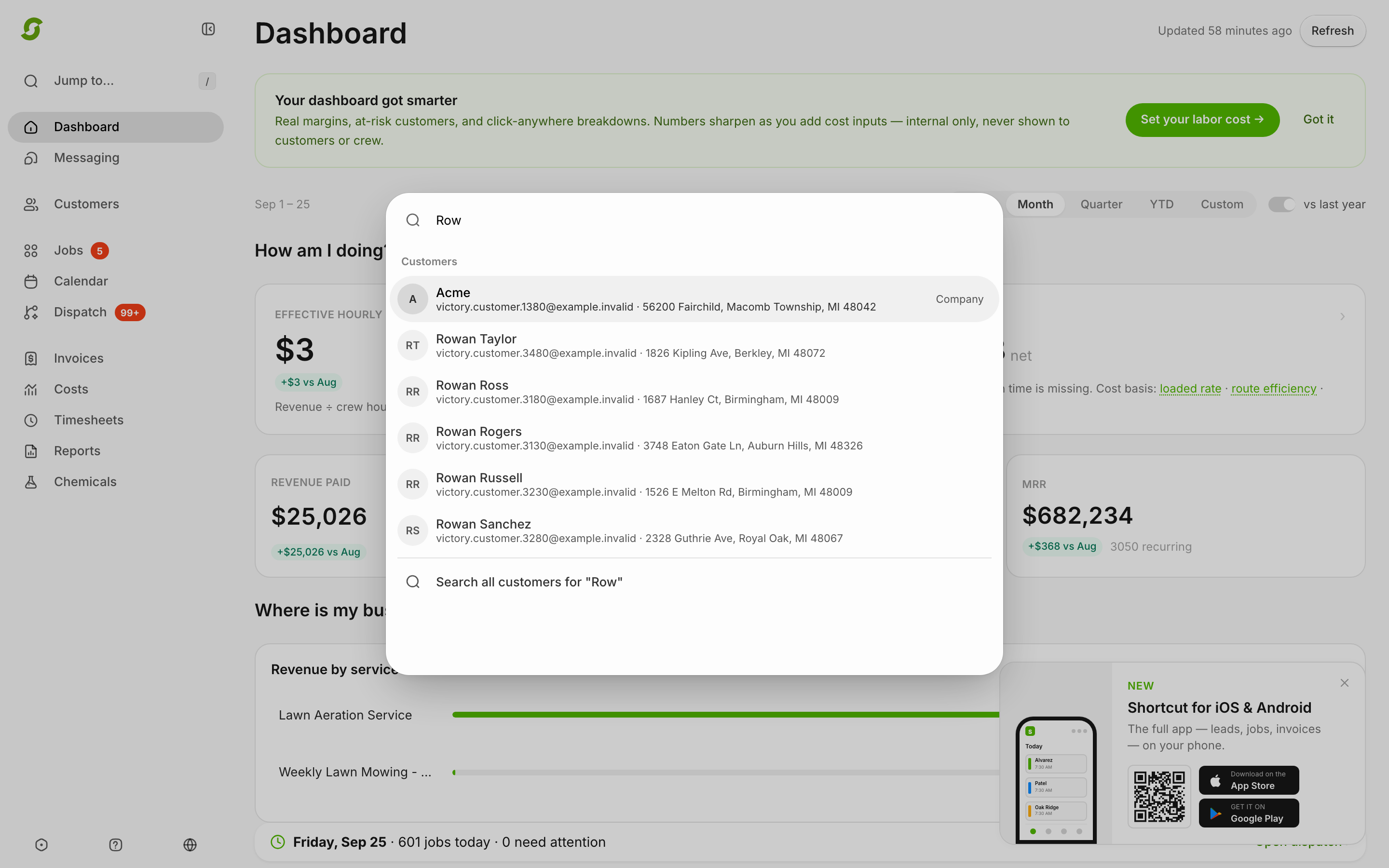
**Tip:** press **/** anywhere to open **Jump to…** and find a customer, invoice or page. See [Ask Clip and use Jump to](/readme/clip/ask-clip-and-the-command-menu.md#jump-to).
{% endhint %}

<figure><img src="https://2299783971-files.gitbook.io/~/files/v0/b/gitbook-x-prod.appspot.com/o/spaces%2FOhi7KtJ4vY1pDKwWu5SV%2Fuploads%2Fgit-blob-2d8f05cba710a2707900f7e6170f83bc1cc8229b%2Fjump-to-palette.png?alt=media" alt="Jump to palette with customer search results"><figcaption><p>Jump to… finds anyone in a keystroke.</p></figcaption></figure>

{% hint style="info" %}
Still stuck? Email **<hello@shortcutco.com>** with a screenshot of your [Dashboard](https://shortcutco.com/dashboard).
{% endhint %}