> For the complete documentation index, see [llms.txt](https://docs.shortcutco.com/llms.txt). Markdown versions of documentation pages are available by appending `.md` to page URLs; this page is available as [Markdown](https://docs.shortcutco.com/readme/dashboard/tasks-to-dos.md).

# Tasks (to-dos)

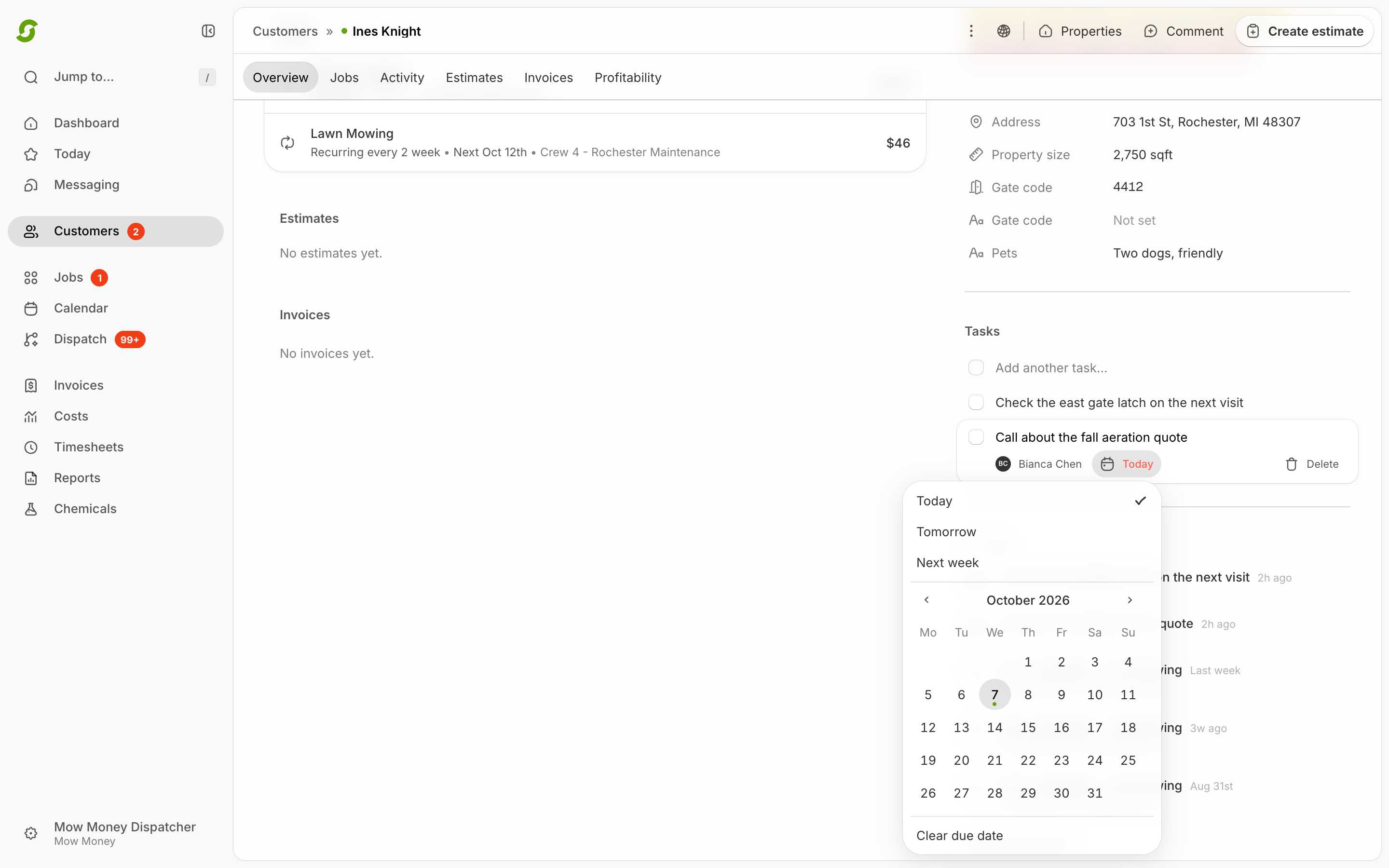
Tasks are follow-ups tied to a lead, prospect, or customer. *"Follow up Monday about the proposal."* *"Take a photo of the drainage before we quote it."*

You can keep one for yourself or hand it to somebody else.

## Where tasks are created

You create tasks from the profile of any:

* Lead
* Prospect
* Customer

## What the Dashboard shows

Your Dashboard shows all tasks you created that are **not completed**.

<figure><img src="/files/w8TuM8L8cxp9iVr2VUWQ" alt="Dashboard task list area"><figcaption><p>Use the dashboard task list for operational to-dos.</p></figcaption></figure>

## Create a task

{% stepper %}
{% step %}

### Open the profile

Open a Lead/Prospect/Customer profile.
{% endstep %}

{% step %}

### Tasks tab

Open the **Tasks** tab.
{% endstep %}

{% step %}

### Type the task

Type the task.
{% endstep %}

{% step %}

### Set a due date

Set a due date.
{% endstep %}

{% step %}

### Save

Save.
{% endstep %}
{% endstepper %}

## Create a task from the activity feed

There's a faster way. On a customer's **Activity** tab, the box at the top of the feed switches between **Note** and **Task**. Type it, set a due date, pick who it's for, post. It lands in the feed and in their task list at the same time.

## Assigning a task

Tasks can go to **anyone on your active team**, crews included. Your crews already see customer tasks in their Today view, so a task like *"Check the back gate latch next visit"* can go straight to the person who'll be standing there.

Leave the assignee blank if it's for whoever picks it up first.

## Complete a task

Tick the checkbox. You can do it from the customer's activity feed, from the Tasks tab, or from the Dashboard — it's the same task in all three, and it updates everywhere at once.

<figure><img src="/files/3HM6Z0fhhLVzPqdh6yQi" alt="Dashboard task area after reviewing tasks"><figcaption><p>Completed tasks leave the dashboard focused on remaining work.</p></figcaption></figure>

<details>

<summary>Still stuck?</summary>

Email **<hello@shortcutco.com>** with a screenshot of the Tasks tab.

</details>