> For the complete documentation index, see [llms.txt](https://docs.shortcutco.com/llms.txt). Markdown versions of documentation pages are available by appending `.md` to page URLs; this page is available as [Markdown](https://docs.shortcutco.com/readme/dispatch/needs-attention.md).

# Needs attention (skipped, unfinished, double-booked)

Things go sideways in the field — a crew skips a stop, sends a visit back, or runs out of daylight. Dispatch collects all of it in one **Needs attention** view, with a red badge on **Dispatch** in the navigation showing how much is waiting.

## It's your board, filtered

Needs attention isn't a separate screen. It's the same Dispatch board you already know — same columns, same crews, same checkboxes — showing only the work that still needs a decision from you.

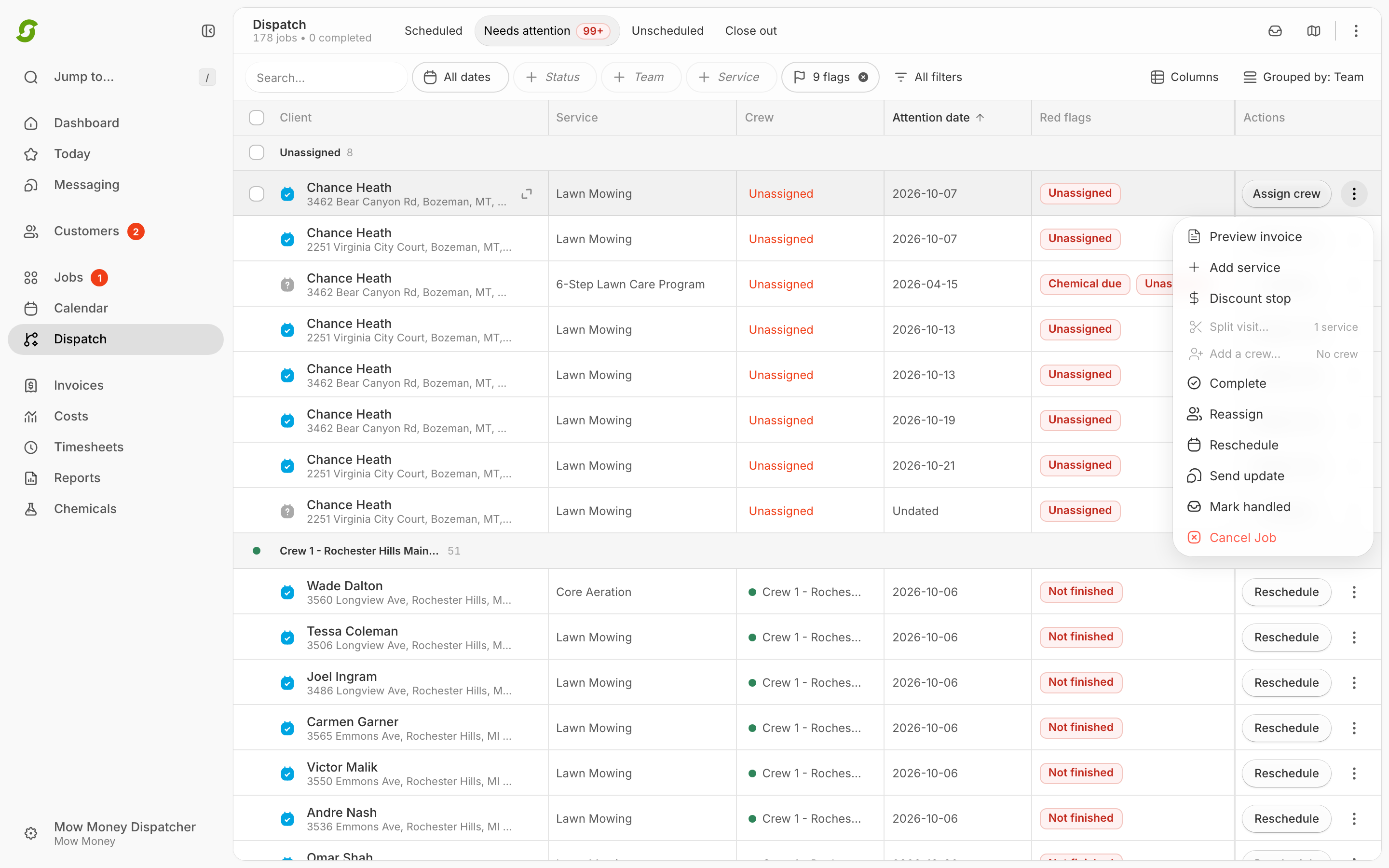
That means everything you'd normally do still works here. Select a handful of rows and act on them together. Open a stop. Use the three-dot menu. The only things that change are that each row tells you **why** it's on the list, and gives you a button that fixes it.

One difference worth knowing: the run-order number column is hidden here. Needs attention pulls from two weeks of work across every crew, so "stop #3" wouldn't mean anything.

Rows are grouped by crew, with **Unassigned** pinned at the top — that's usually where the fastest wins are. Undated work sits with the crew that normally owns the job.

## What lands here, and what to do about it

Each row carries a small flag naming the problem, and up to two buttons that solve it. If a row has more than two problems, the extra fixes are in the three-dot menu.

| Why it's here                                             | What the row says                       | The button         |
| --------------------------------------------------------- | --------------------------------------- | ------------------ |
| The scheduled day passed and the work is still open       | **Not finished** (plus a red date chip) | **Reschedule**     |
| Nobody is assigned to it                                  | **No crew**                             | **Assign crew**    |
| Two crews are booked at the same property on the same day | **Double-booked** (red badge)           | **Resolve**        |
| The address can't be placed on the map                    | **Missing coordinates**                 | **Fix address**    |
| A crew sent the visit back                                | **Needs rescheduling**                  | **Reschedule**     |
| A crew skipped the stop                                   | **Skipped**                             | **Reschedule**     |
| Chemical work is due and has no application record yet    | **Chemical due**                        | **Schedule**       |
| A recurring job has nothing on the calendar ahead of it   | **No future visit**                     | **Schedule visit** |

Some reasons don't get their own flag, because the row already says it another way — a double-booking has its red badge, unfinished work has its red date chip. The row won't repeat itself.

On a phone, cards flag **every** reason, since there's no status pill or date chip to carry them.

<figure><img src="/files/z1QaBxJdKXYE5pAPGSV0" alt="The Needs attention view in Dispatch showing rows grouped by crew, each with a flag naming the problem and a button that fixes it"><figcaption><p>Needs attention — your board, filtered to what needs a decision. Each row says why it's here and hands you the fix.</p></figcaption></figure>

## The badge

The badge counts items from the **last two weeks**. It goes down when someone actually deals with something — reschedules it, completes it, assigns it, or marks it intentional. It won't quietly age out while there's still a decision to make.

If you switch over and the list is still loading, you'll see *"Loading attention queue…"* for a moment. That's just the list catching up. If something genuinely went wrong, you'll get a clear message with a **Retry** button instead.

## Handling a double-booking

Click the red **Double-booked** badge, or the row's **Resolve** button, and Shortcut opens both sides next to each other: each crew, what they're scheduled to do, and roughly how long it'll take.

From there you can:

* **Reschedule either side.** Pick whichever one is easier to move — the flag clears itself once they're no longer on the same day.
* **Mark intentional.** Some jobs genuinely need two crews. Mark it and the flag clears for both, and it won't come back.

<figure><img src="/files/poceoIaKlVJjmmIPw3CQ" alt="The double-booking window showing both crews side by side with their services and estimated time, a Reschedule button on each side, and Mark intentional"><figcaption><p>A double-booking, both sides at once — so you can decide which one moves without opening two stops.</p></figcaption></figure>

## Handling unfinished work

**Not finished** means the scheduled day came and went with the visit still open. Open the stop and either complete it (if the work actually got done), reschedule it, or send it back through the normal flow.

Multi-day jobs a crew deliberately marked **Continue tomorrow** don't count as unfinished — they're expected to still be open.

{% hint style="info" %}
A good habit: clear the Needs attention badge at the end of each day, the same way you'd clear a voicemail light. Two minutes a day keeps the two-week list at zero.
{% endhint %}

<details>

<summary>Still stuck?</summary>

Email **<hello@shortcutco.com>** with a screenshot of the Needs attention view and which item won't clear.

</details>