> For the complete documentation index, see [llms.txt](https://docs.shortcutco.com/llms.txt). Markdown versions of documentation pages are available by appending `.md` to page URLs; this page is available as [Markdown](https://docs.shortcutco.com/readme/finances-invoices-and-payments/billing-modes.md).

# Billing modes (when invoices are created)

Shortcut offers three billing modes that control **when invoices are created and sent** after work is completed. You can set a company-wide default and override it on a per-customer basis to match different payment arrangements.

***

## Billing Modes at a Glance

| Mode                        | When invoices are created                                                                                               | Best for                                                                                   |
| --------------------------- | ----------------------------------------------------------------------------------------------------------------------- | ------------------------------------------------------------------------------------------ |
| **Auto - on completion**    | Immediately when a job is marked complete.                                                                              | Most residential customers — get paid faster with no extra steps.                          |
| **Offline / Check Payment** | When you choose — completed work waits in a queue until you review and issue the invoice.                               | Commercial accounts, check/cash customers, or when you need to review work before billing. |
| **Auto - on a schedule**    | On a recurring schedule (weekly, biweekly, or monthly) — completed work is combined into a single invoice per customer. | Regular service customers who prefer predictable billing dates.                            |

***

## Auto - on completion (at time of service)

This is the default billing mode. When a technician marks a job occurrence as complete, Shortcut immediately:

1. Creates an invoice with a line item for the completed work.
2. Applies sales tax (if configured).
3. Adds any processing fee (if configured).
4. Sends the invoice to the customer via their preferred notification channel (email and/or SMS).
5. Triggers autopay if the customer has it enabled.

There is no delay or manual step — the customer receives the invoice as soon as the work is done.

### When to Use

* Residential customers paying per visit.
* Any situation where you want same-day billing.
* When simplicity matters — no queue to manage, no batches to review.

***

## Offline / Check Payment (you issue the invoices)

With offline billing, completing a job does **not** automatically generate an invoice. Instead, the completed work enters a **pending queue** that you review and invoice on your own schedule.

### How It Works

1. A technician completes a job → the visit is set aside as pending.
2. Open **Invoices** — uninvoiced completed work appears in the **Pending** section at the top of the list.
3. Work is grouped by customer, showing:
   * Customer name and contact info
   * Number of completed jobs awaiting invoicing
   * Total dollar amount
4. Select the customer (or specific jobs) you want to invoice.
5. Click **Issue Invoice** — Shortcut generates a single invoice covering the waiting work. (There's also a **Record paid** button if the customer already paid you offline.)
6. The invoice is sent to the customer and autopay is triggered if enabled.

### When to Use

* Commercial accounts that require invoice review before sending.
* Customers who want a single weekly or monthly invoice but on an irregular schedule.
* When you need to add notes or adjustments before billing.

{% hint style="info" %}
Offline billing gives you full control over when invoices go out. Completed work stays in the pending queue until you issue an invoice — it will never be invoiced automatically.
{% endhint %}

***

## Auto - on a schedule (scheduled billing)

Scheduled billing automatically batches completed work and creates invoices on a recurring schedule. It combines the convenience of automatic invoicing with the consolidation benefits of manual billing.

### Schedule Options

| Cadence      | Configuration                                | Example                              |
| ------------ | -------------------------------------------- | ------------------------------------ |
| **Weekly**   | Choose a day of the week.                    | Every Friday                         |
| **Biweekly** | Choose a day of the week and an anchor date. | Every other Monday, starting March 2 |
| **Monthly**  | Choose a day of the month (1–28).            | The 15th of every month              |

<figure><img src="/files/zWDRTBwhSZCY11yAv7Q7" alt="Customer Payments settings for scheduled billing cadence"><figcaption><p>Configure scheduled billing cadence when invoices should be batched.</p></figcaption></figure>

{% hint style="warning" %}
Monthly billing only supports days 1–28 to avoid issues with months that have fewer than 31 days.
{% endhint %}

### How It Works

1. A technician completes a job → the visit is set aside as pending.
2. Each day at **8:00 AM** (in your company's timezone), a background process checks whether today matches any customer's scheduled billing date.
3. If it matches:
   * All completed, uninvoiced work for that customer is gathered.
   * A single invoice is created with line items for every completed job since the last invoice.
   * Sales tax and processing fees are applied.
   * The invoice is sent to the customer and autopay is triggered if enabled.
4. If it doesn't match, the work stays pending until the next scheduled date.

### When to Use

* Customers who mow weekly but want one monthly invoice.
* Any recurring service customer who prefers predictable billing dates.
* Reducing invoice volume — one invoice per billing cycle instead of one per visit.

***

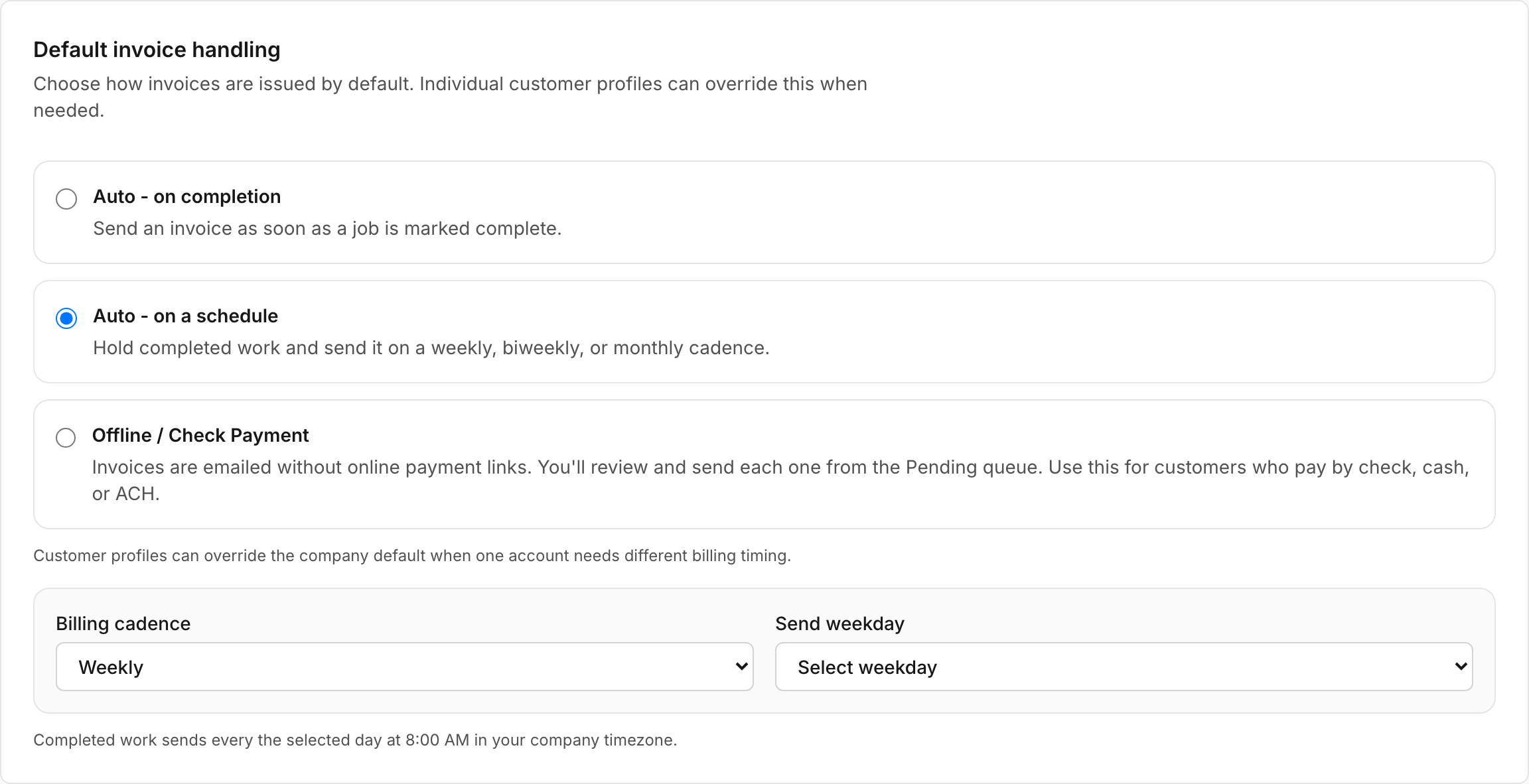
## Setting the Company Default

1. Open the **settings cog → Billing & Payments → Customer Payments**.
2. Under **Default invoice handling**, select your default billing mode:
   * Auto - on completion
   * Auto - on a schedule
   * Offline / Check Payment
3. If you pick **Auto - on a schedule**, choose how often (weekly, biweekly, or monthly) and the specific day.
4. Click **Save**.

All new customers will use this default unless overridden.

<figure><img src="/files/kCFa1bTS4SPKmMlOfoeE" alt="Customer Payments settings with invoice delivery modes"><figcaption><p>Set the company default billing mode from Customer Payments.</p></figcaption></figure>

***

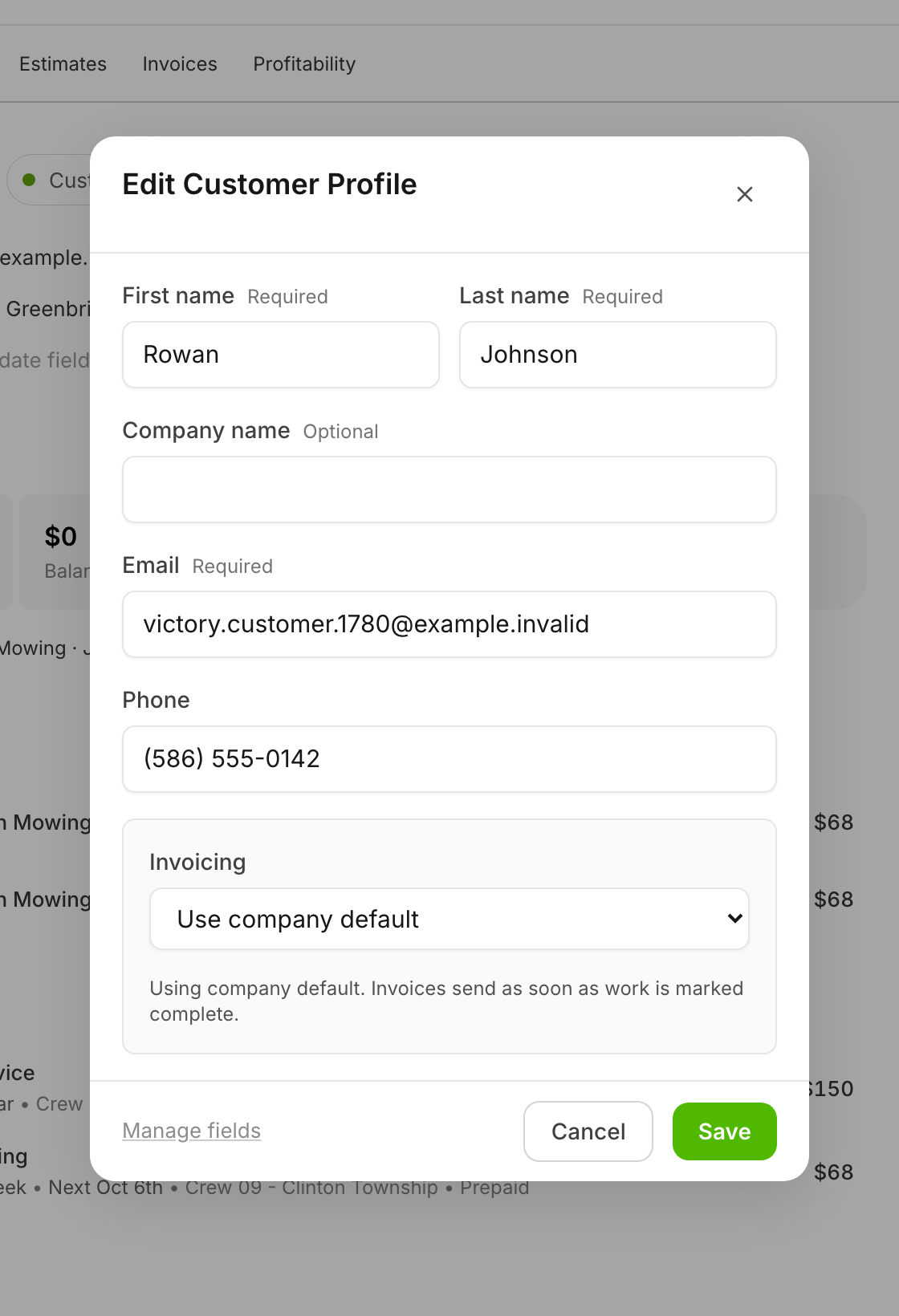
## Per-Customer Overrides

You can override the billing mode for individual customers:

1. Open the customer's profile.
2. Find the **Invoicing** section.
3. Select the billing mode for this customer:
   * **Use company default** — follows whatever the company default is set to.
   * **Automatic on completion** — invoiced immediately.
   * **Offline / Check Payment** — invoiced when you choose.
   * **Automatic on a schedule** — invoiced on a schedule you define for this customer.
4. If you pick **Automatic on a schedule**, choose how often and the day.
5. Save the customer profile.

<figure><img src="/files/EJJkbVk8YBXzxXRbEi20" alt="Customer profile with invoicing override settings"><figcaption><p>Override billing mode on a customer when they need different terms.</p></figcaption></figure>

{% hint style="info" %}
The **Use company default** option means the customer follows whatever the company-wide setting is. If you later change the company default, these customers will automatically follow the new setting.
{% endhint %}

***

## Managing Pending Work

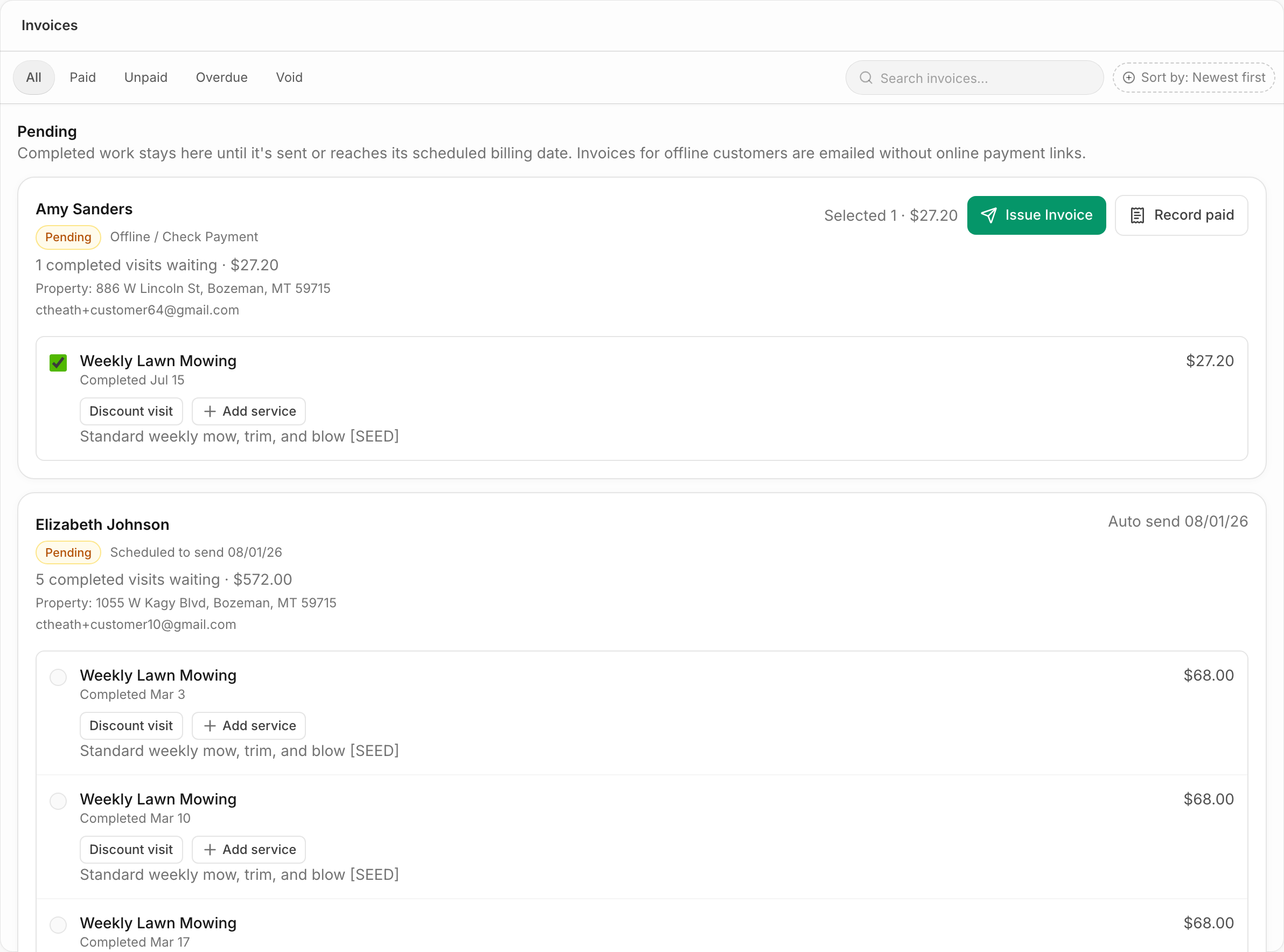
For both offline and scheduled billing modes, you can review pending work in the **Pending** section at the top of Invoices.

### Pending Invoice Groups

The pending view organizes uninvoiced work into groups:

* **Customer name** and contact information.
* **Mode** — Whether this group is pending because of offline or scheduled billing.
* **Next scheduled date** — For scheduled customers, the date when the next automatic invoice will be created.
* **Job count** — How many completed occurrences are waiting.
* **Total amount** — The combined dollar amount.

<figure><img src="/files/T7fehaHpM22xRExITUHX" alt="Pending invoice groups in Finances"><figcaption><p>Review pending groups before creating manual or scheduled invoices.</p></figcaption></figure>

From this view, you can:

* **Issue an invoice immediately** for any offline-payment customer from their group's **Issue Invoice** button.
* **Review details** to see individual jobs before invoicing.

{% hint style="info" %}
Scheduled groups show their next send date ("Auto send {date}"). If you need to bill a scheduled customer off-cycle, temporarily switch that customer's invoicing mode on their profile, issue the invoice, then switch back.
{% endhint %}

***

## How Billing Sequences Interact with Other Features

### Pre-Pay

If a customer has an active, paid pre-pay invoice covering the current date, completed work is automatically linked to the pre-pay invoice regardless of the billing mode. No new invoice is created — the work is marked as **covered by prepay**.

### Sales Tax

Sales tax is calculated the same way across all billing modes — as a percentage of the invoice subtotal at the time the invoice is created. See [Sales tax](/readme/finances-invoices-and-payments/sales-tax.md).

### Autopay

If a customer has autopay enabled, payment is triggered automatically when an invoice is created, regardless of which billing mode generated it.

### Processing Fees

Processing fees (if configured) are added to every invoice at the time of creation, regardless of billing mode.

***

## Comparison Table

|                               | Auto - on completion   | Offline / Check Payment      | Auto - on a schedule            |
| ----------------------------- | ---------------------- | ---------------------------- | ------------------------------- |
| **Invoice timing**            | Immediate              | On demand                    | On schedule                     |
| **Jobs per invoice**          | 1                      | Multiple (your choice)       | All since last invoice          |
| **Admin action required**     | None                   | Review and create            | None                            |
| **Pending queue**             | No                     | Yes                          | Yes                             |
| **Schedule configuration**    | None                   | None                         | Weekly / Biweekly / Monthly     |
| **Customer receives invoice** | Same day as service    | When you send it             | On scheduled billing date       |
| **Best for**                  | Residential, per-visit | Commercial, reviewed billing | Recurring, consolidated billing |