> For the complete documentation index, see [llms.txt](https://docs.shortcutco.com/llms.txt). Markdown versions of documentation pages are available by appending `.md` to page URLs; this page is available as [Markdown](https://docs.shortcutco.com/readme/finances-invoices-and-payments/how-customers-pay-an-invoice.md).

# How customers pay an invoice

Every invoice Shortcut sends has its own link. Your customer opens it on their phone or computer, sees the work and the total, and pays right there. They don't need an account.

This page walks through what they see, so you can talk a customer through it.

## The Pay invoice box

Below the invoice details there's a **Pay invoice** box. What's in it depends on the customer's device.

* **Apple Pay or Google Pay.** If their phone or browser has a wallet set up, a wallet button appears at the top of the box. One tap, confirm, done.
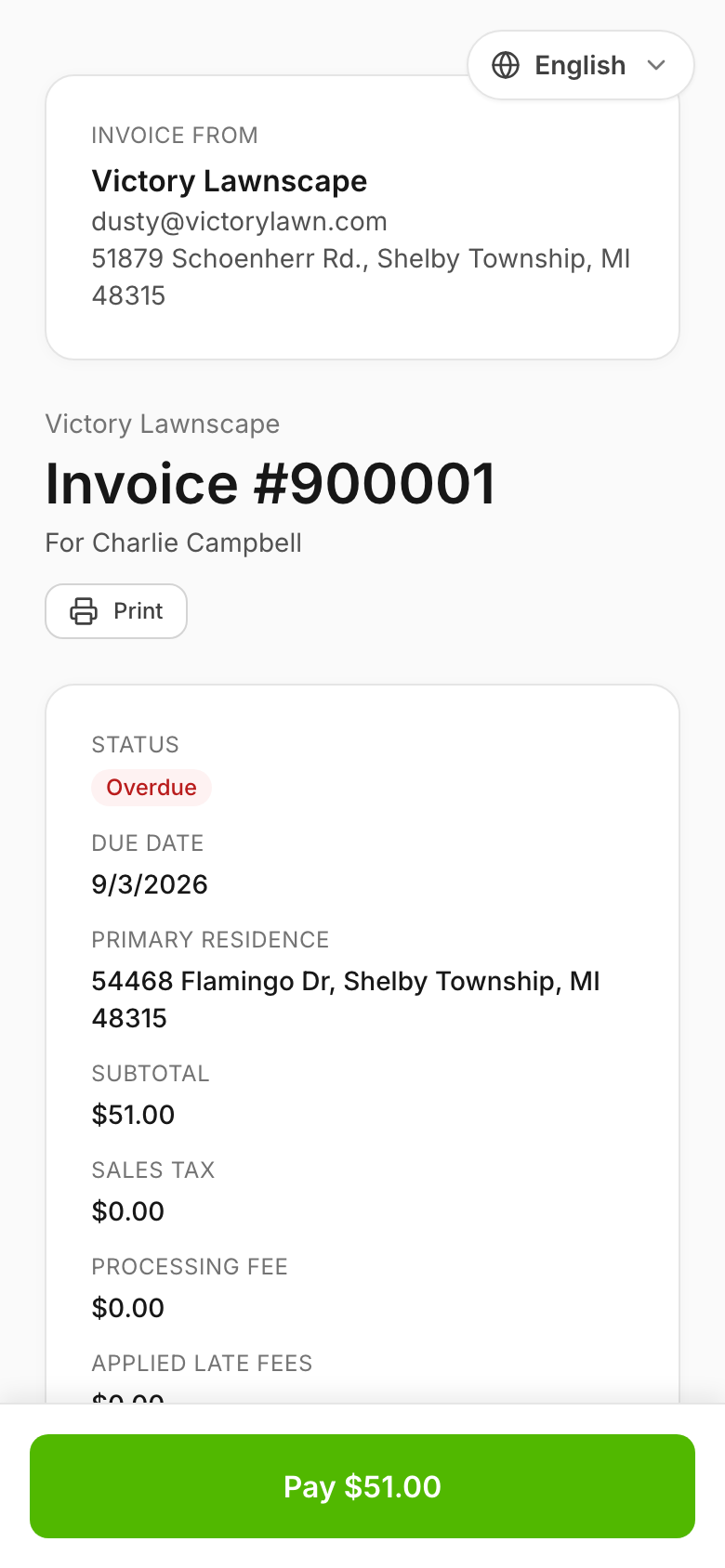
* **A Pay button with the invoice total**, such as **Pay $51.00**. It sits under the wallet button, after **or pay with card**. On a phone it's pinned to the bottom of the screen so it's always in reach, and the box says **Pay button is at the bottom of your screen**.

<figure><img src="https://2299783971-files.gitbook.io/~/files/v0/b/gitbook-x-prod.appspot.com/o/spaces%2FOhi7KtJ4vY1pDKwWu5SV%2Fuploads%2Fgit-blob-9955c7b9eacde1dac153eb3b0a6e9bd002aee234%2Fcustomer-invoice-pay-page-mobile.png?alt=media" alt="Customer invoice #900001 on a phone showing the status, due date and totals, with a green Pay $51.00 button pinned to the bottom of the screen"><figcaption><p>On a phone, the Pay button stays pinned to the bottom of the screen while the customer scrolls the invoice.</p></figcaption></figure>

## Stripe's checkout page

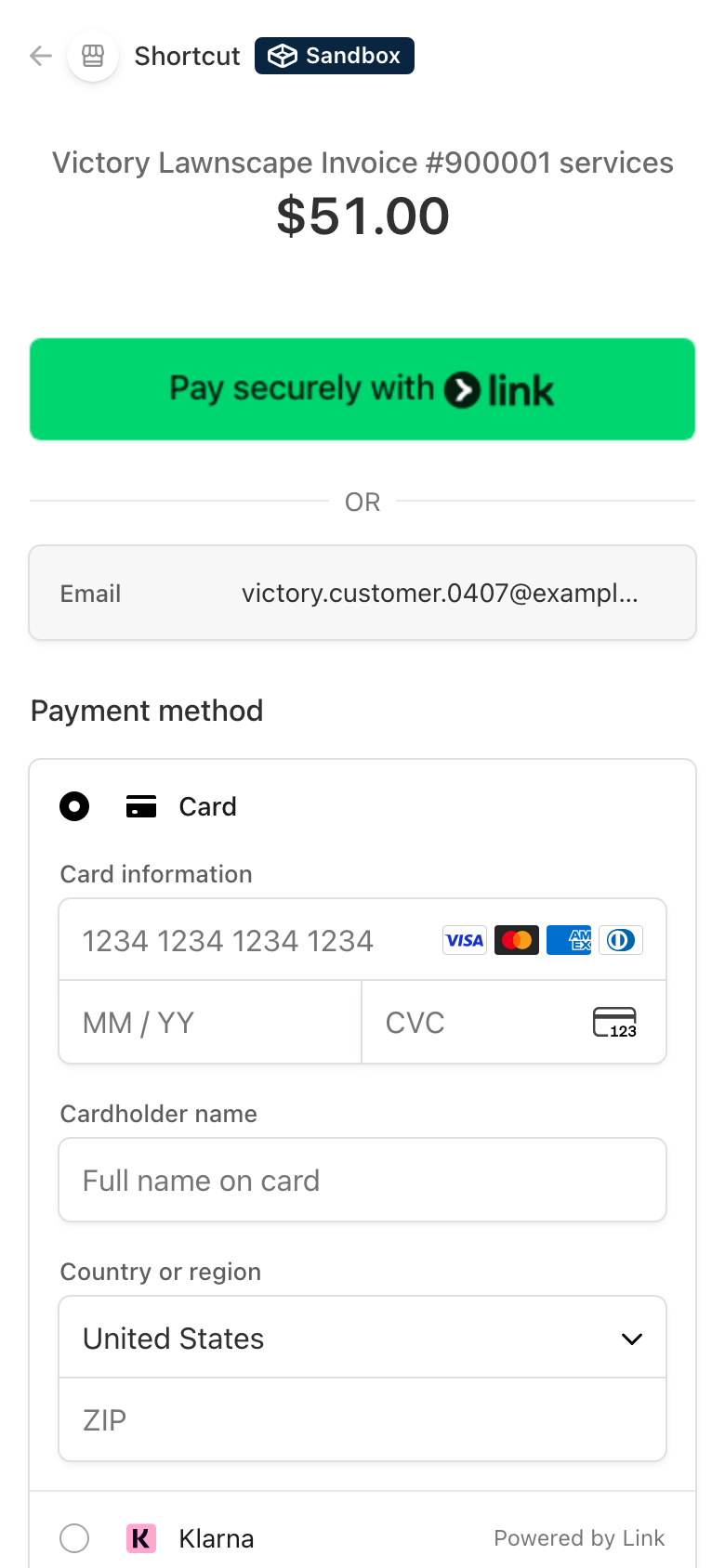
Tapping **Pay $51.00** opens a secure checkout page run by Stripe, your payment processor. The customer enters their card there. Shortcut never sees or stores card numbers.

Stripe's page lists the same amounts as the invoice: the services, then **Sales tax**, **Processing fee**, and **Late fees** if the invoice has them.

Which payment options appear on Stripe's page is decided by Stripe and your Stripe account's payment method settings. Most customers see a card form, and often Apple Pay, Google Pay, **Link**, and **US bank account**.

### Link

Link is Stripe's saved checkout: people save a card once and reuse it on any site that accepts Link. If your customer has saved a card with Link before, anywhere, Stripe can recognize their email, text them a one-time code, and fill the card in. They can also skip Link and type a card in the usual way.

A few things to know:

* Link only shows on Stripe's checkout page. It doesn't appear next to the Apple Pay / Google Pay button on the invoice itself.
* Paying with Link is a one-time payment. It doesn't turn on autopay.

<figure><img src="https://2299783971-files.gitbook.io/~/files/v0/b/gitbook-x-prod.appspot.com/o/spaces%2FOhi7KtJ4vY1pDKwWu5SV%2Fuploads%2Fgit-blob-815645d58cf79551ee27a52df29bf16d9ae6d182%2Fcustomer-invoice-stripe-checkout-link.png?alt=media" alt="Stripe&#x27;s checkout page on a phone for Invoice #900001, with a Pay securely with Link button above the email field and the card form"><figcaption><p>Stripe's checkout page, shown here in Stripe's test mode. When Stripe offers Link, it sits above the card form.</p></figcaption></figure>

### Paying from a bank account

Stripe's checkout page can also offer **US bank account** (ACH). The customer picks it, connects their bank through Stripe, and agrees to a one-time debit for this invoice. Shortcut never sees their bank login or account number, and the debit doesn't authorize any future charges.

The total, processing fee included, is the same as paying by card.

**Bank payments take a few business days.** While one is on its way, the **Status** at the top of the invoice changes from **Unpaid** (or **Overdue**) so the customer knows their payment is on its way. A note in the **Pay invoice** box says what's happening:

| Status at the top         | Note in the Pay invoice box                                                                                                                                    | What it means                                                                                                                                                                                  |
| ------------------------- | -------------------------------------------------------------------------------------------------------------------------------------------------------------- | ---------------------------------------------------------------------------------------------------------------------------------------------------------------------------------------------- |
| **Verification needed**   | **Bank verification needed** — *Bank payments can take several business days. No additional payment is needed.* and a **Verify bank account with Stripe** link | Stripe couldn't confirm the account instantly, so it sent a small test deposit. When that shows up on their statement, the customer comes back to the invoice and uses the link to confirm it. |
| **Payment processing**    | **Bank payment processing** — *Bank payments can take several business days. No additional payment is needed.*                                                 | The debit is on its way.                                                                                                                                                                       |
| **Unpaid** or **Overdue** | **Payment failed** — *Your payment did not complete. You can try again below.*                                                                                 | The bank turned the payment down, for example because the account is closed. The pay button comes back so they can try a card or another account.                                              |
| **Paid**                  | **Payment confirmed. Thank you.**                                                                                                                              | The money arrived.                                                                                                                                                                             |

## After they pay

When the customer comes back from Stripe's page, the invoice says **Payment submitted. We are confirming it now and this page will update shortly.** The page keeps checking by itself for about three minutes. When Stripe confirms the payment, it changes to **Payment confirmed. Thank you.** The invoice then turns **Paid** in your Invoices list. A card payment usually confirms within a minute or two.

If it still isn't confirmed after three minutes, the note changes to **Payment submitted. Confirmation is taking longer than usual. No additional payment is needed.** A **Check payment status** button checks again. The customer doesn't need to pay again.

A bank payment doesn't confirm that quickly. Within a minute or two the note changes to **Bank payment processing**, as described above.

If they back out of Stripe's page without paying, the invoice says **Payment was canceled.** and the pay button is still there.

## When a payment is already in progress

Once a payment is on its way, the invoice won't take a second one. Instead of the pay button, the customer sees a note:

| What the customer sees                                                                                 | What it means                                                                                                                                                                                            |
| ------------------------------------------------------------------------------------------------------ | -------------------------------------------------------------------------------------------------------------------------------------------------------------------------------------------------------- |
| **Payment confirmation pending** — *Payment confirmation is pending. No additional payment is needed.* | Stripe has the payment and Shortcut is finishing recording it. This usually clears in moments.                                                                                                           |
| **Payment processing** — *Payment confirmation is pending. No additional payment is needed.*           | The card payment is still processing at Stripe.                                                                                                                                                          |
| **Bank verification needed** or **Bank payment processing**                                            | A bank payment is on its way. See [Paying from a bank account](#paying-from-a-bank-account).                                                                                                             |
| **Payment needs review** — *Please contact the company about this payment. Do not pay again.*          | Something about the payment needs a person to look at it. See [Invoice statuses](/readme/finances-invoices-and-payments/invoice-statuses-explained-paid-unpaid-overdue.md#when-an-invoice-needs-review). |

These notes stop a customer from paying twice. You'll see the same thing on the invoice in your list. See [Payment notes next to the status](/readme/finances-invoices-and-payments/invoice-statuses-explained-paid-unpaid-overdue.md#payment-notes-next-to-the-status).

## Customers who pay offline

If a customer's billing is set to **Offline / Check Payment**, or you haven't connected Stripe, there's no pay button. The invoice shows your **offline payment instructions** instead. See [Customer payments](/readme/configuration/finances-settings-stripe-manual-payments-fees.md). When they pay you, use [Mark paid](/readme/finances-invoices-and-payments/mark-an-invoice-as-paid-manual.md).

## Common questions

<details>

<summary>A customer says there's no pay button</summary>

On a phone, check the bottom of the screen. That's where the button lives. Otherwise, one of these is true:

* The invoice is already paid or void.
* A payment is already in progress. Look for a note in the **Pay invoice** box.
* The customer is on offline billing.
* You issued a credit memo on an invoice that's already partly paid. The box says *A credit was applied to this invoice. To pay the remaining amount, contact \[your company].* Arrange the rest with the customer directly.

</details>

<details>

<summary>A customer turned off your billing emails. Can they still pay?</summary>

Yes. Turning off billing emails only stops the emails. The invoice link still works, the balance is still due, and autopay keeps running. Send them the link another way: **Remind** still texts it, or they can pay from **Billing** in the customer portal. See [Customer email preferences and invoice delivery](/readme/finances-invoices-and-payments/customer-email-preferences.md).

</details>

<details>

<summary>Can I turn Link off?</summary>

Not from Shortcut. Whether Link shows up depends on Stripe and your Stripe account's payment method settings. Email us if you need a hand.

</details>

## Related pages

* [Invoice statuses explained](/readme/finances-invoices-and-payments/invoice-statuses-explained-paid-unpaid-overdue.md)
* [Customer payments (Stripe, offline payments, fees)](/readme/configuration/finances-settings-stripe-manual-payments-fees.md)
* [Customer portal](/readme/customer-portal.md)
* [Customer email preferences and invoice delivery](/readme/finances-invoices-and-payments/customer-email-preferences.md)

<details>

<summary>Still stuck?</summary>

Email **<hello@shortcutco.com>** with the invoice number and a screenshot of what your customer sees.

</details>