> For the complete documentation index, see [llms.txt](https://docs.shortcutco.com/llms.txt). Markdown versions of documentation pages are available by appending `.md` to page URLs; this page is available as [Markdown](https://docs.shortcutco.com/readme/finances-invoices-and-payments/pre-pay-invoicing.md).

# Pre-pay invoicing

Pre-pay invoicing lets you collect payment from a customer in advance to cover all services during a specified date range. Once the pre-pay invoice is paid, any work completed within that coverage period is automatically marked as covered — no additional invoices are generated for those visits.

***

## Overview

Pre-pay is ideal for customers who prefer to pay up front for a season or a defined block of service. Instead of receiving an invoice after each visit, the customer pays once and all work during the coverage window is included.

**How it works at a high level:**

1. You create a pre-pay invoice for a customer with a dollar amount and coverage dates.
2. The customer pays the invoice.
3. Every time a job is completed for that customer during the coverage period, the system automatically links it to the pre-pay invoice instead of generating a new one.
4. Technicians see a **Prepaid** badge on those jobs so they know the customer has already paid.

***

## Creating a Pre-Pay Invoice

1. Open the customer's profile.
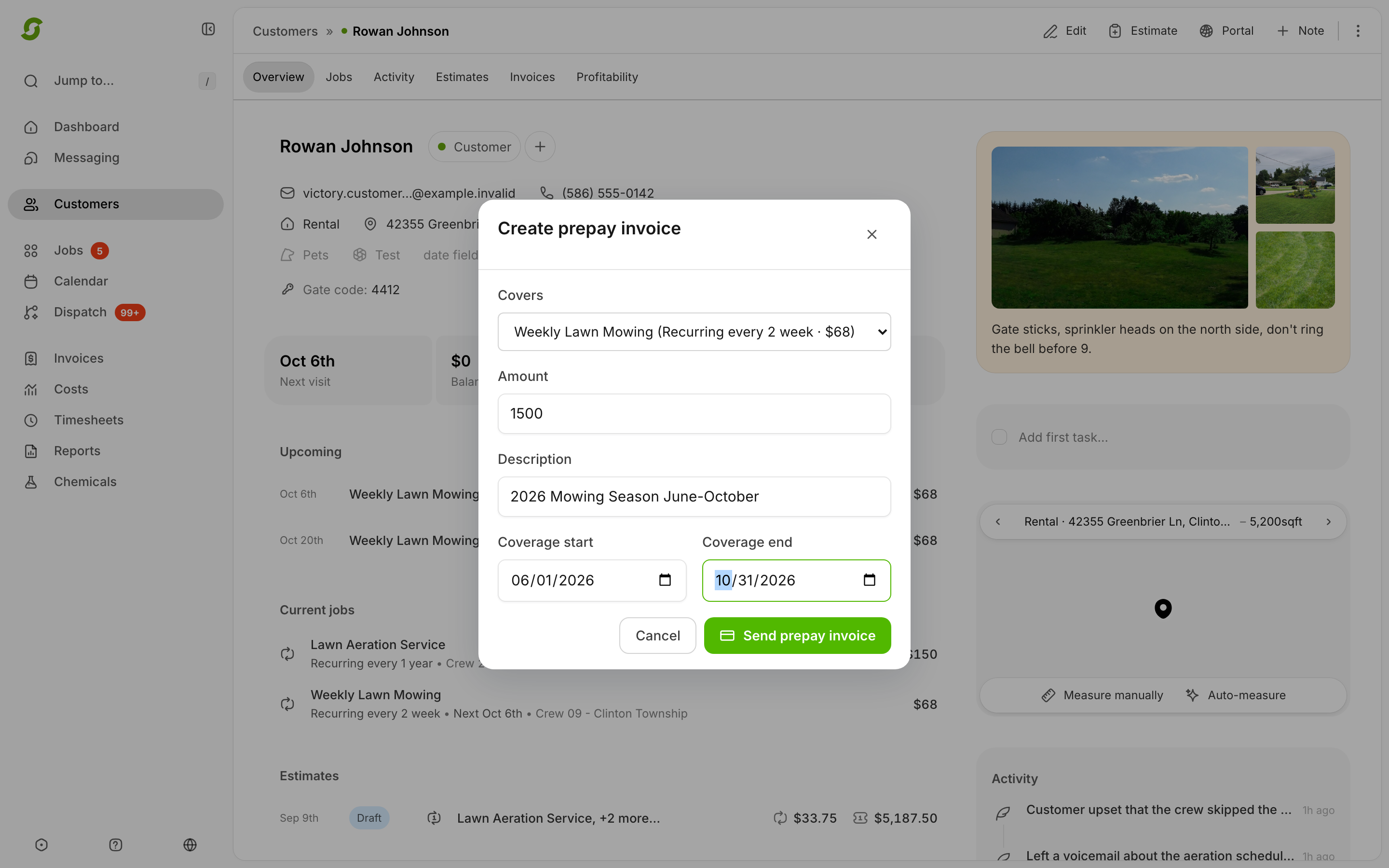
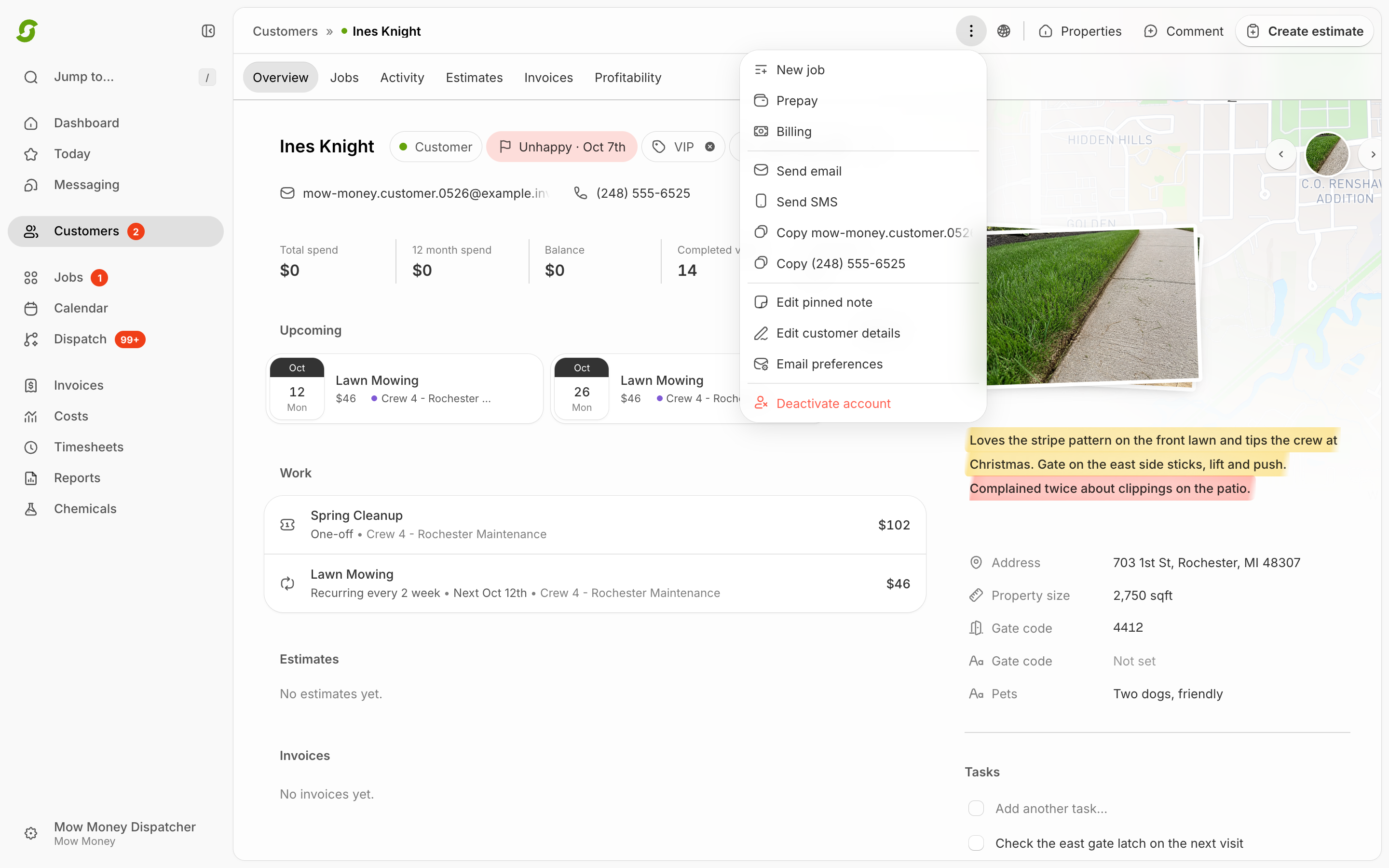
2. Click **Prepay** (shown as **Record prepay** for offline-payment customers). The **Create prepay invoice** window pops up.
3. Fill in the details:
   * **Covers** — choose what the prepay covers (specific jobs or the whole account).
   * **Amount** — The total prepaid amount (up to $1,000,000).
   * **Coverage Start Date** — When the coverage period begins.
   * **Coverage End Date** — When the coverage period ends.
   * **Description** (required, up to 200 characters) — e.g., "2026 Full Season Lawn Care".
4. Click **Send prepay invoice**.

<figure><img src="/files/SJ9LtOuM52AvnOfUE5YA" alt="Create prepay invoice modal"><figcaption><p>Create a prepay invoice from the customer profile.</p></figcaption></figure>

<figure><img src="/files/8yxETSjLrPVnz72h5AZz" alt="Prepay invoice modal with coverage dates"><figcaption><p>Coverage dates decide which completed work the prepay can cover.</p></figcaption></figure>

The system will:

* Create a pre-pay invoice with the specified amount.
* Apply sales tax (if configured for your company).
* Add any processing fees (if configured).
* Send the invoice to the customer via email and/or SMS.

{% hint style="warning" %}
**Overlapping coverage periods are not allowed.** If a customer already has a pre-pay invoice (active or awaiting payment) that overlaps with the dates you're entering, the system will block creation and show an error. You must void the existing pre-pay invoice first, or choose non-overlapping dates.
{% endhint %}

***

## Pre-Pay Invoice Lifecycle

```
Created → Unpaid → Paid → Active Coverage → Expired
```

| Status      | Meaning                                                                                                          |
| ----------- | ---------------------------------------------------------------------------------------------------------------- |
| **Unpaid**  | The invoice has been sent but not paid. Jobs are **not** covered yet.                                            |
| **Paid**    | Customer has paid. Coverage is now active — jobs completed within the date range will be linked to this invoice. |
| **Expired** | The coverage end date has passed. No further jobs will be covered.                                               |

{% hint style="info" %}
Pre-pay coverage only activates **after the invoice is paid**. If a customer has a pre-pay invoice that hasn't been paid yet, their jobs will be billed normally according to their billing mode (on completion, offline, or scheduled).
{% endhint %}

***

## How Coverage Works

### Automatic Matching

When a technician completes a job, the system checks:

1. Does this customer have a pre-pay invoice?
2. Is that invoice **paid**?
3. Does today's date fall within the **coverage start** and **coverage end** dates?

If all three conditions are met, the completed job is automatically linked to the pre-pay invoice and marked as **covered by prepay**. No new invoice is created.

If any condition is not met, the job is billed normally according to the customer's billing mode.

{% hint style="info" %}
**Field add-ons are billed separately.** If a worker adds an extra service during a covered visit, that add-on is invoiced normally — prepay covers the scheduled work, not on-site extras.
{% endhint %}

### What Technicians See

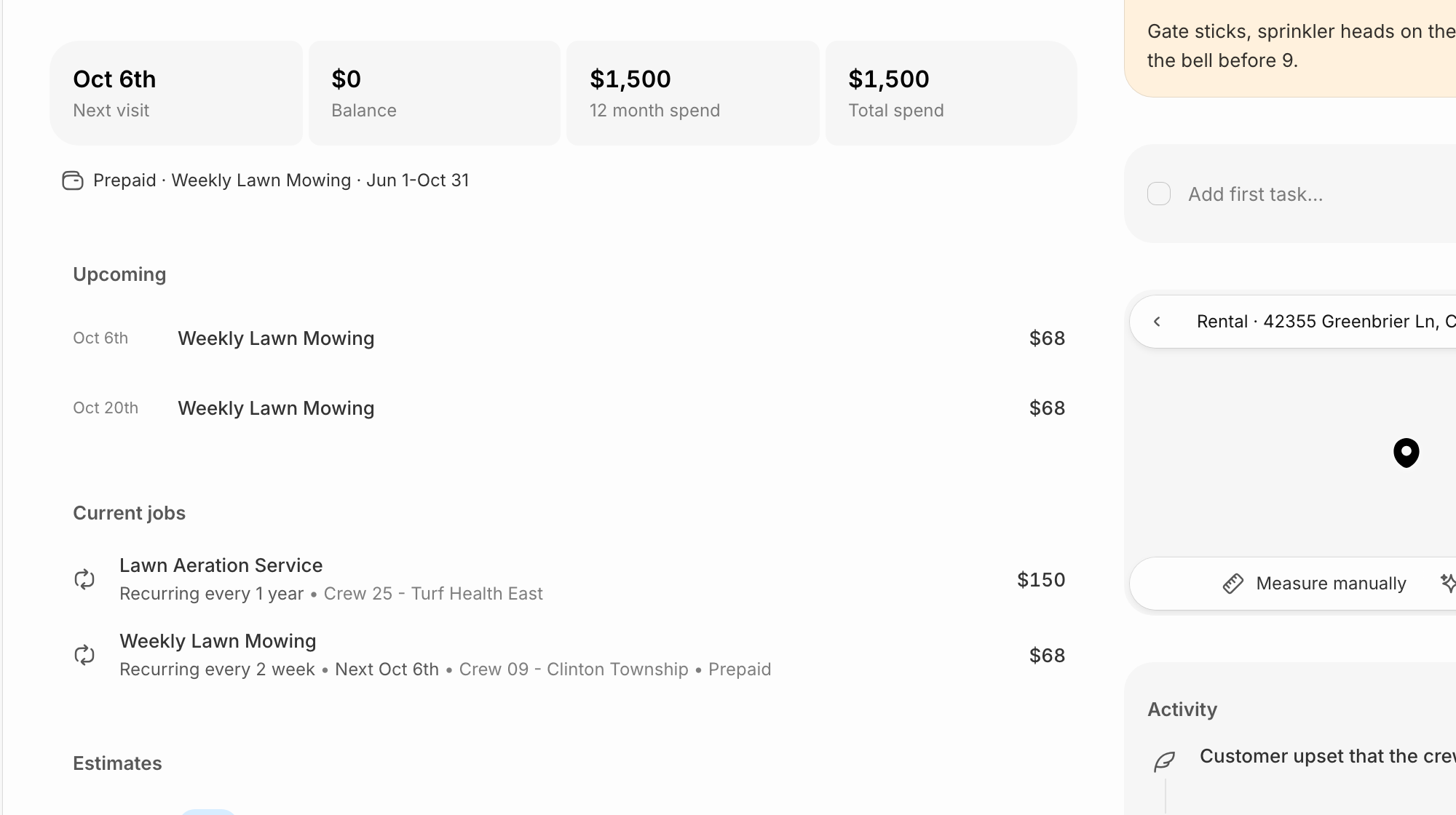
* In the **Today** view, prepaid jobs display a green **Prepaid** badge.
* When completing a job, the visit summary shows a **Prepaid coverage active** message.
* On the **Schedule Board**, completed prepaid jobs show the pre-pay invoice number for reference.

<figure><img src="/files/kGglR82SPa5pEEhjwQeC" alt="Customer profile with prepaid coverage visible"><figcaption><p>Prepaid badges help admins recognize covered work.</p></figcaption></figure>

### What the Customer Sees

* The customer's profile shows a **Prepaid** badge with the coverage scope and date range while coverage is active.
* If a pre-pay invoice has been created but not yet paid, the profile shows **Prepay pending … awaiting payment**.

<figure><img src="/files/kGglR82SPa5pEEhjwQeC" alt="Customer profile invoice history with prepay invoices"><figcaption><p>Invoice history keeps prepay invoices linked to the customer.</p></figcaption></figure>

***

## Pre-Pay and Billing Modes

Pre-pay takes priority over all billing modes. Regardless of whether a customer is set to on-completion, offline, or scheduled billing:

* If active pre-pay coverage exists for the job date → **the job is covered by prepay**.
* If no active pre-pay coverage exists → the normal billing mode applies.

This means you can set up a pre-pay invoice for a customer who is normally on offline billing, and their jobs will be automatically covered without any action on your part during the coverage period.

***

## Multiple Pre-Pay Periods

You can create sequential (non-overlapping) pre-pay invoices for the same customer. For example:

* **Winter 2026**: January 1 – March 31
* **Spring/Summer 2026**: April 1 – September 30
* **Fall 2026**: October 1 – December 31

The system always uses the **most recent** active pre-pay invoice that covers the current date. Once a coverage period ends, subsequent jobs fall back to the customer's normal billing mode until the next pre-pay period begins.

***

## Ending a pre-pay arrangement early

Pre-pay invoices can't be voided like standard invoices. If a prepaid arrangement needs to end early, refund the payment (see [Refunds & credit memos](/readme/finances-invoices-and-payments/refunds-and-credit-memos.md)) and contact support at **<hello@shortcutco.com>** to close out the coverage. Jobs already completed under the coverage stay linked for history.

***

## Refunds

If a pre-pay period ends with unused value, you can issue a refund from the invoice in Shortcut — Stripe payments are refunded through Stripe automatically, and offline payments are recorded as refunded. You can also record a credit memo instead of a cash refund. See [Refunds & credit memos](/readme/finances-invoices-and-payments/refunds-and-credit-memos.md).

***

## Frequently Asked Questions

### What happens if a pre-pay invoice hasn't been paid yet?

Jobs are billed normally. Pre-pay coverage only activates after the invoice status changes to **paid**. Until then, the customer's regular billing mode applies.

### Can I have overlapping pre-pay periods?

No. The system prevents creating a pre-pay invoice whose dates overlap with an existing (non-voided) pre-pay invoice for the same customer. This avoids ambiguity about which pre-pay covers which work.

### Does pre-pay include sales tax?

Yes. Sales tax is calculated on the pre-pay amount at the time the invoice is created, using your company's configured tax rate.

### What if a customer has autopay enabled?

Autopay works normally with pre-pay invoices. When the pre-pay invoice is created and sent, autopay will charge the customer's saved payment method automatically.

### Can I create a pre-pay invoice for a single visit?

Yes. Set the coverage start and end dates to the same day (or a narrow range). Any job completed on that date will be covered.

### How do I know which jobs were covered by a pre-pay invoice?

Jobs linked to a pre-pay invoice show the pre-pay invoice number in the job history and schedule board. You can also view all line items on the pre-pay invoice to see which job occurrences were completed during the coverage period.