> For the complete documentation index, see [llms.txt](https://docs.shortcutco.com/llms.txt). Markdown versions of documentation pages are available by appending `.md` to page URLs; this page is available as [Markdown](https://docs.shortcutco.com/readme/finances-invoices-and-payments/pre-pay-invoicing.md).

# Pre-pay invoicing

Pre-pay invoicing lets you collect payment from a customer in advance to cover all services during a specified date range. Once the pre-pay invoice is paid, any work completed within that coverage period is automatically marked as covered — no additional invoices are generated for those visits.

***

## Overview

Pre-pay is ideal for customers who prefer to pay up front for a season or a defined block of service. Instead of receiving an invoice after each visit, the customer pays once and all work during the coverage window is included.

**How it works at a high level:**

1. A pre-pay invoice is created for a customer with coverage dates. You create it from their profile, or the customer chooses **Pay in full** when they approve an estimate (see [Pay-in-full offers on estimates](#pay-in-full-offers-on-estimates)).
2. The customer pays the invoice.
3. Every time a job is completed for that customer during the coverage period, Shortcut links it to the pre-pay invoice instead of creating a new invoice.
4. Your crew sees a **Prepaid** badge on those jobs so they know the customer has already paid.

***

## Set up prepay discounts

You can give customers a discount for paying up front. The discount is set per service.

1. Open **Settings → Operations → Services**.
2. Click **⋯** on a service and choose **Prepay discount…**.
3. Type the percent off, for example `5`. Leave it blank for no discount.
4. Click **Save**. The service shows a **Prepay 5% off** tag.

The discount fills in on the prepay invoices you create, and it's what estimates offer as a [pay-in-full price](#pay-in-full-offers-on-estimates).

In **Settings → Operations → Estimates** (admins only), under **Season price** (the defaults for a season price paid all at once):

* **All at once: discount for new services** — the percent a service starts with when you create it. Existing services keep theirs.
* **All at once: due within** — how many days after approval a pay-in-full invoice is due (14 to start).
* **All at once: offer ends** — optional. The last day customers can choose the season price all at once, such as a pre-season campaign date. Estimates use it unless they set their own. Leave it blank for no end date.

Click **Save prepay discount**.

<figure><img src="https://2299783971-files.gitbook.io/~/files/v0/b/gitbook-x-prod.appspot.com/o/spaces%2FOhi7KtJ4vY1pDKwWu5SV%2Fuploads%2Fgit-blob-6e97da016d917f56a40f81c89ef3d4c03669c32e%2Fsettings-estimates-season-price.png?alt=media" alt="The Season price section of Settings → Estimates: All at once: discount for new services 5 %, All at once: due within 14 days, All at once: offer ends 03/15/2027, and the Save prepay discount button"><figcaption><p>Company-wide season price settings in Settings → Operations → Estimates.</p></figcaption></figure>

***

## Creating a Pre-Pay Invoice

1. Open the customer's profile.
2. Click **⋯** at the top right and choose **Prepay**. The **Create prepay invoice** window opens. (For offline-payment customers, the menu item reads **Record prepay** and the window is **Record prepaid payment**.)
   * **Prepay** is greyed out until the customer has a job for the prepay to cover.
3. Fill in the details:
   * **Covers** — choose what the prepay covers (specific jobs or the whole account).
   * **Description** (required, up to 200 characters) — e.g., "2026 Full Season Lawn Care".
   * **Coverage start** — when the coverage period begins.
   * **Coverage end** — when the coverage period ends.
4. Once the dates are set, Shortcut prices each covered job. It shows the visits still to come in those dates and fills in:

   * **Amount** — the job's price per visit times those visits. A one-time job that isn't scheduled yet counts once.
   * **Prepay discount %** — the service's prepay discount, or blank for none.

   Change either one if you need to. Under the jobs, a summary shows the **Regular price**, each discount (for example **Prepay discount (5%)**), the sales tax, and the **Prepay total**.
5. Click **Send prepay invoice** (**Record prepaid payment** for offline-payment customers). The window closes, and the prepay invoice appears in the customer's **Invoices** list.

Hourly (man-hour) jobs are billed on the time worked, so they're never priced into a prepay.

<figure><img src="https://2299783971-files.gitbook.io/~/files/v0/b/gitbook-x-prod.appspot.com/o/spaces%2FOhi7KtJ4vY1pDKwWu5SV%2Fuploads%2Fgit-blob-f99f2203b25128cd0c576f17a2a0f3bd39de814e%2Fcustomer-profile-overflow-menu.png?alt=media" alt="A customer&#x27;s profile with the three-dot menu open: New job, Prepay, and Billing; Send email, Send SMS, and Copy with the customer&#x27;s email address and phone number; Manage properties and Add property; Edit pinned note, Edit customer details, and Email preferences; and Deactivate account in red"><figcaption><p>Prepay sits near the top of the ⋯ menu on the customer's profile.</p></figcaption></figure>

<figure><img src="https://2299783971-files.gitbook.io/~/files/v0/b/gitbook-x-prod.appspot.com/o/spaces%2FOhi7KtJ4vY1pDKwWu5SV%2Fuploads%2Fgit-blob-e36174958163563f933aeceb1dbfecafff0815e6%2Fcreate-prepay-invoice.png?alt=media" alt="The Create prepay invoice window before dates are chosen: Covers set to Lawn Mowing + 1 more (2 jobs · $195), an empty Description, empty Coverage start and Coverage end, the line Choose the coverage dates to price this prepay, and Cancel and Send prepay invoice"><figcaption><p>Create a prepay invoice from the customer profile.</p></figcaption></figure>

<figure><img src="https://2299783971-files.gitbook.io/~/files/v0/b/gitbook-x-prod.appspot.com/o/spaces%2FOhi7KtJ4vY1pDKwWu5SV%2Fuploads%2Fgit-blob-c5d490cf4d473a64fe1774be52570e9aac2fd98b%2Fprepay-coverage-dates.png?alt=media" alt="The Create prepay invoice window filled in: Covers Lawn Mowing + 1 more, Description Fall 2026 lawn care, Coverage start 11/01/2026 and Coverage end 12/15/2026; a Lawn Mowing row with 6 visits in the window × $55.00, Amount 330.00 and no prepay discount, and a Core Aeration row with 1 visit × $140.00, Amount 140.00 and Prepay discount 5; then Regular price $470.00, Prepay discount (5%) · Core Aeration -$7.00, Sales tax (7%) $32.41 and Prepay total $495.41"><figcaption><p>Coverage dates decide which completed work the prepay can cover, and price each covered job.</p></figcaption></figure>

Shortcut then:

* Creates a pre-pay invoice with a line for each covered job, and a discount line under each discounted job.
* Applies sales tax (if you've set it up) to the price after the discount.
* Adds any processing fee (if you've set one up).
* Sends the invoice to the customer by email and/or text.

{% hint style="warning" %}
**Coverage periods can't overlap.** If a customer already has a pre-pay invoice (active or awaiting payment) whose dates overlap the ones you're entering, Shortcut shows an error and won't create it. Choose dates that don't overlap, or see [Ending a pre-pay arrangement early](#ending-a-pre-pay-arrangement-early).
{% endhint %}

***

## Pre-Pay Invoice Lifecycle

| Status      | Meaning                                                                                                          |
| ----------- | ---------------------------------------------------------------------------------------------------------------- |
| **Unpaid**  | The invoice has been sent but not paid. Jobs are **not** covered yet.                                            |
| **Paid**    | Customer has paid. Coverage is now active — jobs completed within the date range will be linked to this invoice. |
| **Expired** | The coverage end date has passed. No further jobs will be covered.                                               |

{% hint style="info" %}
Pre-pay coverage only activates **after the invoice is paid**. If a customer has a pre-pay invoice that hasn't been paid yet, their jobs will be billed normally according to their billing mode (on completion, offline, or scheduled).
{% endhint %}

***

## How Coverage Works

### Automatic Matching

When your crew completes a job, it's covered by the prepay if all three are true:

1. The customer has a pre-pay invoice.
2. That invoice is **paid**.
3. The job is completed between the **coverage start** and **coverage end** dates.

If so, the job is linked to the pre-pay invoice and marked **covered by prepay**. No new invoice is created. If not, the job is billed normally under the customer's billing mode.

{% hint style="info" %}
**Field add-ons are billed separately.** If a worker adds an extra service during a covered visit, that add-on is invoiced normally — prepay covers the scheduled work, not on-site extras. [Products](https://docs.shortcutco.com/readme/products.md) added to a covered visit work the same way: they're invoiced when the visit is completed.
{% endhint %}

### What your crew sees

* In the **Today** view, prepaid jobs display a green **Prepaid** badge.
* When completing a job, the visit summary shows a **Prepaid coverage active** message.
* On the **Schedule Board**, completed prepaid jobs show the pre-pay invoice number for reference.

### What you'll see on the profile

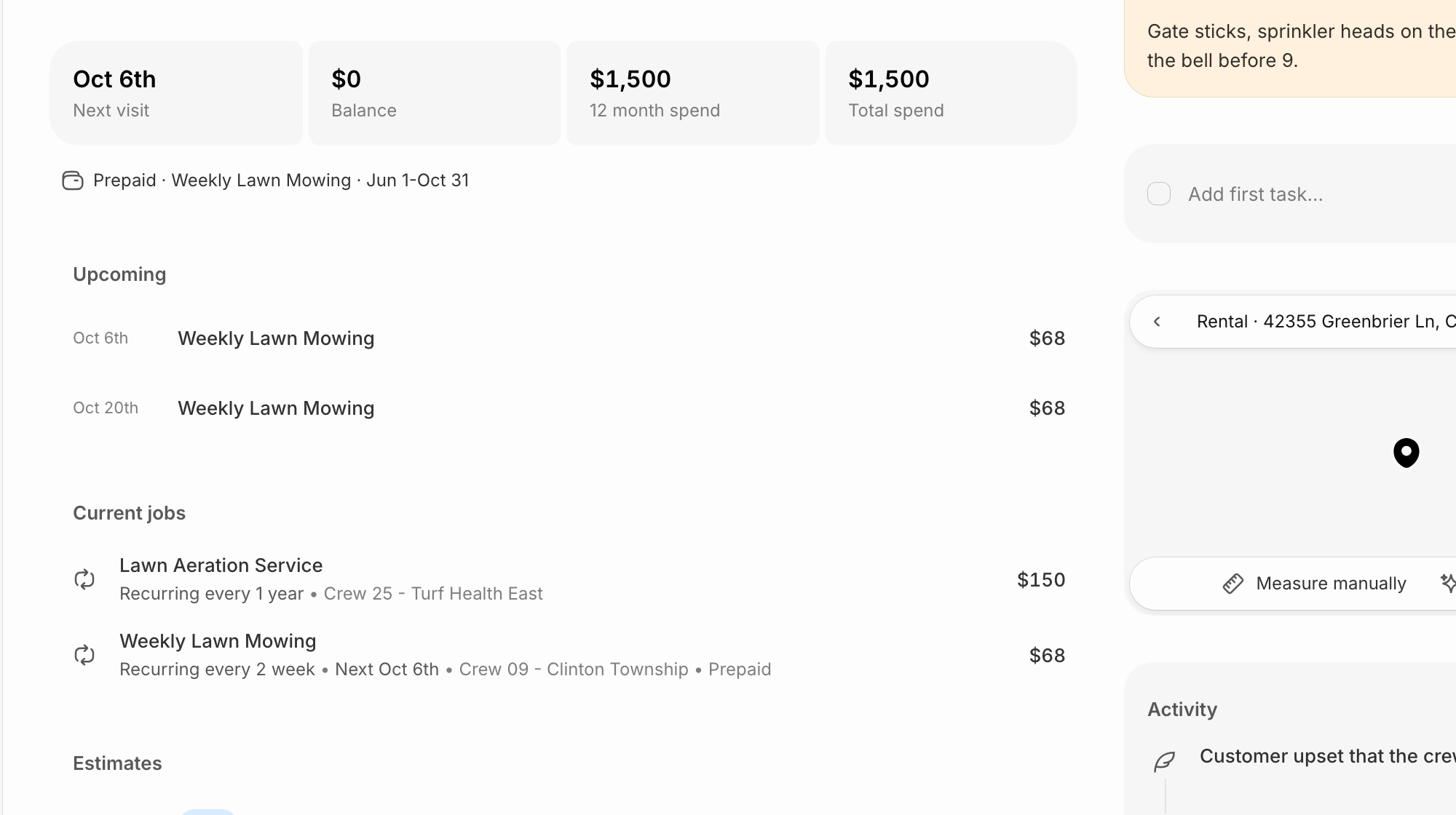
The line under the numbers on the customer's profile shows their prepay:

* **Prepaid · \[what it covers] · \[dates]** — the prepay invoice is paid and coverage is active.
* **Prepay pending** — the prepay invoice has gone out but isn't paid yet, so their jobs are still billed normally.

In **Current jobs**, a job whose next visit falls inside paid coverage shows **Prepaid** in its details.

Prepay invoices show in the customer's **Invoices** list with the same statuses as any other invoice (**Sent**, **Paid**, **Overdue**, and so on). Click one to see which completed visits it has covered.

<figure><img src="https://2299783971-files.gitbook.io/~/files/v0/b/gitbook-x-prod.appspot.com/o/spaces%2FOhi7KtJ4vY1pDKwWu5SV%2Fuploads%2Fgit-blob-e279abbd24cd50bdf22bb28ec00d4b08d687b2a7%2Fcustomer-profile-billing-line.png?alt=media" alt="The numbers on a customer&#x27;s Overview tab (Next visit Oct 6th, Balance $0, 12 month spend $1,500, Total spend $1,500), the billing line under them reading Prepaid · Weekly Lawn Mowing · Jun 1-Oct 31, and the Weekly Lawn Mowing row in Current jobs ending in • Prepaid"><figcaption><p>A paid prepay shows under the customer's numbers: what it covers and the coverage dates.</p></figcaption></figure>

***

## Pay-in-full offers on estimates

An estimate can offer a season price paid all at once (pay in full) for its one-time services and chemical programs, using each service's prepay discount. You set it up on the estimate (see [Offer a season price](https://docs.shortcutco.com/readme/proposals/how-to-create-and-send-a-proposal.md#all-at-once)). The customer chooses **Pay per visit** or **Pay in full** when they approve (see [Paying in full](https://docs.shortcutco.com/readme/proposals/what-the-customer-sees-when-approving.md#paying-in-full)).

### When the customer chooses pay in full

Right after they approve, Shortcut creates one pre-pay invoice for the services in the offer, with the discount and any sales tax. It covers those jobs for one year from the approval day.

* **If you take online payments**, the customer goes straight to the invoice to pay by card or bank.
* **If you don't**, or the customer is set to pay offline, the invoice goes out unpaid. When their check arrives, record it with **Mark paid** (see [Mark an invoice as paid](https://docs.shortcutco.com/readme/finances-invoices-and-payments/mark-an-invoice-as-paid-manual.md)).

The invoice is due on the earliest of:

* the number of days after approval set in **All at once: due within**
* the offer's end date, if it has one
* the day before the first visit, if one is already scheduled

### Before it's paid

Jobs still get scheduled and done as usual. When a covered visit is completed, its bill is made but held: it isn't sent and isn't charged.

The customer gets the invoice by email or text, naming the pay-by date and the saving. A reminder goes out three days before the pay-by date and another on the day. A pay-in-full invoice never turns overdue and never gets a late fee.

### What happens next

| What happens                      | Result                                                                                                                                                                      |
| --------------------------------- | --------------------------------------------------------------------------------------------------------------------------------------------------------------------------- |
| **Paid in full**                  | The held bills are dropped, and those visits are covered by the prepay.                                                                                                     |
| **Not paid by the pay-by date**   | The pay-in-full invoice is voided and the offer ends. Each held bill is sent as a normal bill, saying the pay-in-full offer ended unpaid. Later visits are billed as usual. |
| **Part paid by the pay-by date**  | The offer stays open and the bills stay held. Admins get a **Pay in full part paid** notification. Collect the balance, or refund what was paid and bill per visit.         |
| **A bank payment still clearing** | The offer stays open until the payment settles.                                                                                                                             |

***

## Pre-Pay and Billing Modes

Pre-pay takes priority over every billing mode (on completion, offline, or scheduled). If paid coverage is active for the job date, the job is covered by the prepay. If not, the customer's normal billing mode applies.

So a customer who is normally on offline billing can prepay, and their jobs are covered during the coverage period without any action from you.

***

## Multiple Pre-Pay Periods

You can create sequential (non-overlapping) pre-pay invoices for the same customer. For example:

* **Winter 2026**: January 1 – March 31
* **Spring/Summer 2026**: April 1 – September 30
* **Fall 2026**: October 1 – December 31

Once a coverage period ends, later jobs go back to the customer's normal billing mode until the next pre-pay period begins.

***

## Ending a pre-pay arrangement early

Pre-pay invoices can't be voided like standard invoices. If a prepaid arrangement needs to end early, refund the payment (see [Refunds & credit memos](https://docs.shortcutco.com/readme/finances-invoices-and-payments/refunds-and-credit-memos.md)) and contact support at **<hello@shortcutco.com>** to close out the coverage. Jobs already completed under the coverage stay linked for history.

***

## Refunds

If a pre-pay period ends with unused value, choose **⋯ → Refund…** on the pre-pay invoice in Invoices and enter the amount. A card or bank payment goes back to the customer through Stripe; a payment you recorded by hand is recorded as refunded and you return the money yourself. If the invoice is linked to QuickBooks, you can issue a credit memo instead. See [Refunds & credit memos](https://docs.shortcutco.com/readme/finances-invoices-and-payments/refunds-and-credit-memos.md).

***

## Frequently Asked Questions

### Does pre-pay include sales tax?

Yes. Sales tax is added when the invoice is created, on the price after any prepay discount. If you calculate sales tax by property address, each covered job is taxed at its property's rate, like any other invoice. Tax-exempt customers pay none. See [Sales tax](https://docs.shortcutco.com/readme/finances-invoices-and-payments/sales-tax.md).

### Can I give a discount for paying up front?

Yes. Set a prepay discount on each service in **Settings → Operations → Services**. It fills in on the prepay invoices you create and on pay-in-full offers on estimates. See [Set up prepay discounts](#set-up-prepay-discounts).

### What if a customer has autopay enabled?

Autopay works with pre-pay invoices. When the pre-pay invoice is created and sent, autopay charges the customer's saved payment method.

### Can I create a pre-pay invoice for a single visit?

Yes. Set the coverage start and end dates to the same day (or a narrow range). Any job completed on that date will be covered.

### How do I know which jobs were covered by a pre-pay invoice?

Jobs linked to a pre-pay invoice show the pre-pay invoice number in the job history and on the schedule board. You can also open the pre-pay invoice to see which visits were completed during the coverage period.