> For the complete documentation index, see [llms.txt](https://docs.shortcutco.com/llms.txt). Markdown versions of documentation pages are available by appending `.md` to page URLs; this page is available as [Markdown](https://docs.shortcutco.com/readme/finances-invoices-and-payments/sales-tax.md).
# Sales tax
Shortcut supports automatic sales tax calculation on invoices. When configured, sales tax is applied as a percentage of the invoice's taxable lines before any processing fees.
***
## How It Works
Sales tax in Shortcut is a **single company-wide percentage** that applies uniformly to all invoices generated for your company. The tax is:
* Calculated on the **taxable lines** of the invoice. Service lines are always taxable; [products](/readme/products.md) can be marked non-taxable, and those lines are left out. A visit discount is shared across the visit's lines in proportion to their amounts before tax is worked out.
* Applied **before** processing fees are added.
* Rounded to the nearest cent.
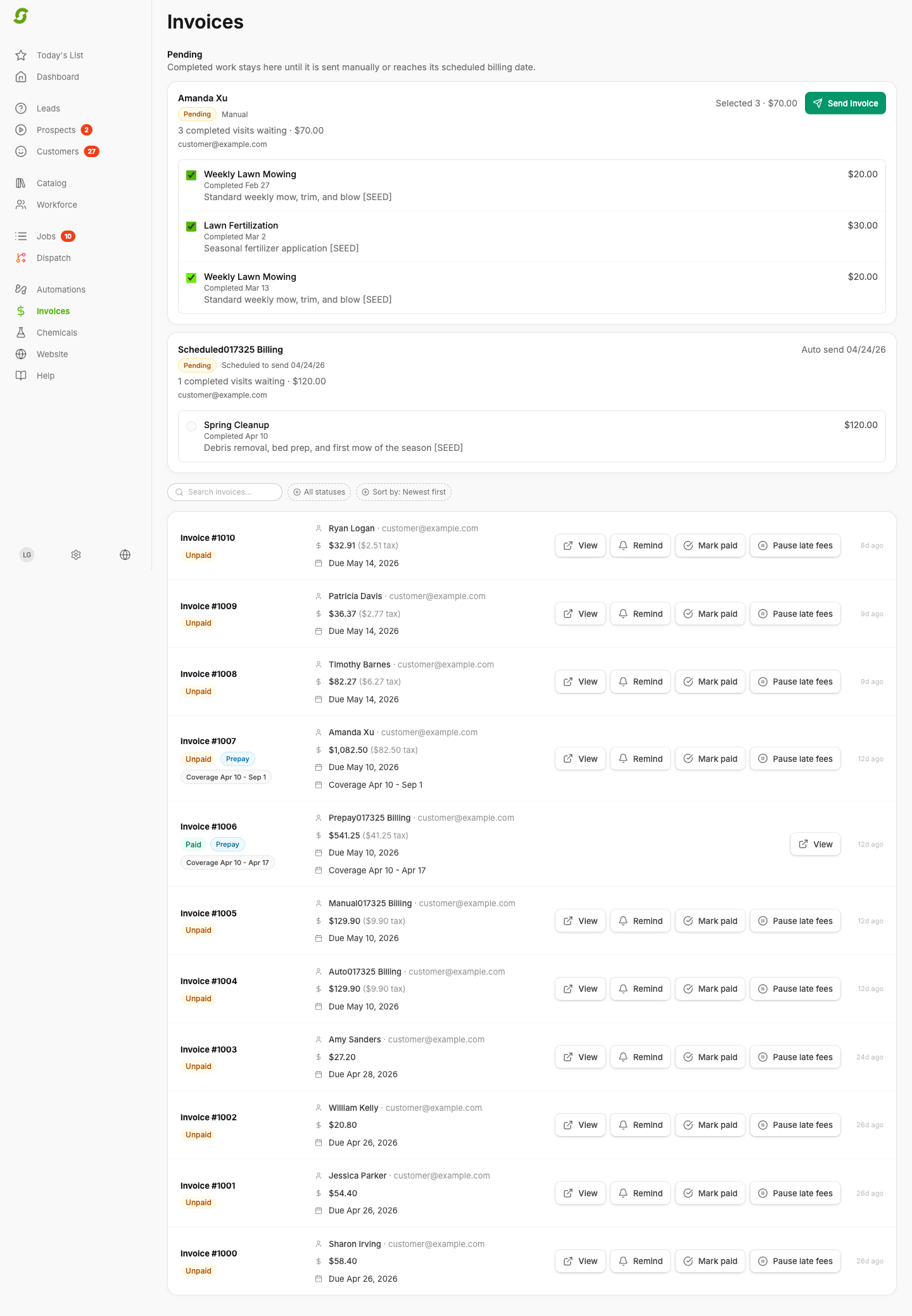
* Shown on each invoice as its own line, so customers see exactly how much tax they're paying.
**Invoice total formula:**
```
Total = Subtotal + Sales Tax + Processing Fee
```
{% hint style="info" %}
Sales tax is set at the company level. Shortcut doesn't offer per-customer or per-service tax rates. If you operate in multiple tax jurisdictions, set the rate that applies to the majority of your customers and adjust individual invoices as needed.
{% endhint %}
***
## Configuring Sales Tax
1. Open **Settings → Customers → Customer payments**.
2. Under **Charges on invoices**, find the **Sales tax** card.
3. Enter your tax rate as a percentage (e.g., `8.25` for 8.25%).
4. Click **Save**.
The rate applies to new invoices from then on. Invoices that already exist keep their original tax.
Set the company-wide sales tax percentage in Customer Payments.
### Removing Sales Tax
To stop applying sales tax, clear the sales tax percentage field or set it to `0`, then save. Future invoices will be generated without a tax line.
***
## Where Sales Tax Appears
### On Invoices
When a customer opens an invoice (from the email or text link, or from **Billing** in the [customer portal](/readme/customer-portal.md) if you use it), sales tax appears as a separate line item between the subtotal and the total:
| | Amount |
| ----------------- | ----------- |
| Service A | $80.00 |
| Service B | $40.00 |
| **Subtotal** | **$120.00** |
| Sales Tax (8.25%) | $9.90 |
| Processing Fee | $3.50 |
| **Total Due** | **$133.40** |
Customers see sales tax as a separate line on the invoice.
### In Invoice Previews
Before sending an invoice, the preview screen shows the calculated tax so you can verify the amount before it reaches the customer.
Review invoice tax before following up with a customer.
***
## Sales Tax Across Billing Modes
Tax works the same whichever [billing mode](/readme/finances-invoices-and-payments/billing-modes.md) creates the invoice: it's worked out when the invoice is created. That's at job completion for **Auto - on completion**, when you click **Issue Invoice** for **Offline / Check Payment**, on the billing date for **Auto - on a schedule**, and when you create the prepay invoice for [pre-pay](/readme/finances-invoices-and-payments/pre-pay-invoicing.md).
***
How tax is rounded
Tax amounts are rounded to the nearest cent using standard rounding (amounts ending in 0.5 cents round up). For example:
* $120.00 subtotal at 8.25% = $9.90
* $75.00 subtotal at 7.5% = $5.63 (rounded from $5.625)
***
## Limitations
* **Single rate per company** — One tax percentage applies to all customers and services.
* **No tax-exempt customers** — There is no per-customer tax exemption setting.
* **No tax filing reports** — Shortcut calculates and shows tax on invoices but doesn't file tax returns or produce tax-filing summaries. Use your invoice data with your accounting software when you file.
* **No retroactive updates** — Changing the tax rate only affects future invoices.