> For the complete documentation index, see [llms.txt](https://docs.shortcutco.com/llms.txt). Markdown versions of documentation pages are available by appending `.md` to page URLs; this page is available as [Markdown](https://docs.shortcutco.com/readme/jobs-and-scheduling/adding-one-off-services-to-a-visit.md).
# Adding one-off services to a visit
Add a one-time service charge to a single visit from Dispatch, the customer profile, or the worker app.
Use a one-off service when a customer wants something extra on a single visit, such as a fungus treatment or one-time cleanup, without adding it to their recurring service.
There are two ways to add it:
* The office adds it from Dispatch or the customer profile.
* Workers add approved field add-ons from the worker app.
{% hint style="info" %}
A one-off service is attached only to the selected visit. It does not carry over to the customer's next recurring visit.
{% endhint %}
{% hint style="info" %}
**Selling a material rather than extra work?** Mulch, plants or a sprinkler head go on the visit as a [product](/readme/products.md) instead. Products carry their own cost, so your margins stay accurate.
{% endhint %}
## Before you start
* The service must already exist in [Services](/readme/configuration/services-pricing-structures.md).
* Workers can only add services that have been enabled as **Field Add-ons**.
## Option 1: Add it from the office
Office users can add a one-off service before or after the visit.
### From the Dispatch Board
Use the Dispatch Board when you are looking at today's work or reviewing a completed visit.
{% stepper %}
{% step %}
### Open Dispatch
Go to the **Dispatch Board**.
{% endstep %}
{% step %}
### Find the visit
Find the job you want to update.
{% endstep %}
{% step %}
### Open the actions menu
Click the **three-dot menu** on the right side of the job.
{% endstep %}
{% step %}
### Add the service
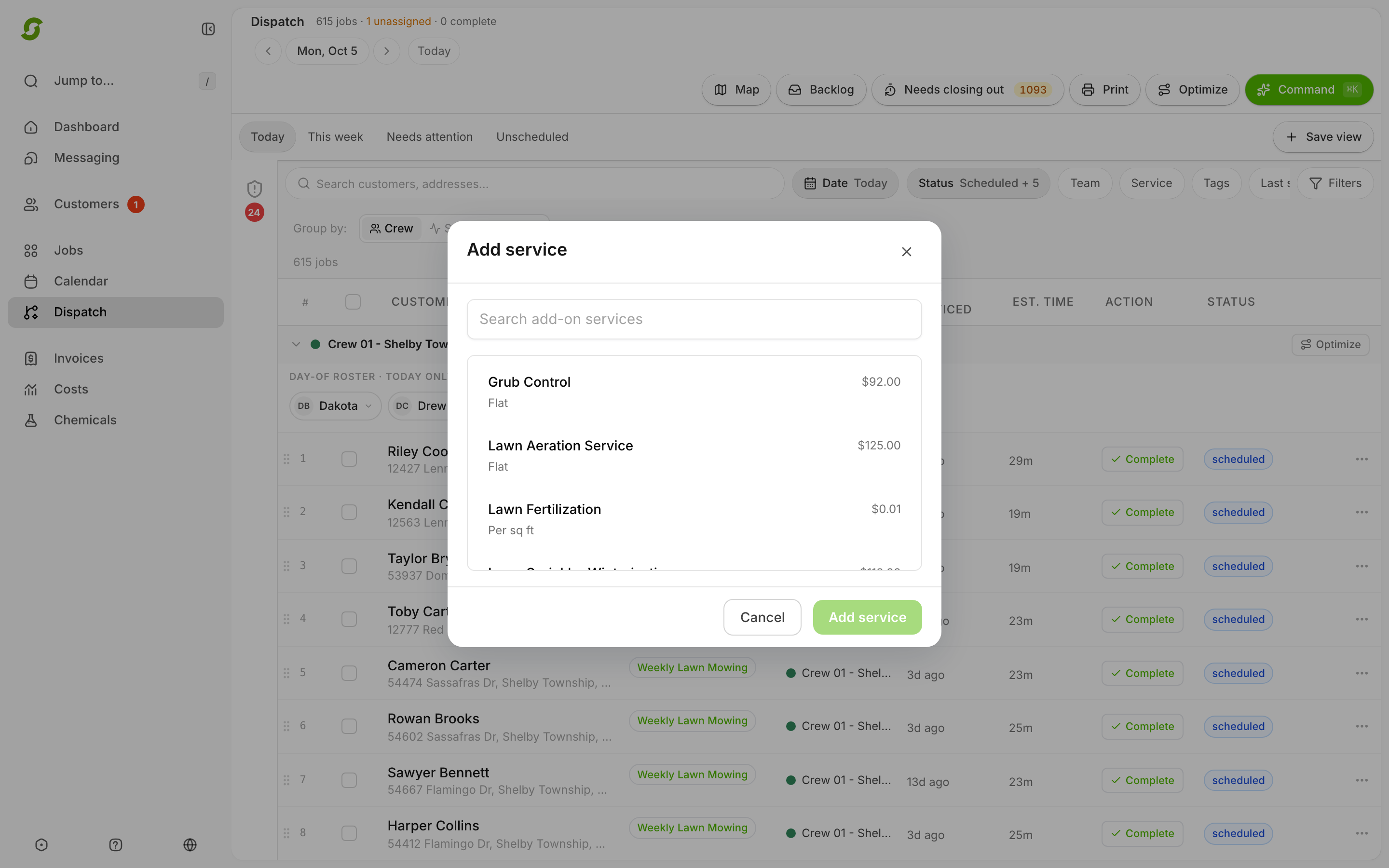
Click **Add service**, choose the service, set the rate and quantity (hours or sq ft where relevant), and save it.
The Add service window — pick the extra service and it's billed with this visit only.
{% endstep %}
{% endstepper %}
{% hint style="warning" %}
Invoice behavior depends on when the service is added:
* **Before the job is completed:** the service appears on the same invoice as the rest of the visit.
* **After the customer has already been invoiced:** Shortcut creates a separate invoice for the added service right away.
* **Offline / Check Payment customers:** the added service joins the rest of their pending work in the ready-to-bill queue.
{% endhint %}
### From the customer's profile
Use the customer profile when someone calls in and asks for extra work on a recent or upcoming visit.
{% stepper %}
{% step %}
### Find the customer
Search for the customer by name and open their profile.
{% endstep %}
{% step %}
### Choose the visit
* **Upcoming visit:** find it under **Upcoming** on the Overview tab.
* **Visit that's already happened:** open the **Activity** tab and find the completed visit.
{% endstep %}
{% step %}
### Click Add service
For an upcoming visit, click its **⋯** and choose **Add service…**. For a completed visit, click **Add service** on the visit in the feed.
{% endstep %}
{% step %}
### Save the one-off charge
Pick the service, confirm the charge, and save it.
{% endstep %}
{% endstepper %}
For an upcoming visit, the service is added now, so it's already on the visit when the work date arrives.
## Option 2: Let workers add services in the field
To let workers add services on-site, first turn on field add-ons for the services you want to allow.
### Turn on field add-ons
{% stepper %}
{% step %}
### Open settings
Click your name at the bottom-left of the sidebar, then click **Settings**.
{% endstep %}
{% step %}
### Open Services
In the Settings sidebar, under **Operations**, click **Services**.
{% endstep %}
{% step %}
### Find Field Add-ons
In the services list, find the **Field Add-ons** column.
{% endstep %}
{% step %}
### Enable allowed services
Turn on field add-ons for any service you want workers to be able to add themselves.
{% endstep %}
{% endstepper %}
{% hint style="info" %}
You can enable every service, or only the ones you're comfortable letting workers add on their own.
{% endhint %}
### How a worker adds the service
{% stepper %}
{% step %}
### Open the customer visit
In the worker app, the worker opens the customer's visit.
{% endstep %}
{% step %}
### Tap Add service
The worker taps **Add service** from the visit.
{% endstep %}
{% step %}
### Choose the service
The worker selects the approved service and confirms the rate.
{% endstep %}
{% step %}
### Finish the visit
When the job is completed, the added service is captured for billing.
{% endstep %}
{% endstepper %}
{% hint style="info" %}
**Prepaid customers:** field add-ons are billed separately — prepay coverage applies to the scheduled work, not on-site extras.
{% endhint %}
## Quick reference
| Method | Best for |
| ---------------- | --------------------------------------------------- |
| Dispatch Board | Same-day work or completed visits |
| Customer profile | A call about a recent or upcoming visit |
| Worker app | Requests made on-site (approved field add-ons only) |
Still stuck?
Email with the customer name, visit date, service name, and a screenshot of the visit.