> For the complete documentation index, see [llms.txt](https://docs.shortcutco.com/llms.txt). Markdown versions of documentation pages are available by appending `.md` to page URLs; this page is available as [Markdown](https://docs.shortcutco.com/readme/jobs-and-scheduling/create-a-job-for-an-existing-customer.md).
# Create a job for an existing customer
Add new work for an existing customer straight from their profile.
Use this when a current customer wants **new ongoing or one-time work** — a new recurring service, a cleanup, a chemical program — and you don't need to build a full estimate.
{% hint style="info" %}
Just adding something extra to one upcoming visit? That's a one-off add-on, not a new job — see [Adding one-off services to a visit](/readme/jobs-and-scheduling/adding-one-off-services-to-a-visit.md).
{% endhint %}
## From the customer profile (easiest)
{% stepper %}
{% step %}
### Open the customer's profile
Click **⋯** at the top right and choose **New job**.
To start the job at a particular property, open the property (click the **Address** under the map on the profile, or the map's pin) and choose **⋯ → New job here** on its card instead. Or choose **New job** from the **⋯** on one of their jobs under **Work** to start at that job's property.
{% endstep %}
{% step %}
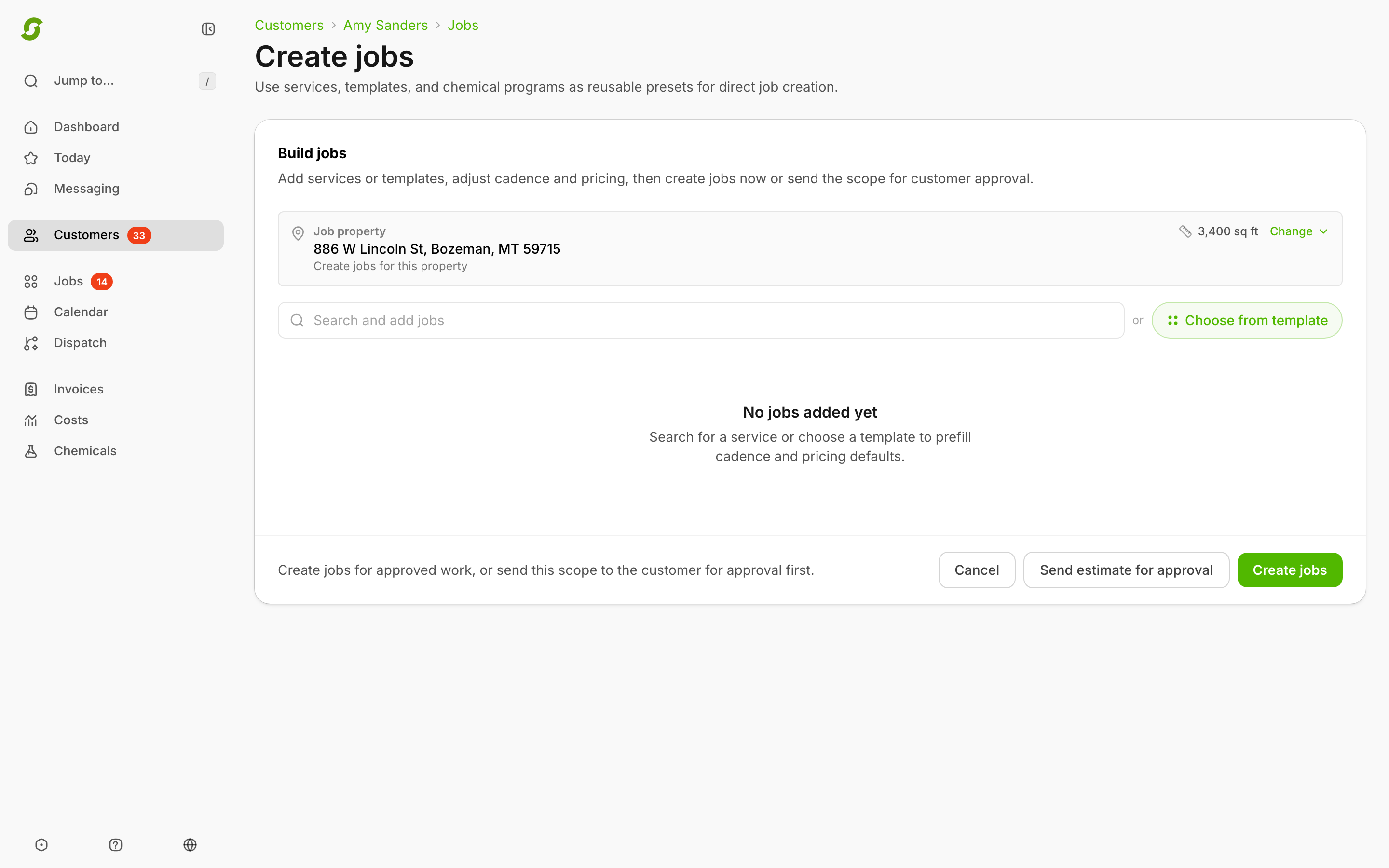
### Build the work
Add **services**, a **template**, or a **chemical program** (any program marked **Proposal ready** in Chemicals). Adjust the pricing per line, and how often it repeats: **One off**, or every so many **Days**, **Weeks**, **Months**, or **Years**.
Snow services work differently — see [Snow removal](/readme/snow-removal.md).
{% endstep %}
{% step %}
### Choose how to finish
* **Create jobs** — the jobs are created right away and are ready to schedule. You land on the profile's **Jobs** tab with a message confirming it: *Created 2 pending jobs.*
* **Send estimate for approval** — the customer gets the scope as an estimate to approve first. You land on the profile's **Estimates** tab: *Estimate sent for approval. Jobs will appear after approval.*
{% endstep %}
{% step %}
### Schedule it
From the customer's **Jobs** tab (the job's **⋯** menu → **Schedule…**), the Jobs page, Dispatch, or Calendar's Unscheduled list. From the profile, the window starts on today and shows any better day as a **Suggested** chip — see [Scheduling a single job](/readme/jobs-and-scheduling/scheduling-calendar-multi-service-start-dates.md#scheduling-a-single-job). For seasonal chemical programs, you pick the first date and Shortcut plans the rest of the season — see [Scheduling chemical programs (starting rounds & linked programs)](/readme/jobs-and-scheduling/scheduling-chemical-programs.md).
{% endstep %}
{% endstepper %}
The composer — add services or templates, set the cadence, create or send for approval.
## From the Jobs page
Click **New job** (top right), pick the customer, and you land in the same composer.
## What happens next
The job behaves like any other: schedule it, assign it to a crew in Dispatch, and completing its visits triggers billing per the customer's [billing mode](/readme/finances-invoices-and-payments/billing-modes.md).
Still stuck?
Email with the customer name and what you're trying to add.