> For the complete documentation index, see [llms.txt](https://docs.shortcutco.com/llms.txt). Markdown versions of documentation pages are available by appending `.md` to page URLs; this page is available as [Markdown](https://docs.shortcutco.com/readme/jobs-and-scheduling/scheduling-calendar-multi-service-start-dates.md).

# Scheduling calendar (multi-service start dates)

When you click **Schedule**, a calendar pop-up appears. [Open Jobs →](https://shortcutco.com/jobs)

## The confusing part (and how it works)

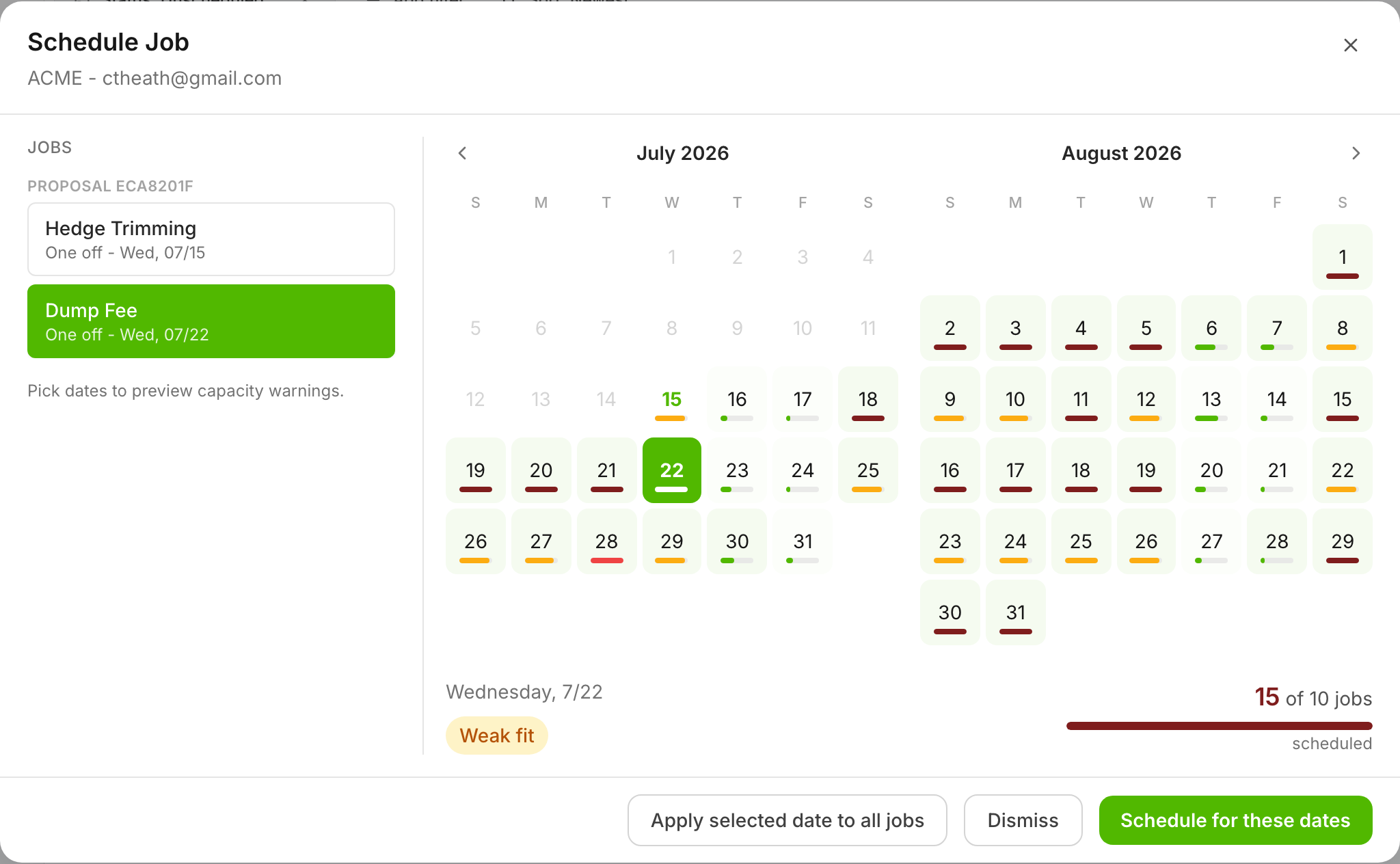
If a customer has multiple services with different cadences, the first date you choose can start **all services** on that date unless you change it.

<figure><img src="/files/Y8RbItbVdzefPgiw5WG7" alt="Schedule Job modal with service list and calendar"><figcaption><p>Apply one date to all services when every service should start together.</p></figcaption></figure>

{% hint style="info" %}
Default behavior: Pick a date → all services start on that date.
{% endhint %}

## Set different dates per service

{% stepper %}
{% step %}

### In the calendar module

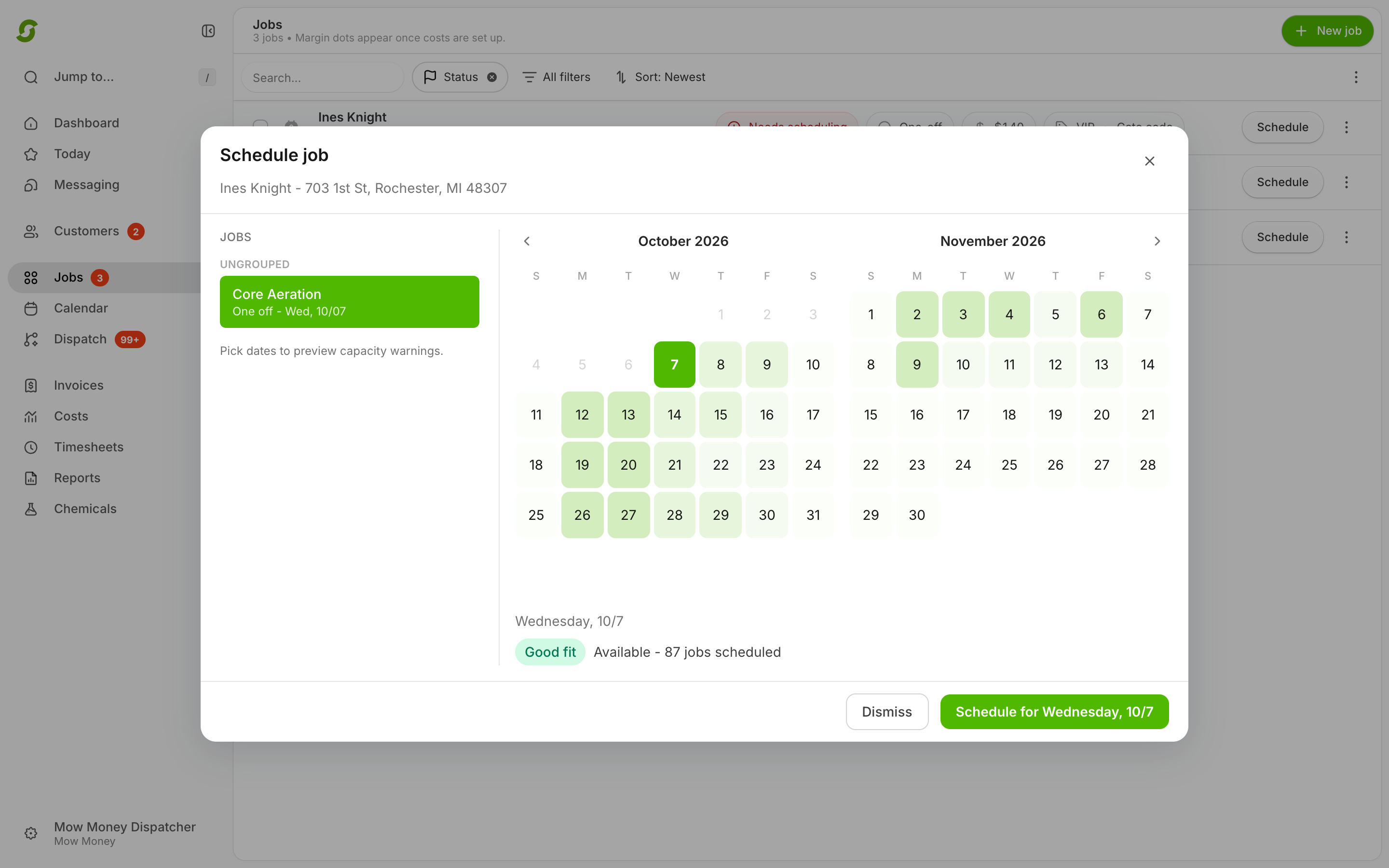
Look at the list of services on the left.
{% endstep %}

{% step %}

### Select a specific service

Click a specific service.

<figure><img src="/files/ZGgfridpMXU2x8NZYXf3" alt="Schedule Job modal with per-service date selection"><figcaption><p>Select one service at a time when services need different start dates.</p></figcaption></figure>
{% endstep %}

{% step %}

### Choose a date

Choose a date for that service.
{% endstep %}

{% step %}

### Repeat as needed

Repeat for any other services.
{% endstep %}

{% step %}

### Finalize

Click **Schedule for these dates**.
{% endstep %}
{% endstepper %}

## Multi-select services

You can select multiple services and use **Apply selected date to all jobs** to give them the same date together.

## Expected result

Services start on the dates you chose, and recurring schedules build from those start dates (Shortcut builds the visits **12 months ahead**).

{% hint style="info" %}
Scheduling many customers at once? On the Jobs page you can select multiple jobs and use **Schedule selected** — chemical jobs get a **starting round** picker so every customer lands on the right round for the season. See [Scheduling chemical programs (starting rounds & linked programs)](/readme/jobs-and-scheduling/scheduling-chemical-programs.md).
{% endhint %}

<details>

<summary>Still stuck?</summary>

Email <hello@shortcutco.com> with a screenshot of the scheduling pop-up.

</details>