> For the complete documentation index, see [llms.txt](https://docs.shortcutco.com/llms.txt). Markdown versions of documentation pages are available by appending `.md` to page URLs; this page is available as [Markdown](https://docs.shortcutco.com/readme/jobs-and-scheduling/scheduling-calendar-multi-service-start-dates.md). Agents can also search and read this documentation through its [MCP server](https://docs.shortcutco.com/~gitbook/mcp).

# Scheduling calendar (multi-service start dates)

When a job has more than one service, you can start them all on the same date or give each service its own start date. Click **Schedule** on the job to open the scheduling pop-up. [Open Jobs →](https://shortcutco.com/jobs)

## By default, one date starts everything

If a customer has multiple services with different cadences, the first date you choose can start **all services** on that date unless you change it.

<figure><img src="https://2299783971-files.gitbook.io/~/files/v0/b/gitbook-x-prod.appspot.com/o/spaces%2FOhi7KtJ4vY1pDKwWu5SV%2Fuploads%2Fgit-blob-9f3cfb6755c16c30971390dda249833990555613%2Fscheduling-calendar-all-services.png?alt=media" alt="The Schedule 2 jobs window: two Lawn Mowing service groups, every week and every 2 weeks, both set to Mon, 11/02 after one date was picked on the calendar, with Assign to team, Set all start dates, Dismiss and Schedule 2 jobs"><figcaption><p>Apply one date to all services when every service should start together.</p></figcaption></figure>

{% hint style="info" %}
Default behavior: Pick a date → all services start on that date.
{% endhint %}

## Set different dates per service

{% stepper %}
{% step %}

### In the scheduling pop-up

Look at the list of services on the left.
{% endstep %}

{% step %}

### Select a specific service

Click a specific service.

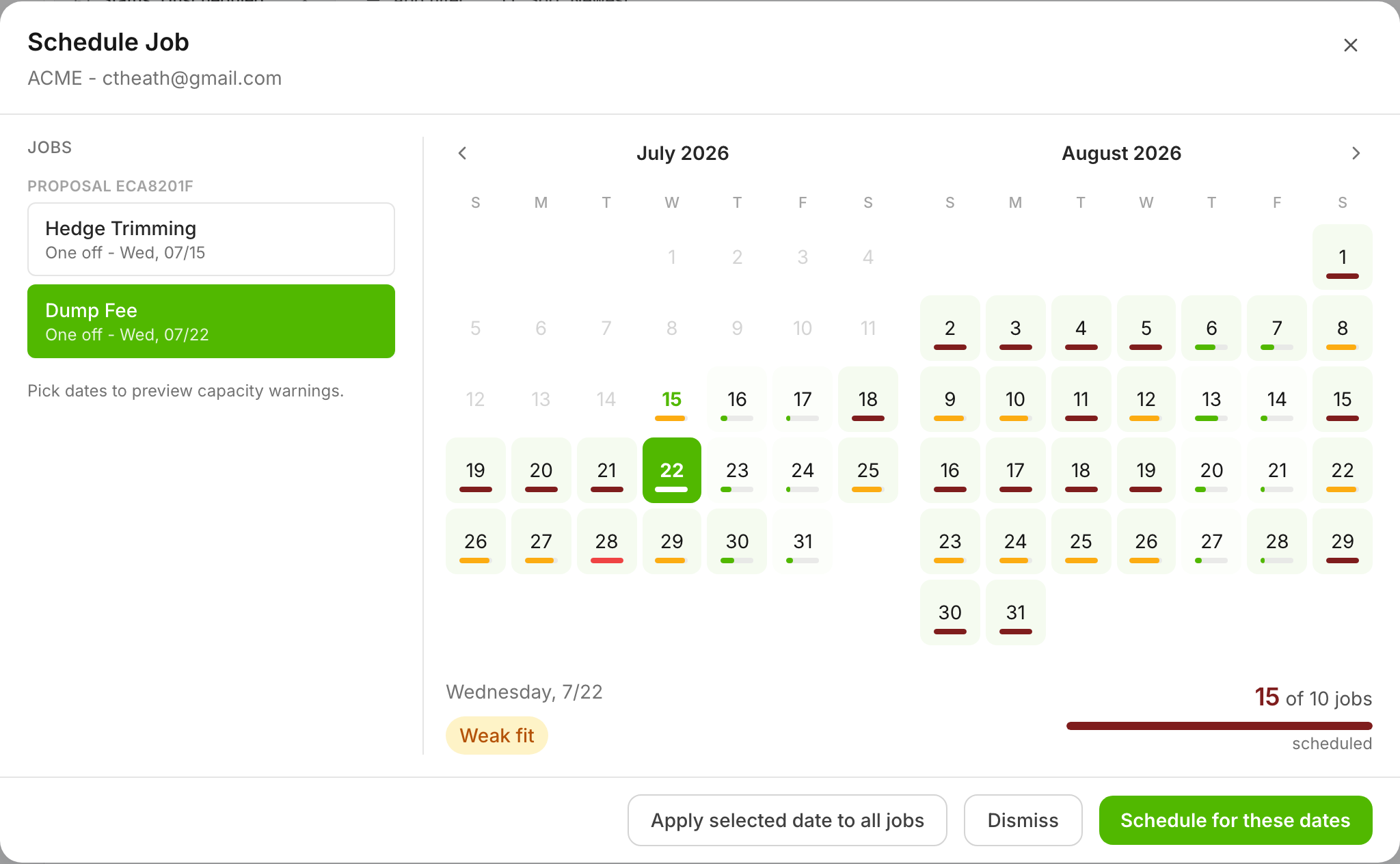
<figure><img src="https://2299783971-files.gitbook.io/~/files/v0/b/gitbook-x-prod.appspot.com/o/spaces%2FOhi7KtJ4vY1pDKwWu5SV%2Fuploads%2Fgit-blob-51931d079e1c423bb80fd4740ecb3d857e309d02%2Fscheduling-calendar-per-service-dates.png?alt=media" alt="Schedule Job modal with per-service date selection"><figcaption><p>Select one service at a time when services need different start dates.</p></figcaption></figure>
{% endstep %}

{% step %}

### Choose a date

Choose a date for that service.
{% endstep %}

{% step %}

### Repeat as needed

Repeat for any other services.
{% endstep %}

{% step %}

### Finalize

Click **Schedule for these dates**.
{% endstep %}
{% endstepper %}

## Multi-select services

You can select multiple services and use **Apply selected date to all jobs** to give them the same date together.

## Scheduling a single job

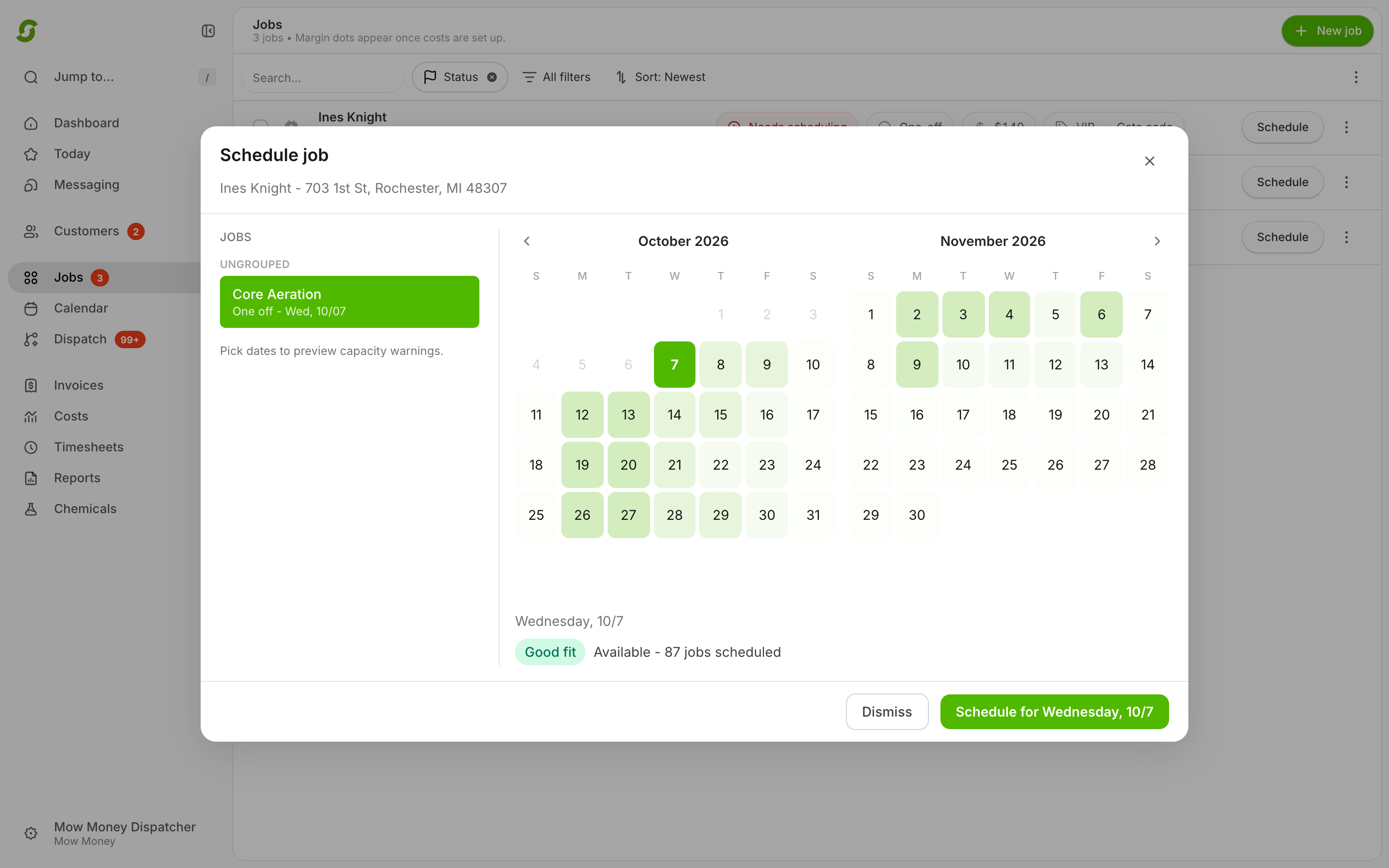
When you schedule one job — **Schedule** on its row on the Jobs page, or **⋯ → Schedule…** on the customer's profile — the window opens on **today** (or on the job's next visit, if it already has one) and keeps that date selected.

If Shortcut finds a day in the next two weeks that fits your teams' routes better, it offers it as a green chip above the calendar, for example **Suggested: Wed 10/7 (Best fit)**. Click the chip to use that day, or ignore it and keep today. Chemical programs don't get a chip — they follow their rounds.

From the customer's profile, the button tells you what it will create: **Schedule 53 visits starting Mon 10/5** for a recurring job, or **Schedule for Monday, 10/5** for a single visit. Once it's done, a message confirms the first visit — *Job scheduled. First visit Mon 10/5.* — with an **Open in Dispatch** link to that day.

<figure><img src="https://2299783971-files.gitbook.io/~/files/v0/b/gitbook-x-prod.appspot.com/o/spaces%2FOhi7KtJ4vY1pDKwWu5SV%2Fuploads%2Fgit-blob-5a67c5b9ae9b5be9cdcd118733f13dcd970c8e6d%2Fschedule-job-suggested-chip.png?alt=media" alt="The Schedule job window for a one-off Core Aeration job: today is selected on the calendar, days with room are shaded green, the line under the calendar reads Good fit · Available – 87 jobs scheduled, and the button reads Schedule for Wednesday, 10/7"><figcaption><p>Scheduling one job: today stays selected, the calendar shades the days with room, and the line under it says how the chosen day fits. When Shortcut has a better day in mind, a green Suggested chip offers it.</p></figcaption></figure>

### Suggested team

When one team's route clearly fits a day best, Shortcut can also name that team. The chip reads, for example, **Suggested: Mon 10/19 (Best fit · Ops Trim)**, and when you click a day a **Suggested: Ops Trim** button appears next to how the day fits.

The team is only a suggestion and is never assigned on its own. Click **Suggested: Ops Trim** to put the new visits on that team; click it again to undo. Leave it alone and the job keeps its own team. There's no team suggestion for chemical programs, reschedules, or when you schedule several jobs at once, nor when teams tie or none fits well. Team suggestions are part of the current Shortcut plan; some older plans don't show them.

<figure><img src="https://2299783971-files.gitbook.io/~/files/v0/b/gitbook-x-prod.appspot.com/o/spaces%2FOhi7KtJ4vY1pDKwWu5SV%2Fuploads%2Fgit-blob-b95f8ab1c25953dd357029cb7f1e28e268860449%2Fschedule-job-suggested-crew.png?alt=media" alt="The Schedule job window for a weekly Lawn Mowing job: Wednesday 10/28 selected, days with room shaded green, and under the calendar Best fit, a Suggested: Crew 4 button, and Available - 67 jobs scheduled"><figcaption><p>On a day that fits one crew best, Shortcut names the crew. Click it to assign that crew, or ignore it.</p></figcaption></figure>

## Expected result

Services start on the dates you chose, and recurring schedules build from those start dates (Shortcut builds the visits **12 months ahead**). A job that follows a [service season](https://docs.shortcutco.com/readme/jobs-and-scheduling/service-seasons-and-pause-for-season.md) gets no visits inside its season window.

{% hint style="info" %}
Scheduling many customers at once? On the Jobs page, tick the jobs and click **Schedule** in the bar at the bottom (up to 200 at a time). See [The Jobs page: views and bulk actions](https://docs.shortcutco.com/readme/jobs-and-scheduling/jobs-page-views-and-bulk-actions.md). Chemical jobs get a **starting round** picker so every customer lands on the right round for the season. See [Scheduling chemical programs (starting rounds & linked programs)](https://docs.shortcutco.com/readme/jobs-and-scheduling/scheduling-chemical-programs.md).
{% endhint %}

<details>

<summary>Still stuck?</summary>

Email <hello@shortcutco.com> with a screenshot of the scheduling pop-up.

</details>