> For the complete documentation index, see [llms.txt](https://docs.shortcutco.com/llms.txt). Markdown versions of documentation pages are available by appending `.md` to page URLs; this page is available as [Markdown](https://docs.shortcutco.com/readme/leads-prospects-customers/customers-overview-+-importing.md).

# Customers overview + importing

Customers are active clients with accepted proposals and jobs. [Open Customers →](https://shortcutco.com/customers)

## What you'll see

In the [Customers list](https://shortcutco.com/customers) you can see:

* Name
* Email
* Phone
* Jobs associated with them
* Property details
* Whether they are scheduled
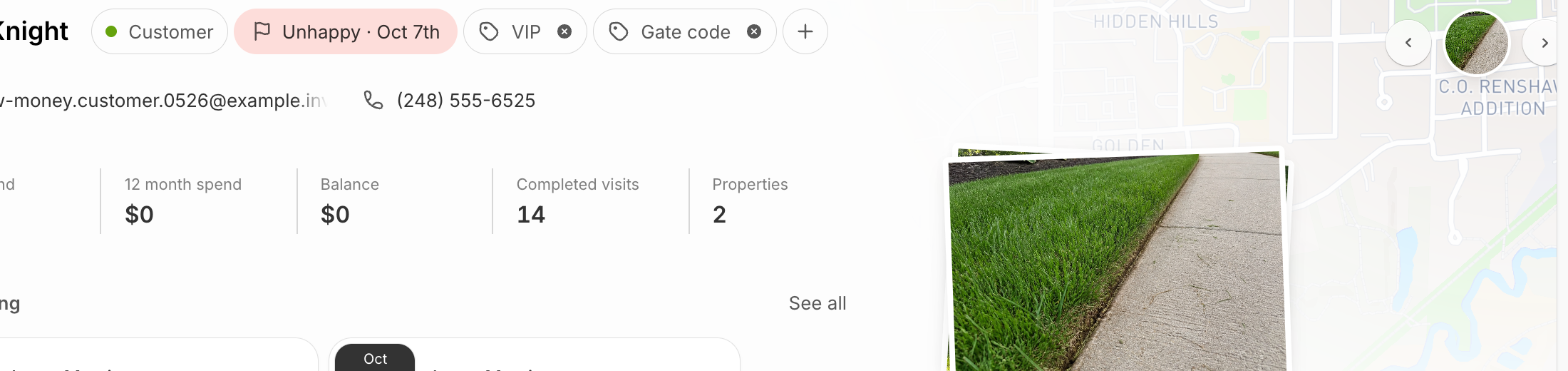
* Tags — your own labels like **VIP** or **Gate code** (see [Customer tags (create, apply, filter)](/readme/leads-prospects-customers/customer-tags.md))

Use the views at the top (**All / Needs estimate / Estimate pending / Needs scheduling / Scheduled**) to work your pipeline, and click anyone to open their profile.

**Needs scheduling** shows only customers you can actually schedule right now — someone with work waiting and nothing on the calendar for it. Customers with no jobs at all don't appear, because there'd be nothing for the **Schedule** button to do.

<figure><img src="/files/RWXnAveJDHsU1To9SLv8" alt="Customers list showing customer details, jobs, property size, monthly average, and crew assignments"><figcaption><p>The Customers list shows contact info, property details, scheduled work, and customer actions.</p></figcaption></figure>

## The customer profile

Open any customer and you get the whole relationship on one page.

### Notes and the cover photo

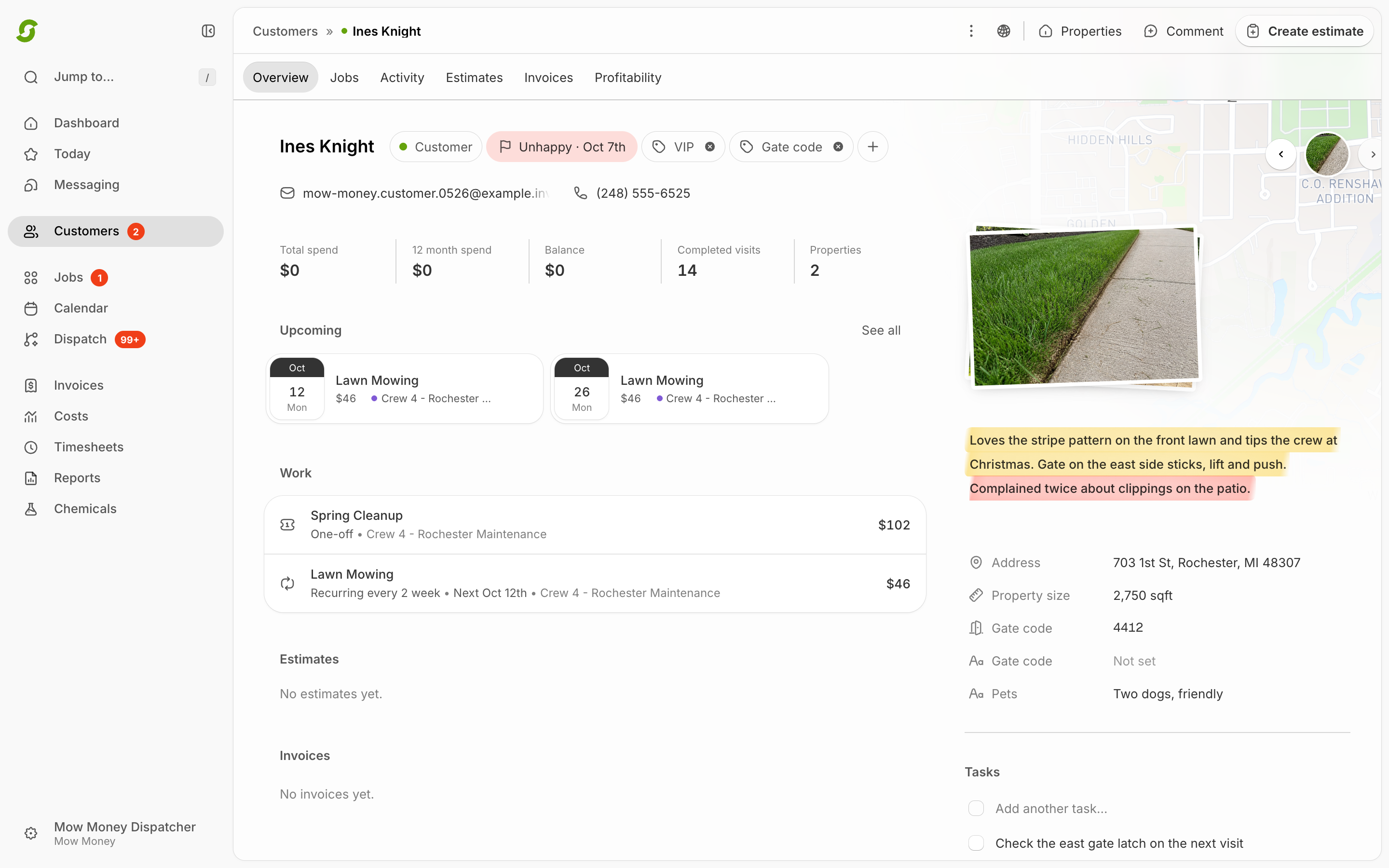
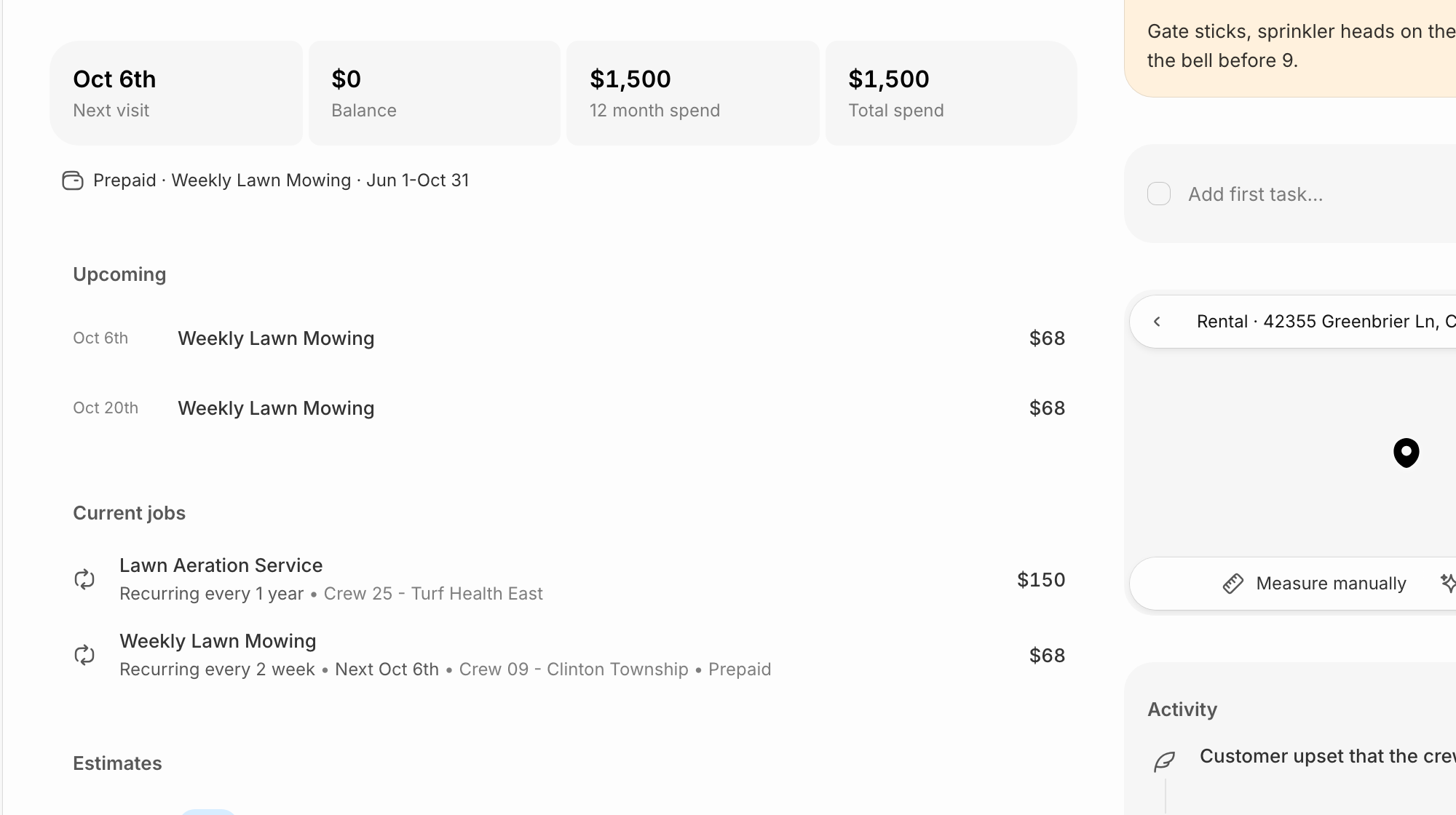
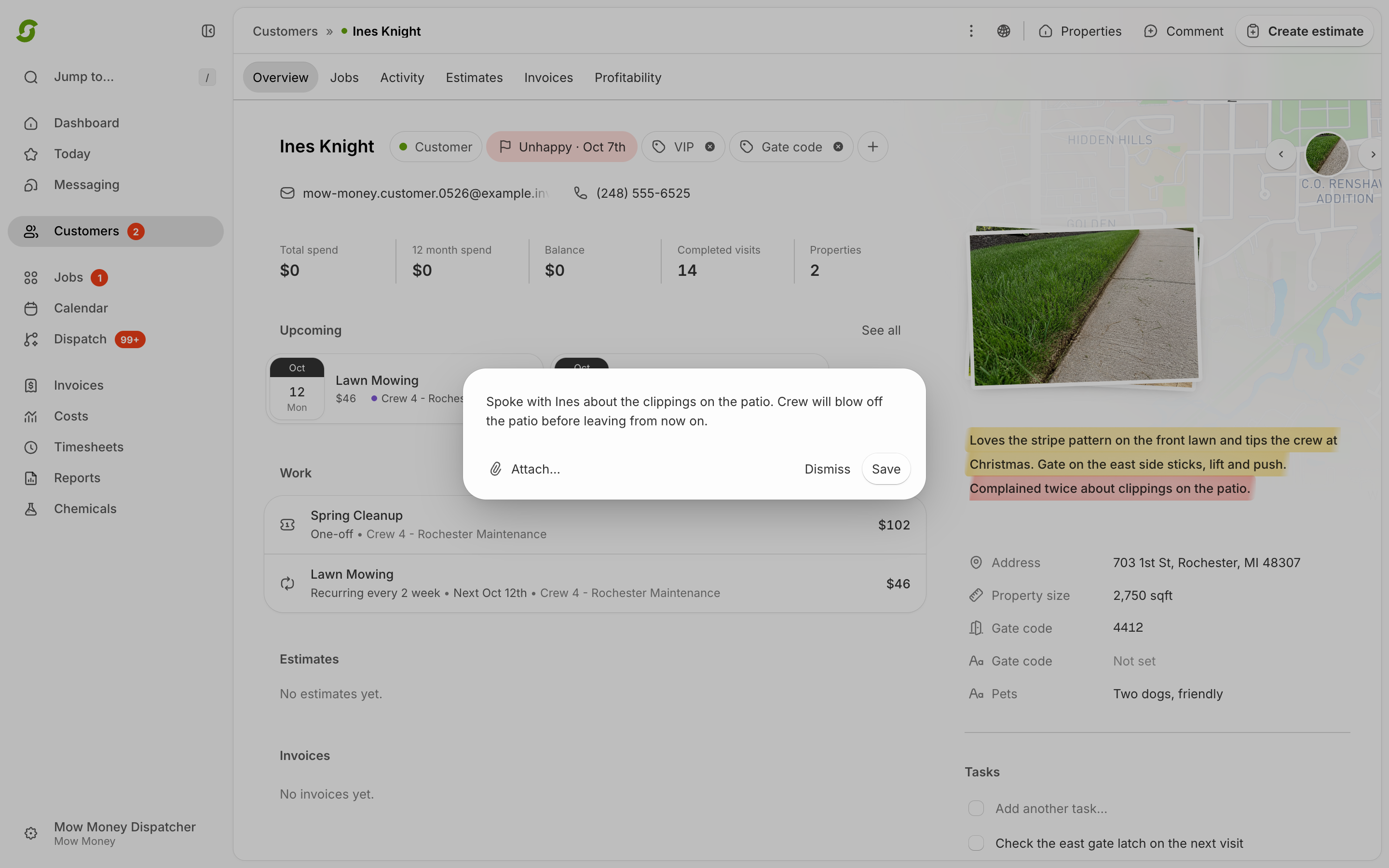
At the top, above the tabs, is a **notes card** — the place for the things you'd otherwise keep on a sticky note. *"Gate sticks, sprinkler heads on the north side, don't ring the bell before 9."* It's visible on every tab, so whoever picks up the account next sees it without hunting. Shortcut records who wrote it and when.

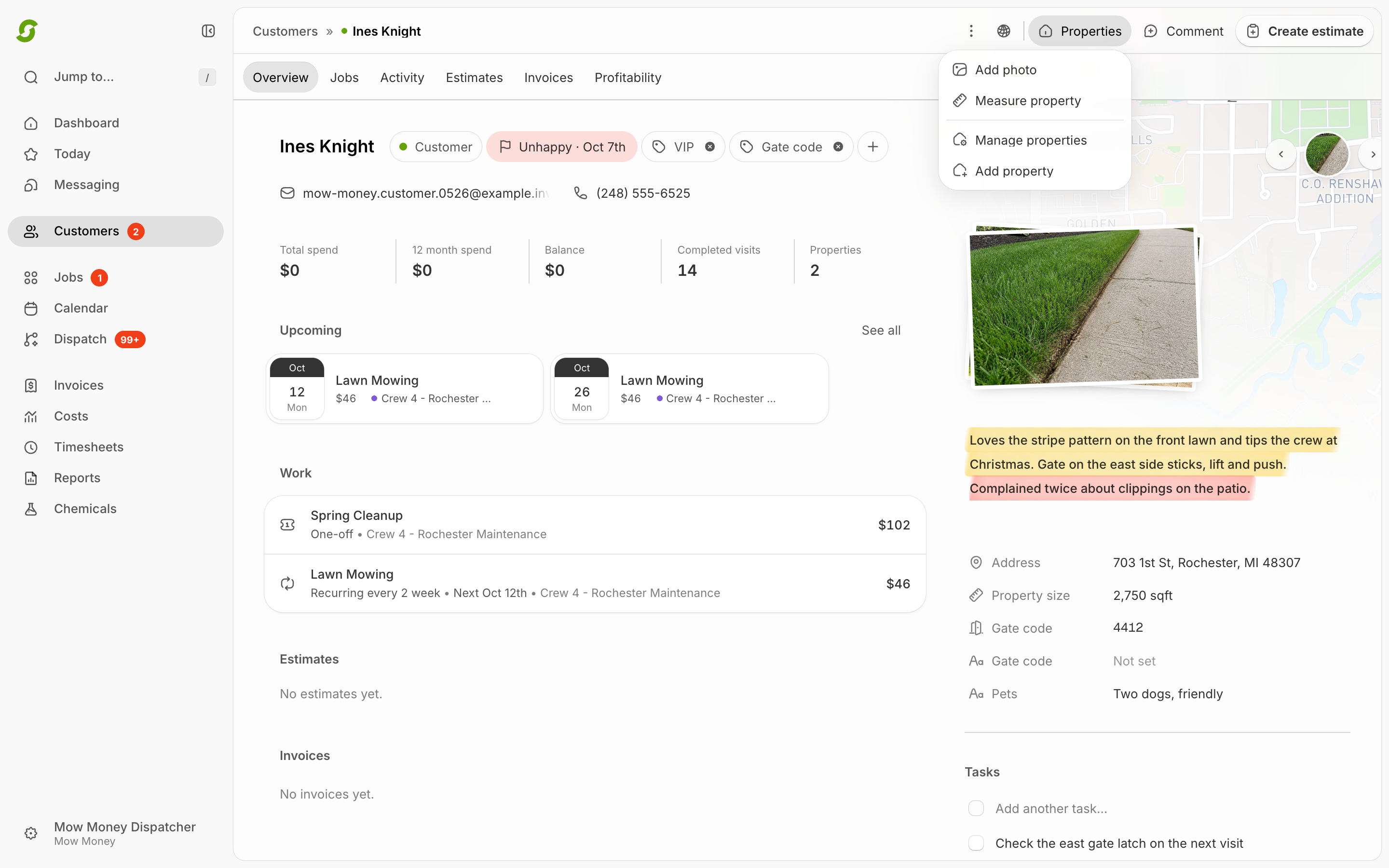
Next to it, **Add photo** puts a picture of the property at the top of the page. A shot of the front yard or the gate does more than an address does when somebody's trying to work out which house this is. Hover it to change or remove it.

### The left rail

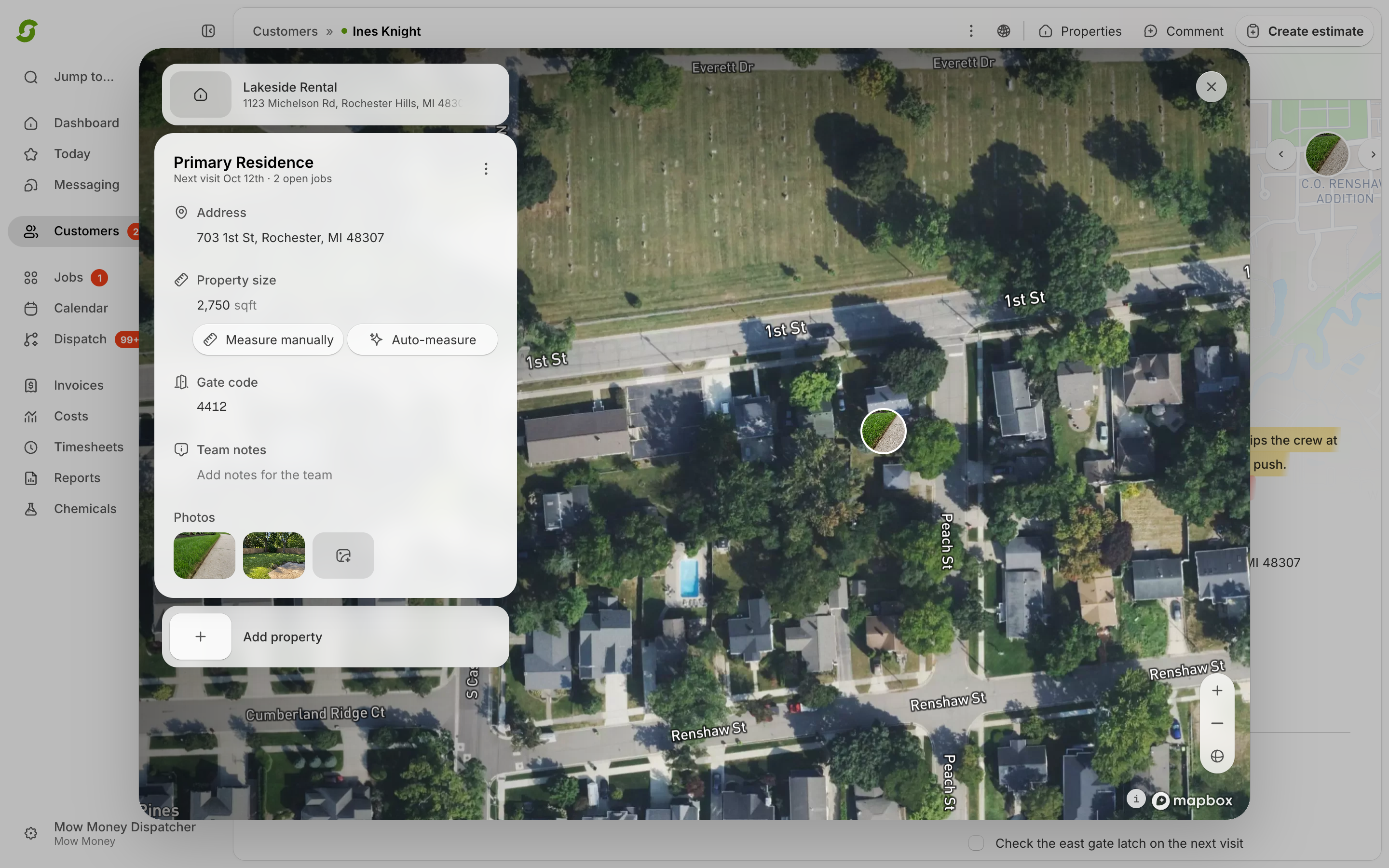
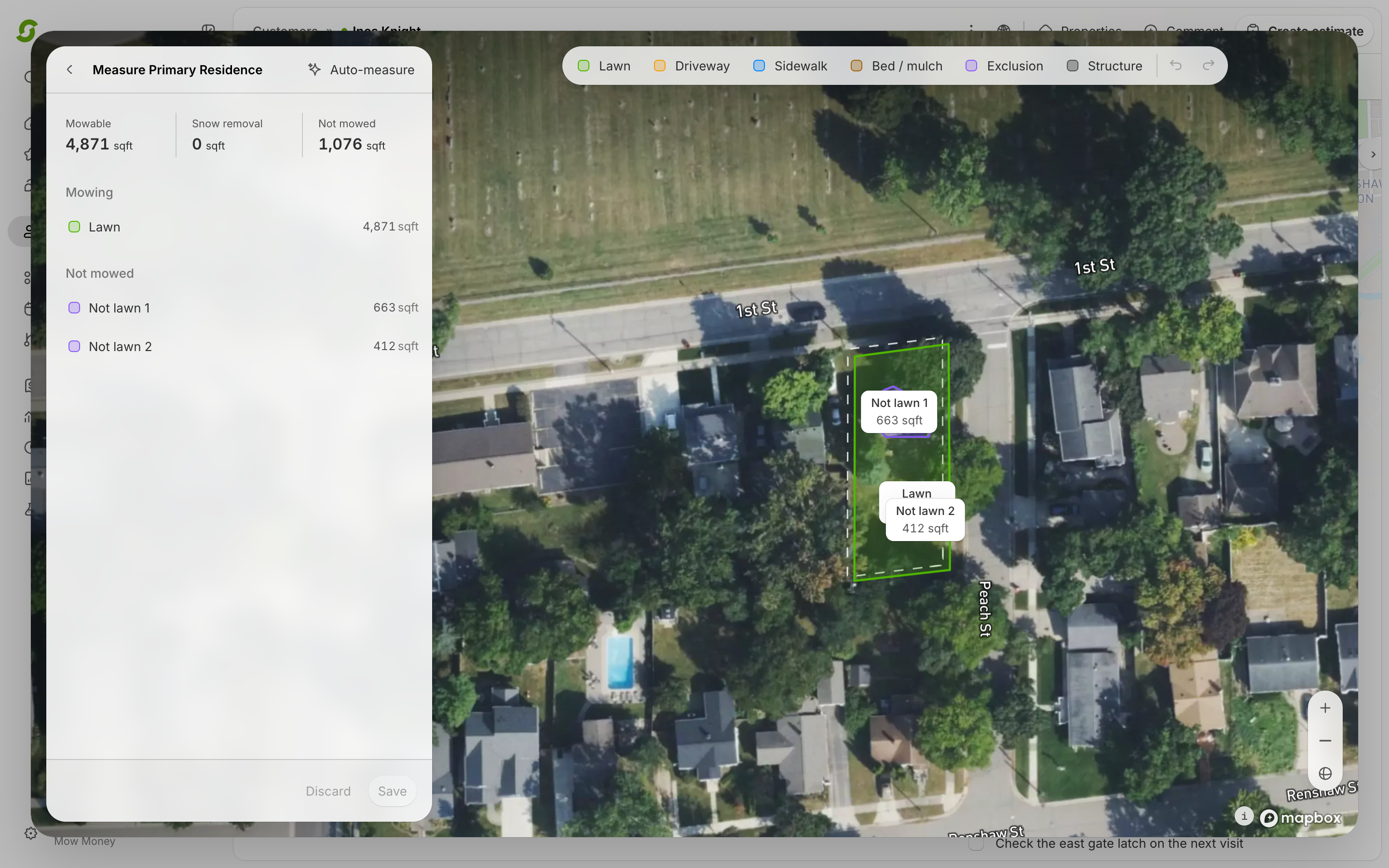
Contact details, billing status (autopay, saved card, invoicing mode, prepay badge, portal invite state), total spend, last-twelve-months spend, completed jobs, and the property map with measured square footage.

If a customer's email has stopped working, you'll see it here — see [When a customer's email stops working](#when-a-customers-email-stops-working) below.

### Custom fields

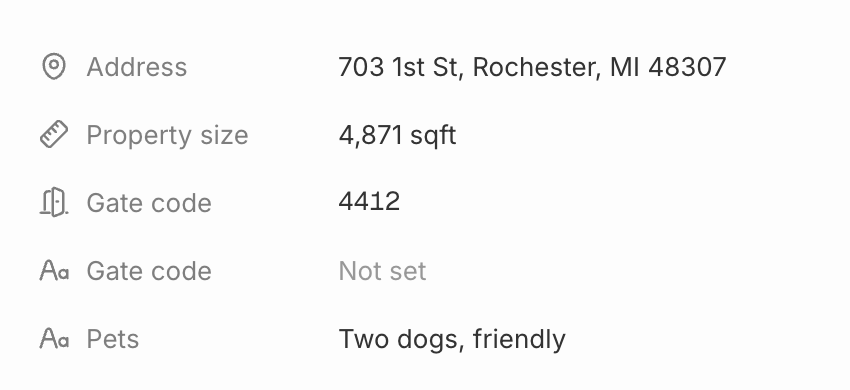
Under square footage sit any **custom fields** you've set up — gate codes, pets, irrigation zones, whatever you track on every customer. Shortcut starts you off with **Gate code** and **Pets**; you can rename them, delete them, or add your own.

Click the value to edit it in place. If you haven't set any up yet, there's a link straight to where you do. See [Custom Fields](/readme/configuration/custom-fields.md).

### The tabs

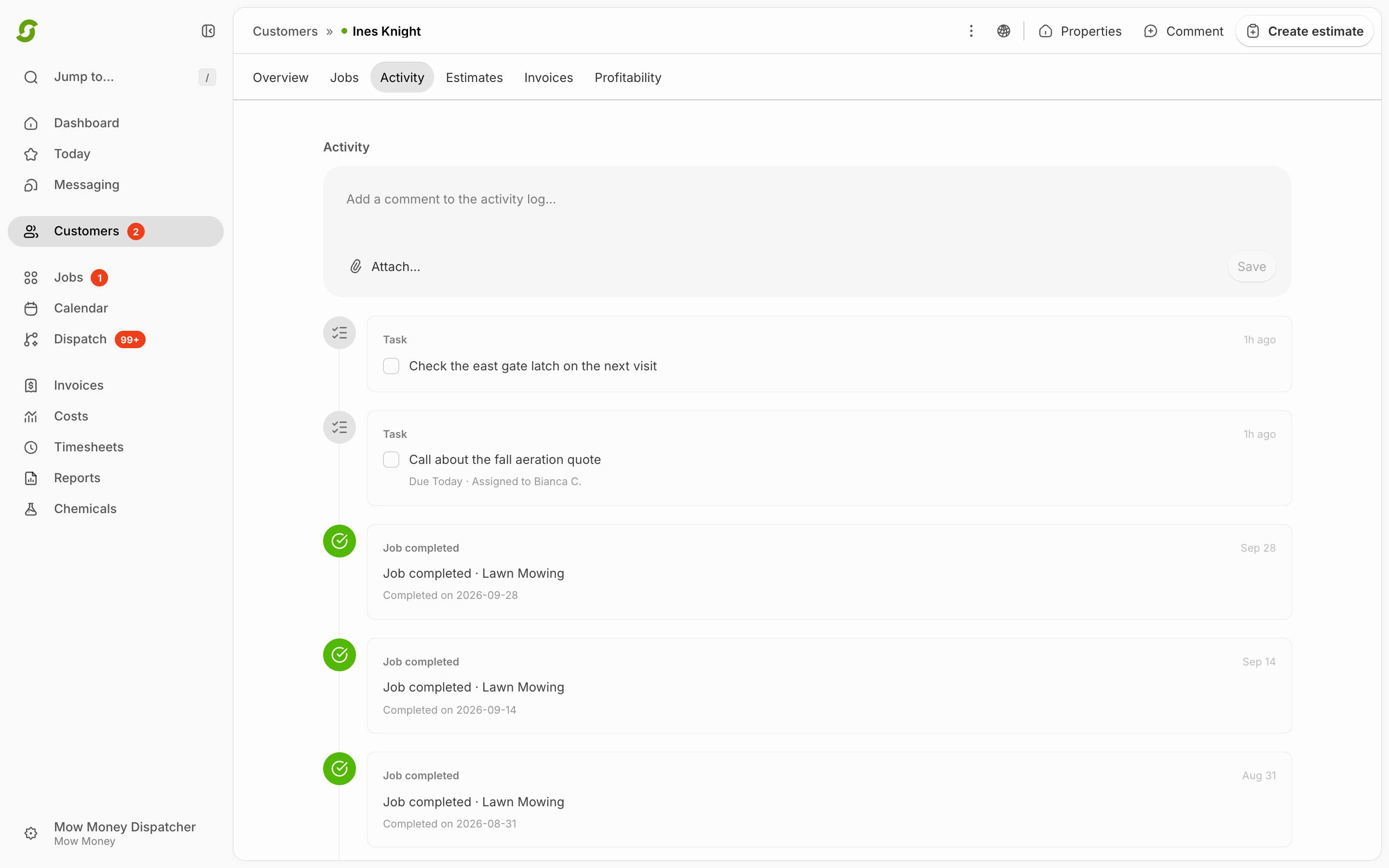
* **Activity** — a timeline of everything that happened: visits completed (with photos, and a marker showing which photos and notes were shared with the customer), invoices, payments, messages — plus anything you post yourself. See [Posting to the activity feed](#posting-to-the-activity-feed).
* **Jobs** — current and past jobs, plus **Create job** (see [Create a job for an existing customer](/readme/jobs-and-scheduling/create-a-job-for-an-existing-customer.md)) and per-visit actions (Schedule, Reschedule, Add service, Pause, Cancel).
* **Tasks** — follow-ups with due dates.
* **Invoices** — every invoice for this customer, including prepay.
* **Estimates** — proposals you've sent them.
* **Properties** — all their locations; add more with **Add property** (jobs, estimates, and invoices can be tied to a specific property).
* **Profitability** — internal-only revenue, cost, and margin for this customer (unlocks once labor costs are set up in [Costs](/readme/costs-and-profitability.md)).

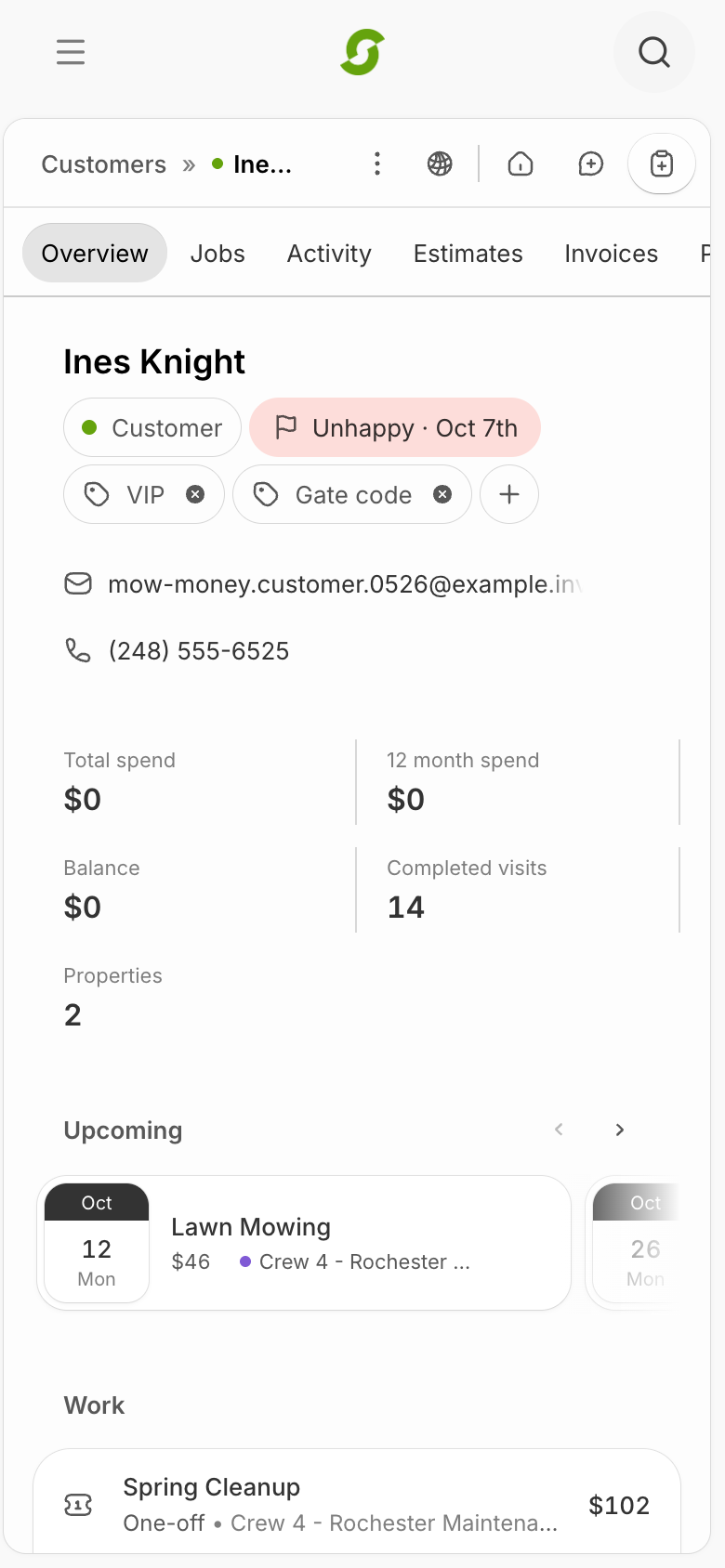
On a phone the notes card comes first with the custom fields tucked inside it, phone and address rows get **Call** and **Map** buttons, and square footage and hours fold behind a **Details** link.

<figure><img src="/files/1RpWeQbLYecW9bEQSqNa" alt="Customer profile showing the cover photo, notes card, custom fields in the left rail, and the Activity, Jobs, Tasks, Invoices, Estimates, Properties, and Profitability tabs"><figcaption><p>The customer profile — a cover photo, the notes everyone needs, your own custom fields, and everything else behind the tabs.</p></figcaption></figure>

## Posting to the activity feed

The Activity tab isn't just a log any more. At the top there's a box you can write into.

**Write a note.** Click the box, type, and post. *"Called about the drainage, they want a quote in spring."* It appears in the feed with your name on it — **Note · Ryan H.** — and it shows up in Recent Activity on the Dashboard too, so the rest of the office sees it without being told.

**Add a task instead.** Switch the box to **Task**, give it a due date, and assign it. Tasks can go to **anyone on your active team** — including crew members, who see customer tasks in their Today view. Leave the assignee blank and it's unassigned.

**Attach photos and files.** Both kinds of post take attachments. Photos land in the feed as a grid you can click through; files show as a chip you can open — **PDF · 1.2 MB**. Useful for a signed agreement, a soil test, a photo of the damage somebody's disputing.

**Fixing and removing.** Company admins can edit or delete their notes. An edited note is marked **· Edited** rather than quietly changing.

Tasks in the feed have a checkbox — tick it and it's done, right there, without opening anything.

{% hint style="info" %}
**Green circles mean something got finished.** In the activity feed a green circle marks a completion — a job done, a task ticked. Photos and notes are gray. If you're scanning a long feed, the green dots are the work.
{% endhint %}

## When a customer's email stops working

Sometimes email to a customer stops going through, and you find out weeks later when nobody paid. Shortcut now tells you on the customer's record.

**Email bounced — check address.** The address doesn't exist, or the mail server permanently rejected it. Almost always a typo. Fix the address on the customer record and Shortcut starts trying again.

**Email paused — marked as spam.** This customer clicked "this is spam" on one of your emails. Shortcut stops emailing them until you sort it out — usually a phone call. This applies only to *your* company; it doesn't affect anyone else using Shortcut.

While either badge is showing, invoices, reminders, proposals, and review requests to that customer are held rather than sent. That's deliberate: it's better to know they're not landing than to keep firing into a dead address. Correcting the address clears it and the next send goes out normally.

## Deactivate a customer

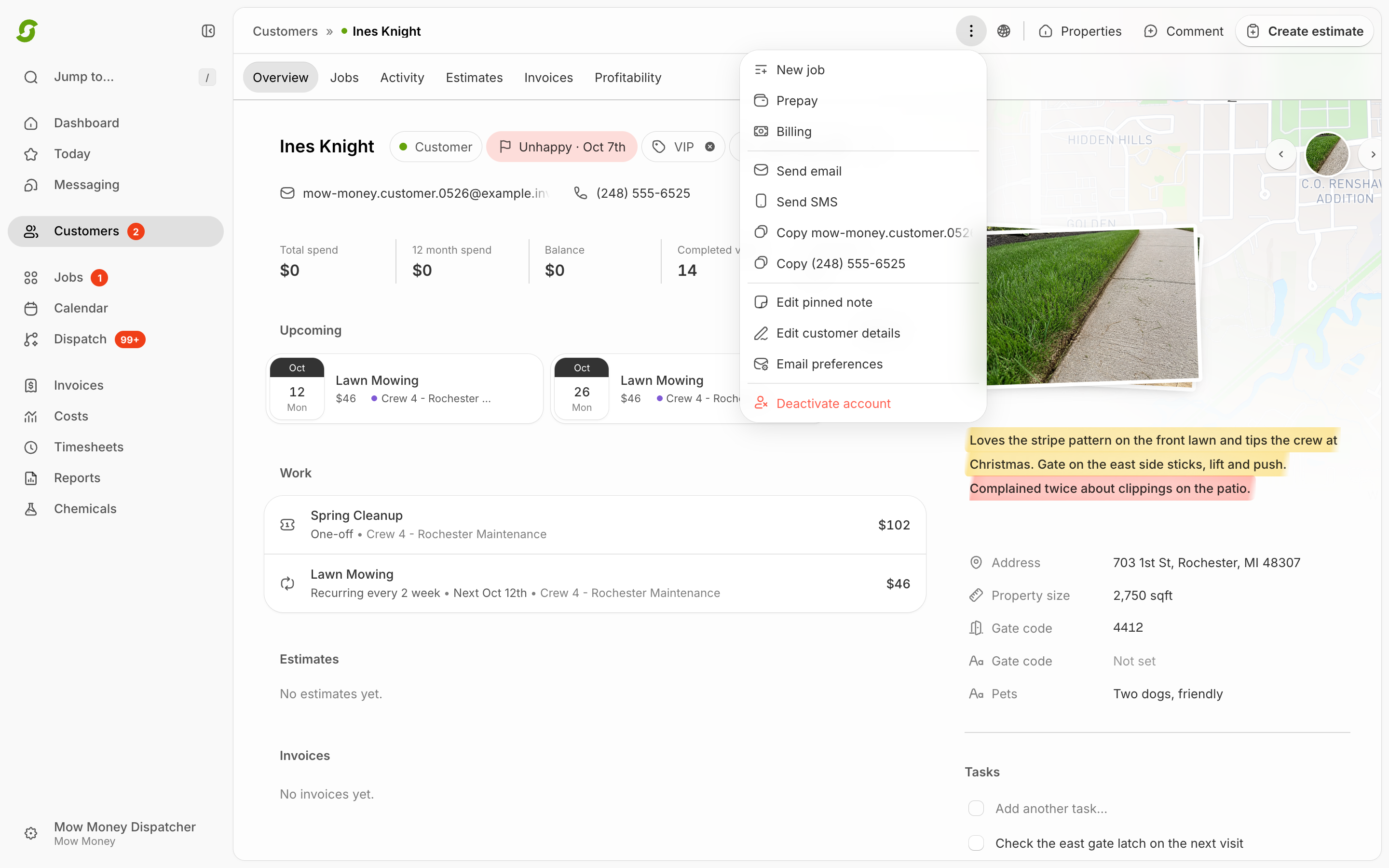
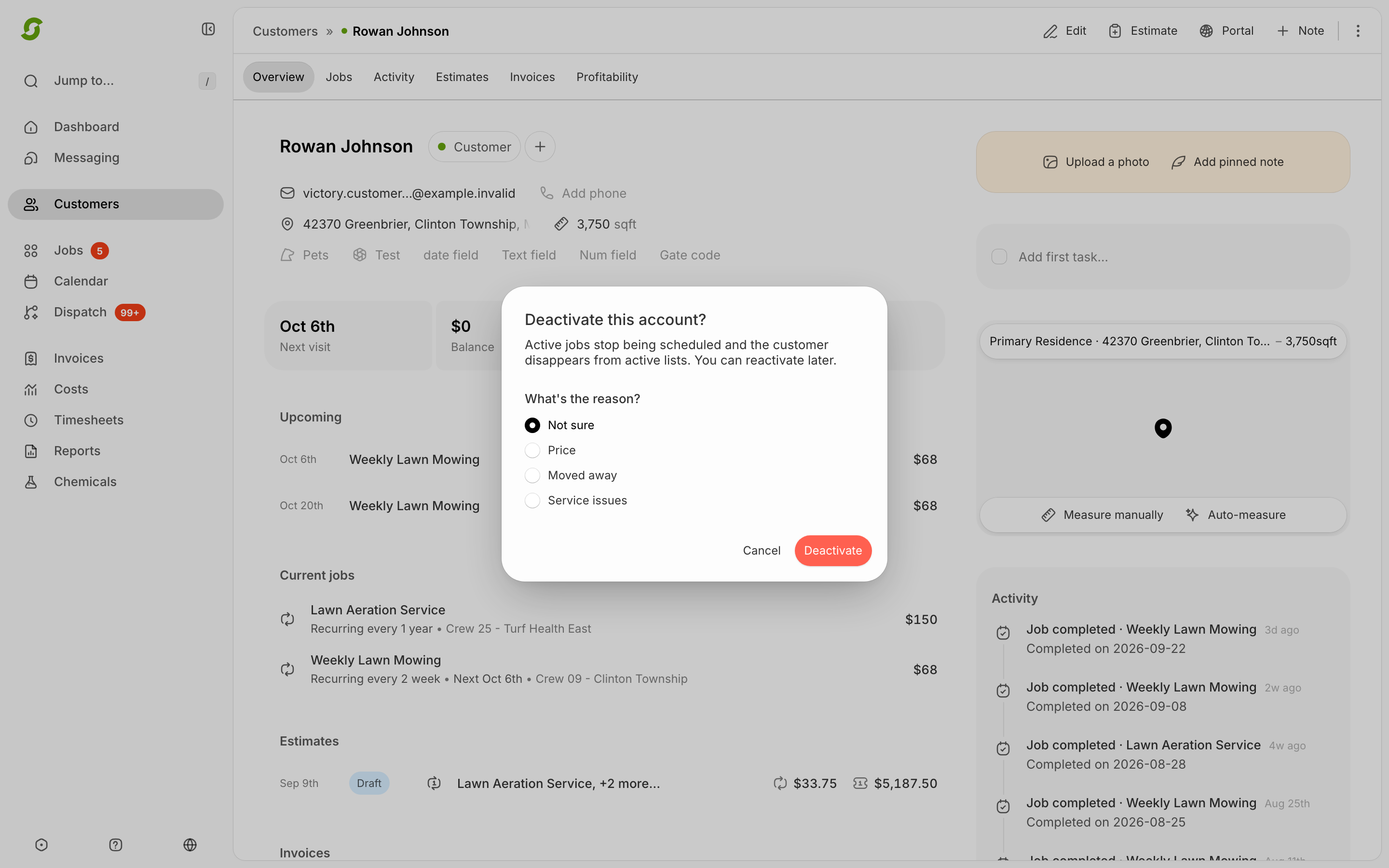
When a customer moves away or you part ways, **deactivate** them instead of deleting anything. From the Customers list or their profile, choose **Deactivate customer**.

Before confirming, Shortcut shows what's still active — recurring jobs and upcoming visits — and offers to cancel them as part of deactivating, so nothing stays on the schedule by accident.

What deactivating does:

* Ends future scheduling and stops automations (reminders, review requests) for them
* Keeps all history — visits, invoices, payments — exactly as it was
* Leaves unpaid invoices collectible; they can still pay what they owe
* Shows an **Inactive** badge, and the list can be filtered to hide or show them

Changed your mind, or they came back? **Reactivate** from the same menu.

## Add a customer manually

{% stepper %}
{% step %}

### Add a customer

Go to [Customers](https://shortcutco.com/customers), click **Add customer** (top right), fill in their details, then click **Save**.
{% endstep %}
{% endstepper %}

## Export your list

**Export CSV** sits in the header of the Customers page.

The export follows exactly what you're looking at — the tab you're on (leads, prospects, or customers), your saved view, your filters, and your sort order. It includes **every matching record**, not just the rows that have loaded on screen, so you don't need to scroll to the bottom first.

## Import customers (bulk)

{% stepper %}
{% step %}

### Import customers

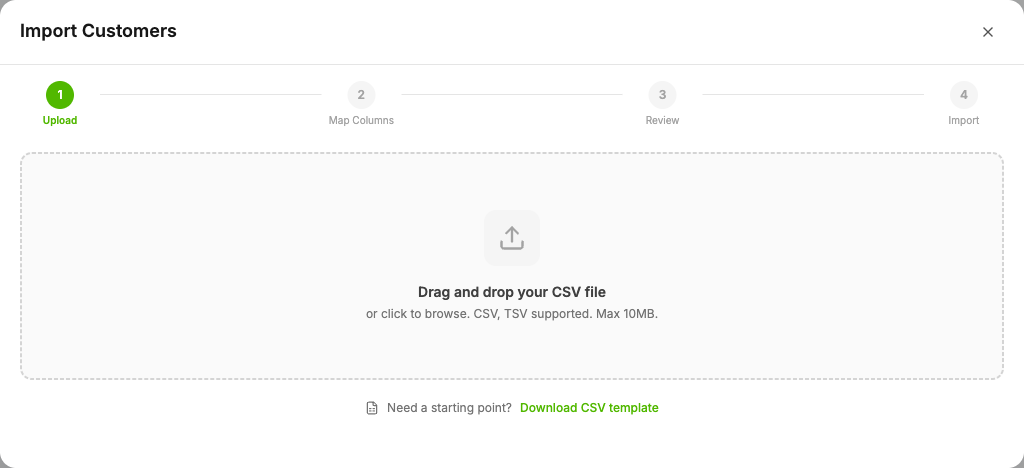
Go to [Customers](https://shortcutco.com/customers), click **Import**.

<figure><img src="/files/0gQXOuIkjO342SkhXLE1" alt="Import Customers modal with CSV upload area"><figcaption><p>Start imports by uploading a CSV or downloading the template.</p></figcaption></figure>
{% endstep %}

{% step %}

### Upload your CSV

Upload your CSV file. Shortcut will **detect columns and let you map them** to the correct fields.
{% endstep %}

{% step %}

### Review and confirm

Review the column mapping and confirm. Shortcut tracks import results:

* ✅ **Successfully imported** rows
* ❌ **Failed** rows (with error details)
* ⏭️ **Skipped** rows (duplicates)
  {% endstep %}
  {% endstepper %}

<details>

<summary>We can help with imports</summary>

If you're coming from another system and import is messy, email **<hello@shortcutco.com>** and tell us where your customers live today. We can help you get them into Shortcut.

</details>

<details>

<summary>Still stuck?</summary>

Email **<hello@shortcutco.com>** with what system you're importing from and (if possible) your CSV file.

</details>