> For the complete documentation index, see [llms.txt](https://docs.shortcutco.com/llms.txt). Markdown versions of documentation pages are available by appending `.md` to page URLs; this page is available as [Markdown](https://docs.shortcutco.com/readme/products.md).

# Products

Sell materials like mulch by the yard, plants, pavers or a sprinkler head alongside your services, with their own price, cost and tax setting, from estimate to invoice to your margins.

A **product** is a material you sell alongside a service: mulch by the yard, a 5-gallon shrub, a pallet of pavers, a sprinkler head. Each product has a unit, a price and (ideally) what it costs you. You add products under a service on an estimate or on a visit. They go on the invoice as their own charge, and their cost feeds your margins. [Open Products →](https://shortcutco.com/settings/products)

Use a product when you're selling a *thing* rather than *work*. A planting job, for example, is a service (the labor) plus three shrubs (products).

|              | What it is                                                                                         | Where you set it up                                                         |
| ------------ | -------------------------------------------------------------------------------------------------- | --------------------------------------------------------------------------- |
| **Service**  | Work you schedule and price by the hour, square foot, man-hour or flat rate. It goes on the route. | [Settings → Services](/readme/configuration/services-pricing-structures.md) |
| **Product**  | A material sold under a service, priced per unit. It never goes on the route or the calendar.      | Settings → Products                                                         |
| **Chemical** | What's applied in a chemical program, recorded for compliance.                                     | [Chemicals](/readme/chemical-tracking.md)                                   |

{% hint style="info" %}
**Products have their own catalog.** They don't appear in Settings → Services, and services don't appear in the product list. Chemical services can't carry products: their materials come from the chemical recipe.
{% endhint %}

## Set up your product catalog

Only company admins can manage the catalog.

{% stepper %}
{% step %}

### Open Products

Open **Settings → Operations → Products** (click your name at the bottom-left of the sidebar, then **Settings**).
{% endstep %}

{% step %}

### Add a product

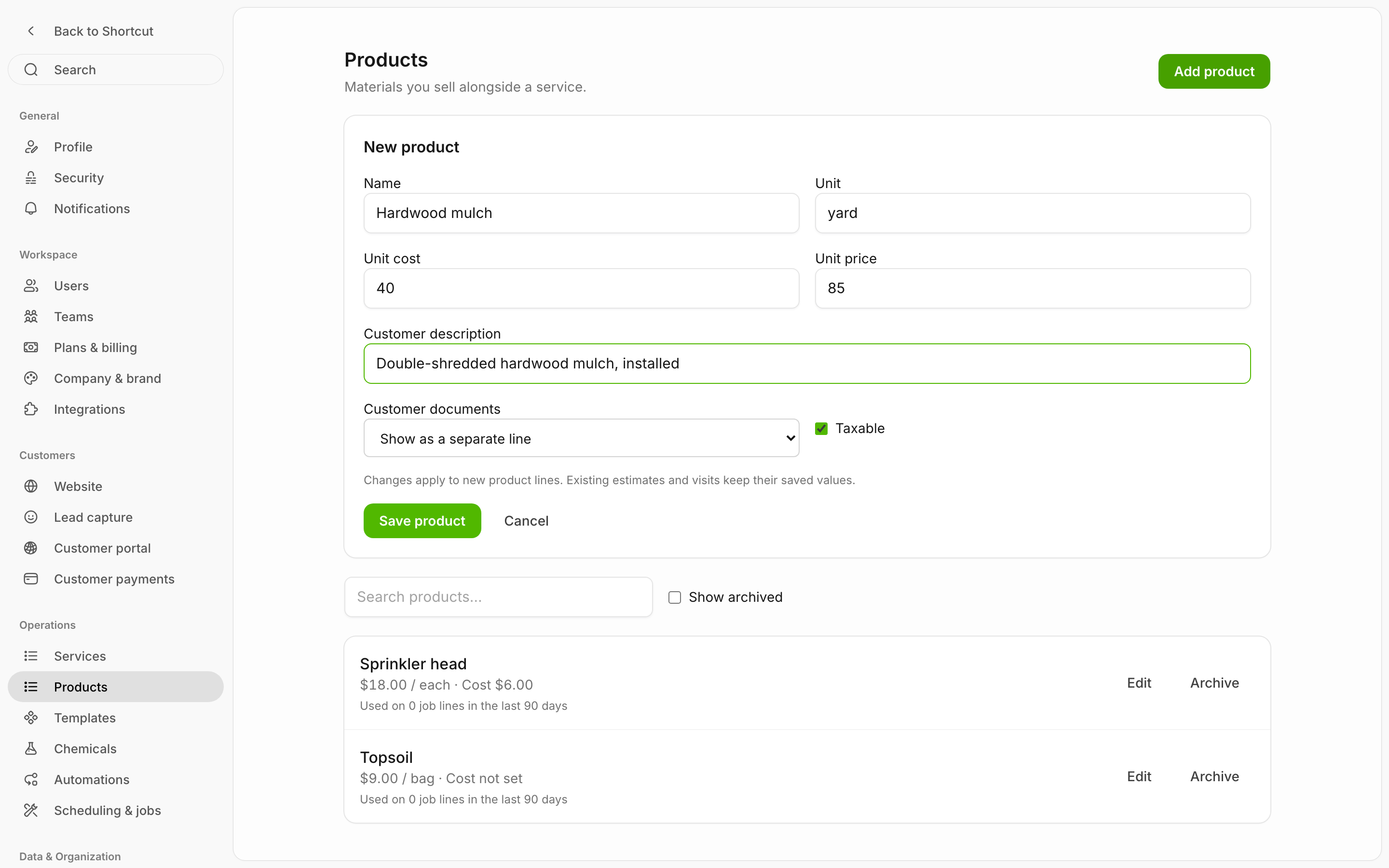
Click **Add product**. Fill in the form (below) and click **Save product**.
{% endstep %}
{% endstepper %}

<figure><img src="https://2299783971-files.gitbook.io/~/files/v0/b/gitbook-x-prod.appspot.com/o/spaces%2FOhi7KtJ4vY1pDKwWu5SV%2Fuploads%2Fgit-blob-537d83501d08f596c25042b9c2718162ebbe6d14%2Fsettings-products-catalog.png?alt=media" alt="Settings → Products listing Hardwood mulch at $85.00 per yard with a cost of $40.00 and a Sprinkler head at $18.00 each, each with Edit and Archive buttons and a count of job lines used in the last 90 days"><figcaption><p>Your product catalog in Settings → Products.</p></figcaption></figure>

| Field                    | What it does                                                                                                                        |
| ------------------------ | ----------------------------------------------------------------------------------------------------------------------------------- |
| **Name**                 | What customers and crews see, such as *Hardwood mulch*. Each name can be used once.                                                 |
| **Unit**                 | How you sell it: *each*, *yard*, *bag*. Starts as *each*.                                                                           |
| **Unit cost**            | What one unit costs you. Optional, but without it your margins show as incomplete. Never shown to customers or crews.               |
| **Unit price**           | What you charge for one unit. Required.                                                                                             |
| **Customer description** | Optional. Shown to customers on estimates and invoices.                                                                             |
| **Customer documents**   | **Show as a separate line** (the default) or **Include in service price**. See [Products on the invoice](#products-on-the-invoice). |
| **Taxable**              | On by default. Turn it off for products you don't charge sales tax on.                                                              |

<figure><img src="https://2299783971-files.gitbook.io/~/files/v0/b/gitbook-x-prod.appspot.com/o/spaces%2FOhi7KtJ4vY1pDKwWu5SV%2Fuploads%2Fgit-blob-f38bf72ab226c1235416ad406b000f9f3b876999%2Fsettings-product-form.png?alt=media" alt="The New product form with Name, Unit, Unit cost, Unit price, Customer description, Customer documents and Taxable fields, and Save product and Cancel buttons"><figcaption><p>The product form. Unit cost stays internal.</p></figcaption></figure>

Each product in the list shows its price per unit, its cost (or **Cost not set**), and how many times it was used on jobs in the last 90 days. Use **Search products…** to find one.

### Editing, archiving and restoring

* **Edit** changes the catalog for the next time someone adds the product. As the form says: *"Changes apply to new product lines. Existing estimates and visits keep their saved values."* Invoices that already exist don't change either.
* **Archive** retires a product. It disappears from every product picker, and anything already using it keeps it unchanged.
* To bring one back, tick **Show archived** and click **Restore**.

You can't delete a product. Archive it instead.

## Add products to an estimate

{% stepper %}
{% step %}

### Add the service first

Every product sits under a service. On the estimate, add the service as usual.
{% endstep %}

{% step %}

### Open the service's ⋯ menu

Click the **⋯** at the right of the service and choose **Add product**. Alternatives have the same option on their own **⋯** menu.
{% endstep %}

{% step %}

### Pick the product

Search for it and click it. Your most-used products are listed first, with *"Used 4× in the last 90 days"* under each.
{% endstep %}

{% step %}

### Set the quantity and finish

The product opens in an editor with the quantity selected. Type the quantity, change anything else you need (below), and click **Done**.
{% endstep %}
{% endstepper %}

<figure><img src="https://2299783971-files.gitbook.io/~/files/v0/b/gitbook-x-prod.appspot.com/o/spaces%2FOhi7KtJ4vY1pDKwWu5SV%2Fuploads%2Fgit-blob-72efc4bec0d2572916ba24aab93a6476e2b300b5%2Festimate-product-line.png?alt=media" alt="An estimate service with a Hardwood mulch product line underneath showing $85 × 3 yard = $255.00, a First visit only tag and a 53% margin, and a 1 product · $255.00 chip on the service row"><figcaption><p>A product under a service on the estimate. The chip on the service row shows how many products it carries.</p></figcaption></figure>

The editor has:

* **Price** and quantity, with the line total.
* **Cost**, with the margin worked out as you type (*"Add a cost to see margin"* if it's blank). The editor reminds you it's *"Never shown to customers or crews."*
* **Customer description**.
* **On the estimate**: **Its own line** or **Included in service price**.
* **Taxable**, and **Crew confirms quantity on the visit** (see [Confirming quantities](#confirming-quantities)).

Price, cost, description and taxable start from the catalog. Changing them here changes only this estimate.

After you click **Done**, the product shows as one compact row, such as *$85 × 3 yard = $255.00*. Small tags flag anything unusual: **Included in service price**, **Non-taxable**, **Confirm qty on visit**, **First visit only**, or **No cost set**. Click the pencil to edit it, or its **⋯** → **Remove product** to take it off. To add another, click **Add product** under the list.

The service row gets a tag such as **1 product · $255.00**. The service's own price doesn't change, but the estimate total includes the products.

{% hint style="info" %}
**Recurring services charge products once.** On a service that repeats, products are billed on the first visit only. The customer sees the price as *"First visit $340.00, then $85.00 per visit."*
{% endhint %}

### What the customer sees

* **Its own line**: the product appears under its service with the quantity, unit price and description, such as *3 × $85.00 / yard*.
* **Included in service price**: no separate line. The product's amount is added to the service's price.
* A **non-taxable** product always shows as its own line, so the tax on the page adds up. The editor tells you: *"Shown separately because its taxability differs from the service."*
* Customers never see cost or margin.

If the customer declines an optional service, its products go with it. If they pick an alternative, they get that alternative's products.

### After the customer accepts

The products wait on the new job and attach to its first visit as soon as that visit is scheduled. On a recurring job they go on the first visit only.

## Add products to a visit from the office

You can add products to a visit before or after it's done. This is how you add materials that weren't on the estimate, or fix the quantities the crew entered.

{% stepper %}
{% step %}

### Open the stop

In **Dispatch**, click the customer name to open the stop's detail panel.
{% endstep %}

{% step %}

### Open Products

Under the **Cost breakdown** card, click **Products**. If the stop has more than one service, each service has its own **Products** list. Add the product under the service it belongs to.
{% endstep %}

{% step %}

### Add the product

Click **Add product**, choose the **Product**, and enter the **Quantity**. **Unit cost**, **Unit price**, **Description**, **Customer documents** (**Show separately** or **Include in service price**) and **Taxable** start from the catalog. Tick **Ask crew to confirm quantity** if you want the crew to check the amount on site. Click **Save**.
{% endstep %}
{% endstepper %}

<figure><img src="https://2299783971-files.gitbook.io/~/files/v0/b/gitbook-x-prod.appspot.com/o/spaces%2FOhi7KtJ4vY1pDKwWu5SV%2Fuploads%2Fgit-blob-ca04491b7ce49c17de2935808b9d3dbce8199b50%2Fdispatch-visit-products.png?alt=media" alt="The Dispatch stop detail panel with the Products section open under the Cost breakdown card, showing a Hardwood mulch line with its quantity, price and cost, Edit and Remove buttons, and Add product"><figcaption><p>A visit's products in the Dispatch stop detail panel.</p></figcaption></figure>

Each line shows the product, its total, and the quantity × price. The office also sees the cost (*Cost missing* when there isn't one). Use **Edit** to change the quantity, price, cost, description, display or tax setting, and **Remove** to take it off. Only the office can remove a product.

**Completed visits.** You can still add or fix products after the crew finishes, until the visit's invoice goes out. For customers billed on a schedule or offline, completed visits wait in the **Pending** section of **Invoices**, and each one has the same **Products** list. Once the invoice has been sent, the visit's products are locked: *"Products are locked after the invoice is finalized."* To charge for something you forgot after that, [add a one-off service](/readme/jobs-and-scheduling/adding-one-off-services-to-a-visit.md) instead. It goes on its own invoice.

Products can't be added to chemical services, so chemical visits don't have a **Products** list.

## Crews add products in Today

Crews can add the materials they used on site, so the office doesn't have to chase them later.

{% stepper %}
{% step %}

### Open the visit

In **Today**, the crew member opens the visit.
{% endstep %}

{% step %}

### Open Products

They tap **Products**, then **Add product**.
{% endstep %}

{% step %}

### Pick and save

They choose the **Product**, enter the **Quantity**, and tap **Save**.
{% endstep %}
{% endstepper %}

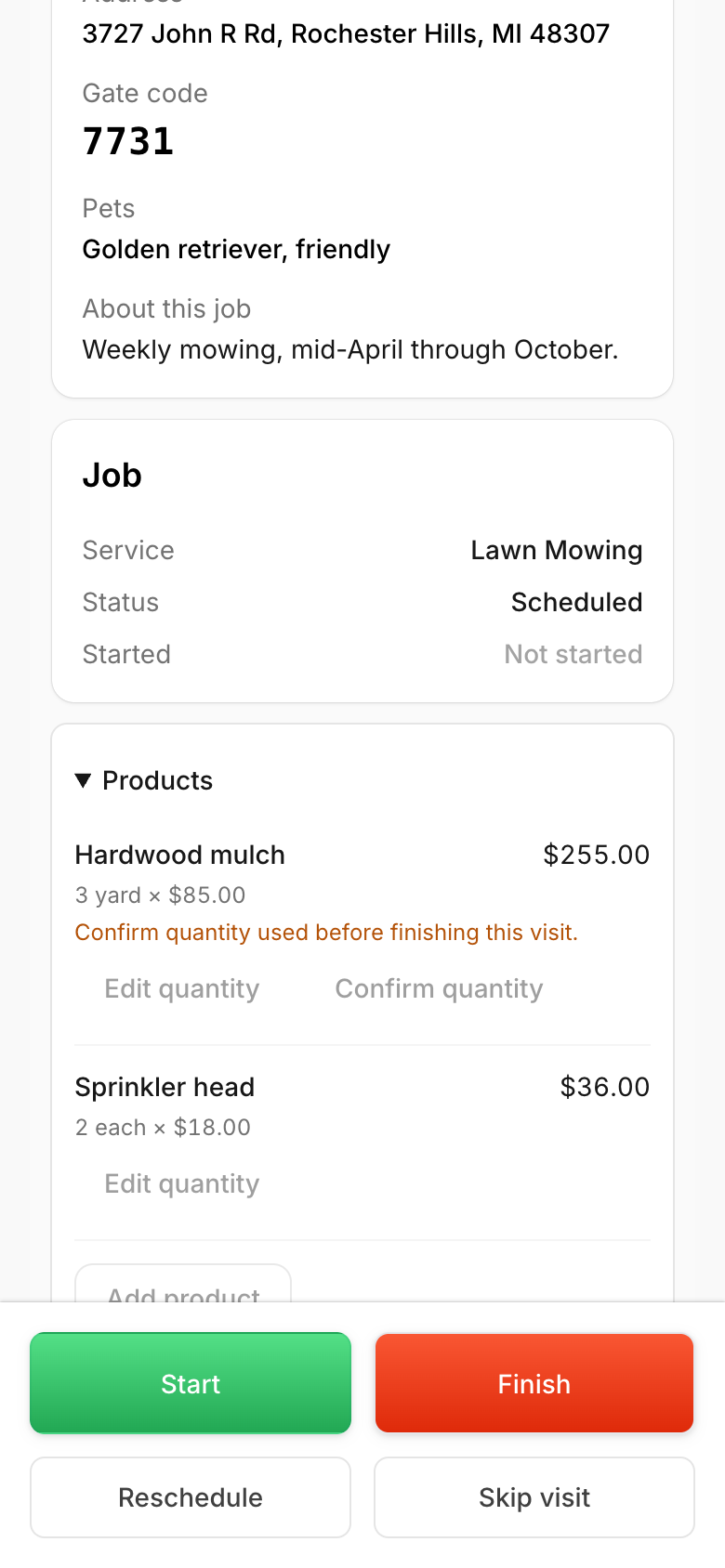
<figure><img src="https://2299783971-files.gitbook.io/~/files/v0/b/gitbook-x-prod.appspot.com/o/spaces%2FOhi7KtJ4vY1pDKwWu5SV%2Fuploads%2Fgit-blob-19612e8f8bd7df7ea3fe0b5b9179ae6226e4ca37%2Ftoday-crew-add-product.png?alt=media" alt="A crew member&#x27;s visit in Today with the Products section open: Hardwood mulch with the note Confirm quantity used before finishing this visit and its Edit quantity and Confirm quantity buttons, Sprinkler head with Edit quantity, and Add product below"><figcaption><p>Crews see the visit's products in Today and add their own with Add product. They see prices, never costs.</p></figcaption></figure>

What crews can and can't do:

* They can pick any active product in your catalog. The price comes from the catalog and they can't change it.
* They see the product name, quantity, unit price and line total. They never see cost or margin.
* They can change a quantity with **Edit quantity**. Removing a product, or changing its price, cost, description or tax setting, is office-only.
* A product line of $500 or more needs them to tick *"I confirm this charge if it exceeds the field limit."*
* It works on today's visits for their own crew, before the visit is finished. It needs a connection; offline, the list is read-only.
* If your catalog is empty, they see *"Ask the office to add products in Settings."*

Everything a crew adds or changes shows up for the office straight away, with their name in the [product history](#product-history).

### Confirming quantities

When a product is marked **Ask crew to confirm quantity** (or **Crew confirms quantity on the visit** on the estimate), the crew sees *"Confirm quantity used before finishing this visit."* under it. They tap **Confirm quantity**, or **Edit quantity** and tick **Confirm quantity used**. The line then says **Quantity confirmed**.

If any quantities are still unconfirmed when the crew taps **Finish**, the finish prompt lists them: *"Confirm quantities in Products before finishing, or continue for office review."* The crew can still finish. The office sees the line as unconfirmed and can click **Confirm quantity** itself. Changing a quantity clears an earlier confirmation.

On a slow connection, Shortcut stops waiting for the list after about two seconds and shows the normal finish prompt, so finishing never stalls.

## When a visit is skipped, cancelled or moved

A crew skips a visit with **Skip visit** in Today. The office cancels one with **Cancel Job** or **Mark handled** in Dispatch. Products stay with the work they belong to:

* **Moved visits keep their products.** A new date, a new crew, or **Needs reschedule** doesn't change anything.
* **Products from the estimate move on.** If a visit is skipped, cancelled or marked handled, products that came from the accepted estimate move to the job's next open visit. If there isn't one, they wait on the job and attach to the next visit you schedule.
* **Products added straight to the visit are removed.** Products the office or crew added to that visit come off with it. The product history records it.
* **Completed visits never change.** Products on a finished visit stay on it.

Moving a product this way clears any quantity confirmation, so the crew confirms again on the new visit.

## Products on the invoice

When the visit is invoiced, each product becomes its own invoice line under its service, named after the product and described like *3 × $85.00 / yard*, followed by your customer description.

* **Include in service price** adds the product's amount to the service's line instead, so the customer sees one line. If the service's own line isn't on that invoice, or the product's tax setting differs from the service's, the product shows as its own line instead. It's never dropped.
* **Sales tax** is charged only on taxable lines. Non-taxable products are left out. A visit discount is shared across the visit's lines in proportion to their amounts, so the tax stays right. Showing a product as its own line or inside the service price never changes the tax or the total. See [Sales tax](/readme/finances-invoices-and-payments/sales-tax.md).
* **Prepaid customers** are billed for products on their own invoice when the visit is completed, the same as added services. Prepay covers the scheduled work only. See [Pre-pay invoicing](/readme/finances-invoices-and-payments/pre-pay-invoicing.md).
* **QuickBooks** receives the invoice the way your customer sees it.

Inside Shortcut, open the invoice in **Invoices** to see **Product charges**: every product line with its cost and product margin, whether or not the customer sees it as a separate line. This view is internal.

## Products and your margins

Products make your margins more accurate:

* A visit's materials cost becomes what its products actually cost you: quantity × unit cost for each line. That replaces the service's default material cost for that visit.
* A product's price and cost count toward the service it was sold under.
* A product with no unit cost marks the margin as incomplete (for example *"1 product line has no cost"*) rather than showing a margin that's too high. Add the cost on the visit before its invoice goes out, and set a **Unit cost** on the product in the catalog so new lines start with one.

See [Materials from products](/readme/costs-and-profitability.md#materials-from-products) in Costs & Profitability.

## Product history

At the bottom of a visit's **Products** list, the office can open **Product history**. Each entry shows the product, what happened, when, and who did it:

| Entry                 | Meaning                                       |
| --------------------- | --------------------------------------------- |
| **accepted**          | Came from the customer's accepted estimate.   |
| **attached**          | Joined this visit when it was scheduled.      |
| **created**           | Added by the office or a crew member.         |
| **edited**            | Quantity, price or another detail changed.    |
| **confirmed**         | Quantity confirmed.                           |
| **removed**           | Taken off by the office.                      |
| **re homed**          | Moved here from a skipped or cancelled visit. |
| **removed on cancel** | Came off with a skipped or cancelled visit.   |

Changes Shortcut makes on its own when visits are scheduled or cancelled show **Scheduling** as the name. Removed products are left off the invoice and out of your costs, but stay in the history. Crews don't see the history.

## FAQ

### I don't see Add product on a service.

The service is a chemical service. Products can't be added to chemical services, on an estimate or a visit.

### Can I sell a product on its own, without a service?

No. Every product sits under a service. Add a short service (a delivery, say) and put the product under it.

### I changed a product's price. Why didn't my estimate change?

Each estimate, visit and invoice keeps the values it was saved with. Catalog changes only apply the next time someone adds the product.

### Can my crew see what products cost me?

No. Crews and customers see prices only. Cost and margin are office-only.

### How do I get rid of a product we don't sell anymore?

Archive it in Settings → Products. It disappears from every picker and existing work keeps it.

<details>

<summary>Still stuck?</summary>

Email **<hello@shortcutco.com>** with the customer name, the visit date or estimate, the product name, and a screenshot.

</details>