> For the complete documentation index, see [llms.txt](https://docs.shortcutco.com/llms.txt). Markdown versions of documentation pages are available by appending `.md` to page URLs; this page is available as [Markdown](https://docs.shortcutco.com/readme/start-here-get-set-up-send-a-proposal-and-get-paid/3-add-a-lead-and-send-a-proposal.md).
# 3) Add a lead and send a proposal
{% hint style="info" %}
Outcome: A customer receives an estimate they can accept.
{% endhint %}
### What you’ll do
* Add a lead (with contact info)
* Build an estimate using services or a template
* Send by email/SMS
### Steps
{% stepper %}
{% step %}
### Go to Leads
Open **Customers**. Your leads are listed there too.
{% endstep %}
{% step %}
### Add a lead
Click **Add Lead**.
{% endstep %}
{% step %}
### Enter contact and property info
Fill in first name, last name, email, phone number, and property location.
{% endstep %}
{% step %}
### Build the estimate
When you save the lead, Shortcut opens their profile. Click **Create estimate** at the top and add services. To price by square foot, measure the lawn from the **Location** card on the same page — see [Measure the lawn to price by square foot](/readme/proposals/how-to-create-and-send-a-proposal.md#measure-the-lawn-to-price-by-square-foot).
Start the estimate from a lead and add the services to quote.
{% endstep %}
{% step %}
### Send the estimate
Click **Send** at the bottom of the estimate and choose email, SMS, or both.
Choose how the customer should receive the estimate.
{% endstep %}
{% endstepper %}
### Expected result
The estimate is sent and the person moves to **Customers → Estimate pending**, with a **Prospect** pill on their profile, while you wait for them to accept.
If they say yes on the phone instead, open their profile and click **Approve** at the top. See [Prospect management](/readme/leads-prospects-customers/prospect-management-approve-remind-void.md).
Haven't sent it yet? You can click **Approve** on the estimate page itself. The estimate locks, and **Schedule jobs** takes you straight to [step 4](/readme/start-here-get-set-up-send-a-proposal-and-get-paid/4-schedule-+-assign-the-job.md). See [Approve for the customer](/readme/proposals/how-to-create-and-send-a-proposal.md#approve-for-the-customer).
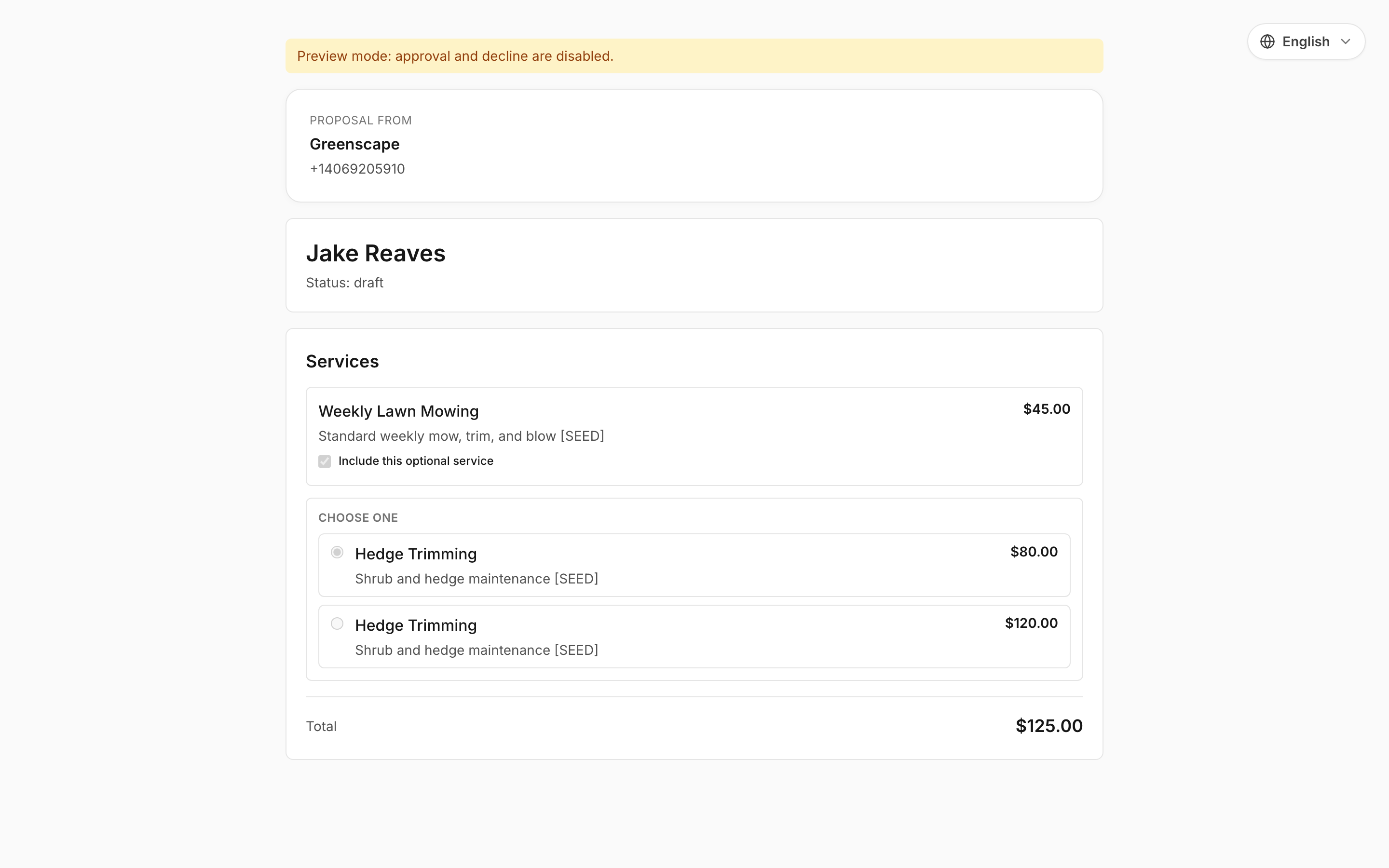
Preview what the customer sees before approval.
{% hint style="success" %}
Tip: send your first estimate to yourself once as a test (email or SMS), so you see what customers see.
{% endhint %}
Still stuck?
Email **** with the lead name + a screenshot of your estimate screen.