> For the complete documentation index, see [llms.txt](https://docs.shortcutco.com/llms.txt). Markdown versions of documentation pages are available by appending `.md` to page URLs; this page is available as [Markdown](https://docs.shortcutco.com/readme/start-here-get-set-up-send-a-proposal-and-get-paid/4-schedule-+-assign-the-job.md).
# 4) Schedule + assign the job
{% hint style="info" %}
**Outcome:** Work is on the calendar and assigned to the right team.
{% endhint %}
### What you'll do
* Schedule job start dates
* Make sure each visit is under a crew in Dispatch (this is how workers see their jobs)
### Steps
{% stepper %}
{% step %}
### Go to Jobs
Click **Schedule** on an unscheduled job. [Open Jobs →](https://shortcutco.com/jobs)
Just approved an estimate yourself? Click **Schedule jobs** on the estimate page instead — it opens the same scheduler with that estimate's new jobs.
{% endstep %}
{% step %}
### Use the scheduling calendar
* Pick a start date. When you schedule one job, the window starts on today. If Shortcut sees a day that fits your routes better, it shows a green **Suggested** chip above the calendar — click it to use that day. See [Scheduling a single job](/readme/jobs-and-scheduling/scheduling-calendar-multi-service-start-dates.md#scheduling-a-single-job).
* Set different start dates per service if needed.
* Running multiple crews? For a recurring job, the scheduling window also asks which crew **owns** it, so its visits arrive already assigned to that crew. See [Crew ownership](/readme/dispatch/crew-ownership.md).
Pick the first service date before confirming the schedule.
{% endstep %}
{% step %}
### Check the crew in Dispatch
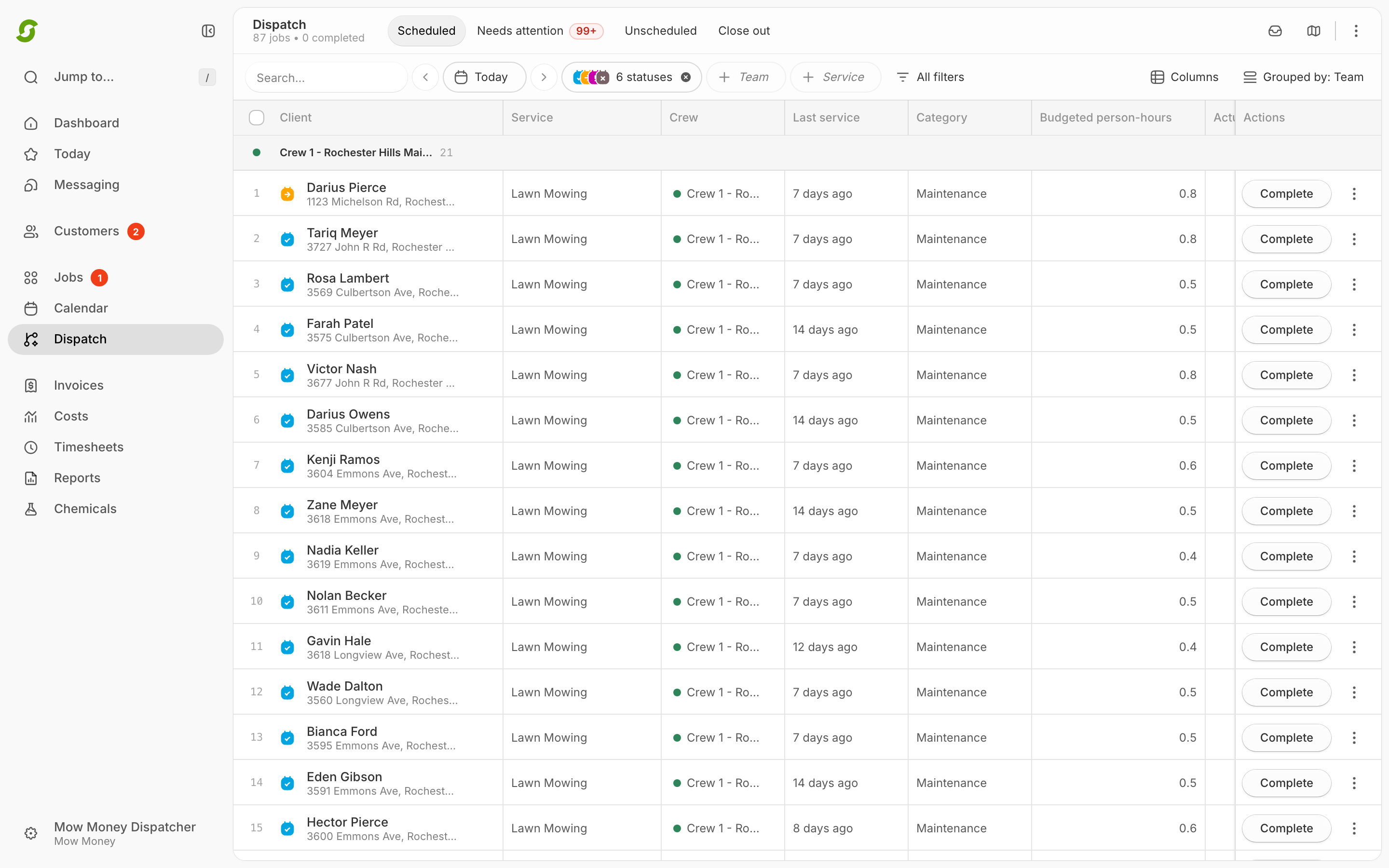
Open **Dispatch**, use the date arrows to get to the day you scheduled, and make sure the stop is under a crew. If it's in the **Unassigned** lane at the bottom, click the red **Unassigned** chip on the row and pick a crew, or drag the row into a crew's lane. You can also change a stop's crew from **Calendar** (**Reassign crew**).
* [Open Dispatch →](https://shortcutco.com/dispatch)
* [Open Calendar →](https://shortcutco.com/calendar)
Use Dispatch to make sure each day's stops sit under the right crew.
{% endstep %}
{% endstepper %}
### Expected result
* The job appears in Dispatch and Calendar on its scheduled date
* The job is assigned to a crew
Still stuck?
Email **** with the customer name + the date you scheduled + a screenshot of Dispatch.