> For the complete documentation index, see [llms.txt](https://docs.shortcutco.com/llms.txt). Markdown versions of documentation pages are available by appending `.md` to page URLs; this page is available as [Markdown](https://docs.shortcutco.com/readme/start-here-get-set-up-send-a-proposal-and-get-paid/5-get-paid-complete-job-greater-than-invoice-greater-than-payment.md).
# 5) Get paid (complete job → invoice → payment)
**Outcome:** Payment is recorded.
## The Shortcut billing flow (important)
{% hint style="warning" %}
By default, Shortcut creates and sends the invoice when a job is marked complete. Two exceptions:
* **Scheduled or offline billing:** completed work is saved up and billed later. See [Billing modes](/readme/finances-invoices-and-payments/billing-modes.md).
* **Prepaid work:** if the customer paid ahead for these dates, the job is marked covered and no new invoice is made. See [Pre-pay invoicing](/readme/finances-invoices-and-payments/pre-pay-invoicing.md).
{% endhint %}
## What you’ll do
* Mark the job complete (or have a worker complete it)
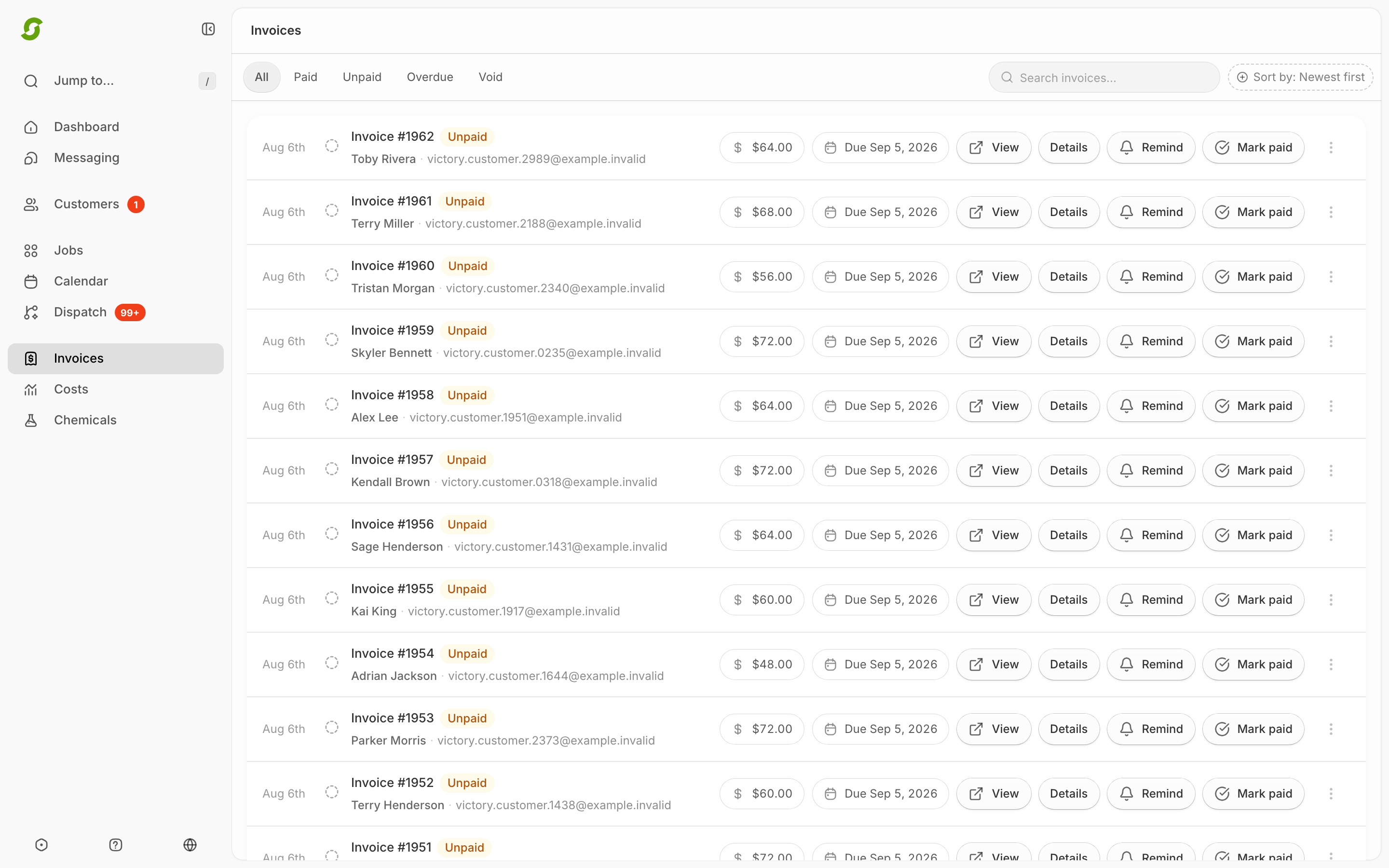
* Confirm the invoice appears in Invoices
* Mark it as paid if payment was manual
## Steps
{% stepper %}
{% step %}
### Complete the job
Complete the job in the worker app or from the admin.
Completing a job is what starts the invoice workflow.
{% endstep %}
{% step %}
### Check Invoices
Go to **Invoices** to confirm the invoice appears.
If the customer has autopay on, Shortcut charges their saved card or bank account as soon as the invoice is created. A bank debit shows **Payment processing** for a few business days before the invoice turns **Paid**. If you require approval for crew add-ons, a visit with an added line waits under **Needs approval** at the top of Invoices until you review it. See [How invoices are created](/readme/finances-invoices-and-payments/how-invoices-are-created-job-driven.md).
Completed work appears in Invoices as invoices or pending groups.
{% endstep %}
{% step %}
### Only if doing manual payments: Mark as paid
If the customer paid by check/cash/ACH, click **Mark paid** in the invoice list. *If you don't, Shortcut keeps sending them payment reminders.*
{% endstep %}
{% step %}
### Remind (if unpaid)
If the customer hasn't paid, use **Remind** to resend the invoice by email/SMS. You can remind any time while it's unpaid, unless a payment is already on its way. You'll see a **Payment processing** status, or an orange note next to the status. See [Invoice statuses explained](/readme/finances-invoices-and-payments/invoice-statuses-explained-paid-unpaid-overdue.md#payment-notes-next-to-the-status).
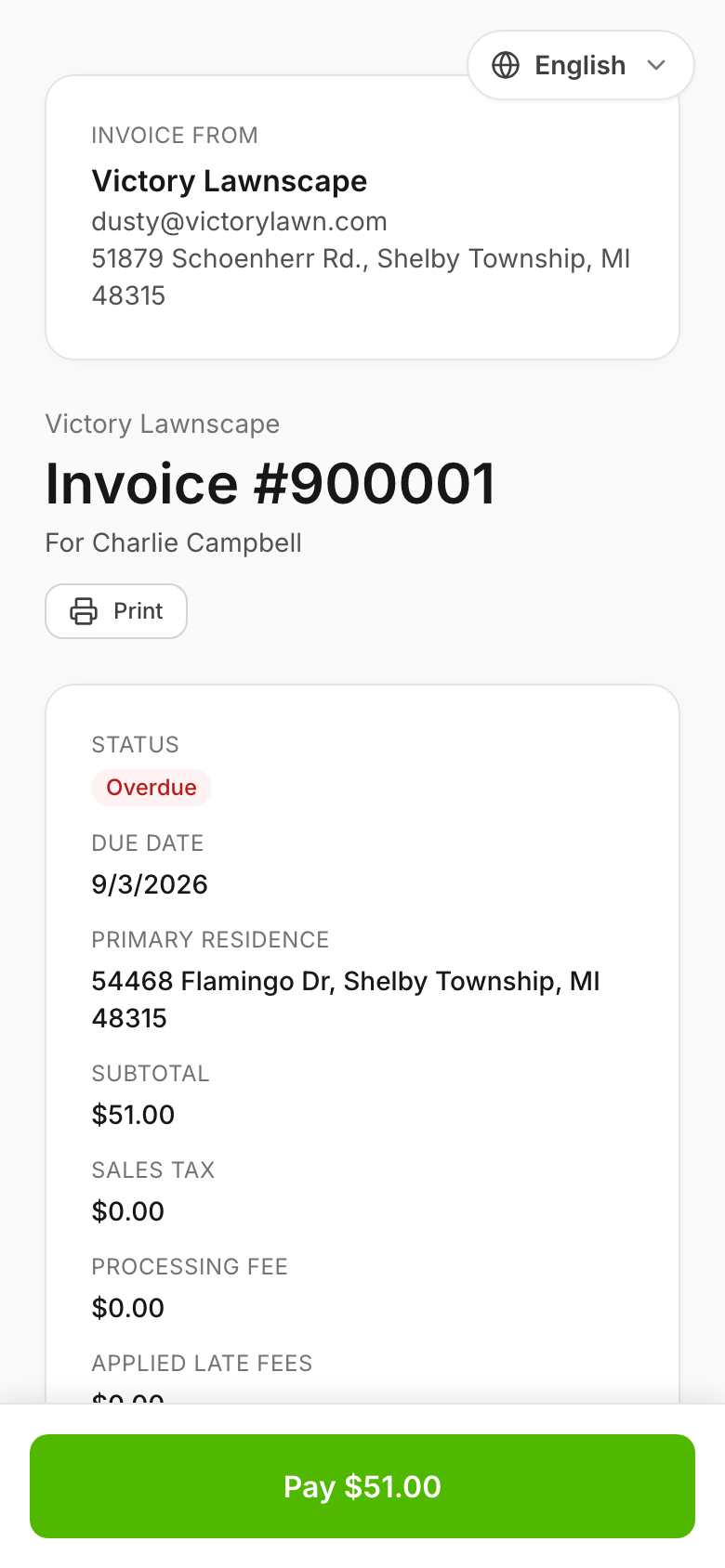
Customers can pay from the invoice link they receive.
{% endstep %}
{% endstepper %}
{% hint style="info" %}
Still stuck? Email **** with the customer name + invoice status + a screenshot of the Invoices list.
{% endhint %}