> For the complete documentation index, see [llms.txt](https://docs.shortcutco.com/llms.txt). Markdown versions of documentation pages are available by appending `.md` to page URLs; this page is available as [Markdown](https://docs.shortcutco.com/readme/troubleshooting/troubleshooting-hub-top-issues.md).
# Troubleshooting hub (top issues)
These are the most common "why didn't it work?" problems in Shortcut.
## 1) I don't see an invoice
Shortcut creates an invoice when a job is marked complete.
{% stepper %}
{% step %}
### Check job status
Open the job and confirm it's marked complete. [Open Jobs →](https://shortcutco.com/jobs)
{% endstep %}
{% step %}
### Check invoices
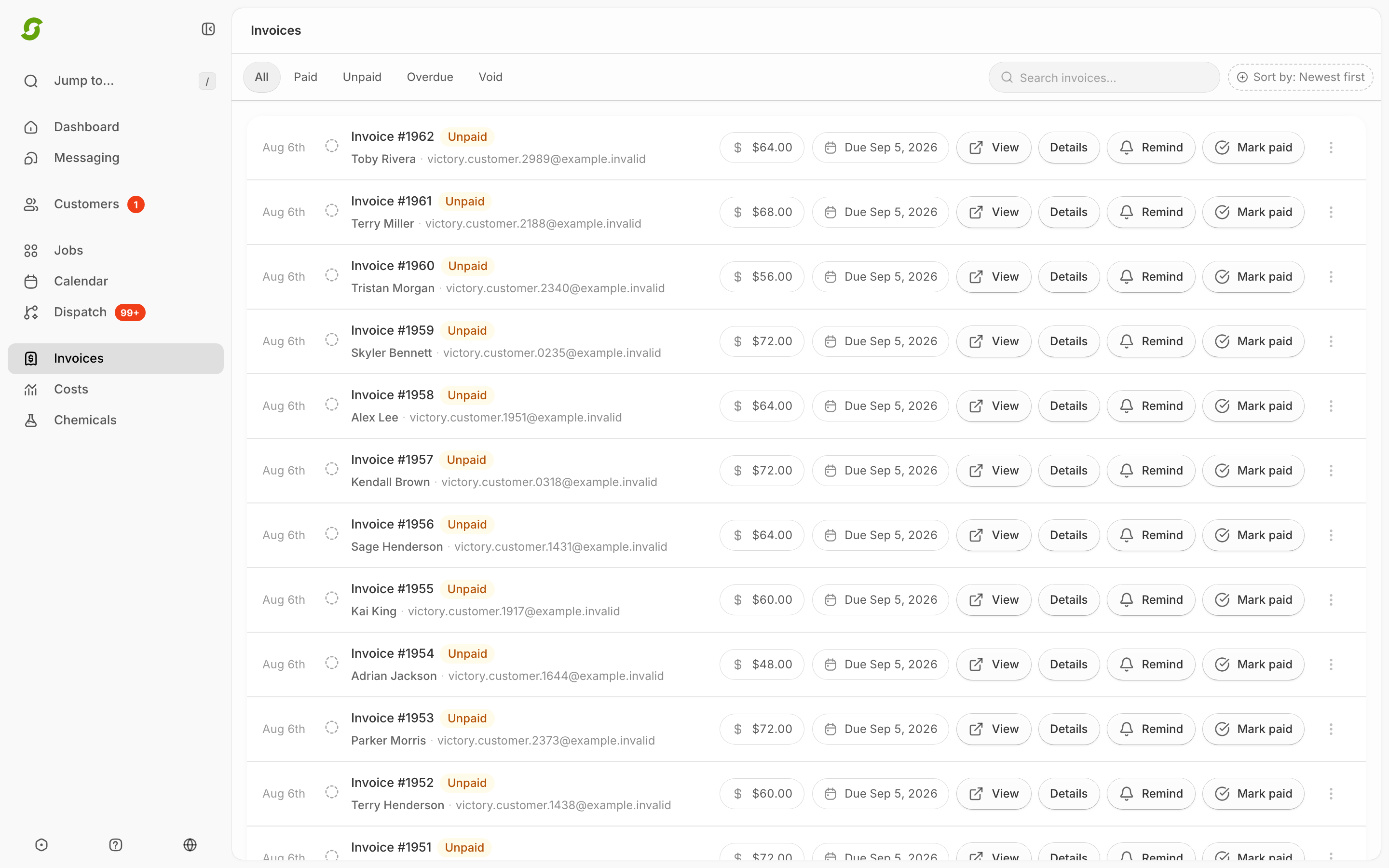
Go to [Invoices](https://shortcutco.com/invoices) and check the list. If the customer is on scheduled or offline billing, also check the **Pending** section at the top — completed work may be waiting there.
Start in Finances when a customer says they did not receive or pay an invoice.
{% endstep %}
{% endstepper %}
## 2) Customer paid by check, but reminders keep sending
If you take manual payments, you must mark invoices as paid in [Finances](https://shortcutco.com/invoices).
{% stepper %}
{% step %}
### Open Finances
Go to [Finances](https://shortcutco.com/invoices).
{% endstep %}
{% step %}
### Find the invoice
Locate the invoice.
{% endstep %}
{% step %}
### Mark as paid
Click **Mark as paid**. See [Mark an invoice as paid](/readme/finances-invoices-and-payments/mark-an-invoice-as-paid-manual.md).
{% endstep %}
{% endstepper %}
## 3) Customer says they didn't receive an invoice
Use **Remind** to resend the invoice — available any time while it's unpaid.
{% stepper %}
{% step %}
### Open Finances
Go to [Finances](https://shortcutco.com/invoices).
{% endstep %}
{% step %}
### Find the invoice
Locate the invoice.
{% endstep %}
{% step %}
### Resend reminder
Click **Remind**.
{% endstep %}
{% endstepper %}
Still not arriving? Check the customer's email preferences. See [Customer email preferences and invoice delivery](/readme/finances-invoices-and-payments/customer-email-preferences.md).
## 4) Worker can't see jobs
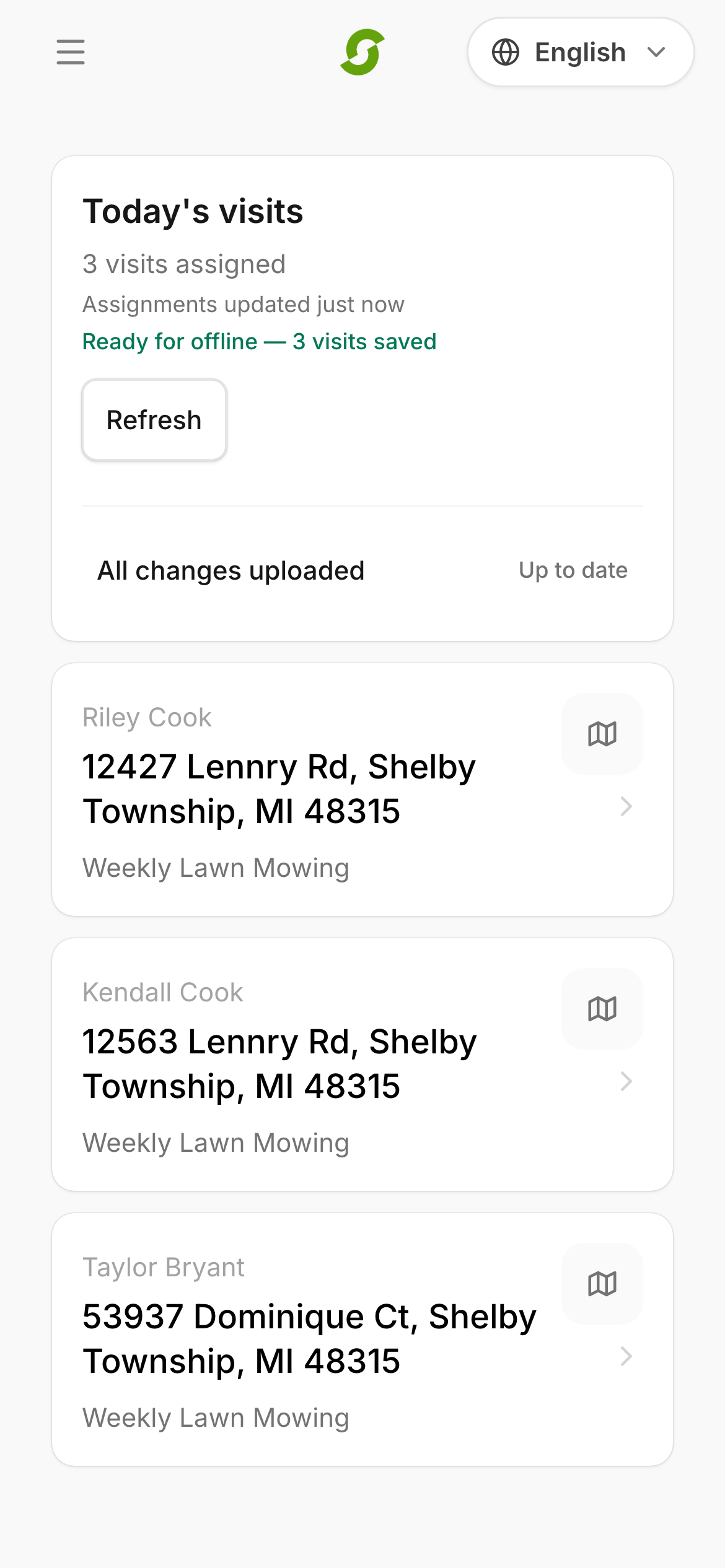
Workers see jobs only when:
* They are in a Team, and
* The jobs are assigned to that team (crew) in [Dispatch](https://shortcutco.com/dispatch).
{% stepper %}
{% step %}
### Confirm team membership
Confirm the worker is on a team ([Settings → Users](https://shortcutco.com/settings/users)).
{% endstep %}
{% step %}
### Confirm assignment
Confirm jobs are assigned to that team in [Dispatch](https://shortcutco.com/dispatch).
Check Today when a worker cannot find assigned jobs.
{% endstep %}
{% endstepper %}
More checks: [Worker can't see jobs](/readme/worker-app/troubleshooting-worker-cant-see-jobs.md).
## 5) Scheduling is confusing (multiple services)
If a customer has multiple services, the first date you pick may start all services unless you set dates per service.
{% stepper %}
{% step %}
### Reopen the calendar
Reopen the scheduling calendar. [Open Jobs →](https://shortcutco.com/jobs)
{% endstep %}
{% step %}
### Select the service
Click individual services on the left.
{% endstep %}
{% step %}
### Set start dates
Set the correct start date per service.
{% endstep %}
{% endstepper %}
## 6) Optimize routes gave a strange order (or skipped stops)
* Set your **route start and end address** in **Scheduling & jobs** (**Settings → Operations**). Without it, the optimizer has no idea where the day begins and ends.
* Check the **Unmapped** count above the map, or the **Missing coordinates** flag on the Needs attention tab. A stop Shortcut can't place on the map is left out of optimization; click **Fix address** on the row.
* Stops in the **Unassigned** lane aren't optimized. Give them a crew first.
* Nothing changes until you click **Apply preview**, so if the preview looks wrong, just close the window.
See [Optimize routes and the Assistant](/readme/dispatch/optimize-routes-and-the-assistant.md).
## 7) Worker doesn't see clock in/out
The Time Clock card only appears in [Today](https://shortcutco.com/today) once an admin turns the feature on.
* Open **Timesheets** in the left navigation and check the **Time Clock** card says **Turn off Time Clock** (meaning it's on).
* Confirm the person is an **Active** employee, not Invited or Inactive.
* Have them fully reload [/today](https://shortcutco.com/today).
See [Timesheets & Time Clock](/readme/time-clock-and-timesheets.md).
## 8) One panel says "Data temporarily unavailable"
On the Dashboard and Costs, each section loads on its own. If one shows *"Data temporarily unavailable. Refresh to try again"*, the rest of the page is fine — retry that panel rather than reloading everything.
If the money tiles look out of date rather than broken, they refresh every hour. Use the **Refresh** button above them — see [Dashboard](/readme/dashboard.md).
## 9) A customer can't get into the customer portal
* **Do they have access?** Open their profile, click the globe (**Customer portal**), then **Portal settings**. **Portal access** should read **Invitation pending** or **Active**. **Not invited** means click **Send invitation**. **Revoked** means click **Restore access**, then **Send invitation**.
* **Did the email go out?** Check **Portal attention & notification delivery** on the same page. **failed** means click **Retry delivery**. **suppressed** usually means the address bounced, was marked as spam, or is a placeholder. Fix the email on their profile and invite again.
* **Expired or already used?** Every link works once. Invitations last 72 hours, and links customers ask for themselves last 15 minutes. Send them to your sign-in page to click **Email me a sign-in link**. That works for invited customers who haven't signed in yet, too.
* **Wrong sign-in page, or an old link?** Each company has its own sign-in page. Send them the link from **View Sign-in page** in [Settings → Customer portal](https://shortcutco.com/settings/customer-portal) (**Settings → Customers → Customer portal**). Old links to the earlier customer area open **Find your customer portal**, which emails a link only if that email has access.
* **Forgot their password?** Customer passwords can't be reset. They use **Email me a sign-in link** instead.
* **"Email me a sign-in link" on an invoice?** It only appears for customers who have access, and it sends the link to the email on their account.
See [Set up the portal, invite customers, and publish visits](/readme/customer-portal/customer-portal-set-up-invite-and-publish.md).
## Still stuck?
Email **** with the customer name + what you expected to happen + a screenshot.