> For the complete documentation index, see [llms.txt](https://docs.shortcutco.com/llms.txt). Markdown versions of documentation pages are available by appending `.md` to page URLs; this page is available as [Markdown](https://docs.shortcutco.com/readme/worker-app.md).
# Worker app
The Worker app is optimized for mobile and built for crews in the field.
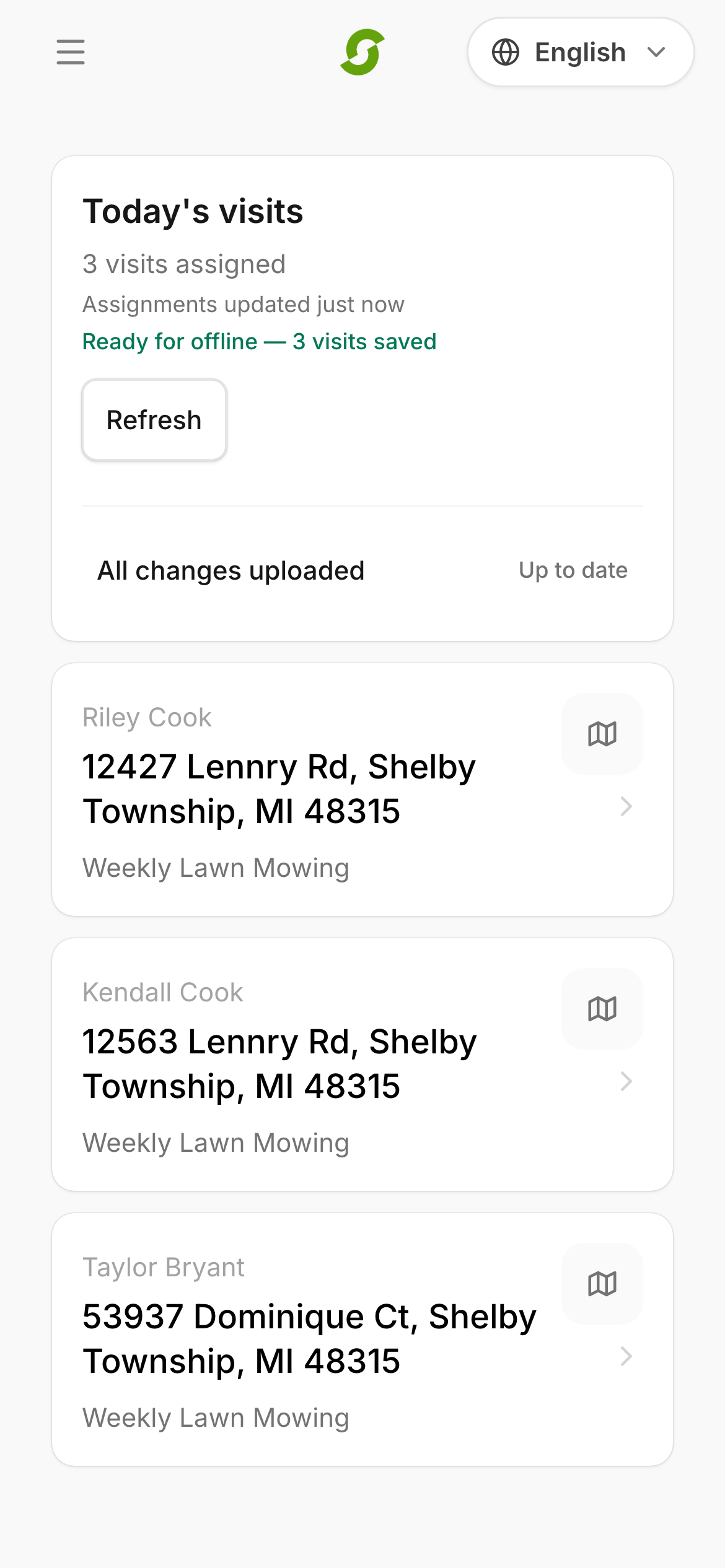
Workers run their day from **Today**. The best way to get there is the Shortcut app for [iPhone](https://apps.apple.com/us/app/shortcut-field/id6762139938) or [Android](https://play.google.com/store/apps/details?id=com.shortcutco.app), which adds push notifications, GPS check-ins, camera photos, and offline mode. The same screen also works in a phone browser at [/today](https://shortcutco.com/today). See [Mobile app](/readme/mobile-app.md).
Workers can:
* See the jobs assigned to them **for today**
* Tap **Start** once when they arrive — the whole visit checks in together, and Shortcut records the GPS check-in
* **Open in Google Maps** to navigate to the next job
* See the **property card** at the top of each visit: a map, the property photo, the gate code, pets, and the job description
* Read job instructions and notes
* See what the office changed: stops marked **Added** or **Moved**, and any **Removed from your route**
* **Upload photos** (JPEG, PNG, or HEIC — up to 10 MB each) and **add job notes** — with the option to share them with the customer
* Tap **Finish** once when the work is done — every service on the visit is completed together and the customer gets **one invoice for the visit**
* **Reschedule** or **skip** an individual service that wasn't done — it goes back to the office, and Finish completes the rest
* Tap **Add service** to add an approved field add-on the customer asks for on-site
## When to use this
* You're training crew members
* A worker says they can't see jobs
* You want job completion to trigger invoicing automatically
## How workers get jobs
To see jobs, a worker must:
{% stepper %}
{% step %}
### Be invited as an Employee user
The worker account must be created and invited with the **Employee** role, which can be done in [Settings → Users](https://shortcutco.com/settings/users) (**Settings → Workspace → Users**).
{% endstep %}
{% step %}
### Be added to a Team
The worker must be a member of a **Team**. Teams are managed in [Settings → Teams](https://shortcutco.com/settings/teams). You put someone on a team from **Settings → Users**.
{% endstep %}
{% step %}
### Have jobs assigned to that Team
Jobs are assigned to crews in [Dispatch](https://shortcutco.com/dispatch).
{% endstep %}
{% endstepper %}
## How workers access jobs
Workers sign in to the app with the same email and password they'd use on the web and land on **Today**.
The Today list is the worker starting point in the field.
{% hint style="info" %}
**Install the app.** Send new crew members the store link for their phone: [iPhone](https://apps.apple.com/us/app/shortcut-field/id6762139938) · [Android](https://play.google.com/store/apps/details?id=com.shortcutco.app). Once they've signed in on it, they get a push notification when stops are added to or taken off their day, or when their next stops change order.
{% endhint %}
## Completing a job (why it matters)
When a job is marked complete:
* Shortcut creates an invoice (some customers are billed differently — see [Billing modes](/readme/finances-invoices-and-payments/billing-modes.md))
* The customer gets a payment request link
* If the customer has autopay enabled, they can be charged automatically
Open a visit to see the property card, notes, photos, and completion actions.
## Related pages
* [Mobile app (iPhone + Android)](/readme/mobile-app.md)
* [Users and Teams](/readme/configuration/workforce-users-+-roles-+-teams.md)
* [Dispatch](/readme/dispatch.md)
* [Mark a job complete (and what happens next)](/readme/jobs-and-scheduling/mark-a-job-complete-and-what-happens-next.md)
## Still stuck?
Contact support
Email **** with the worker's email + team name + date + a screenshot of what they see.