> For the complete documentation index, see [llms.txt](https://docs.shortcutco.com/llms.txt). Markdown versions of documentation pages are available by appending `.md` to page URLs; this page is available as [Markdown](https://docs.shortcutco.com/readme/your-account.md).

# Your account

Everyone on your team manages their own login in **Settings → General**. Click your name at the bottom-left of the sidebar, then click **Settings**. Settings opens on your **Profile**. In the mobile app, tap **Menu**, then tap your name at the bottom.

Crew members see **Profile**, **Security** and **Notifications** only. Admins see the rest of Settings too; see [Settings](/readme/configuration.md).

## Profile

Your **First name**, **Last name**, and **Email address**. Changing your email asks for your **Current password** first. Click **Save profile**. [Open Profile →](https://shortcutco.com/settings/profile)

## Security

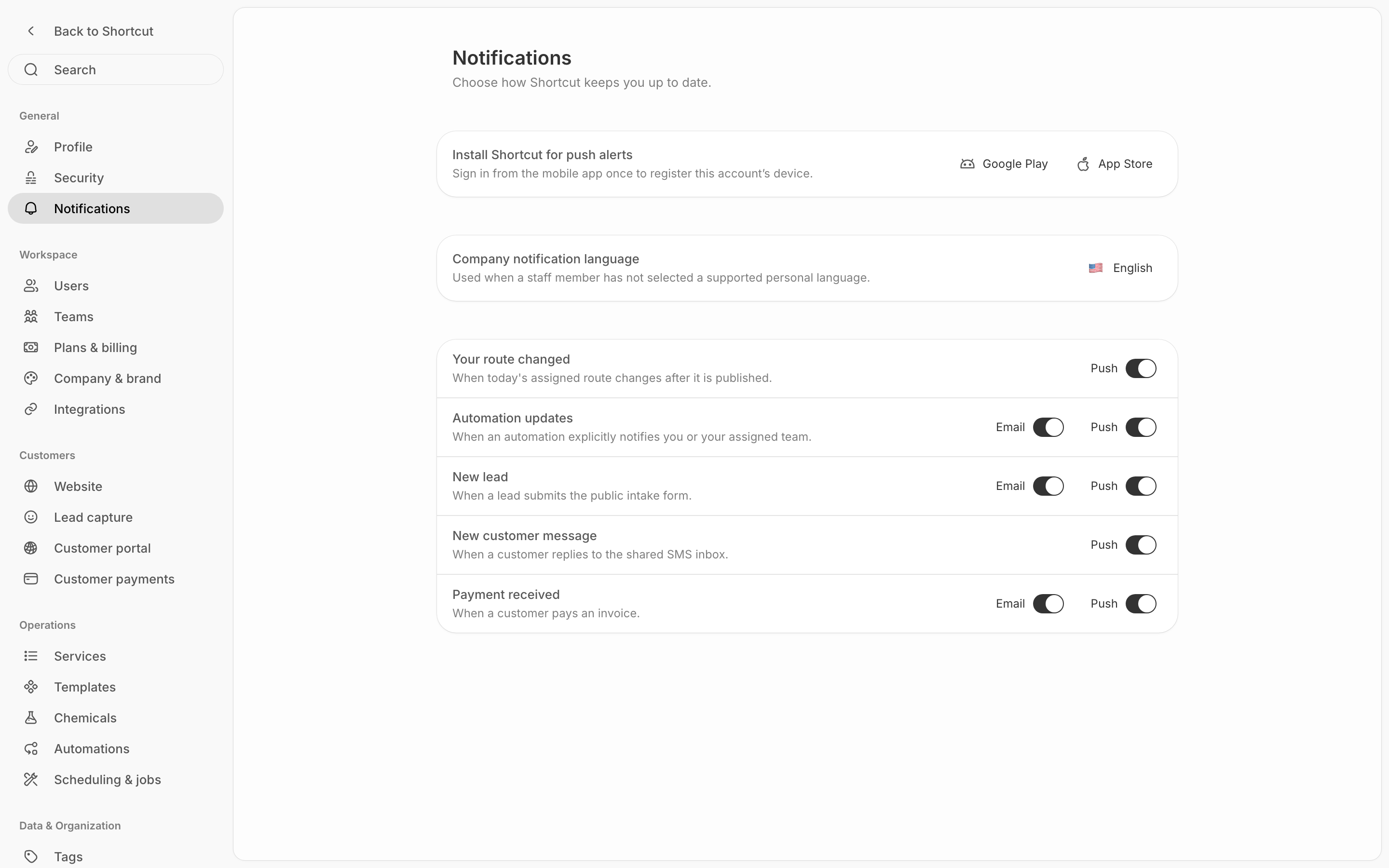
Change your password with **Current password**, **New password** (at least 8 characters) and **Confirm new password**, then click **Update password**.

<figure><img src="https://2299783971-files.gitbook.io/~/files/v0/b/gitbook-x-prod.appspot.com/o/spaces%2FOhi7KtJ4vY1pDKwWu5SV%2Fuploads%2Fgit-blob-a1e65a2eefa5a0718c4378bd8cffce18c4308cea%2Fsettings-security.png?alt=media" alt="Settings → Security: Current password, New password and Confirm new password with Update password, and the Danger Zone card with Deactivate account"><figcaption><p>Security: change your password, or deactivate your own account under Danger Zone.</p></figcaption></figure>

### Deactivate account

Under **Danger Zone**, **Deactivate account** removes your login and keeps your history. Shortcut asks you to confirm with your current password, then signs you out.

If you're the only active admin, Shortcut won't let you do it. Make someone else an admin in [Settings → Users](/readme/configuration/workforce-users-+-roles-+-teams.md) first. To shut Shortcut down for the whole company, use **Close company account** on **Plans & billing** instead.

## Notifications

Choose which alerts reach you and how:

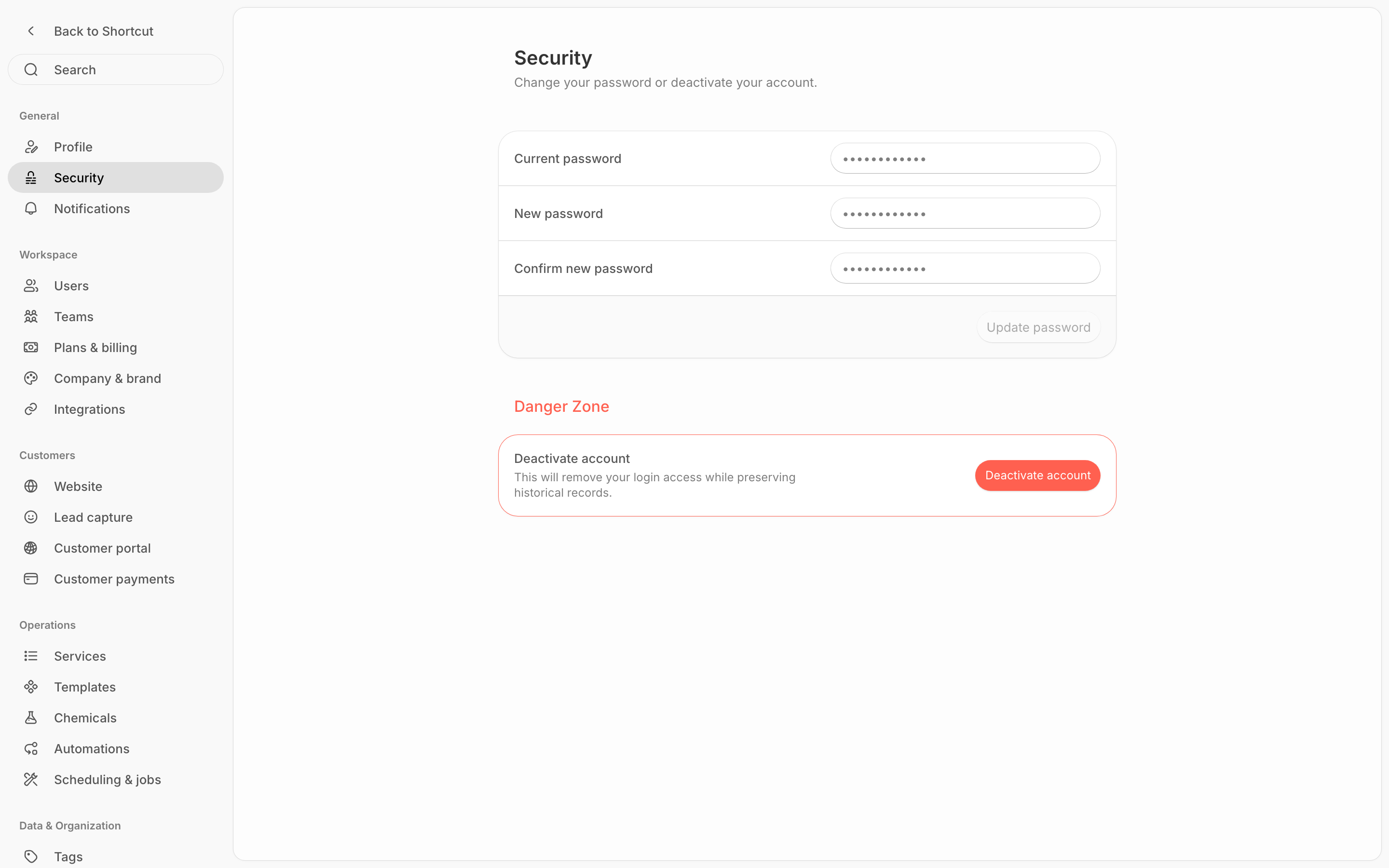
* Each alert has a **Push** switch (a notification on your phone, from the [mobile app](/readme/mobile-app.md)), plus an **Email** switch when that alert can be emailed. Crews get alerts like route changes and the morning brief. Admins get new leads, estimate answers, customer messages, payments, overdue invoices, and more. On a busy day, payments roll up into one running total that updates quietly instead of buzzing for each one; see [Mobile app](/readme/mobile-app.md#push-notifications).
* Changes save as soon as you flip a switch.
* Haven't signed in on the app yet? The page shows **Install Shortcut for push alerts** with **Google Play** and **App Store** links. Sign in on the app once and push starts working.
* Admins also set the **Company notification language** (English or Español). It's used for anyone who hasn't picked a language of their own under [Language](#language).

Text-message alerts for crew members are a per-person **SMS notifications** checkbox that an admin sets in [Settings → Users](/readme/configuration/workforce-users-+-roles-+-teams.md).

<figure><img src="https://2299783971-files.gitbook.io/~/files/v0/b/gitbook-x-prod.appspot.com/o/spaces%2FOhi7KtJ4vY1pDKwWu5SV%2Fuploads%2Fgit-blob-e1d4ff45acb8cd28ce94e4257ec8786ade0f7ce6%2Fsettings-notifications.png?alt=media" alt="Settings → Notifications: Install Shortcut for push alerts with Google Play and App Store links, the Company notification language set to English, and alerts such as Your route changed, New lead, New customer message and Payment received, each with a Push switch and, where the alert can be emailed, an Email switch"><figcaption><p>Notifications: a Push switch for every alert, and an Email switch where the alert can be emailed.</p></figcaption></figure>

## Language

Shortcut works in **English** and **Español**. Click your name at the bottom-left of the sidebar, point at **Language**, and pick one. The flag beside **Language** shows the one you're using.

Shortcut remembers your choice on every device you sign in on. It also sends your own notifications in that language.

## Log out

Click your name at the bottom-left of the sidebar, then click **Log out**.