> For the complete documentation index, see [llms.txt](https://docs.shortcutco.com/llms.txt). Markdown versions of documentation pages are available by appending `.md` to page URLs; this page is available as [Markdown](https://docs.shortcutco.com/readme/your-account.md).

# Your account

Everyone on your team manages their own login in **Settings → General**. Click your name at the bottom-left of the sidebar, then click **Settings**. Settings opens on your **Profile**. In the mobile app, open the menu (the button at the top left on iPhone) and tap **Settings**.

Crew members see **Profile**, **Security**, **Appearance**, **Notifications**, **Calendar** and **Clip**. Admins see the rest of Settings too; see [Settings](/readme/configuration.md).

## Sign in

Sign in at [shortcutco.com/login](https://shortcutco.com/login) with your **Email** and **Password**, then click **Sign in** (or press **Enter**). The sign-in pages follow your device's light or dark setting, or your choice under [Appearance](#appearance).

* **Forgot password?** sits under the password box. Enter your email on **Reset password** and click **Send reset link**. If the email has an account, a link to set a new password is on its way.
* **New to the team?** Your invite email opens **Set password**. Type a **New password** (at least 8 characters), type it again under **Confirm password**, and click **Set password**.
* **Need an account?** **Sign up** on the sign-in page opens a short form about your business. See [Start here](/readme/start-here-get-set-up-send-a-proposal-and-get-paid/1-set-up-shortcut-for-your-business.md#started-with-a-sample-week).
* **A customer looking for their portal?** **Open your customer portal** at the bottom of the page helps them find it.

<figure><img src="https://2299783971-files.gitbook.io/~/files/v0/b/gitbook-x-prod.appspot.com/o/spaces%2FOhi7KtJ4vY1pDKwWu5SV%2Fuploads%2Fgit-blob-605de6fe168a818327f9d63345023a3c71ad6e88%2Flogin-page.png?alt=media" alt="The Log in page: the Shortcut logo, Sign in with your email and password, the Email and Password boxes, Forgot password? under the password, the green Sign in button, and Open your customer portal and Sign up at the bottom"><figcaption><p>The Log in page.</p></figcaption></figure>

<figure><img src="https://2299783971-files.gitbook.io/~/files/v0/b/gitbook-x-prod.appspot.com/o/spaces%2FOhi7KtJ4vY1pDKwWu5SV%2Fuploads%2Fgit-blob-25c2a542b99d5bd3447f7b9310fe81e3f5d609bd%2Flogin-page-dark.png?alt=media" alt="The same Log in page in dark mode: light text on a near-black page, dark Email and Password boxes, and the green Sign in button"><figcaption><p>On a device set to dark mode, the sign-in pages are dark too.</p></figcaption></figure>

## Profile

Your **First name**, **Last name**, and **Email address**. Changing your email asks for your **Current password** first. Click **Save profile**. [Open Profile →](https://shortcutco.com/settings/profile)

Admins also see **Your Dashboard**: pick what your [Dashboard](/readme/dashboard.md#pick-what-your-dashboard-leads-with) leads with. **Owner** shows money and big calls, **Office** shows leads and invoices, and **Dispatch** shows teams and visits. Pick two if you do both. It saves as soon as you click, and at least one stays on. Until you pick, it follows the **Can do** set you were given.

## Security

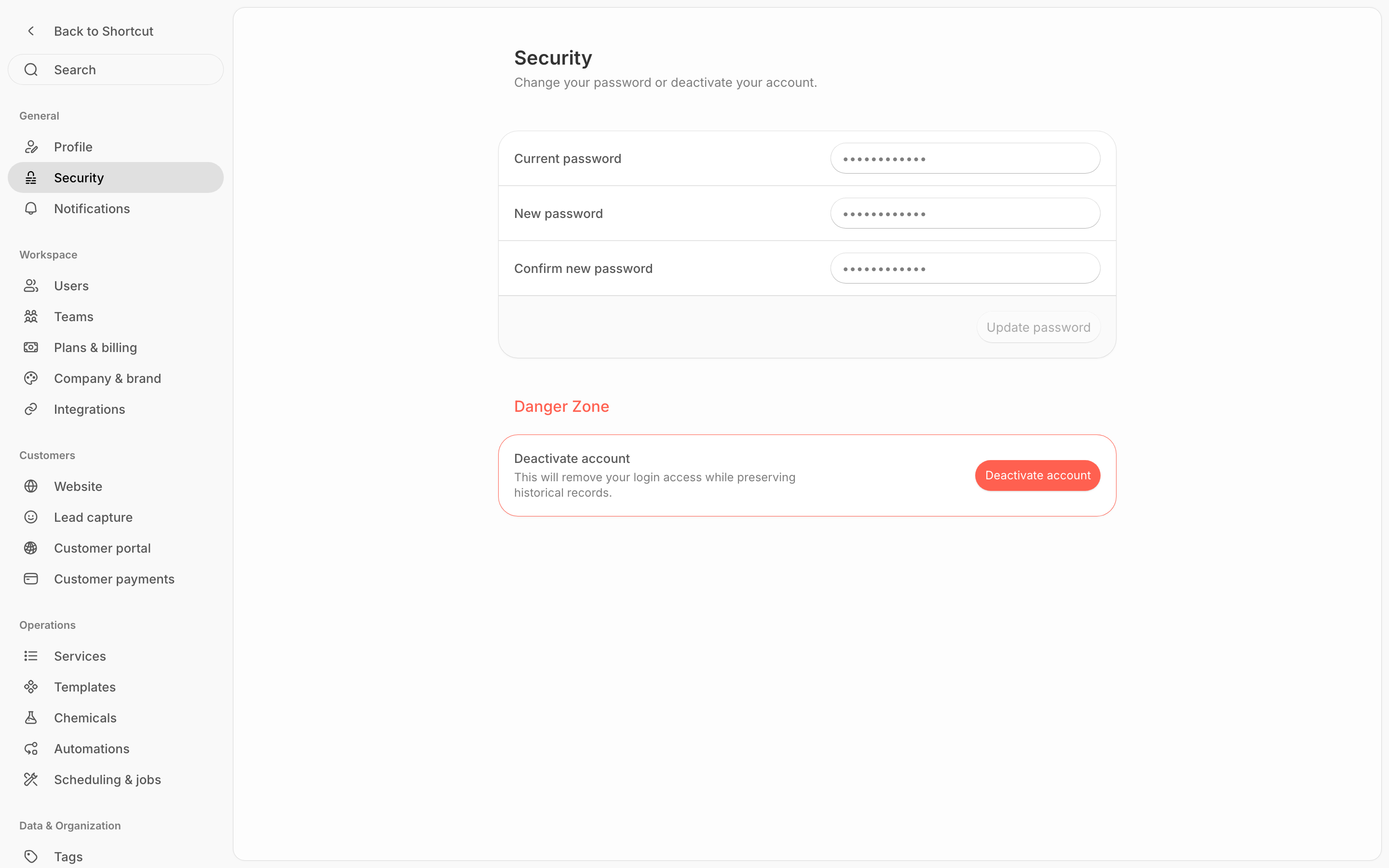
Change your password with **Current password**, **New password** (at least 8 characters) and **Confirm new password**, then click **Update password**.

Typed the wrong password five times in 15 minutes? Sign-in pauses for that email and the page shows *"Too many sign-in attempts. Try again in 30 seconds."* Wait out the countdown, or use **Forgot password?** on the sign-in page. See [Troubleshooting](/readme/troubleshooting/troubleshooting-hub-top-issues.md).

<figure><img src="https://2299783971-files.gitbook.io/~/files/v0/b/gitbook-x-prod.appspot.com/o/spaces%2FOhi7KtJ4vY1pDKwWu5SV%2Fuploads%2Fgit-blob-a1e65a2eefa5a0718c4378bd8cffce18c4308cea%2Fsettings-security.png?alt=media" alt="Settings → Security: Current password, New password and Confirm new password with Update password, and the Danger Zone card with Deactivate account"><figcaption><p>Security: change your password, or deactivate your own account under Danger Zone.</p></figcaption></figure>

### Deactivate account

Under **Danger Zone**, **Deactivate account** removes your login and keeps your history. Shortcut asks you to confirm with your current password, then signs you out.

If you're the only active admin, Shortcut won't let you do it. Make someone else an admin in [Settings → Users](/readme/configuration/workforce-users-+-roles-+-teams.md) first. To shut Shortcut down for the whole company, use **Close company account** on **Plans & billing** instead.

## Appearance

Choose how Shortcut looks on the device you're using. Changes apply the moment you pick them; there's nothing to save.

* **Theme**: **System** (follows your device's light or dark setting), **Light** or **Dark**.
* **Contrast**: **System**, **Default** or **Increased**. **Increased** gives stronger text, lines and focus rings, in either theme.

Your choice applies to this device only, so your phone and your office computer can differ. The whole office app and the crew app follow it, Dispatch map and sign-in pages included. What your customers see (the customer portal, estimates and your website) always stays light. [Open Appearance →](https://shortcutco.com/settings/appearance)

<figure><img src="https://2299783971-files.gitbook.io/~/files/v0/b/gitbook-x-prod.appspot.com/o/spaces%2FOhi7KtJ4vY1pDKwWu5SV%2Fuploads%2Fgit-blob-09ade50d89a8f4e8790a4f7b27e8c6a7d19cd137%2Fsettings-appearance-dark.png?alt=media" alt="Settings → Appearance in dark mode: Theme tiles for System, Light and Dark with Dark selected, and the Contrast control with System, Default and Increased"><figcaption><p>Appearance: light or dark, and how strong the contrast is, on this device.</p></figcaption></figure>

## Notifications

Choose which alerts reach you and how:

* Each alert has a **Push** switch (a notification on your phone, from the [mobile app](/readme/mobile-app.md)), plus an **Email** switch when that alert can be emailed. Team members get **Your route changed** and **Automation updates** (plus **Project updates** if your company uses Projects). Admins also get **New customer message**, **New lead**, **Team add-on needs approval**, **Payment received**, **Pay in full part paid**, **Snow acceptances to dispatch**, **App waiting for approval** and **Webhook turned off**. On a busy day, payments roll up into one running total that updates quietly instead of buzzing for each one. What each alert means is in [Mobile app](/readme/mobile-app.md#push-notifications).
* Admins also see **Clip speaks up** and **Clip morning briefing**. These only send something when Clip works as your teammate (see [Clip](/readme/clip.md#clip-as-your-teammate)).
* Changes save as soon as you flip a switch.
* Haven't signed in on the app yet? The page shows **Install Shortcut for push alerts** with **Google Play** and **App Store** links. Sign in on the app once and push starts working.
* Admins also set the **Company language** (English or Español). Notifications use it for anyone who hasn't picked a language of their own under [Language](#language). Crew members who haven't picked one also start the app in it.

Text-message alerts for crew members are a per-person **SMS notifications** checkbox that an admin sets in [Settings → Users](/readme/configuration/workforce-users-+-roles-+-teams.md).

<figure><img src="https://2299783971-files.gitbook.io/~/files/v0/b/gitbook-x-prod.appspot.com/o/spaces%2FOhi7KtJ4vY1pDKwWu5SV%2Fuploads%2Fgit-blob-f5deea42d192ce4237302fcbae084cf7bd4aa36d%2Fsettings-notifications.png?alt=media" alt="Settings → Notifications: Install Shortcut for push alerts with Google Play and App Store links, the Company language set to English, and alerts such as Your route changed, New lead, New customer message and Payment received, each with a Push switch and, where the alert can be emailed, an Email switch"><figcaption><p>Notifications: a Push switch for every alert, and an Email switch where the alert can be emailed.</p></figcaption></figure>

## Calendar

Add your Shortcut schedule to Google Calendar, Apple Calendar or Outlook. Open **Settings → General → Calendar**, click **Add to…** on **My schedule**, and pick your calendar app. Each of your stops shows up as an all-day event, in route order. Admins can add each team's calendar too. See [Calendar subscriptions](/readme/configuration/calendar-subscriptions.md).

## Clip

**Settings → General → Clip** shows what Clip does for you today. Admins with **Admin settings** find it under **Settings → Workspace → Clip** instead. See [Clip](/readme/clip.md).

## Get the phone app

Click your name at the bottom-left of the sidebar. **Get the phone app** at the bottom of the menu opens a page with a code to scan with your phone, plus App Store and Google Play links. On a phone it goes straight to the right store. See [Mobile app](/readme/mobile-app.md).

At first it's a larger section with a picture of a phone. Click its **×** to shrink it to a single line.

## Language

Shortcut works in **English** and **Español**. Click your name at the bottom-left of the sidebar, point at **Language**, and pick one. The flag beside **Language** shows the one you're using.

Shortcut remembers your choice on every device you sign in on. It also sends your own notifications in that language.

If you haven't picked a language yet, Shortcut starts in **Español** the first time you sign in on a device that's set to Spanish. Crew members also start in Español when the **Company language** is Español. A message says **Switched to Español**, with a **Use English** button if you'd rather not. A language you pick yourself always wins.

## Log out

Click your name at the bottom-left of the sidebar, then click **Log out**.